Blog

In this article, we will look at how to change the language in Windows 11. It’s easy and can be done in just a couple of minutes.

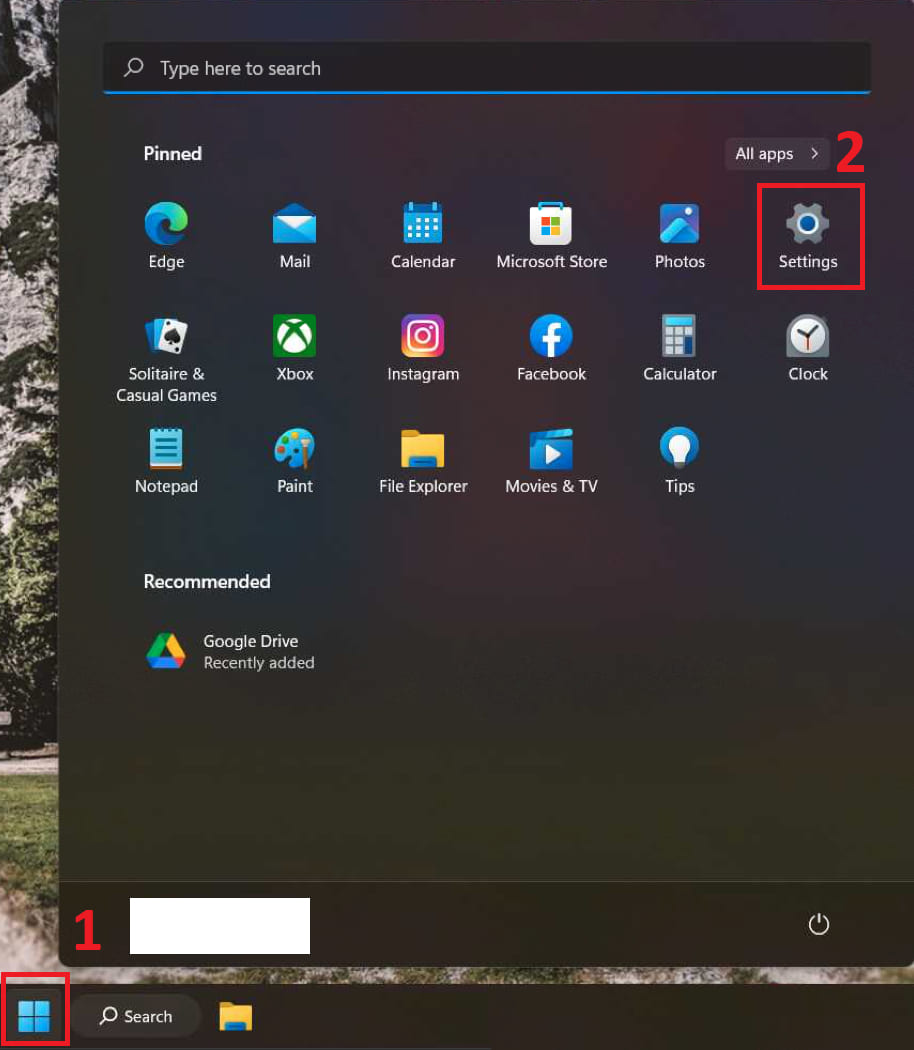
– Open “Start” menu => Settings
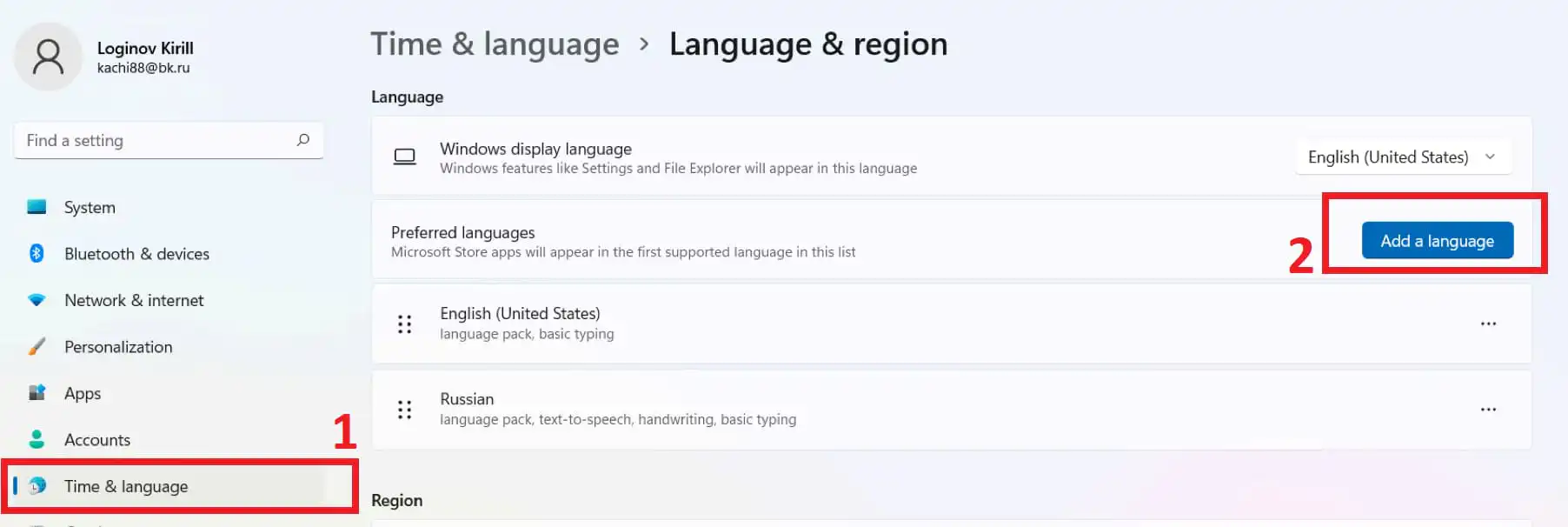
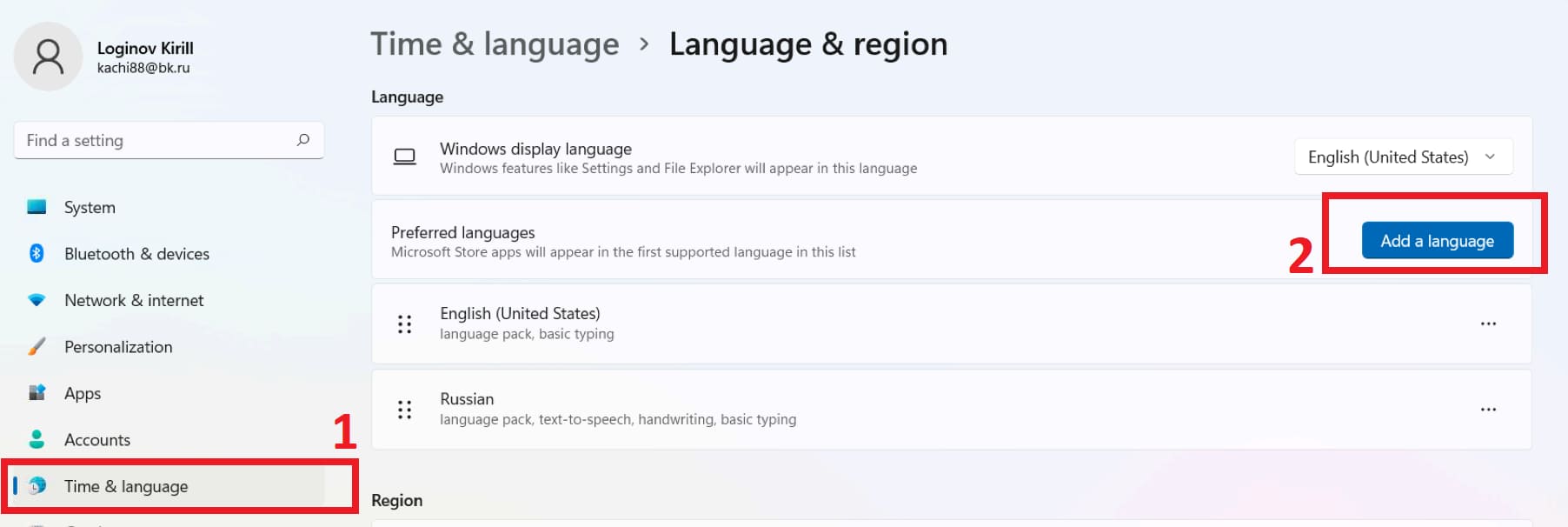
– In the “Time and language” tab, click on “Language and region” => Preffered languages => Add language
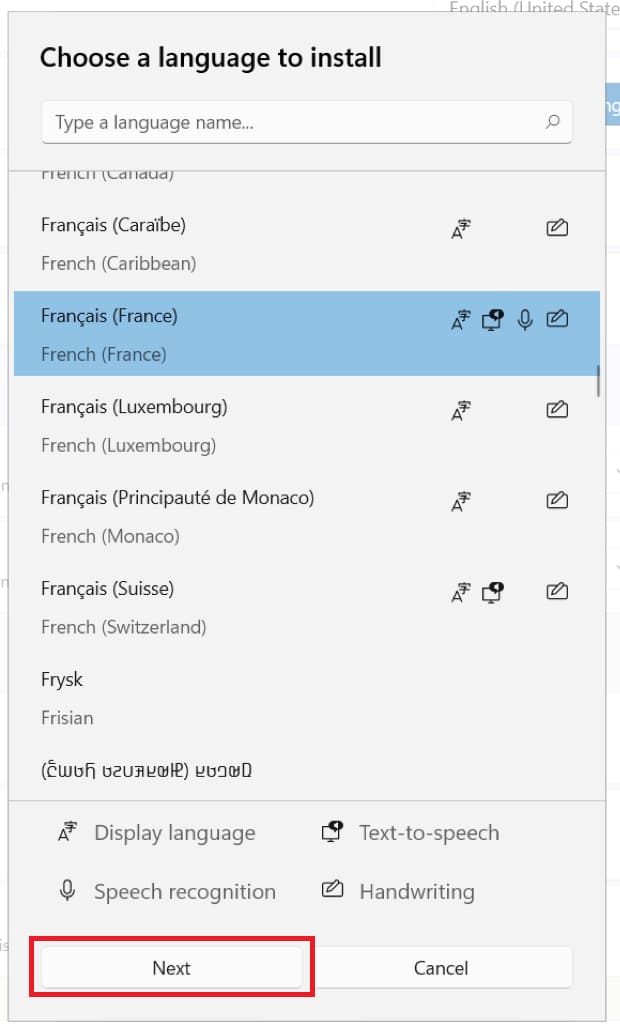
– Select the language you need and then click “Next”.
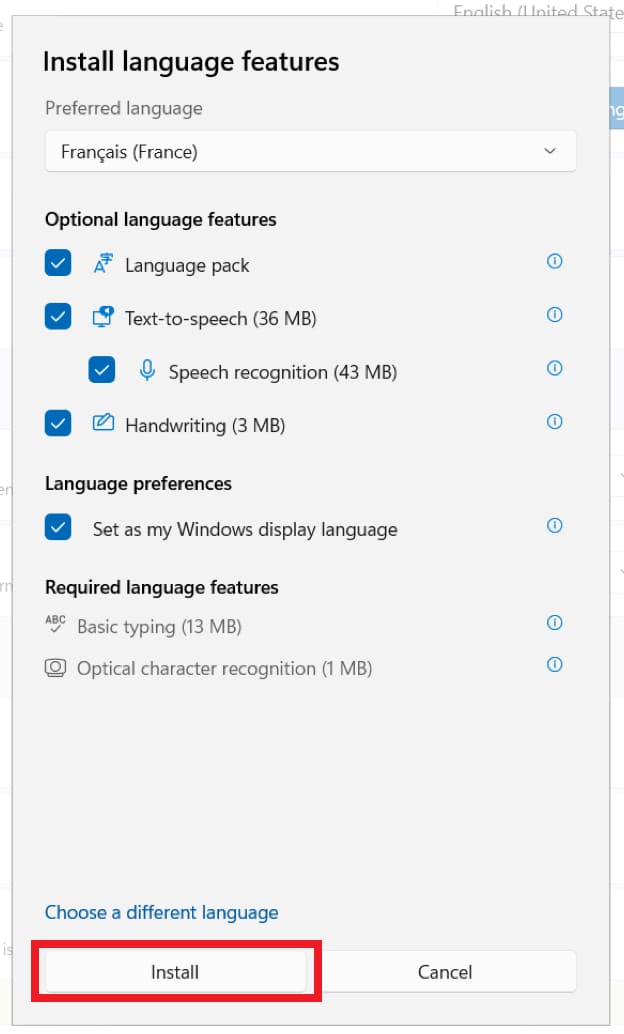
– Mark all the items with checkboxes and click “Install”
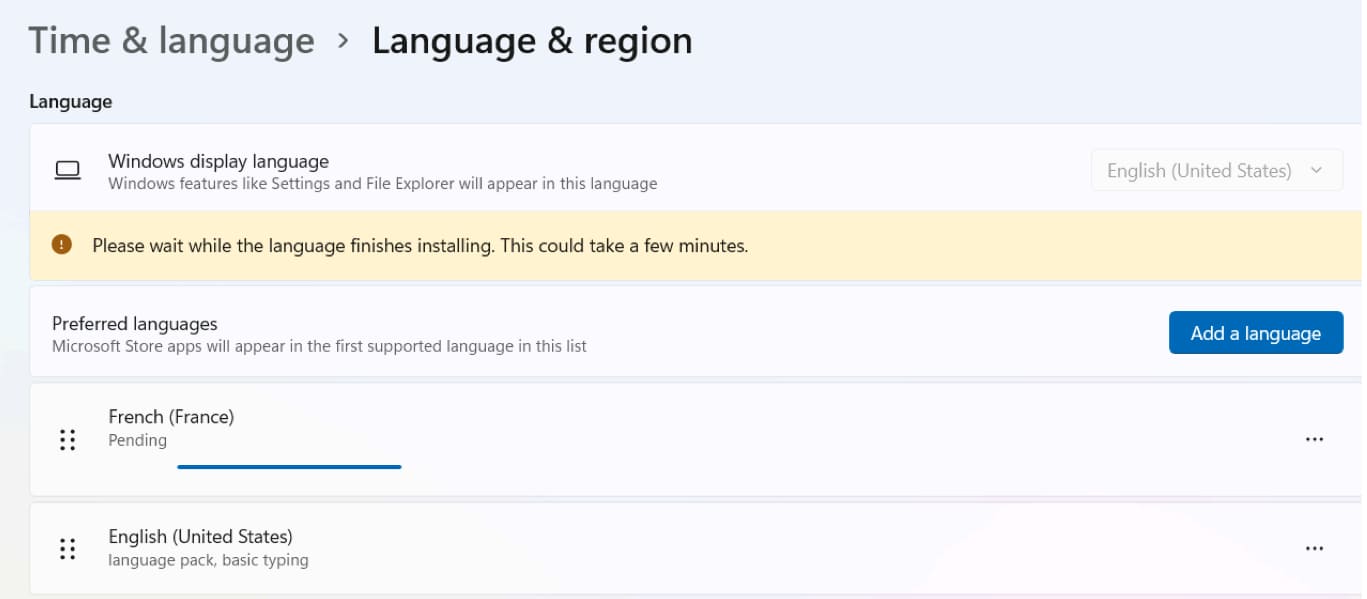
– Now wait for the language to be installed.
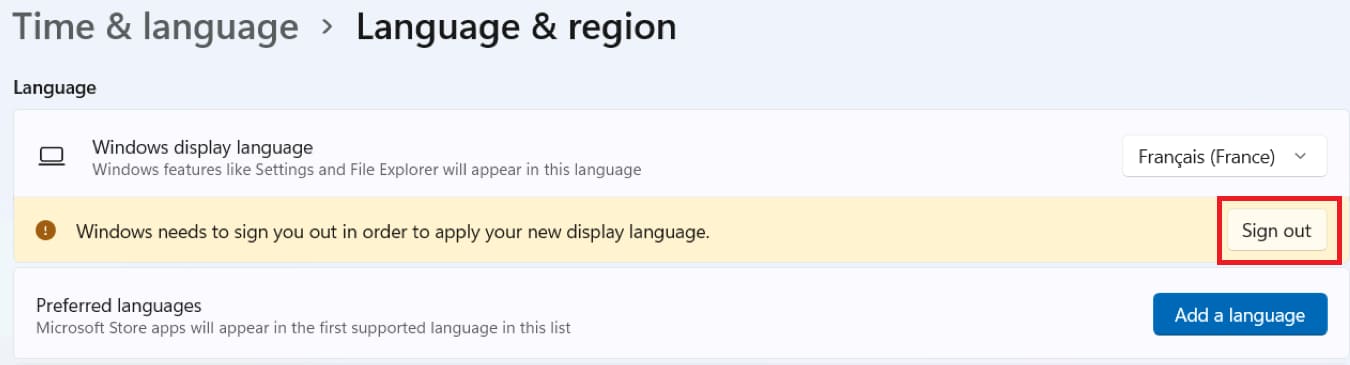
– To apply the language change, you need to log out and log in again. Click “Sign Out”
– After re-logging in, the new language will be activated.

Windows 11 license from
$11.70 ·
Picking your discount
Promo code ·
Promo code expired. A new one in .
Buy valid for

"Personal discount from 5% to 12%" — promotion rules

  1. Organizer — SoftComputers LLP, website softcomputers.net. The promotion runs indefinitely; the organizer may end it at any time by removing the block from the website.
  2. Participation is free. To take part, enter your email and agree to the processing of personal data and to receive emails.
  3. Each participant receives a promo code for a 5% to 12% discount on any product in the catalog. The amount is chosen at random.
  4. The promo code is single-use, tied to the email you entered, valid for 7 days and applied in the cart at checkout. No minimum order amount. Cannot be combined with other promo codes.
  5. One participant (email / device) can receive one promo code per 7 days; a new code is issued after the previous one expires.
  6. The promo code cannot be exchanged for money. The organizer may void a code in case of abuse.
Subscribe
Notify of
guest
0 comments
Newest
Oldest