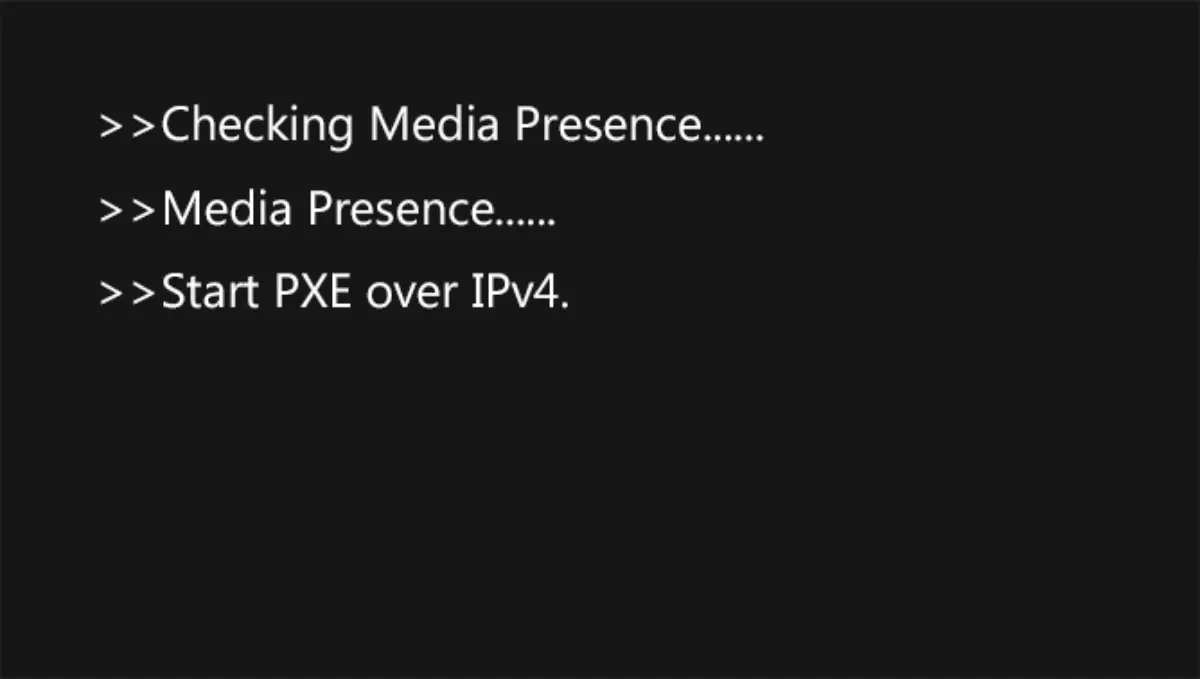
Some users encounter the Checking Media Presence message on a black screen when starting their computer or laptop. This may be followed by messages like No media present or Media present start PXE over IPv4.
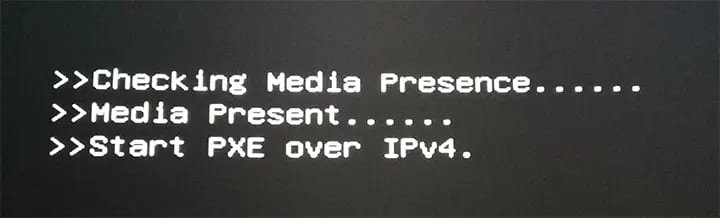
This guide explains the causes of this error during the boot process of Windows 11, Windows 10, and other operating systems, along with solutions to resolve it.
Causes of the Error and Solutions
The Checking Media Presence message at boot is typically caused by the following:
– Incorrect boot priority settings in BIOS/UEFI.
– Enabled network boot (Network Boot).
– Corrupted operating system bootloader, disconnected drive with the bootloader, or damaged file system.
Based on these causes, here are the main solutions.
1) Disabling Network Boot
1. Enter the BIOS/UEFI on your computer. Press the keys indicated on the screen during startup (e.g., Del, F2, or Esc, depending on the device model).
2. Locate the network boot option (PXE, Network Boot, Ethernet, or LAN) in the Boot tab and disable it. If the Wake on LAN option is available, disable it in the relevant section.
3. Save changes (usually with F10) and restart the computer.
2) Configuring Boot Priority
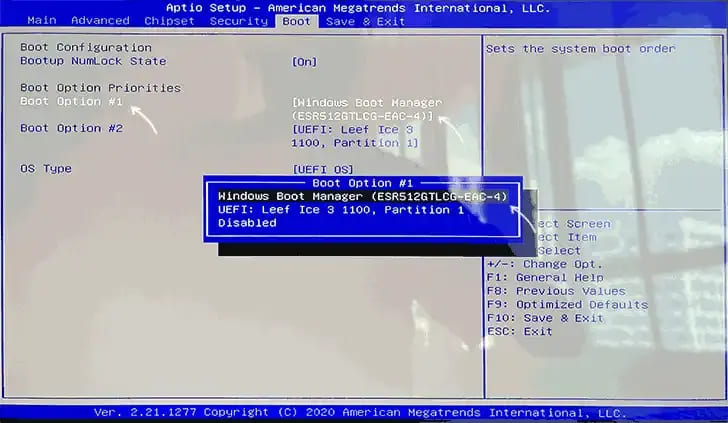
1. In BIOS/UEFI, ensure the correct device is set as the first boot option (Boot Option 1).
– For UEFI systems, select Windows Boot Manager, not the physical disk.
– For Legacy systems, select the disk where the OS is installed.
2. Save settings and restart the computer.
3) Fixing Bootloader Issues
If the issue persists, it may be due to bootloader problems. Possible actions:
1. If the error appeared after replacing or disconnecting a disk, ensure the bootloader was not on that disk. You may need to transfer the bootloader to the current disk.
2. If the issue occurred after resetting BIOS settings, try:
– Switching between Legacy and UEFI boot modes.
– Disabling the Secure Boot option.
3. If the bootloader is corrupted, proceed to repair it.
4) Checking the File System
If the error is caused by a corrupted file system, perform a disk check:
1. Create a Windows bootable USB.
2. Boot from the USB (learn how to boot from a USB in our other article), and select Repair your computer at the bottom left of the second screen.
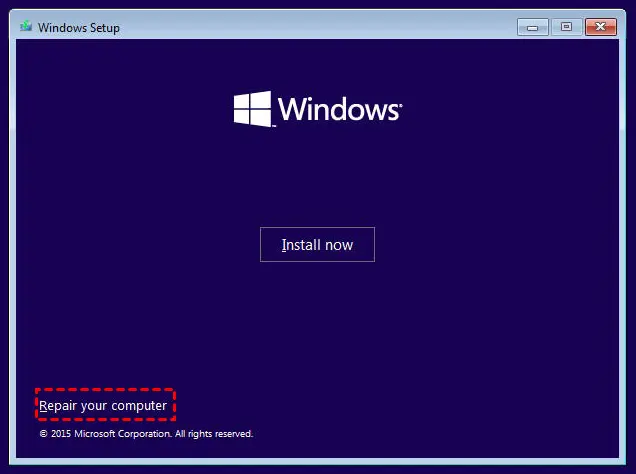
3. In the command prompt, run:
chkdsk C: /f /r
This command checks and repairs errors on the system disk partition.
Resolving the Checking Media Presence error typically involves configuring BIOS/UEFI and repairing boot files. Follow these solutions to restore proper computer functionality.