
Microsoft Outlook users sometimes encounter a situation where the application consistently starts in offline mode. A red cross appears on the Outlook icon in the system tray with the message: “Microsoft Outlook is currently in offline mode.”
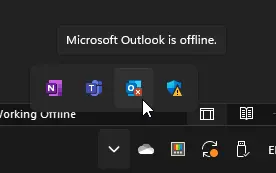
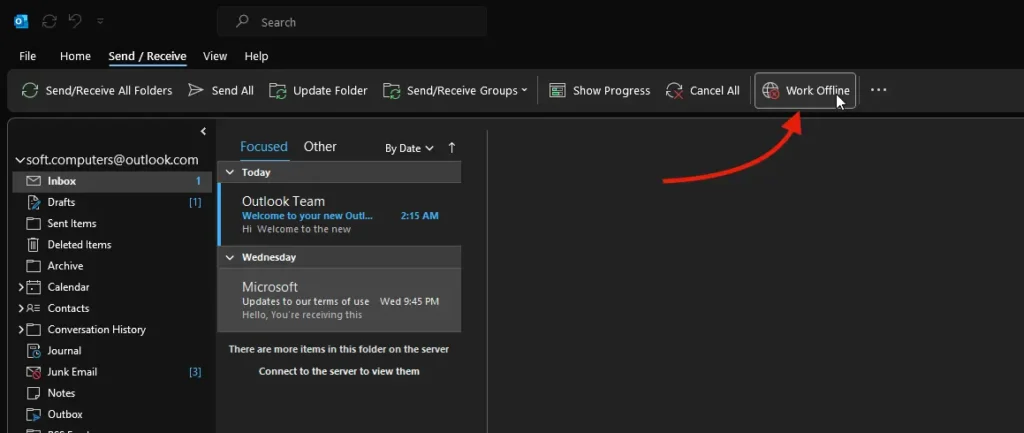
In this mode, emails are neither sent nor received, which can be highly frustrating for users. To disable offline mode, you must manually turn it off in Outlook via the “Send/Receive -> Work Offline” tab. However, after restarting Outlook, offline mode is reactivated. If the “Work Offline” button is missing, it indicates that Exchange caching mode is disabled in Outlook.
Causes of the Issue
– The issue affects only some users of Outlook 2016 and 2013.
– Users’ mailboxes are hosted on an Exchange server.
– There are no issues with Exchange server availability or errors in Exchange logs.
Outlook may automatically switch to offline mode after 10 failed connection attempts due to a network or Exchange server disruption. Therefore, the first step is to verify network functionality, including switches, routers, and firewall rules.
Diagnosing the Issue
– Mailbox accessibility via OWA web interface: The mailbox is accessible.
– For Exchange 2010, verify CAS server availability on TCP port 135 using the command:
Test-NetConnection msg-cas -port 135
– For Exchange 2013/2016, the primary client connection protocol to CAS is HTTPS (MAPI over HTTP). Verify accessibility on port 443.
– Launch Outlook in Safe Mode (command outlook.exe /safe) and disable all add-ins: The issue persists.
– Deleting and recreating the Outlook profile, reinstalling, or repairing Outlook: No resolution.
Unexpected Solution to the Issue
The issue was found to be related to the installed Skype for Business (Lync) messenger. When both Lync and Outlook are running simultaneously, changes to offline mode settings are not saved after closing Outlook. Lync prevents the saving of offline mode settings by maintaining a persistent connection to Exchange.
How to Disable Offline Mode in Outlook
– Close Skype for Business (Lync). Ensure no Lync processes remain in Task Manager.
– Disable offline mode in Outlook via the “Send/Receive -> Work Offline” tab.
– After this, you can relaunch Skype for Business.
– On the next Outlook startup, it will operate in normal online mode.
Persistent switching to offline mode in Outlook can significantly reduce productivity. The most common cause is a conflict with messengers like Skype for Business. By following the steps provided, you can effectively resolve this issue and ensure stable online operation of Outlook.