In Windows 10, there is a built-in capability to deploy virtual applications (virtual machines) without third-party software—this is Hyper-V. In this article, we will explore how to set up such a virtual machine, configure it, and install Windows 10 Pro on it for testing.
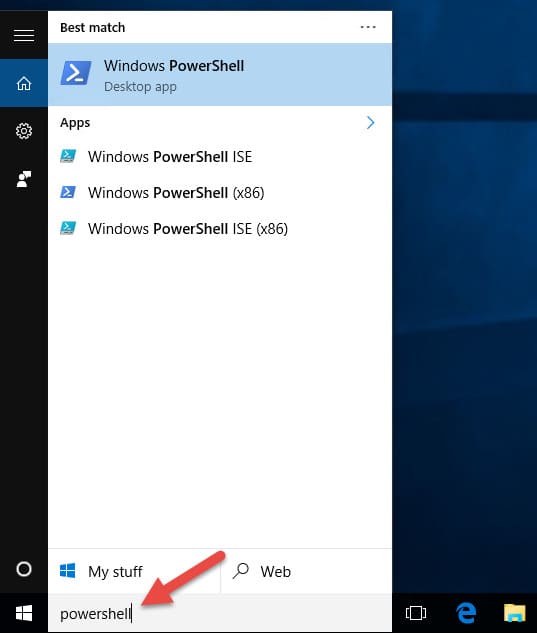
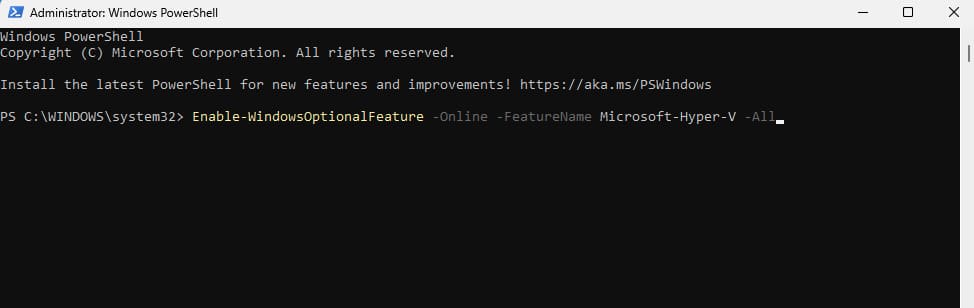
The first step is to enable Hyper-V in the operating system. The easiest way is to run PowerShell as an administrator and enter the following command:
Enable-WindowsOptionalFeature -Online -FeatureName Microsoft-Hyper-V -All
If the command cannot be found, make sure you are using PowerShell as an administrator.
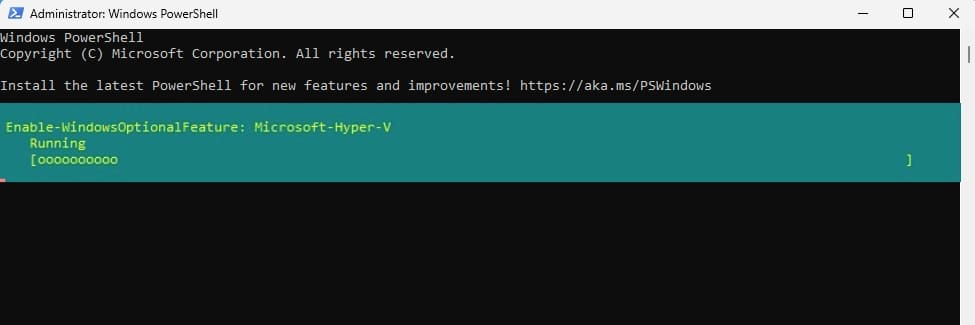
After completing the procedure, you must restart your PC.
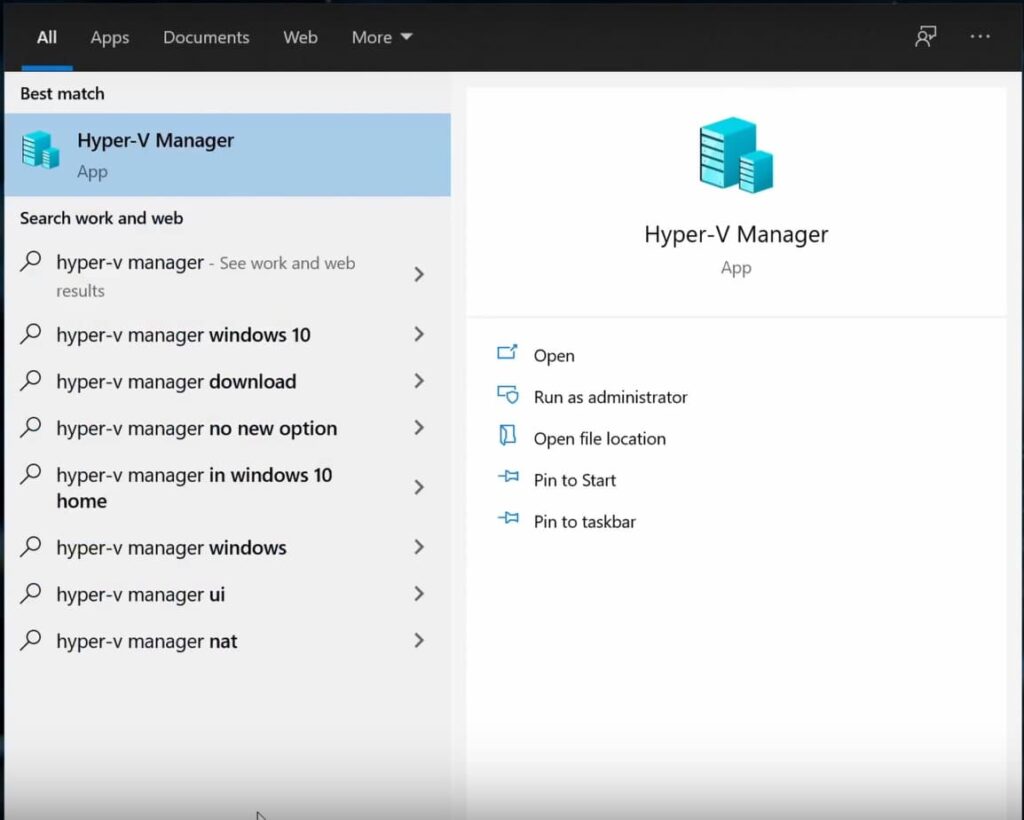
Next, after the reboot, we can access the Hyper-V Manager. For quick access, you can search for it through the taskbar search.
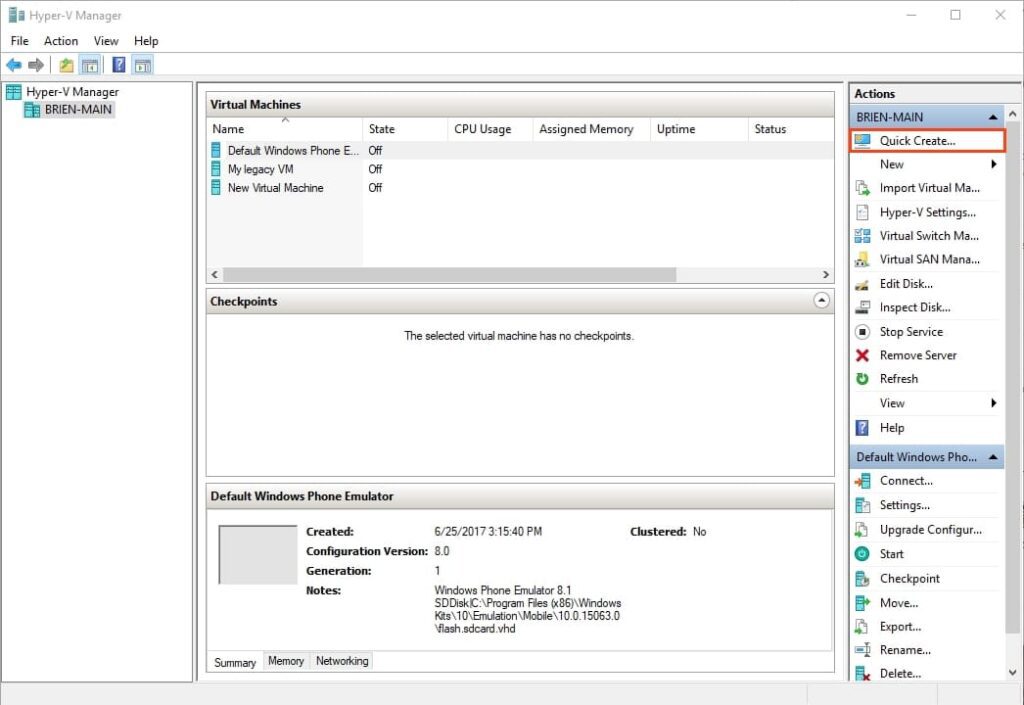
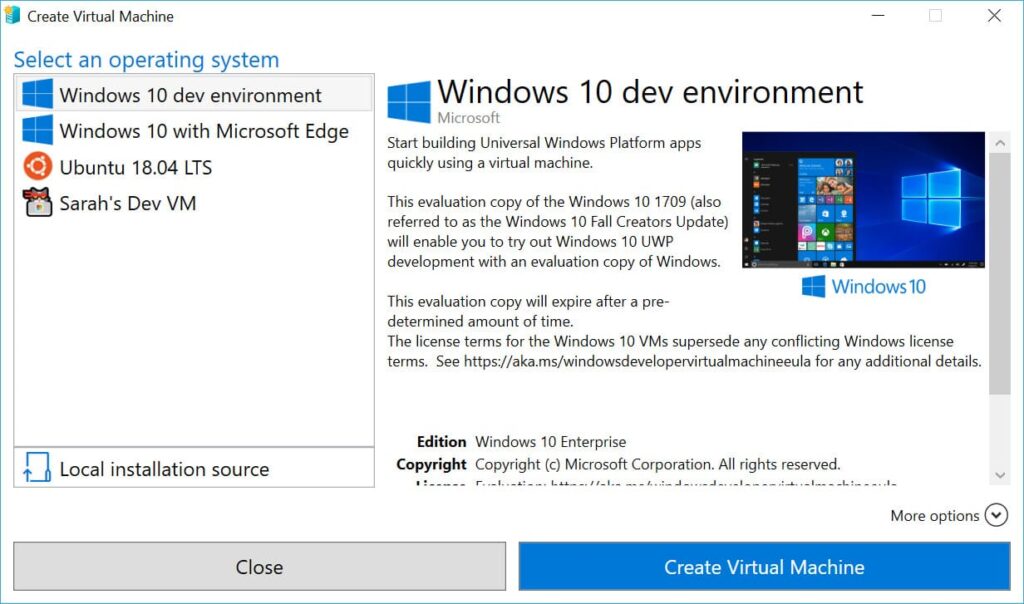
Here we see the Hyper-V menu. On the right, there is a “Quick Create” menu where you can quickly install a couple of versions of Ubuntu or a test version of Windows 10.
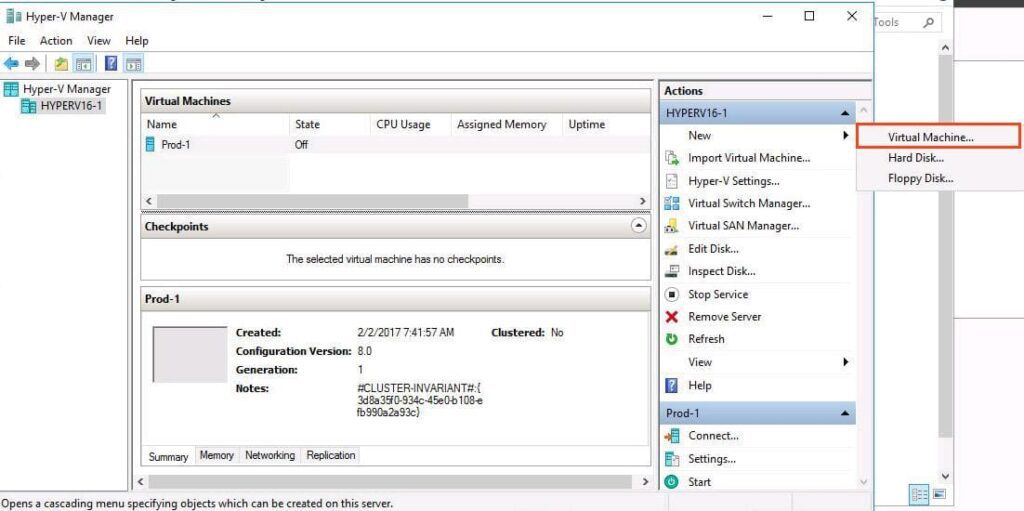
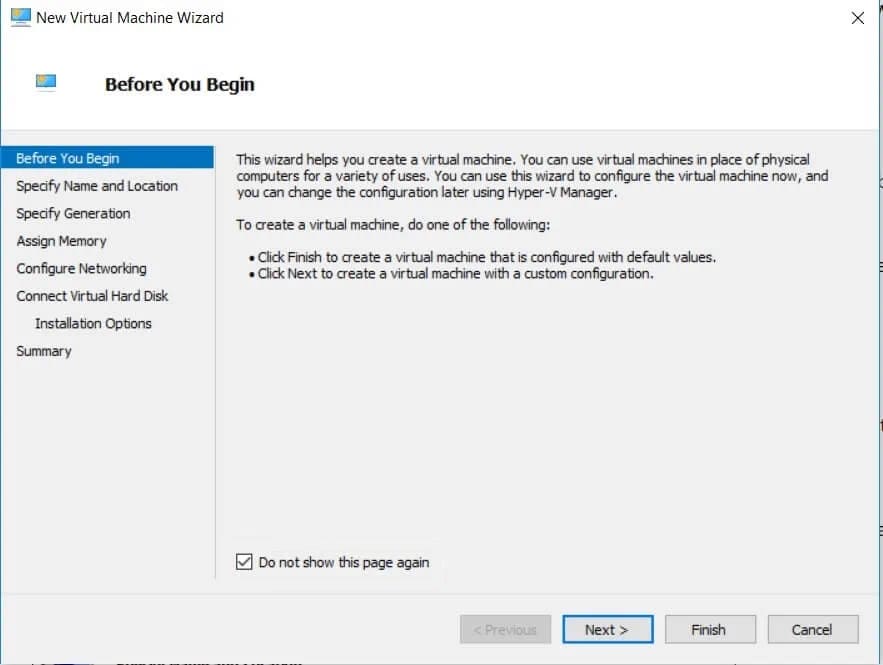
If you want to install a full version of Windows, you need to download the Windows 10 installer. In the main Hyper-V menu, select “Create” => Virtual Machine.
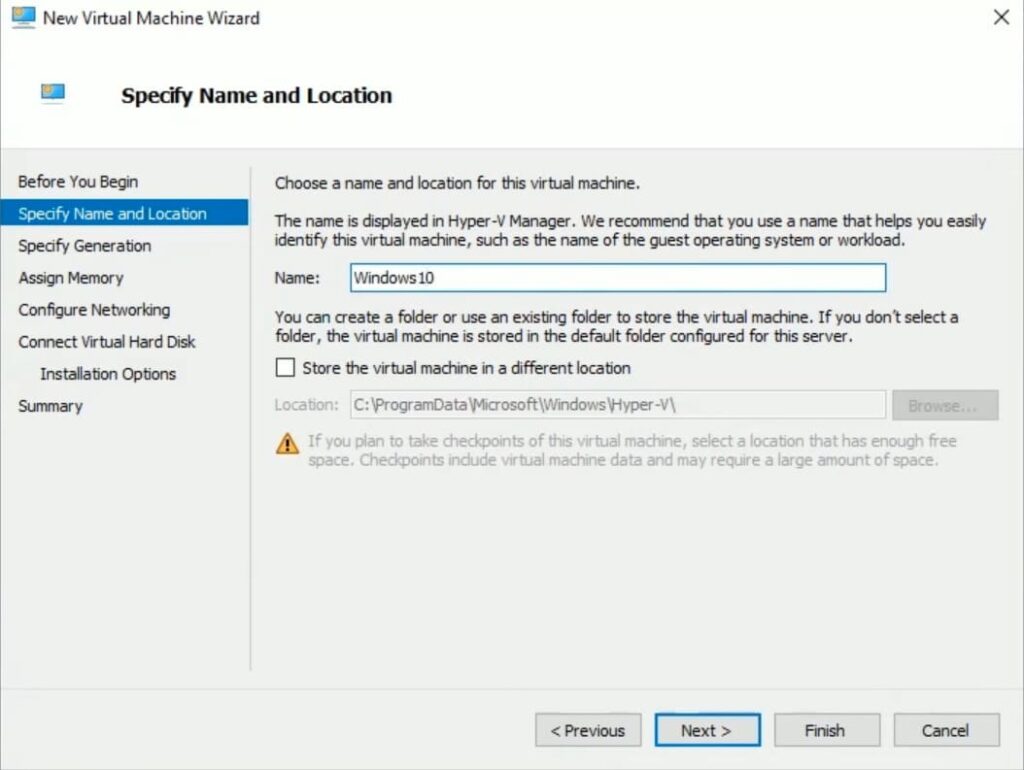
Choose a name for your virtual OS, and you can also choose your location where the virtual machine image will be stored.
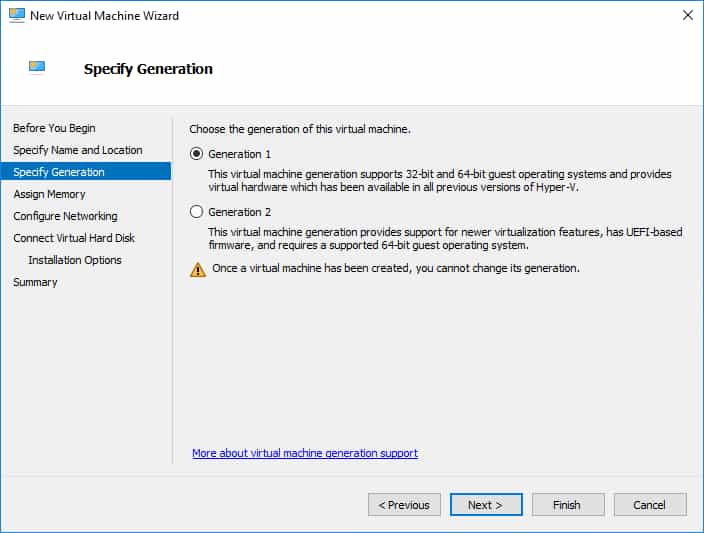
Depending on your preferences, you can choose the first or second option. In this example, we choose the first option as we find it more stable.
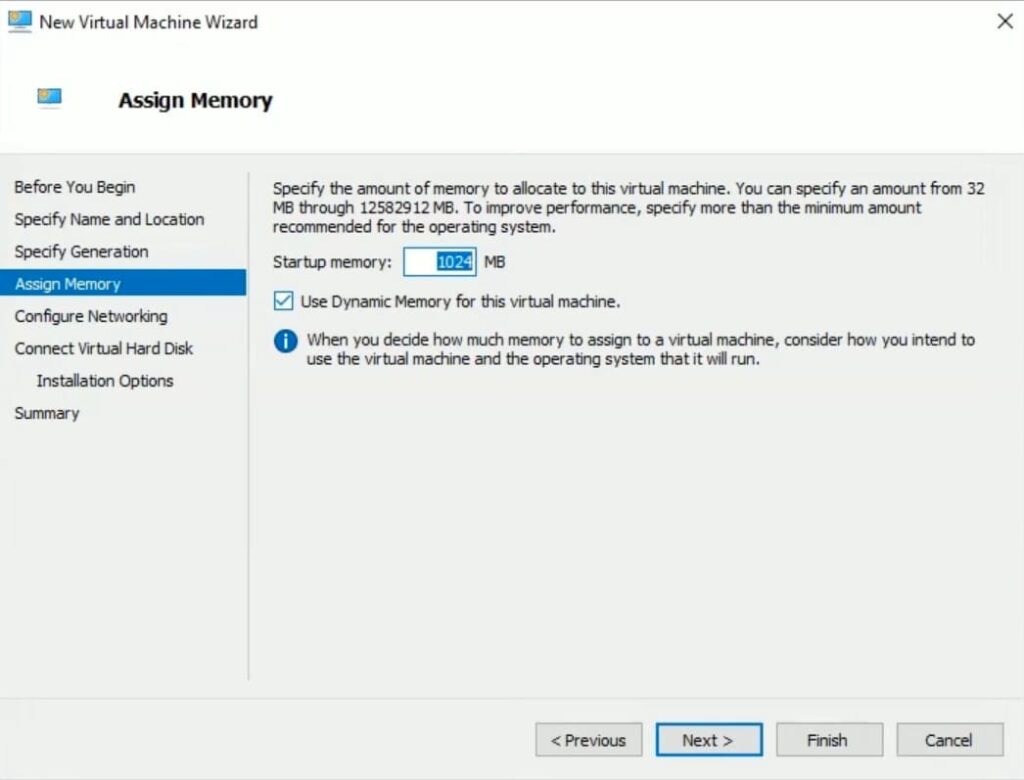
Set the amount of RAM allocated to the virtual operating system. For faster installation select 6 GB but in our example it is 1Gb.
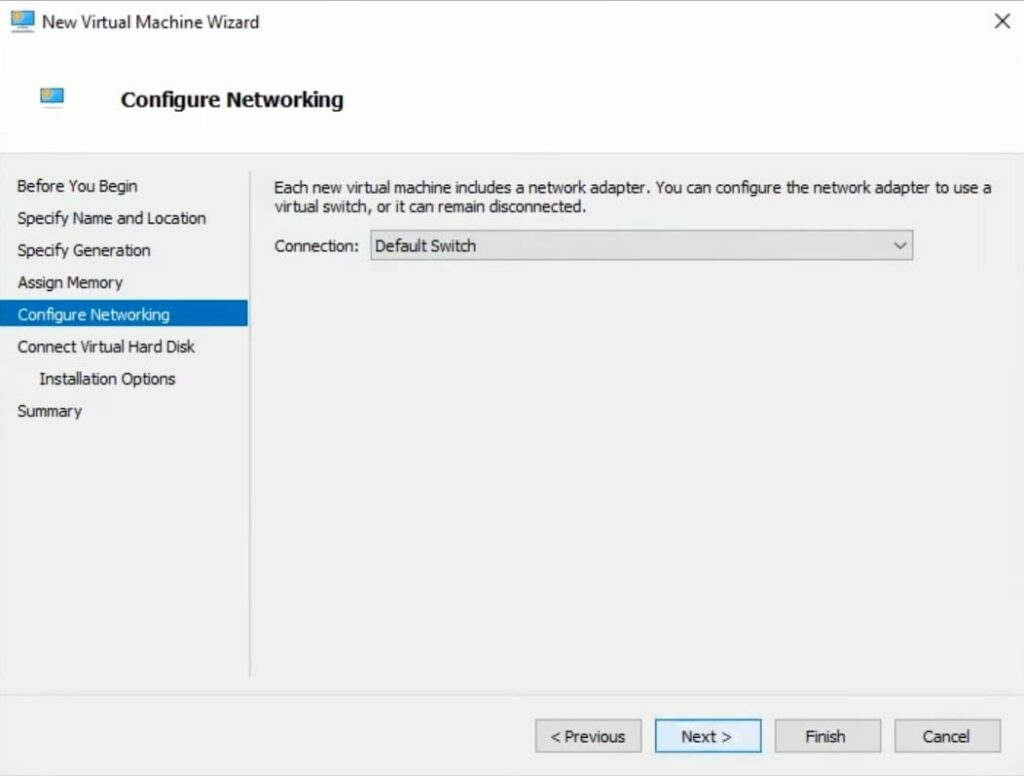
Connect the network card to ensure internet access on your virtual OS.
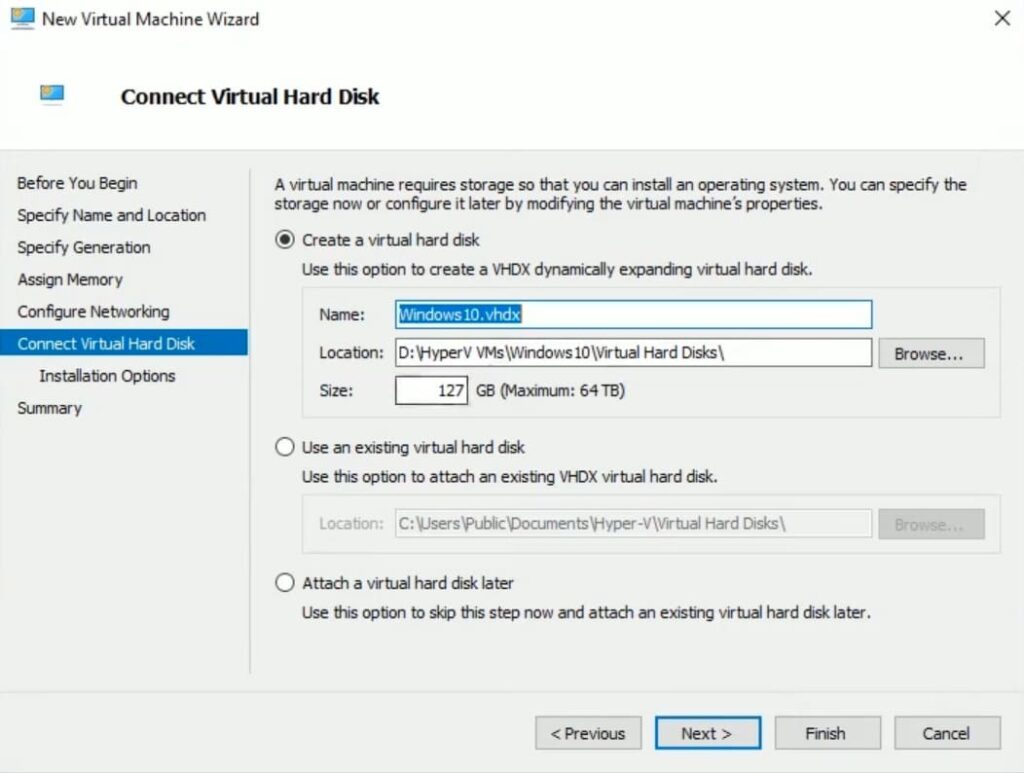
Here, set up the virtual hard disk, leaving the defaults, and set the disk size based on your needs. We recommend a minimum of 60 GB.
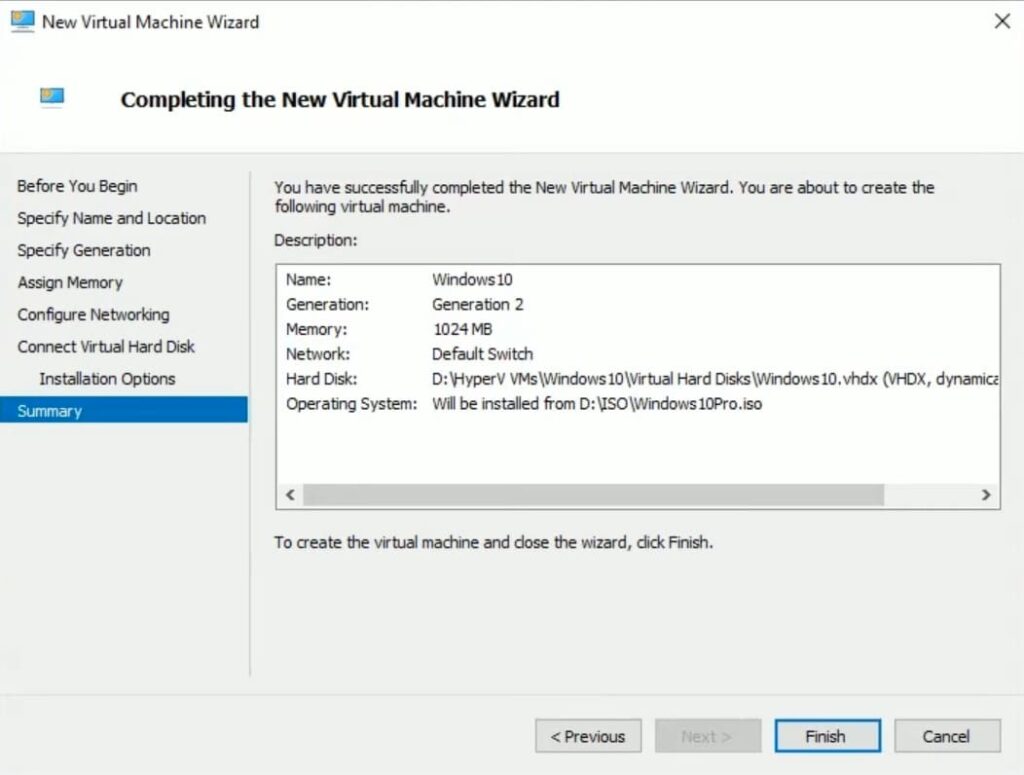
To install the OS, you need the installer. Download the required operating system installer in advance and select it through the “Browse” settings.
At the end, we see a summary of our virtual machine.
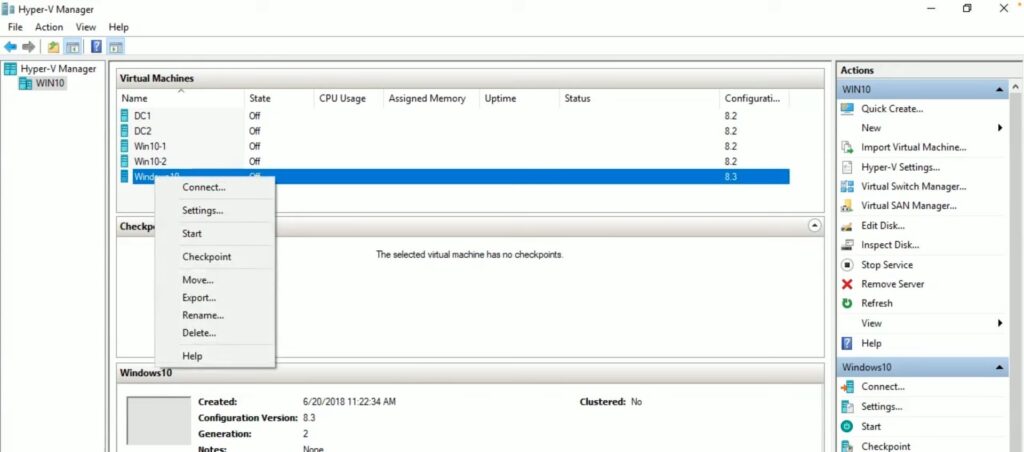
Start your virtual machine by double-clicking the cursor.
The installation process is generally the same as a regular Windows installation.
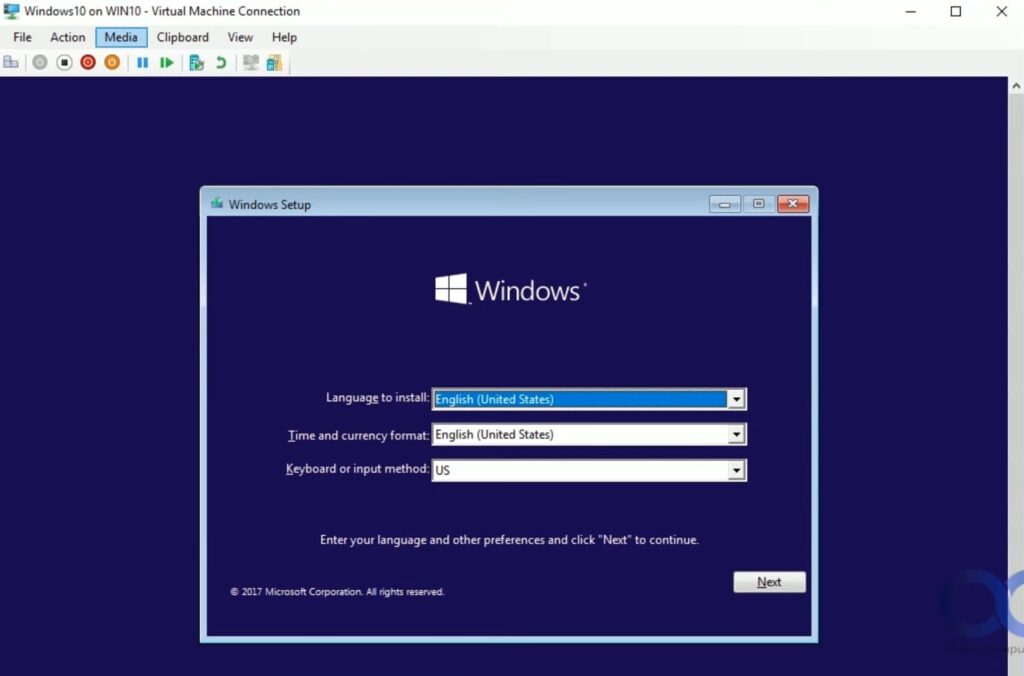
We will not show the entire installation process as it is no different from a standard Windows installation. This simple method allows you to install a virtual Windows 10 operating system, completely isolated from your main OS, where you can test various applications without fearing damage to your main OS.
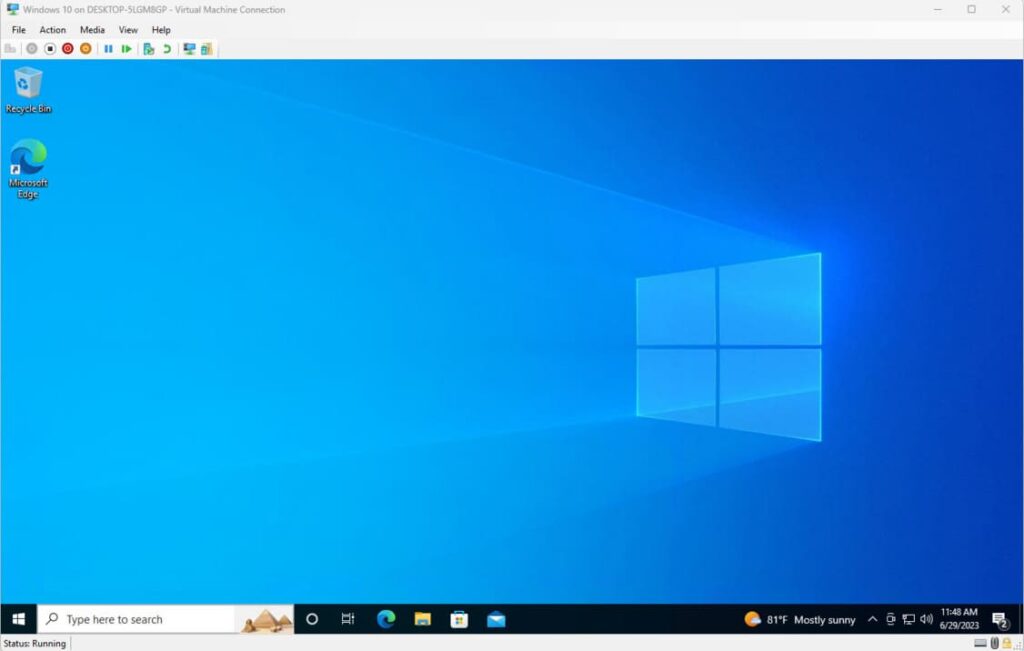
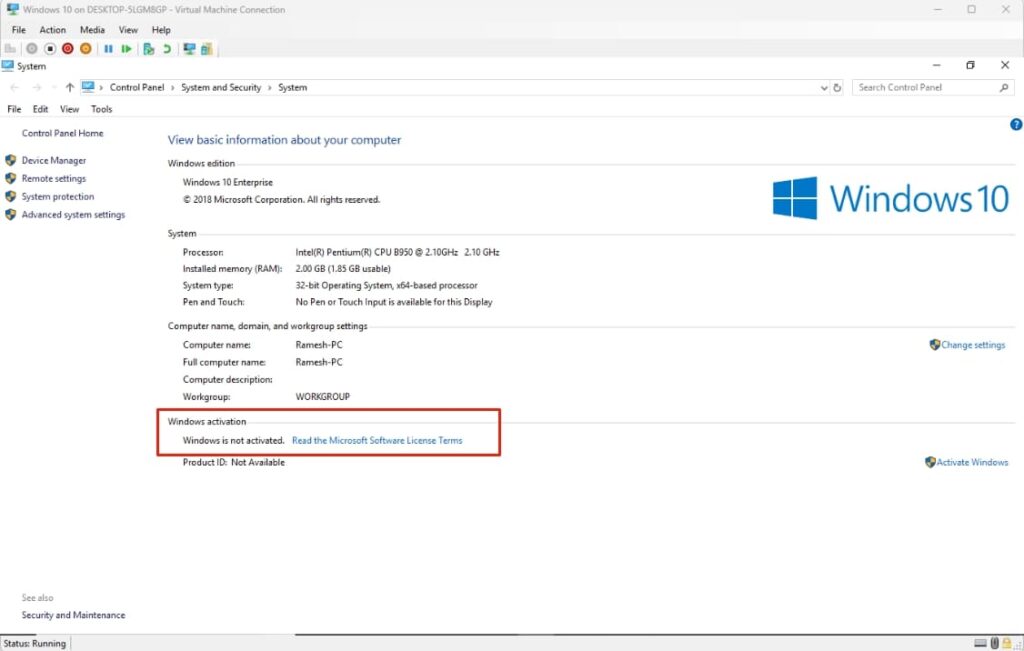
If you plan to use the virtual Windows 10 for an extended period, we recommend activating it for proper operation. You can purchase original product keys in our online store at the lowest prices. Keys are delivered instantly and automatically after payment to your email.
If you have any questions, you can contact our 24/7 technical support via chat on the website in the bottom right corner, or by email at admin@softcomputers.org.