In this article, I will discuss how to disable the PIN code in Windows 10. A PIN code is a simple method of authentication in the system, which has replaced the input of a complex password. If you don’t need to enter a PIN code when logging into Windows for any reason, I’ll show you how to disable it. WI will also discuss how to disable the password in Windows 10.
How to Disable the Request to Create a PIN Code?
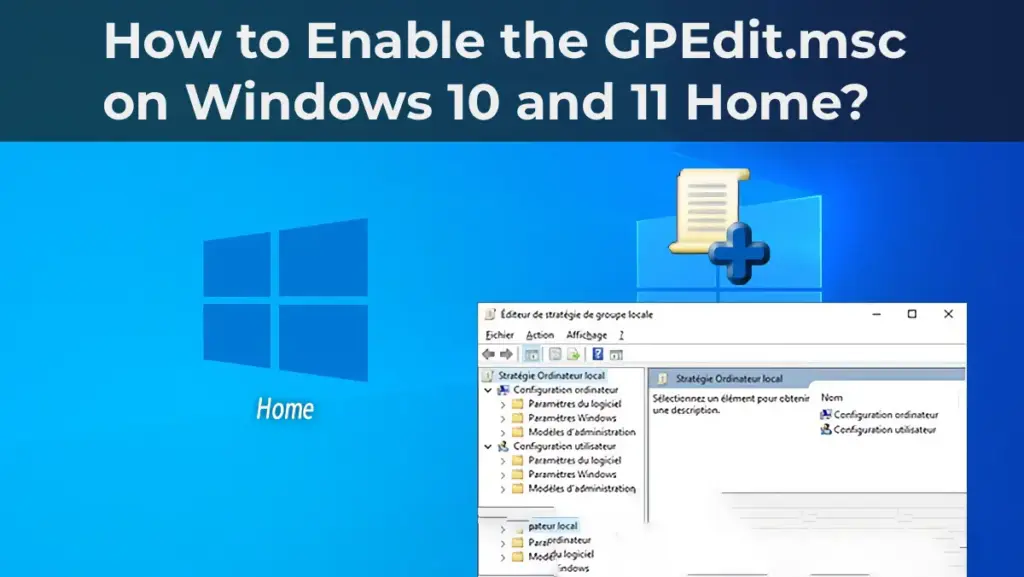
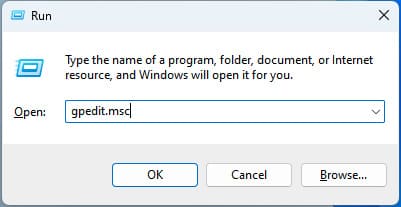
Press the hotkeys Win + R => Then in the new input window, type gpedit.msc
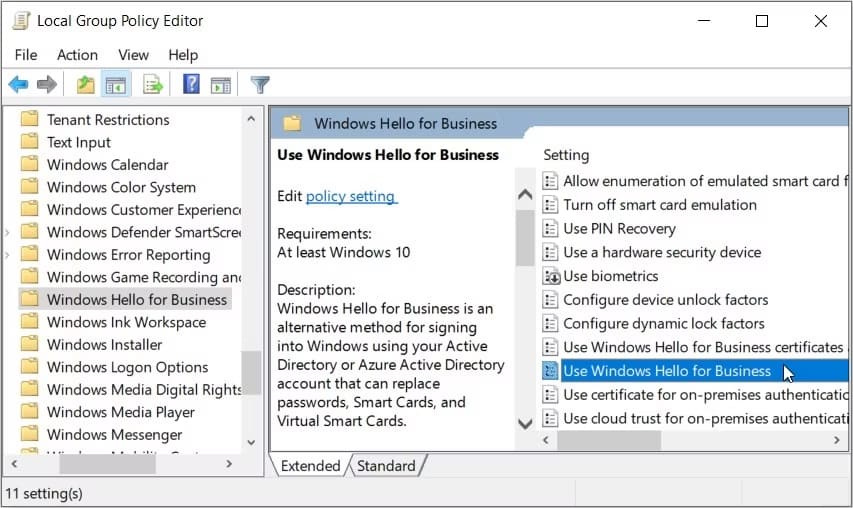
In the Group Policy Editor, navigate to the following menu: Computer Configuration => Administrative Templates => Windows Components => Windows Hello for Business.
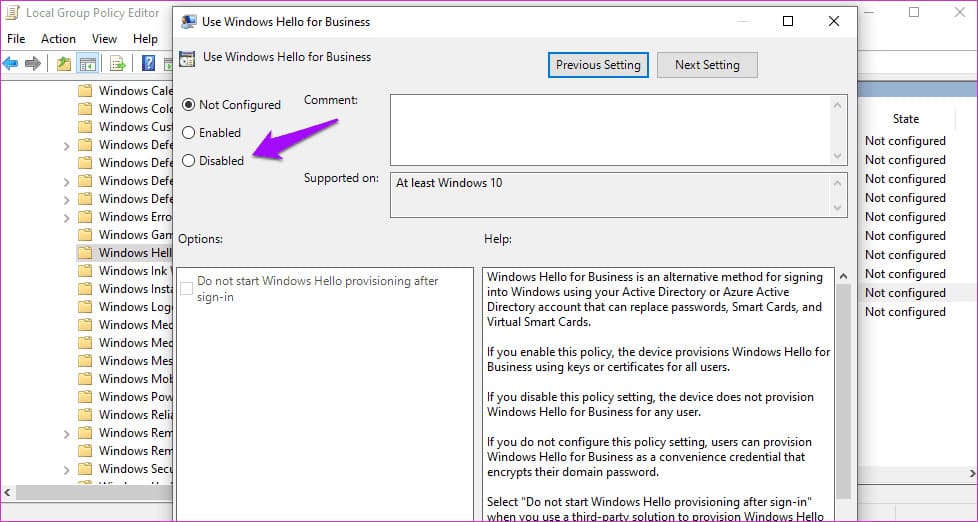
Then double-click on “Use Windows Hello for Business” and set this function to “Disabled”.
How to Disable the PIN Code Request at Login?
Now let’s proceed directly to the menu for disabling the PIN code.
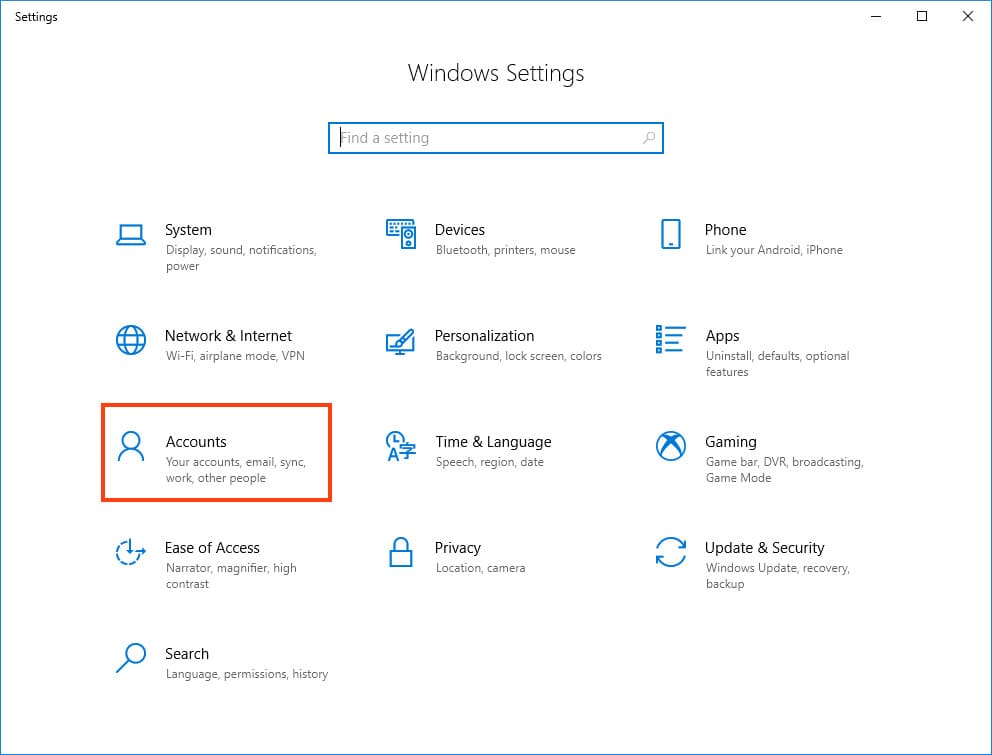
Press the hotkeys Win + I => Accounts.
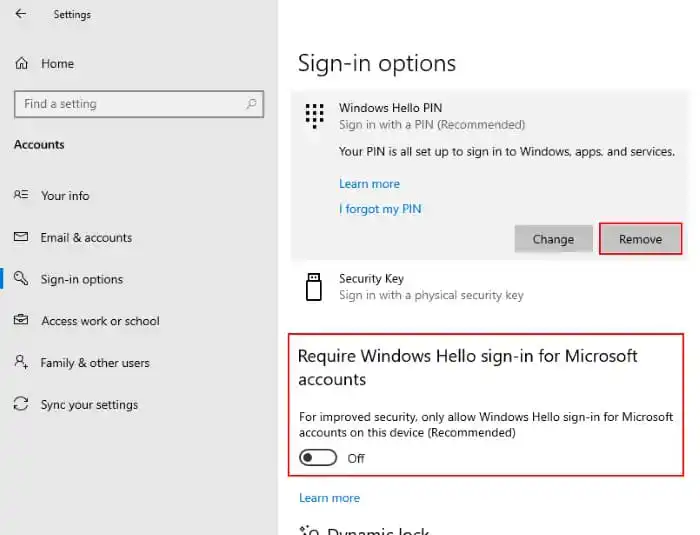
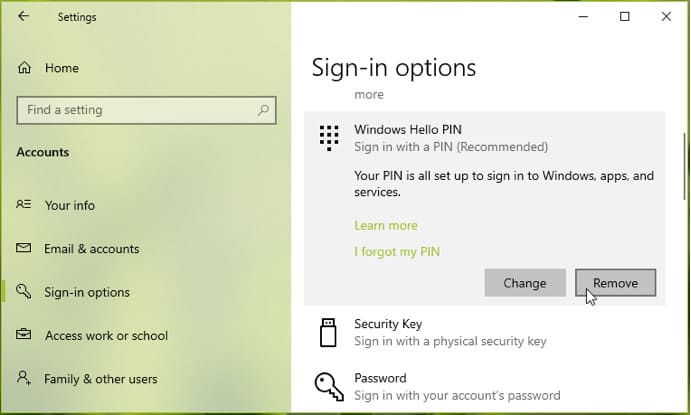
Click on “Sign-in options” on the left => PIN for Windows Hello => Remove (you will be prompted to enter your current PIN code or password to remove the PIN request).
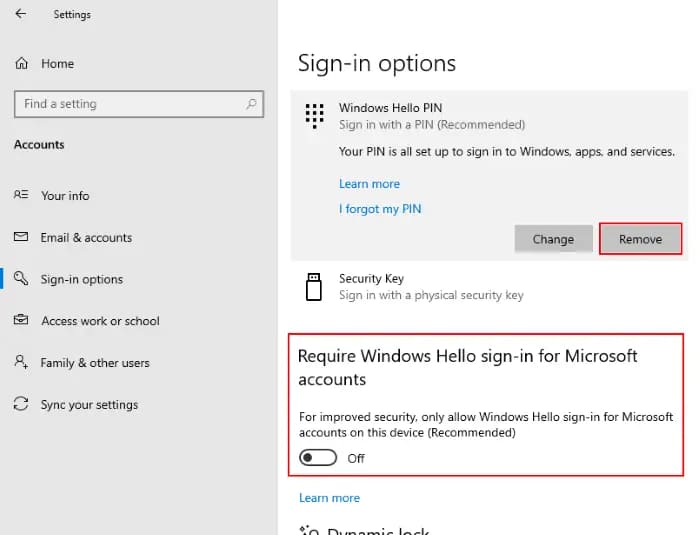
In the same menu, scroll down a bit and also uncheck the checkbox for “Require Windows Hello sign-in for Microsoft accounts”.
How to Disable the Password in Windows 10?
I will also discuss how to disable the password in Windows 10.
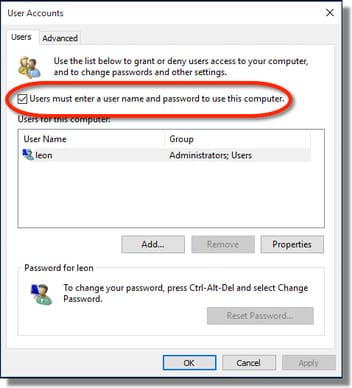
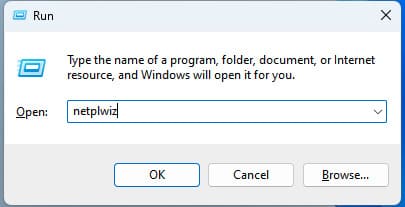
Press the hotkeys Win + R => Then in the new input window, type netplwiz
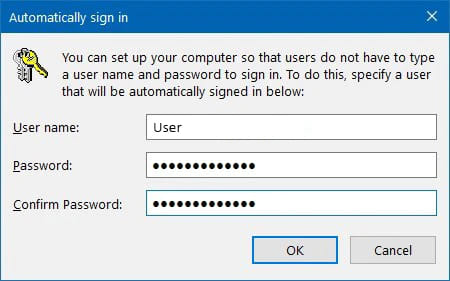
In the new window, uncheck “Users must enter a username and password to use this computer” and click “Apply”. Then you will need to enter your current password for Windows 10 to remove it.