This article explains how an administrator can prevent users from changing their passwords in Windows. You can either hide the password change dialog or completely block users from modifying their passwords.
Disabling the “Password Expired and Must Be Changed” Prompt
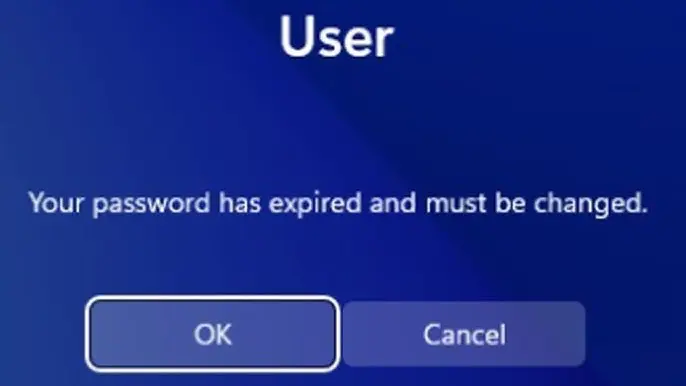
By default, Windows requires periodic password changes. When a password expires, users see a “Password expired and must be changed” message upon login. You can disable this requirement to prevent users from changing their passwords.
Preventing Password Changes for a Specific User via User Management Console
1. Open the Local Users and Groups console by running the command:
lusrmgr.msc
2. Navigate to the Users section.
3. Find the desired user account, right-click it, and select Properties.
4. Check the following options:
– User cannot change password
– Password never expires

Using PowerShell to Prevent Password Changes
To perform the same actions via PowerShell, use the following command:
Get-LocalUser user1 | Set-LocalUser –PasswordNeverExpires $True -UserMayChangePassword $False
Replace user1 with the username of the account.
Disabling Password Expiration for All Users
To disable password expiration for all local users, follow these steps:
1. Open the Group Policy Editor by running:
gpedit.msc
2. Navigate to Computer Configuration -> Windows Settings -> Security Settings -> Account Policies -> Password Policy.
3. Set the Maximum password age parameter to 0 (the default is 42 days).
This action disables the requirement for regular password changes for all users.

Command to Disable Password Expiration via Command Prompt
You can also disable password expiration using the Command Prompt with the following command:
net accounts /maxpwage:unlimited

To check the current password expiration settings:
net accounts /maxpwage
Hiding the “Change Password” Button on the Windows Security Screen
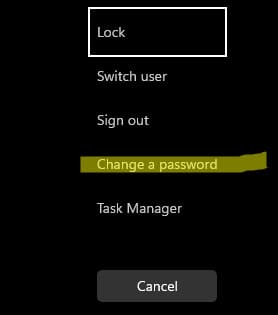
If the computer is configured for automatic login or used in kiosk mode, you can hide the “Change Password” button on the security screen (Ctrl+Alt+Del):
1. Open the Group Policy Editor by running:
gpedit.msc
2. Navigate to User Configuration -> Administrative Templates -> System -> Ctrl+Alt+Del Options.
3. Enable the Remove Change Password option.

Disabling the Password Change Dialog via Registry
To completely disable the password change dialog, you can modify the Windows Registry:
reg add "HKEY_CURRENT_USER\Software\Microsoft\Windows\CurrentVersion\Policies\System" /v DisableChangePassword /t REG_DWORD /d 1 /f
After this, users will not be able to change their passwords through the password change dialog in Windows.
Now you know how to prevent password changes in Windows for individual users or the entire system. Choose the method that best suits your situation.