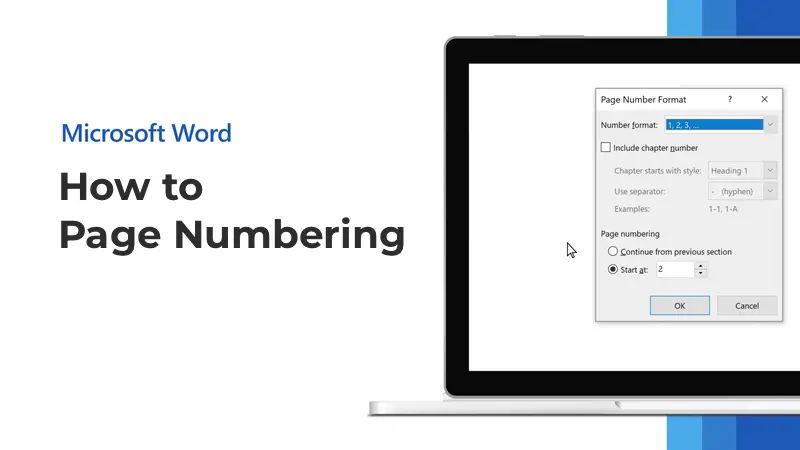
To add page numbering in Microsoft Word, follow this step-by-step guide. In this article, we’ll cover how to add page numbers, choose their placement, and start numbering from the third page while leaving the first two pages without numbers.
You can purchase original Microsoft Office product keys in our catalog, starting at $14.90.
Step 1. Adding Page Numbering
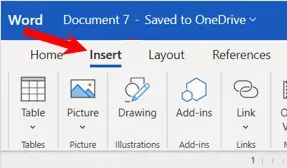
1. Go to the Insert tab.
2. In the menu, select Page Number.
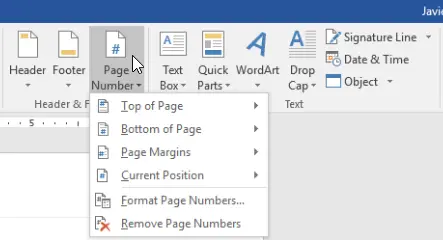
3. Here, you can choose where the page number will appear:
– Top of the page.
– Bottom of the page.
– Right, left, or center.
– You can also place numbers in the page margins.
Step 2. Configuring Page Number Format
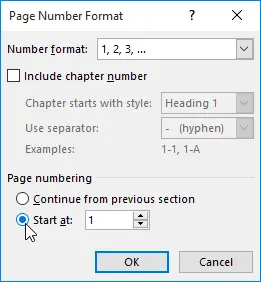
1. In the Page Number menu, select the Format Page Numbers option.
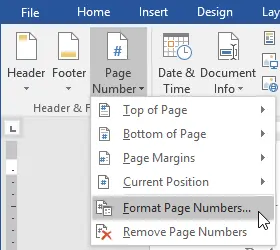
2. In the window that appears, you can:
– Choose the number format (e.g., Arabic numerals or Roman numerals).
– Set the numbering to start from any specific number.
Step 3. Placing Page Numbers
1. As an example, let’s place the numbers at the bottom center of the page.
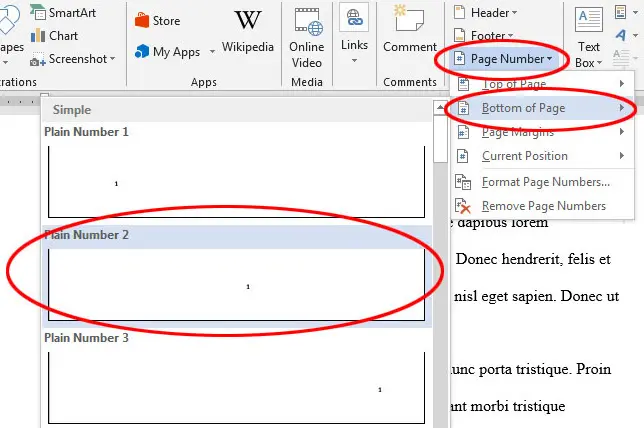
2. After this, the Header & Footer menu will open. To close it, simply double-click the left mouse button anywhere on the page.
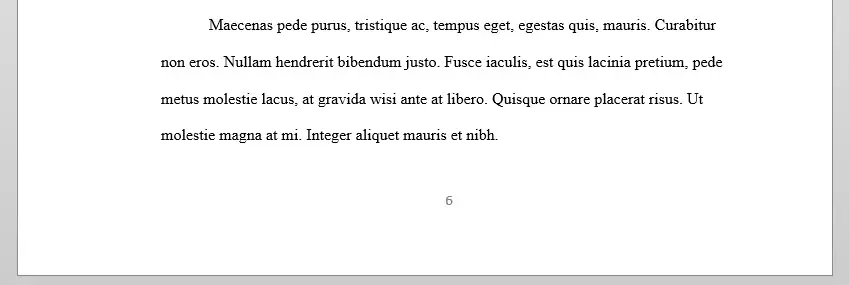
Now, every page of your document will display a page number.
Step 4. Starting Numbering from the Third Page
Now we’ll show how to make the numbering start from the third page, leaving the first two pages without numbers.
1. Go to the first page of the document.
2. Place the mouse cursor at the end of the text on the first page.
3. Go to the Layout tab, select Breaks, then Next Page.
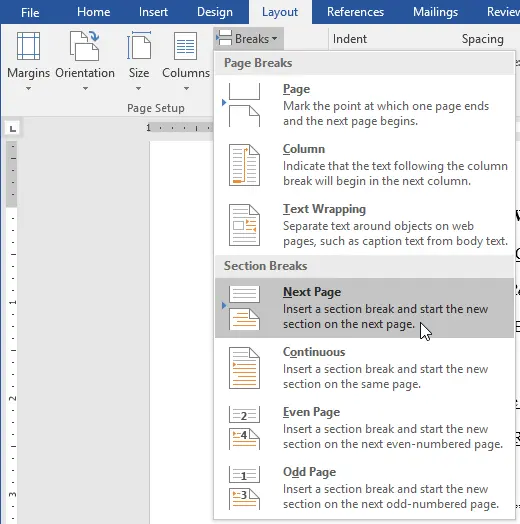
4. Repeat these steps for the second page.
Step 5. Checking Page Breaks
To ensure the page breaks were added correctly:
1. Go to the Home tab.
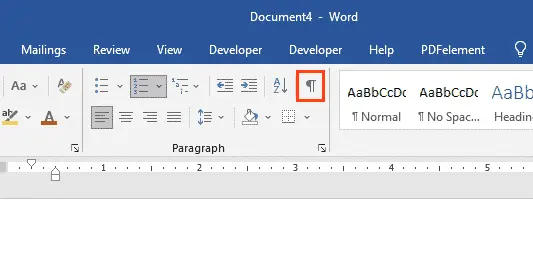
2. Click the show/hide non-printable characters icon (¶) to see if the breaks are present in the document.
If done correctly, you’ll see the label “Section Break (Next Page)” below the first and second pages.

Step 6. Setting Numbering to Start from the Third Page
1. Place the cursor on the third page.
2. Go to Insert tab > Page Number > Format Page Numbers.
3. In the Page numbering section, select Start at 3 and click OK.
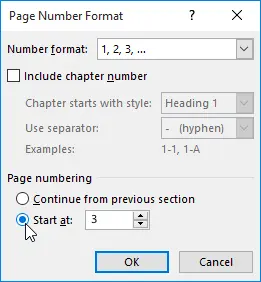
Now the numbering will start from the third page, beginning with number 3.
Step 7. Removing Numbers from the First and Second Pages
1. Double-click the page number on the first page with the left mouse button.

2. In the menu that appears, check the box next to Different First Page.
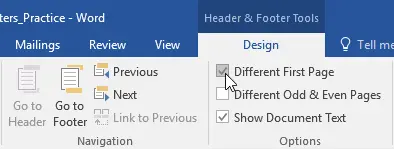
3. Repeat these steps for the second page.
Now the numbers will disappear from the first and second pages, and numbering will start from the third page with number 3.
These simple steps will help you properly set up page numbering in Microsoft Word, starting from the third page.