
When attempting to install Microsoft SQL Server on Windows Server Core, you may encounter an unexpected issue: instead of launching the familiar installation wizard, an error message appears indicating that the standard installation wizard is not supported in this version of Windows.
Error Message During SQL Server Installation on Server Core
The SQL Server Installation Wizard is not supported on Windows Server Core. Use the full quiet mode by specifying the
/Qparameter or the simple quiet mode by specifying the/QSparameter. When specifying the/QSparameter, only the progress is displayed, no data input is requested, and error messages are not shown. This installation block can be skipped by specifying the/UIMODE=EnableUIOnServerCoreparameter.An error occurred during the installation of SQL Server 2012.
Error code: -2067529666
Resulting device code: 1220
Resulting error code: 62For more information, see the SQL Server 2012 installation logs in the temporary directory.
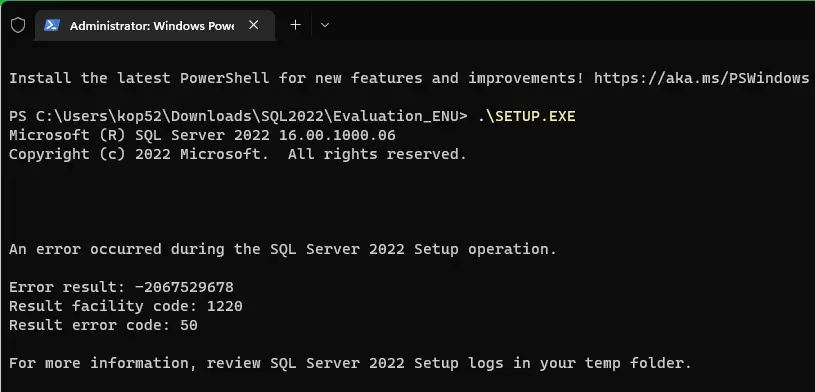
If you launch the installation with the /UIMODE=EnableUIOnServerCore parameter, the wizard will start, but you will not be able to interact with the buttons. Thus, standard installation methods become ineffective. However, there are alternative ways to install SQL Server.
Using Quiet and Simple Quiet Modes
To install SQL Server on Windows Server Core, you can use two main modes:
1. Full Quiet Mode (/Q) — Installation proceeds without any graphical interface or user interaction.
2. Simple Quiet Mode (/QS) — Only the installation progress is displayed, no data input is required, but error messages are also not shown.
Additionally, additional installation parameters can be specified either in the command line or in a special configuration file, allowing flexible customization of the installation process.
Using the Full Graphical SQL Server Installation Interface
Although the SQL Server installation wizard is not supported on Windows Server Core, you can bypass this limitation and launch the installation with a graphical interface by running:
setup.exe /Action=Install /UIMODE=EnableUIOnServerCore
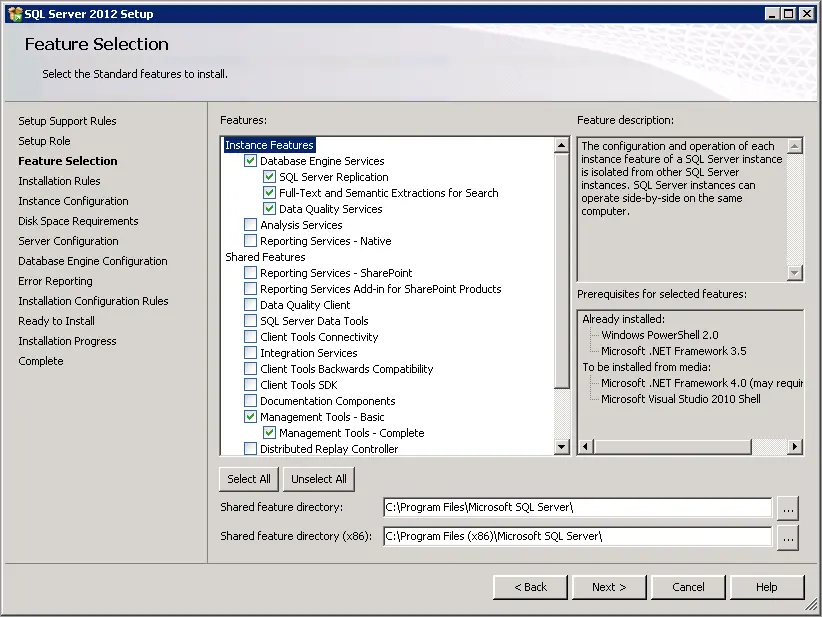
After executing this command, the SQL Server installation wizard will launch, allowing you to select and install the necessary components without issues. However, note that not all SQL Server components are compatible with Windows Server Core. A full list of incompatible components can be found in the documentation on Microsoft’s official website.
Tested Systems
This guide was tested using Microsoft Windows Server 2019 Standard Core and Microsoft SQL Server 2012 Standard. However, the approach is similar for other versions of Windows Server Core and SQL Server, provided compatibility requirements are met.