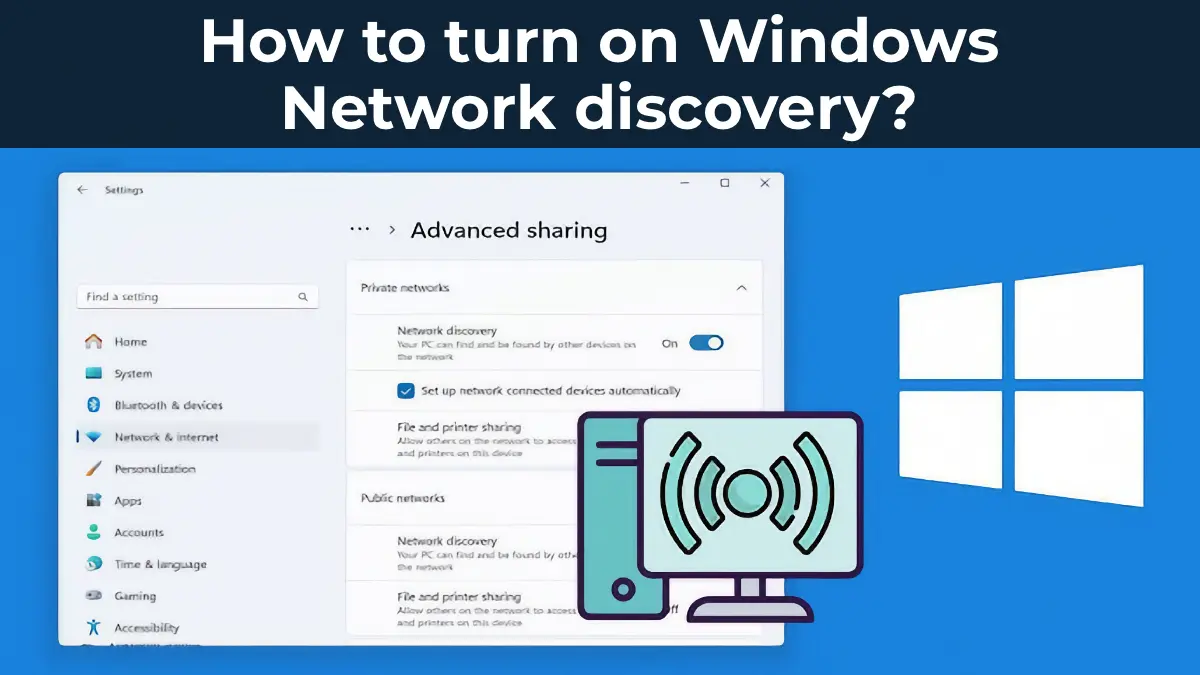
Modern operating systems, including Windows 10 and Windows Server, often phase out outdated technologies in favor of more secure and efficient solutions. However, these changes can sometimes cause issues, such as the inability to enable network discovery.
Why Network Discovery Fails to Turn On
Network discovery allows a computer to find other devices on the local network and be visible to them. Previously, this relied on the NetBIOS over TCP/IP protocol, which is now outdated and replaced by SSDP and UPnP. If older services are disabled and newer ones are not activated, network discovery will not function.
How to Fix the Issue
To resolve the problem, enable and configure the necessary system services.
Step 1: Enable Required Services
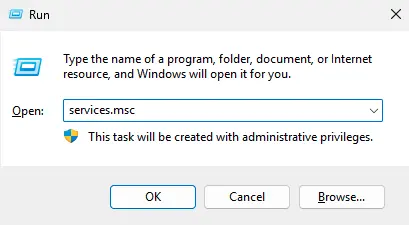
1. Open the Services window by pressing Win + R, typing services.msc, and pressing Enter.
2. Locate and set the following services to start automatically:
– SSDP Discovery (enables SSDP protocol support).
– UPnP Device Host (enables UPnP support).
– Function Discovery Provider Host (handles device discovery on the network).
– Function Discovery Resource Publication (ensures the computer is visible).
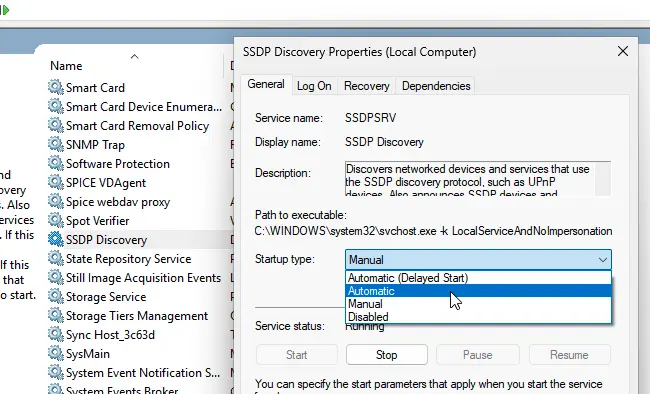
3. Ensure the DNS Client service is also enabled and set to start automatically.
Step 2: Enable Network Discovery
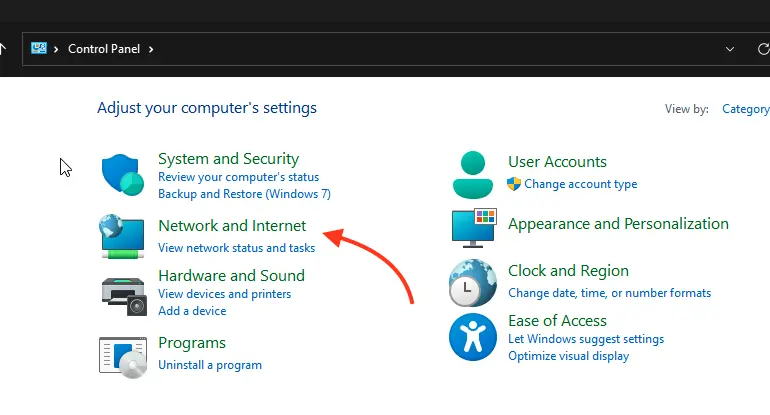
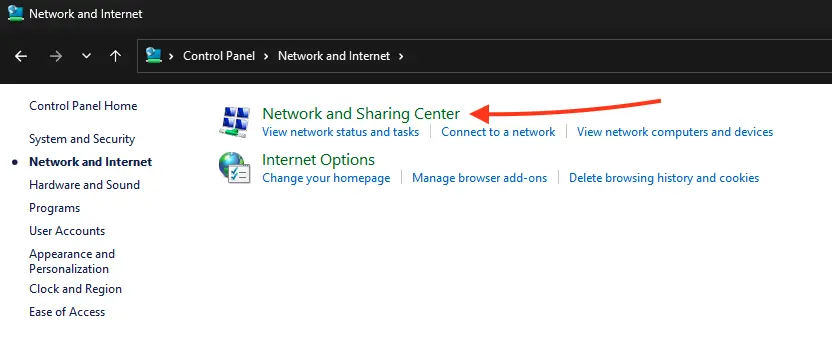
1. Open Control Panel.
2. Navigate to Network and Internet → Network and Sharing Center.
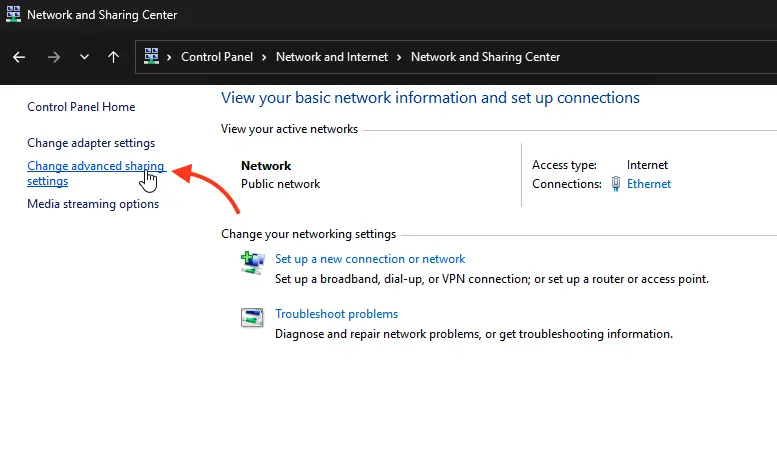
3. Select Change advanced sharing settings.
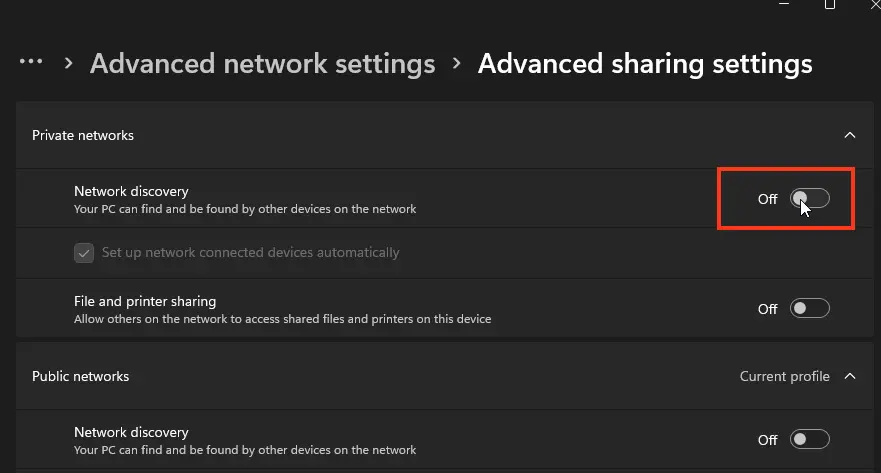
4. Enable the Network discovery option and save changes.
Step 3: Verify Resource Visibility
After enabling all services and activating network discovery, confirm that computers and devices on the local network are visible. Open File Explorer and navigate to the Network section.
Network discovery in modern Windows operating systems depends on properly configured protocols and services. By following this guide, you can resolve the issue and ensure full functionality of your local network.