This article covers the process of resetting the Active Directory domain administrator password. This procedure may be necessary in cases of lost administrator credentials, such as due to forgetfulness, intentional sabotage, or a security breach. To perform the password reset, you need physical or remote access to the server console (via ILO, iDRAC, or consoles like VMware vSphere, Hyper-V, or Proxmox for virtual domain controllers).
You can purchase original Windows Server product keys from our store from $10.00
Download Windows Server installers from our catalog.
The example is based on a Windows Server 2019 server. If your network has multiple domain controllers, perform the procedure on the server holding the FSMO role of Primary Domain Controller (PDC).
To reset the domain administrator password, you must boot into Directory Services Restore Mode (DSRM) using the DSRM administrator password (set when the server was promoted to a domain controller). This account is essentially a local administrator stored in the local SAM database on the domain controller.
Resetting the Domain Administrator Password Without Knowing the DSRM Password
1. Boot the server from any Windows installation media (e.g., a USB drive or ISO image).
2. On the Windows installation screen, press Shift+F10 to open a command prompt.
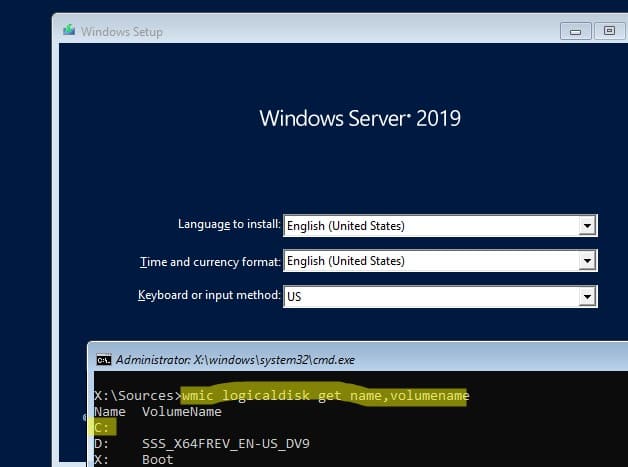
3. Identify the disk corresponding to your Windows Server partition by running:
wmic logicaldisk get volumename,name
In this example, the offline Windows Server image is on drive C:. Use this drive letter in the subsequent commands.
If this method does not clearly identify the Windows disk, run the following sequentially:
diskpart
list disk
list vol

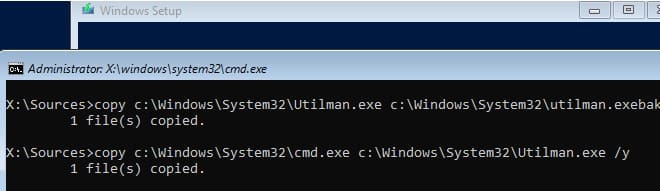
4. If Windows is on drive C:, create a backup of the utilman.exe file and replace it:
copy C:\windows\system32\utilman.exe C:\windows\system32\utilman.exebak
copy C:\windows\system32\cmd.exe C:\windows\system32\utilman.exe /y
5. Reboot the server and remove the bootable media:
wpeutil reboot
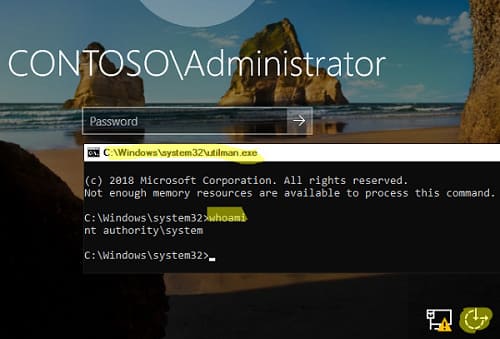
6. After the server boots, on the login screen, click the “Ease of Access” button to open a command prompt. Run:
whoami
Verify that you are operating as NT Authority\SYSTEM.
7. Display information about the administrator account:
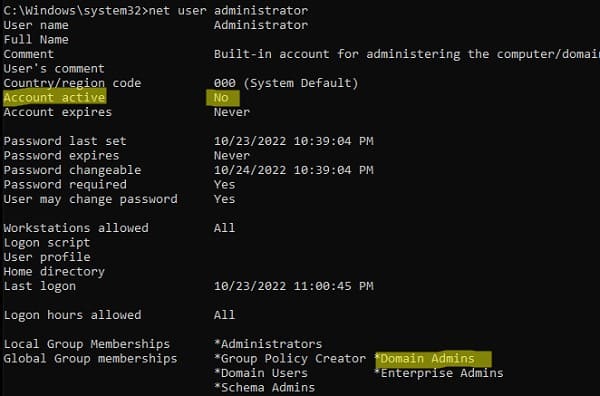
net user administrator
In this example, the user is part of the Domain Admins group and is currently disabled: Account active: No.
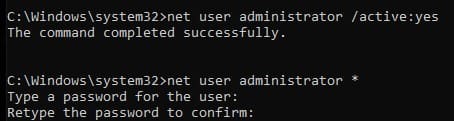
8. Activate the administrator account and set a new password:
net user administrator /active:yes
net user administrator *
9. Restore the original utilman.exe file and reboot the server:
copy C:\windows\system32\utilman.exebak C:\windows\system32\utilman.exe /y
Reboot the domain controller in normal mode and verify that you can log in with the new domain administrator password.
Resetting the Administrator Password on a Virtual Domain Controller
If the domain controller runs on a virtual machine (e.g., VMware ESXi, Hyper-V, or Proxmox), you can use the PowerShell DSInternals module:
1. Shut down the virtual machine with the domain controller and attach its disk to another Windows VM. Assign the disk a drive letter, e.g., E:.
2. Install the DSInternals module:
Install-Module DSInternals –Force
PowerShell modules can be installed offline without an internet connection.
3. Retrieve the boot key:
$bootkey= Get-BootKey -SystemHiveFilePath "E:\Windows\System32\config\SYSTEM"
4. Retrieve information about the “Administrator” account:
Get-ADDBAccount -SamAccountName 'Administrator' -DBPath "E:\Windows\NTDS\ntds.dit" -BootKey $bootkey
5. If the domain administrator account is disabled, enable it and set a new password:
Enable-ADDBAccount -SamAccountName 'Administrator' -DBPath "E:\Windows\NTDS\ntds.dit"
Set-ADDBAccountPassword -SamAccountName 'administrator' -DBPath "E:\Windows\NTDS\ntds.dit" -BootKey $bootkey

6. Detach the virtual disk and power on the domain controller. The new administrator password will be replicated to all DCs.
Resetting the Domain Administrator Password via DSRM
If you know the DSRM password, you can reset the domain administrator password by booting the server into DSRM:
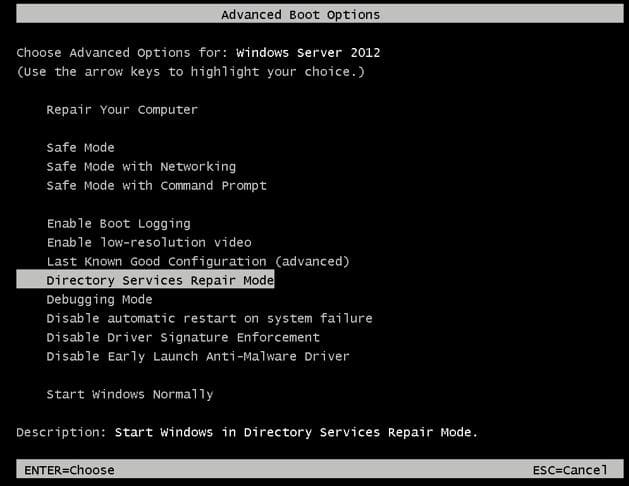
1. Reboot the server and select Directory Services Restore Mode (DSRM).
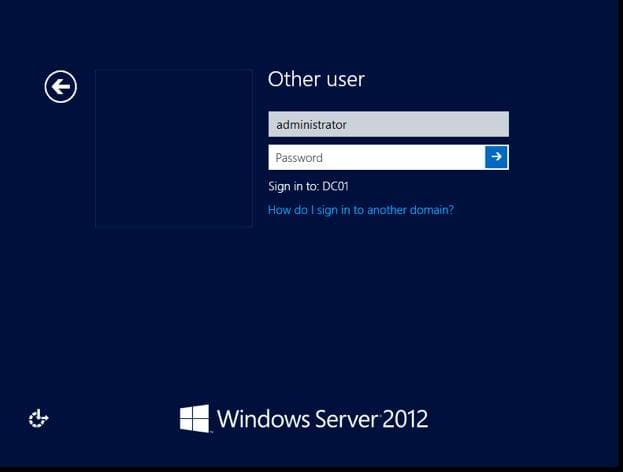
2. Log in using the local Administrator account and the DSRM password.
3. Verify the username:
whoami /user
4. Create a service to change the password on startup:
sc create ResetADPass binPath= "%ComSpec% /k net user administrator P@ssw0rd1" start= auto
Note: Ensure there is a space between the equals sign and the value in the binPath parameter. The new password must meet the domain’s length and complexity requirements.
5. Verify that the service was created:
sc qc ResetADPass
6. Reboot the server:
shutdown -r -t 0
You can now log in to the domain controller with the new administrator password.
7. Delete the previously created service:
sc delete ResetADPass
This article outlined several methods for resetting the Active Directory domain administrator password. Physical access to domain controllers is a critical security aspect. If you need to place domain controllers in less secure locations, consider using a Read-Only Domain Controller (RODC) to significantly reduce the risk of compromise.