This article explains how to transfer a Windows operating system from a physical computer to a VirtualBox virtual environment. This method is applicable only for systems installed in Legacy BIOS mode, not UEFI.
Using the Disk2vhd Utility
To transfer a physical Windows system to a VirtualBox virtual machine, we will use the Disk2vhd utility developed by Microsoft. Disk2vhd creates a virtual hard disk image (VHD or VHDX) of the physical hard disk’s contents, which can then be attached to a virtual machine.
Steps to use Disk2vhd:
1. Boot into Windows on the physical computer. Download the Disk2vhd utility from Microsoft’s official website.
2. Extract the application to a convenient location and run it with administrator privileges.
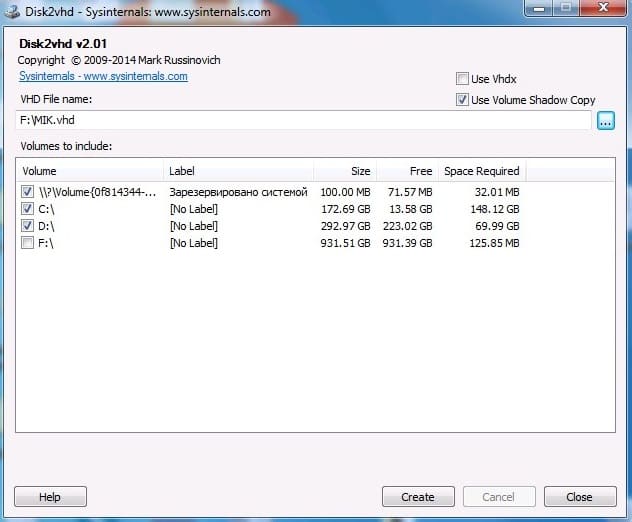
3. In the Disk2vhd window, in the VHD File name field, select a location to save the virtual hard disk. Below, check the boxes for the partitions you want to include.
– Important: Do not select the disk where you plan to save the virtual disk if it is connected as an external drive!
– Uncheck the Use Vhdx option, as the VHDX format is not supported by VirtualBox.
4. After configuring the settings, click Create and wait for the process to complete. The progress of creating the virtual disk will be displayed at the bottom of the application window.
Creating a Virtual Machine in VirtualBox
Once the virtual disk (VHD) is created, transfer it to a computer with VirtualBox installed and follow these steps:
1. Open VirtualBox and click Create.
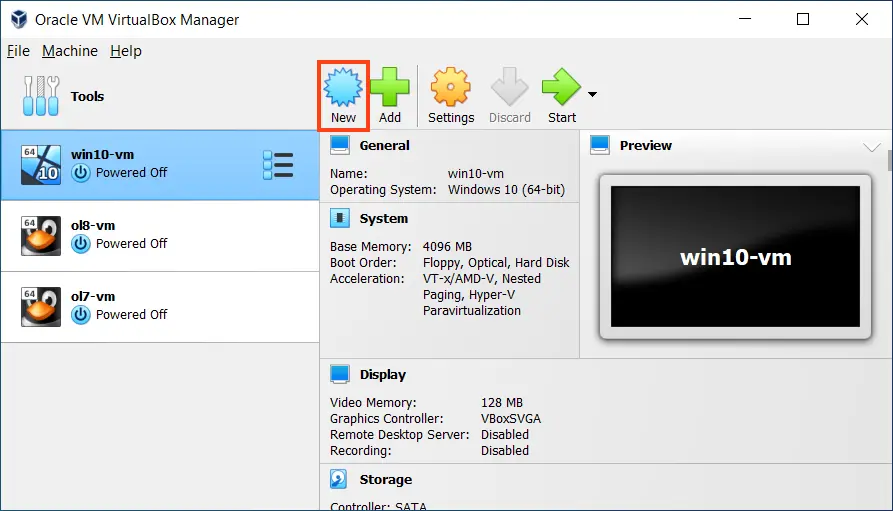
2. Enter a name for the virtual machine, select the type and version of the operating system matching the physical system being transferred, and set the amount of RAM.
3. At the hard disk selection step, instead of Create a new virtual hard disk, choose Use an existing virtual hard disk file and select the previously created VHD file.
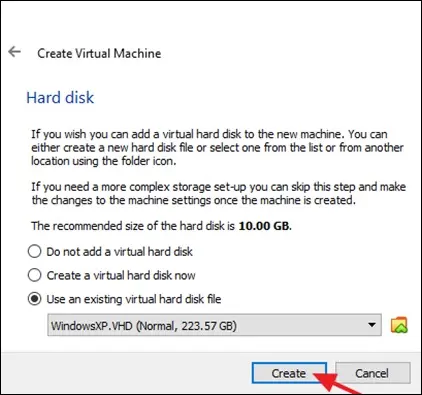
4. Complete the virtual machine creation process by clicking Create.
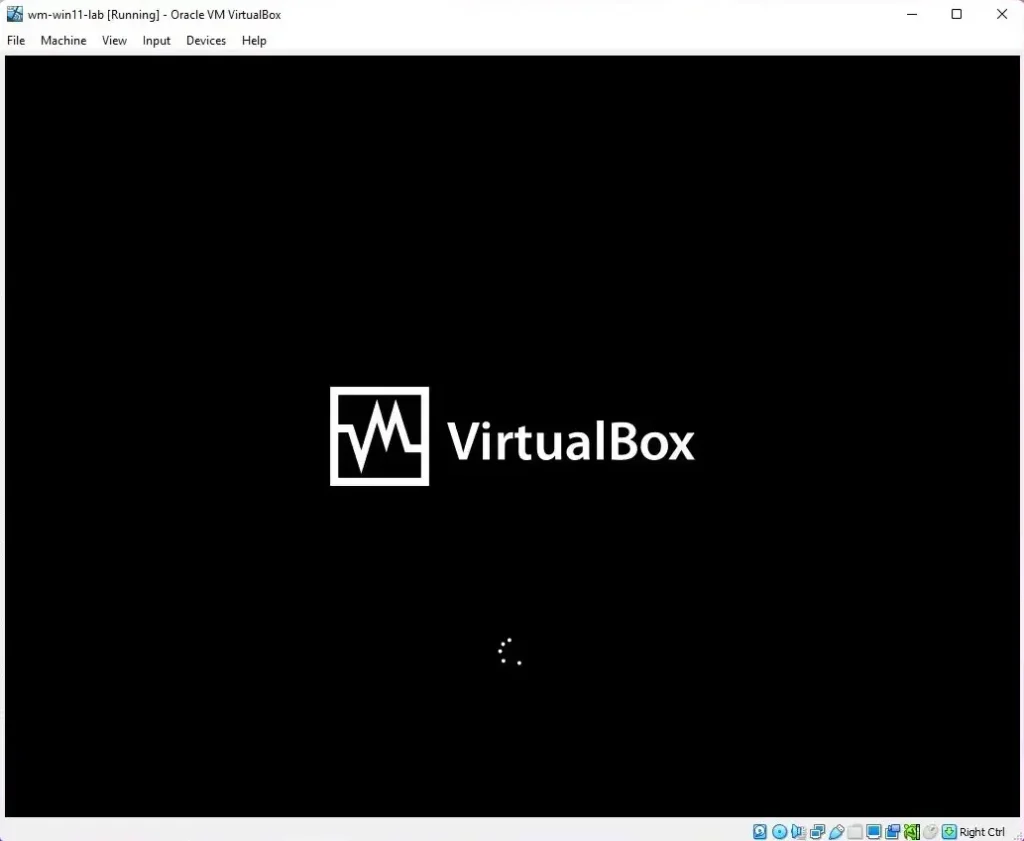
5. You can now start the virtual machine and boot the transferred system. For improved performance, it’s recommended to install the VirtualBox Guest Additions. (After following the link, navigate to the directory for your VirtualBox version and download the file starting with “VBoxGuestAdditions”).
Troubleshooting
Windows XP Hangs on a Black Screen During Boot
If Windows XP hangs on a black screen with a blinking cursor when starting in VirtualBox, try adjusting the virtual machine settings:
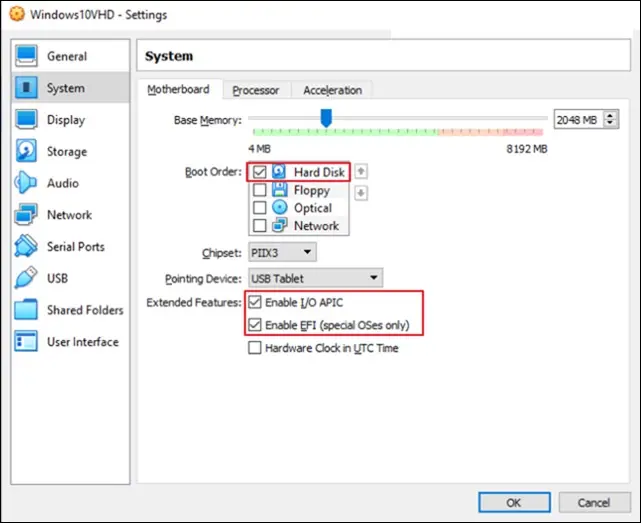
1. Go to the System section in the virtual machine’s settings.
2. On the Motherboard tab, enable or disable the Enable I/O APIC option and try booting the system again.