In this step-by-step guide with screenshots, we’ll walk through the process of installing Windows Server 2012 R2. The installation process remains the same for both Standard and Datacenter versions.
First, you need to download the installer. You can download the original Windows Server 2012 R2 installer for both Standard and Datacenter versions from our catalog.
Next, you need to write this installer to a flash drive to make it bootable. You can learn how to do this on the following page.
Once the installer is written to the flash drive, boot from it through BIOS/UEFI and begin the installation process. The first installation window will prompt you to select language and other settings.
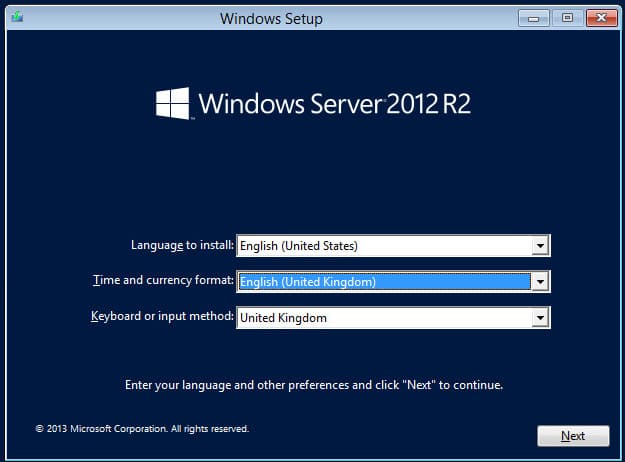
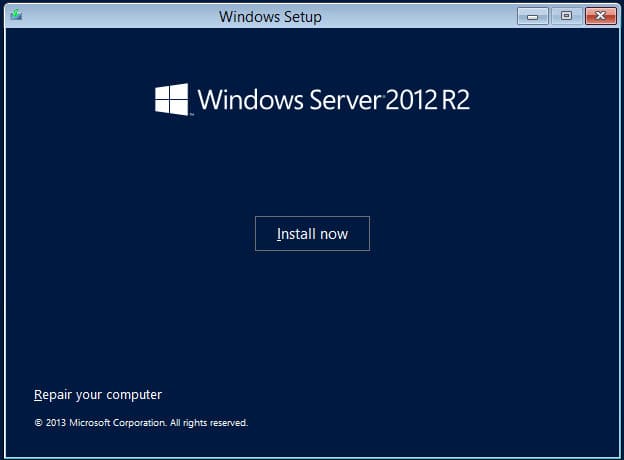
Click “Install now”.
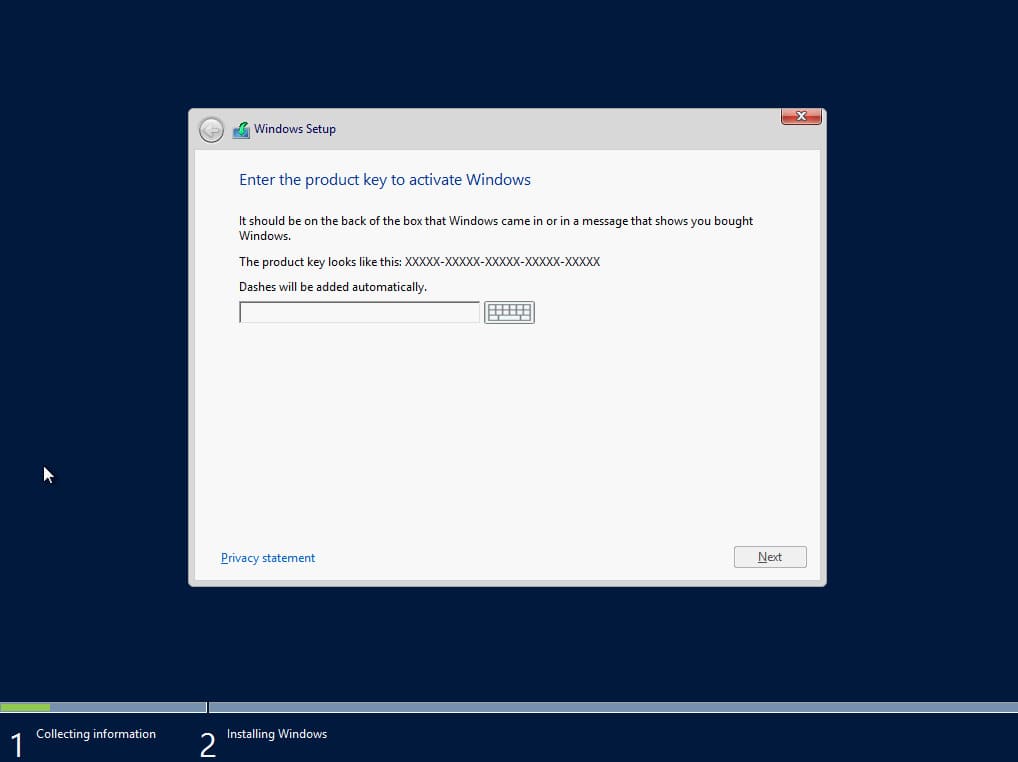
During installation, you’ll be prompted to enter the product key. If you don’t have one, you can purchase it from our online store for both Standard and Datacenter versions only for $16.70. The product key will be delivered to your email within a few hours. You can review all versions of Windows Server available for sale in our catalog.
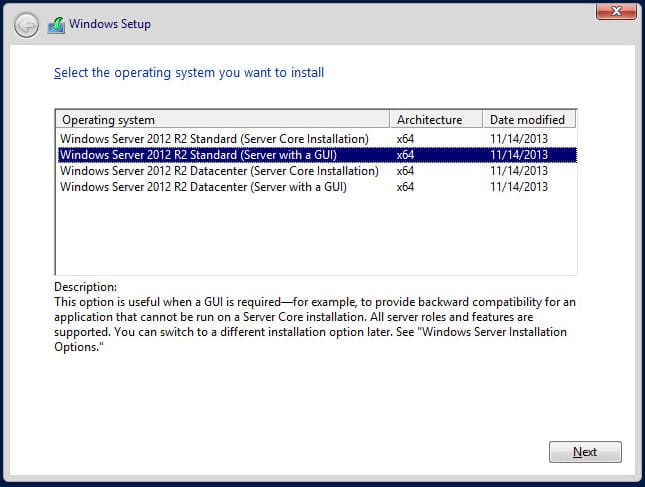
After entering the product key (in our case, it automatically detected that the key was for the Standard version), you’ll be prompted to choose the installation type. Choose “With GUI” for convenience.
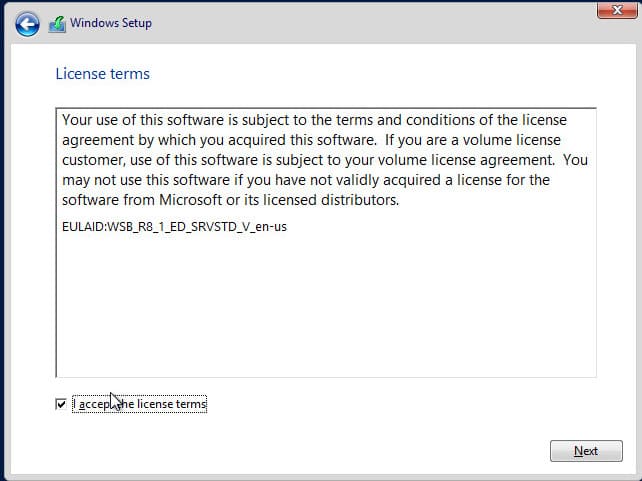
Agree to the license agreement.
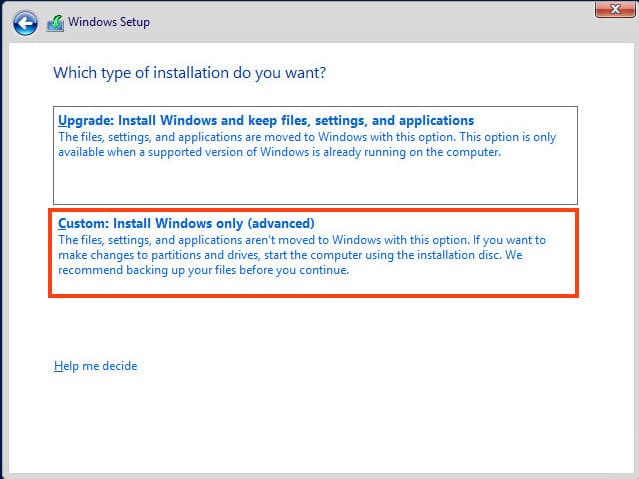
Next, choose “Custom Installation” since we are installing the operating system from scratch.
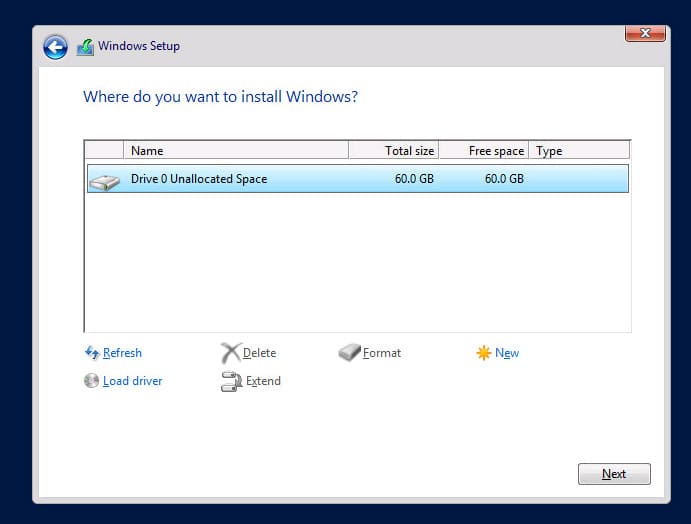
Select your target hard disk for system installation. In our case, there’s only one disk, so select it and click “Next”.
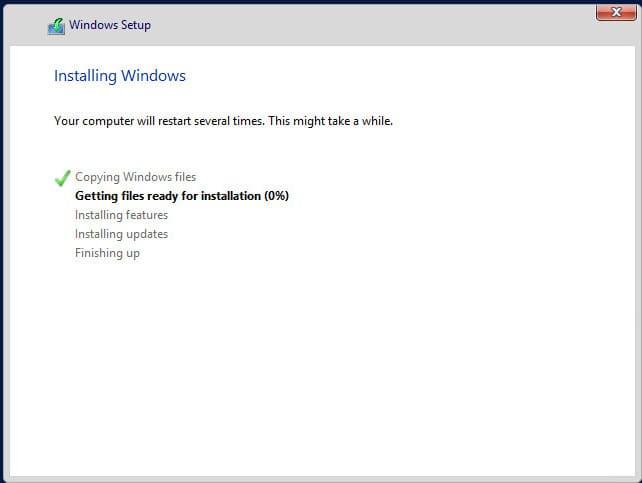
Wait for file copying and installation to complete. During installation, your PC may restart several times.
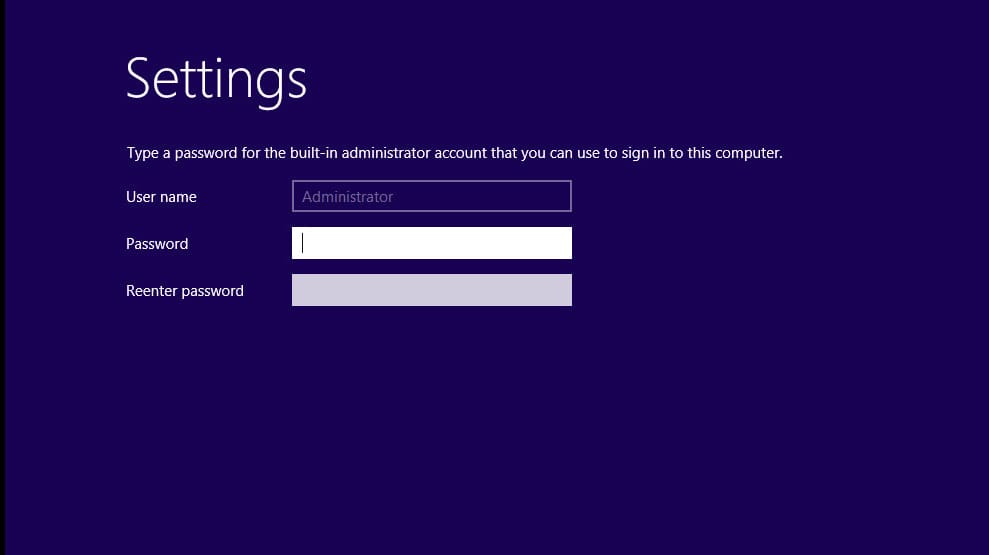
After installation, you’ll be prompted to create an administrator password. Enter it twice and click “Done”.
Afterward, the system will undergo final settings preparation, which may take a few minutes.
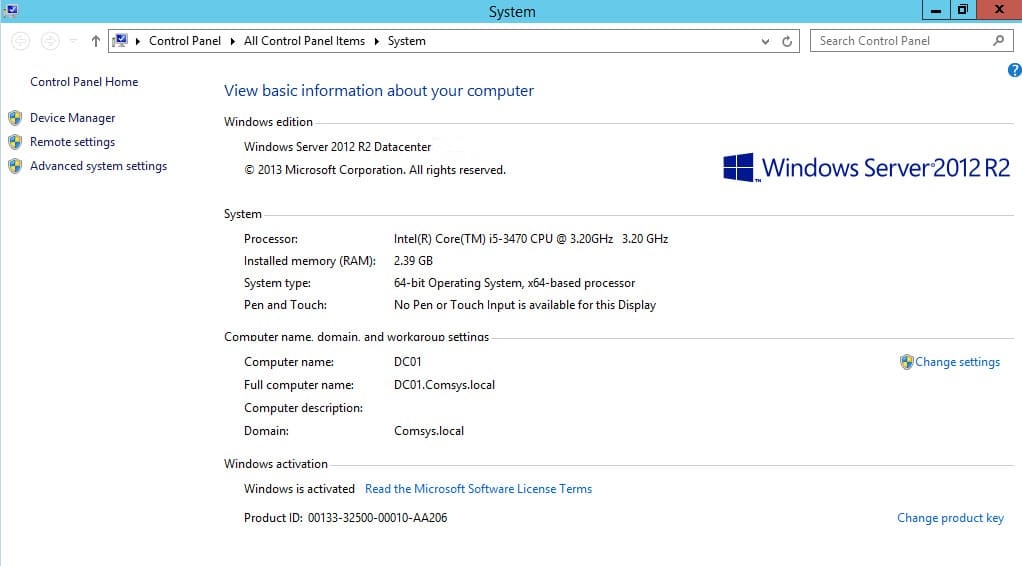
That’s it. Now you can go to the “System Properties” menu to check your OS and verify if it’s activated. If you entered your product key correctly at the beginning of the installation, everything should proceed successfully.
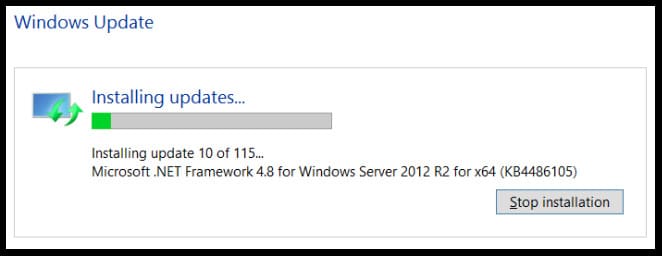
After completing the installation, we recommend immediately finding, downloading, and installing all available updates for Windows Server 2012 R2. You can do this in the “Control Panel” => “System and Security” => “Windows Update Center” menu.