There are several excellent office suites available for Linux that suit most users. However, DOCX files don’t always display correctly in these applications, making Microsoft Office a necessity in some cases. If you’re a Linux user, you don’t need to install Windows and reboot every time you need Microsoft Office. You can run it directly from your primary system using Wine.
Wine (Wine Is Not an Emulator) isn’t an emulator in the traditional sense. Instead, it acts as a compatibility layer between the Windows API and Linux, eliminating the need for virtualization or full OS emulation. As a result, applications run through Wine perform quite efficiently.
Configuring standard Wine can be tricky for Linux beginners. Fortunately, there are applications built on top of Wine that offer a more user-friendly interface. Let’s walk through installing Microsoft Office using PlayOnLinux on Ubuntu.
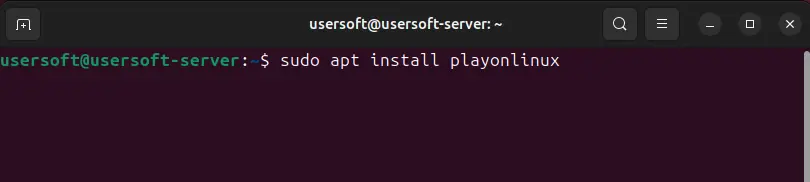
1. Install PlayOnLinux by entering the following command in the terminal:
sudo apt install playonlinux
2. You can download PlayOnLinux for other distributions from the official website. You’ll also need the winetricks and winbind packages. Winetricks ensures proper Office installation, while winbind links your Microsoft login to the office suite. Install them with this command:
sudo apt install winetricks winbind

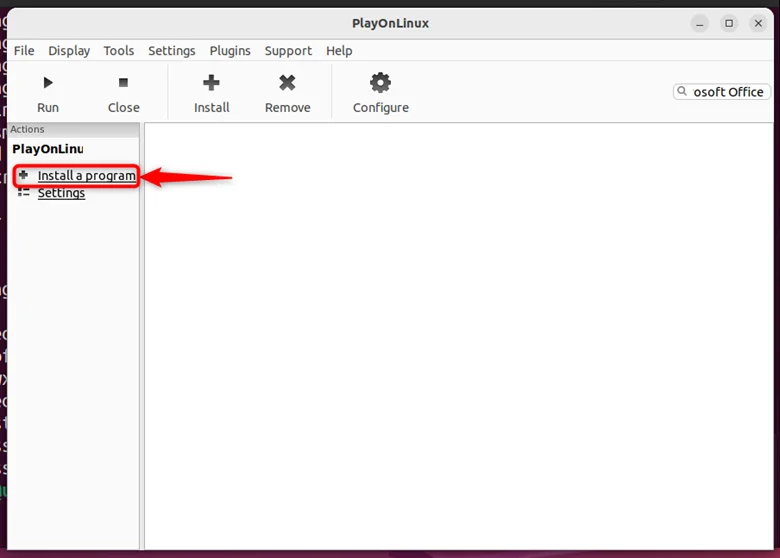
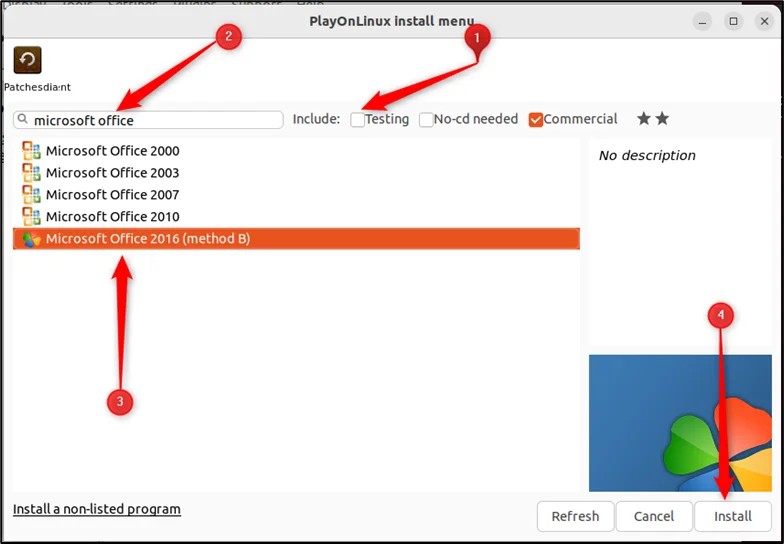
3. Once installed, open PlayOnLinux from the applications menu. Click the “Install a program” button.
4. In the search bar, find a suitable Microsoft Office version. PlayOnLinux supports versions 2010 and 2016, but the newer Office 2021 cannot be installed. We recommend opting for 32-bit versions, as they tend to be more stable.
5. Select the 2016 version and Method B, as it’s more reliable.
Later, after installing the application, you’ll need to activate your Office 2016 Pro Plus. You can purchase a genuine product key from our catalog! – $15.00 with instant delivery to your email.
6. Click “Next” and agree to the installer’s warning.
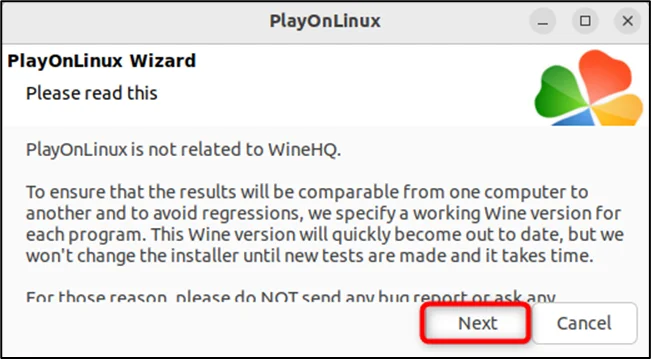
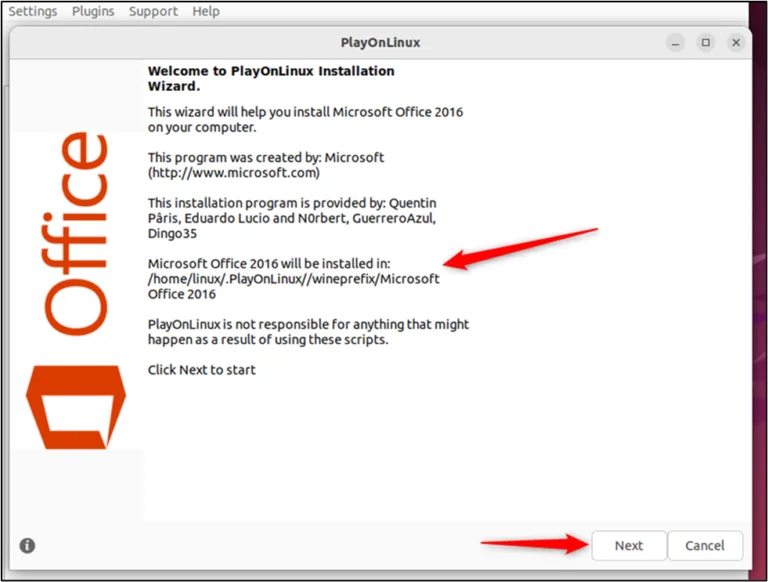
7. Click “Next” twice to skip additional warnings.
8. Click “Next” again.
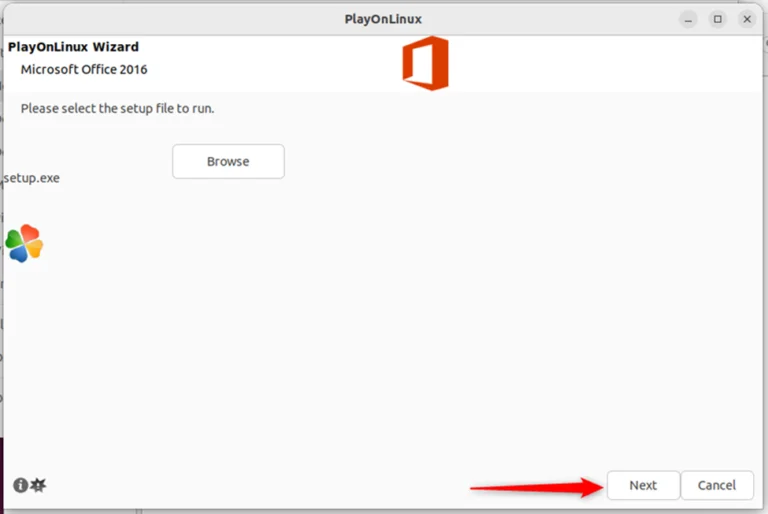
9. Choose where to install Microsoft Office from—your computer or a DVD.
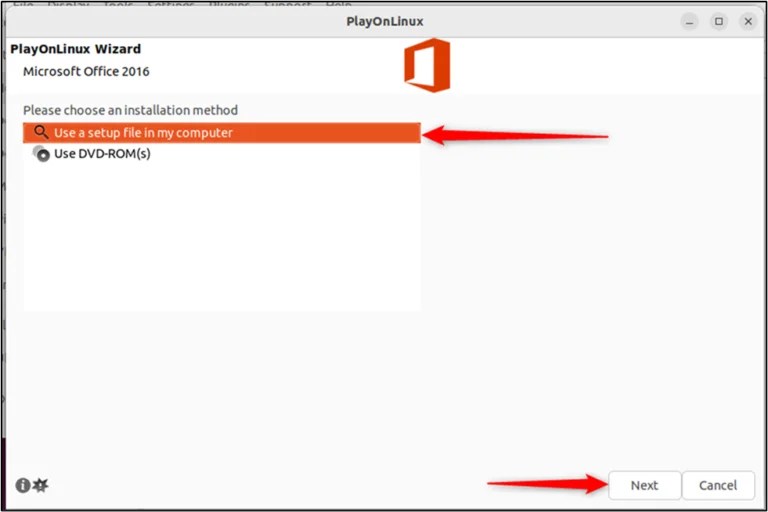
If you have a DVD, insert it into your computer. If not, you can mount an ISO file and select it in PlayOnLinux as the required disk. Alternatively, extract the ISO to a folder, choose “Use an installer on my computer,” and point to setup.exe.
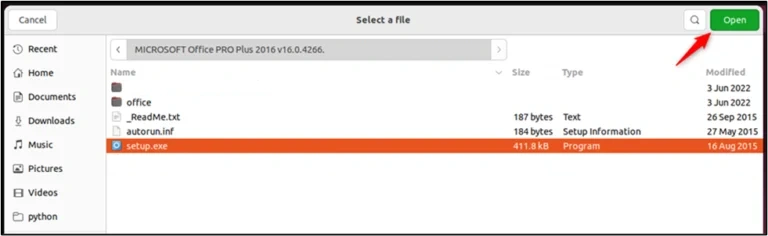
10. Click “Next” and wait while the required Wine version installs and a virtual drive is created. If Wine prompts for additional packages, click “Install” and wait for them to complete.
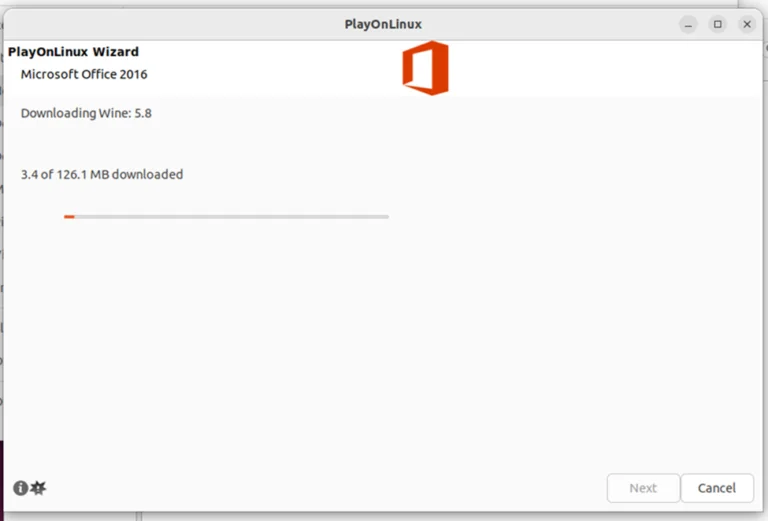
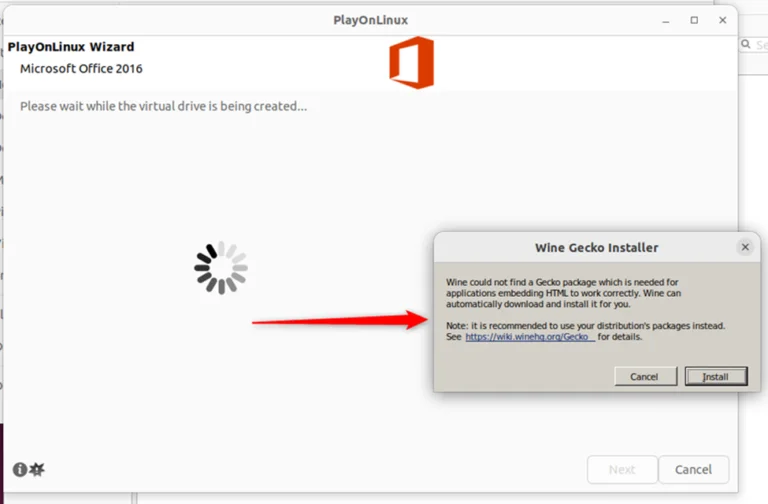
11. The standard Microsoft Office installation will begin. Follow the prompts until the installation finishes.
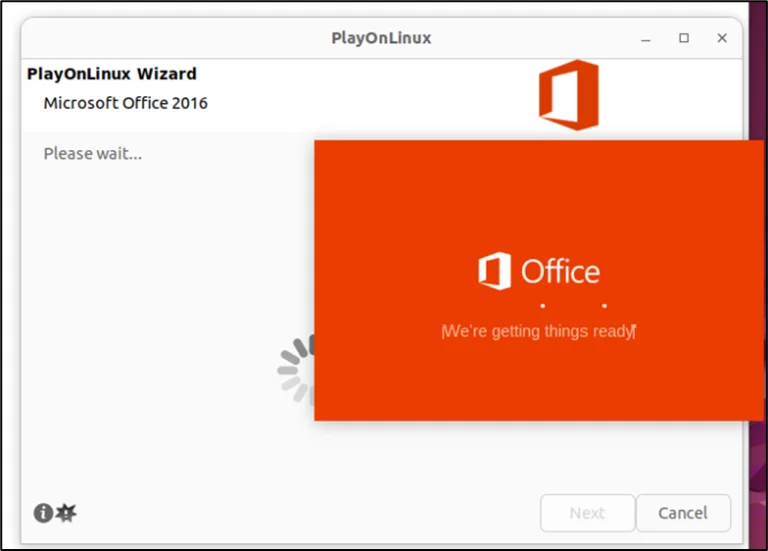
You can now launch Microsoft Office from the applications menu.
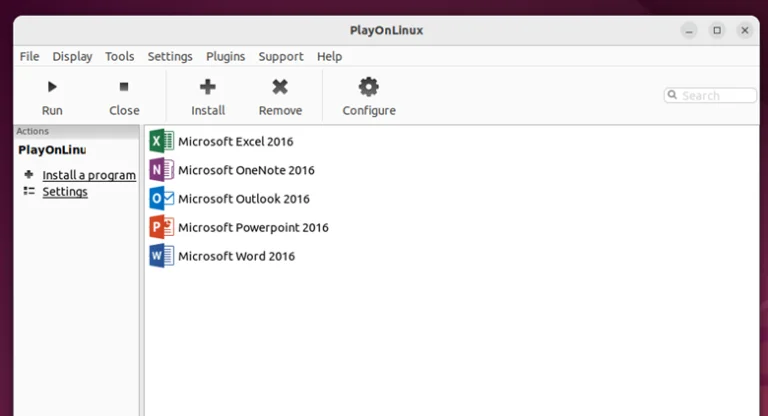
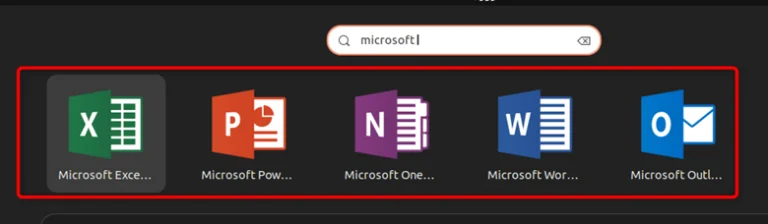
Files you create and save will appear in the “Documents” directory within your Linux home folder.
PlayOnLinux not only supports Office but also allows you to install other Windows applications, such as Photoshop.