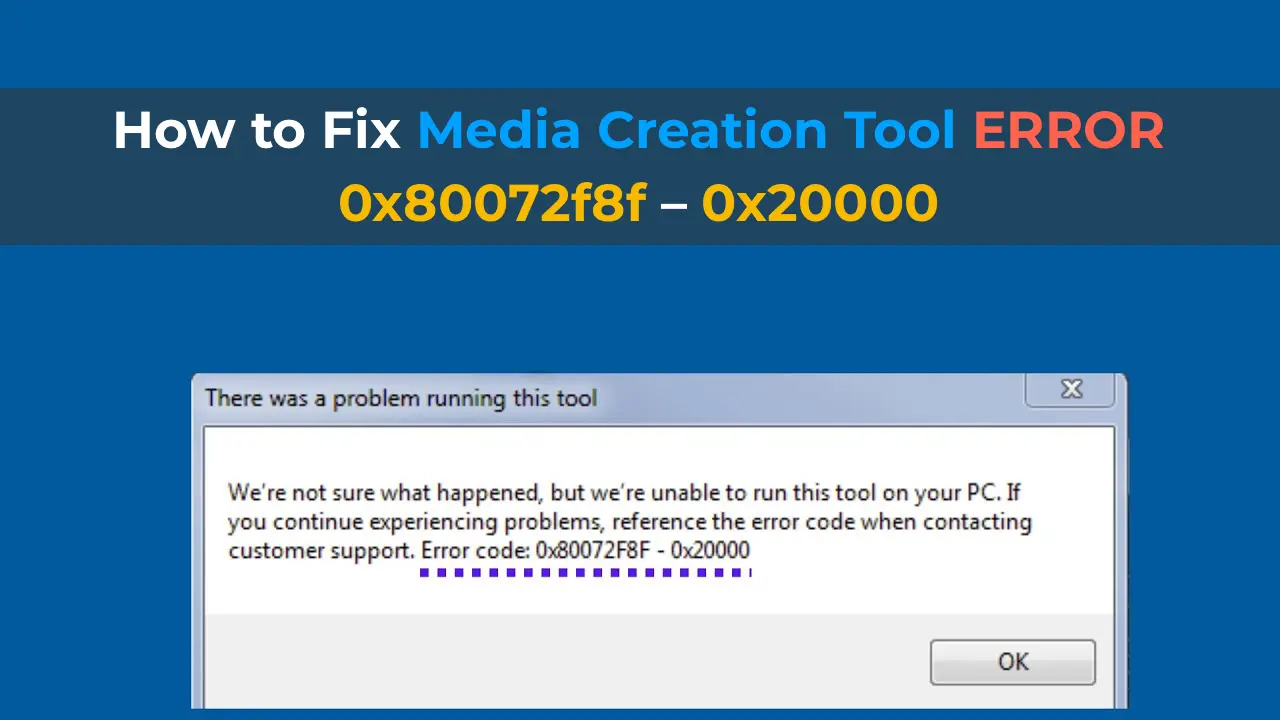
If you’re trying to upgrade from Windows 7 to Windows 10 and encounter the 0x80072f8f error when running Media Creation Tool, this guide will help you. Below is a step-by-step explanation of how to resolve this issue.
You can purchase original Windows 10 product keys in our store starting at $10.90.
Step 1. Downloading a Specific Fix
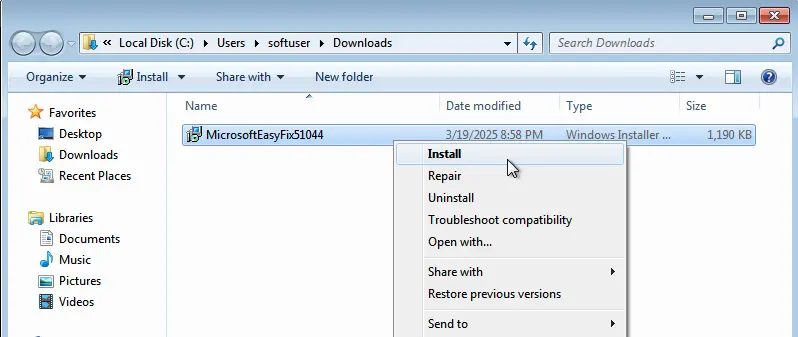
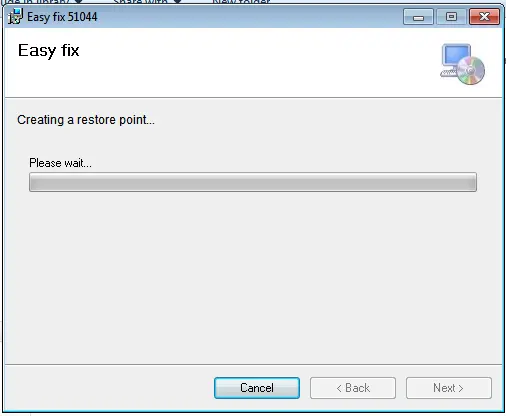
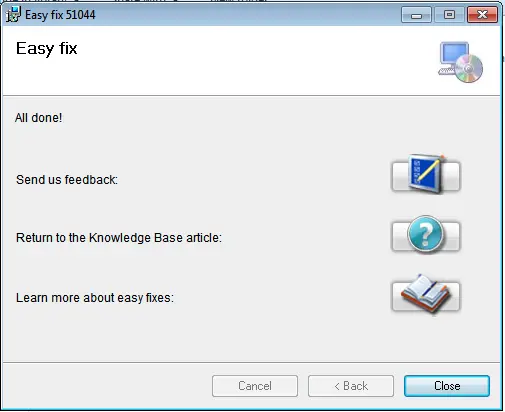
Once the update service is configured, visit the official Microsoft website to automatically download a special file required to fix the issue. Follow these steps:
1. Open the downloaded file and accept the license agreement.
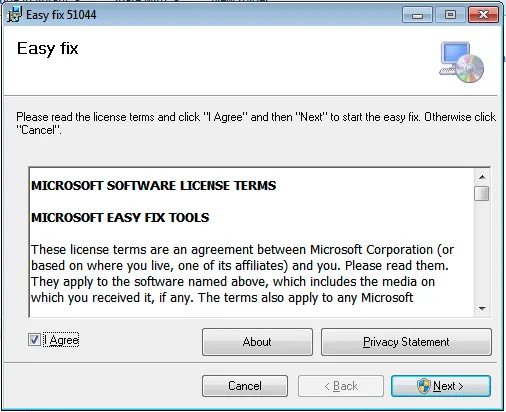
2. Wait for the installation to complete.
Step 2. Enabling TLS 1.1 and TLS 1.2 Protocols
1. Download the .reg file and run it. This will modify the registry and enable TLS 1.1 and TLS 1.2 protocols.
2. Alternatively, do it manually:
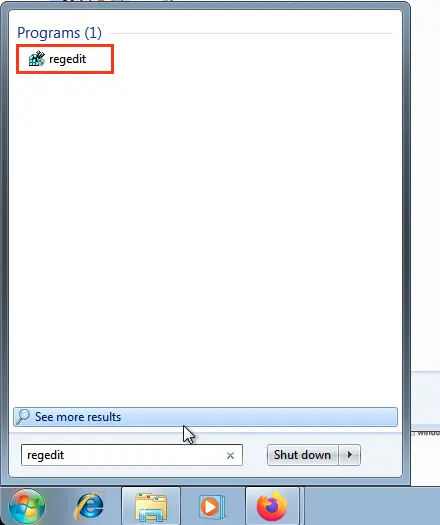
– Type and open “Registry Editor” in the search bar.
Navigate to the following path:
HKEY_LOCAL_MACHINE\SOFTWARE\Microsoft\Windows\CurrentVersion\Internet Settings\WinHttp
Right-click and create a Dword32 named “DefaultSecureProtocols”
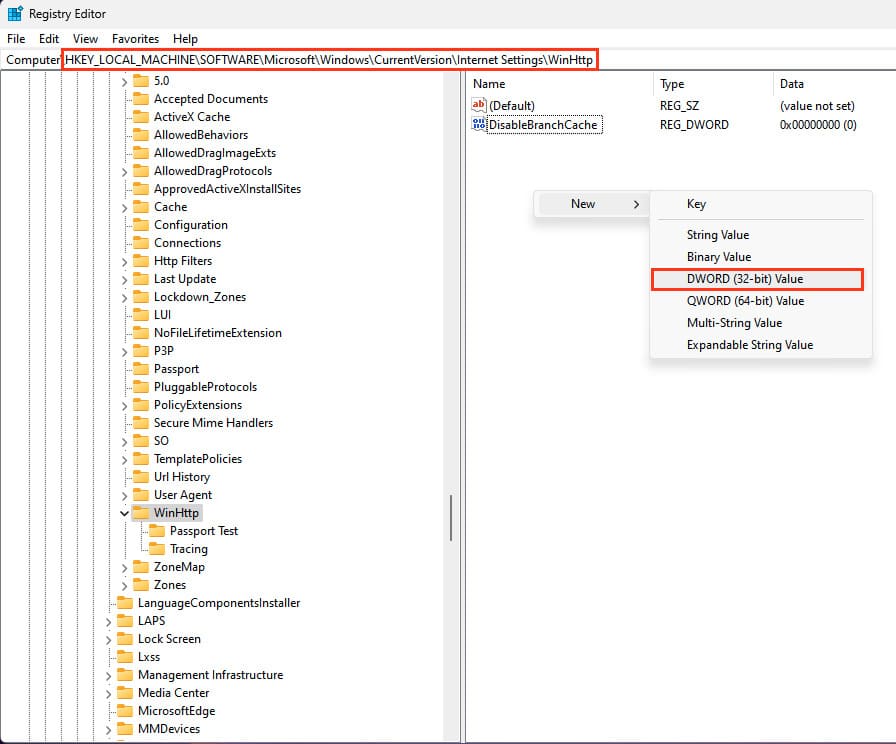
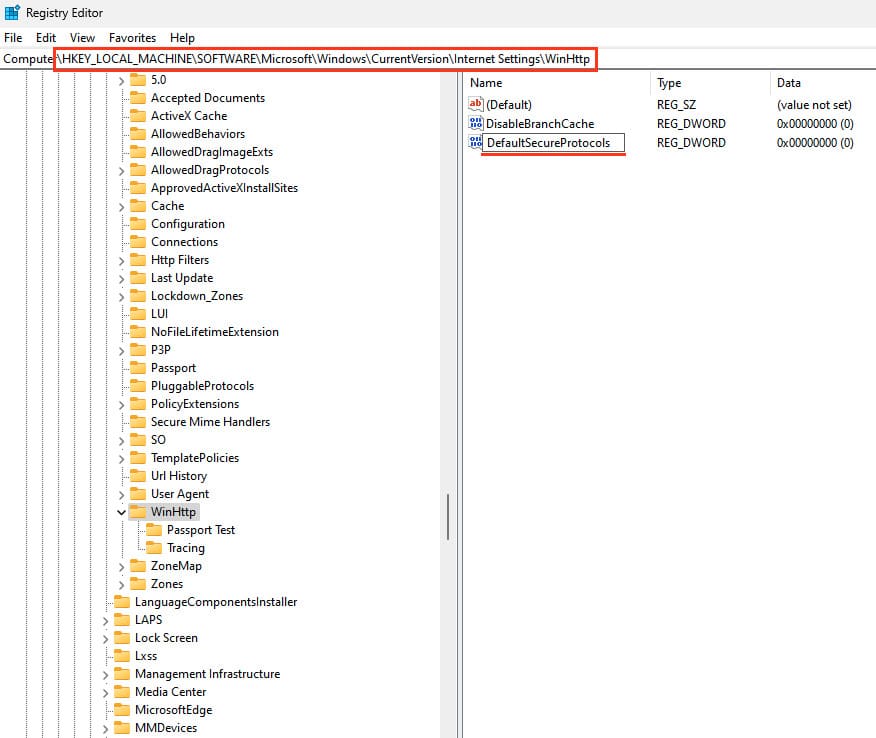
– Set its value to “00000a00”
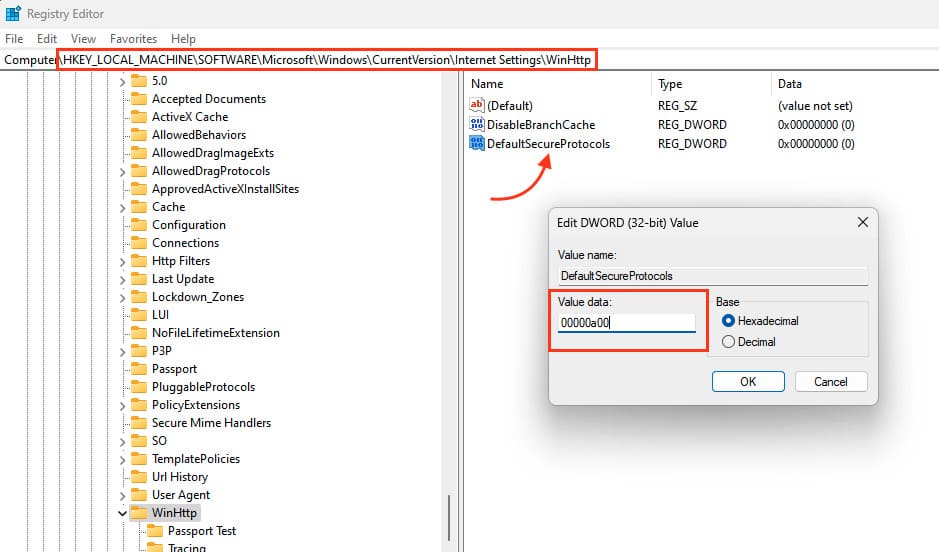
Now go to another section:
HKEY_LOCAL_MACHINE\SOFTWARE\Wow6432Node\Microsoft\Windows\CurrentVersion\Internet Settings\WinHttp
If the WinHttp folder is missing, create it.
Inside, create a Dword32 named “DefaultSecureProtocols”
– Set its value to “00000a00”
HKEY_LOCAL_MACHINE\SYSTEM\CurrentControlSet\Control\SecurityProviders\SCHANNEL\Protocols\TLS 1.1\Client
If the TLS 1.1 folder and its Client subfolder are missing, create them.
– Inside, create a Dword32 named DisabledByDefault
– Set its value to “00000000”
– Also create another Dword32 named “Enabled” and set its value to “00000001”
HKEY_LOCAL_MACHINE\SYSTEM\CurrentControlSet\Control\SecurityProviders\SCHANNEL\Protocols\TLS 1.2\Client
If the TLS 1.2 folder and its Client subfolder are missing, create them.
– Inside, create a Dword32 named DisabledByDefault
– Set its value to “00000000”
– Also create another Dword32 named “Enabled” and set its value to “00000001”
Afterward, try updating again.
Step 3. Running Media Creation Tool and Installing Updates
Now that all settings are applied, run Media Creation Tool again:
1. Launch the utility with administrator privileges.
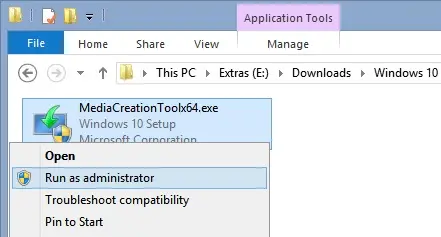
2. Accept the license agreement.
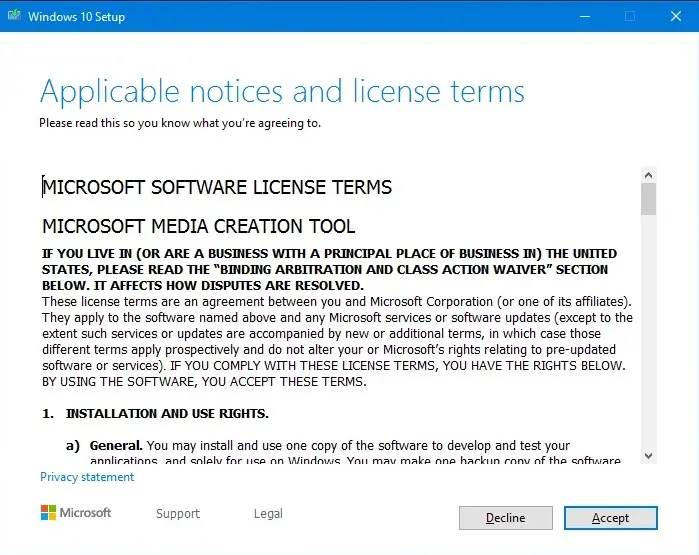
3. Wait for all preparation and installation stages to complete for the Windows 10 update.
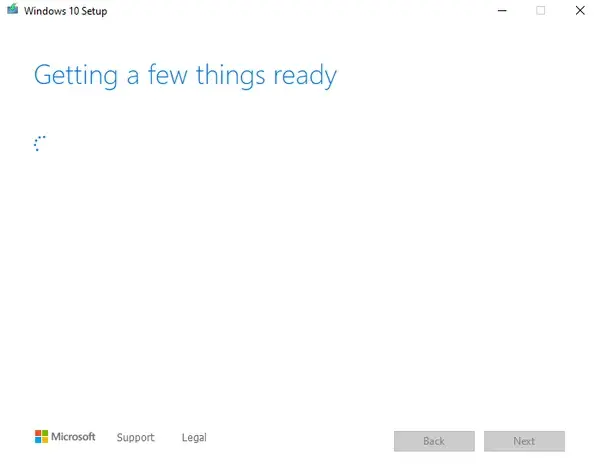
Your system is now ready for the update. By following these steps, you can resolve the 0x80072f8f error and upgrade your Windows 7 to Windows 10 without issues!