On one of my Windows hosts, after a P2V migration, I encountered an issue where all network adapters disappeared from Network Connections in Control Panel. However, in Device Manager, under the Network adapters section, the Ethernet network card was listed as installed. In my case, the issue was resolved by simply resetting the network settings using the Network Reset button in Settings. However, I’ve compiled more comprehensive steps to restore network functionality in both Windows 10/11 and Windows Server.
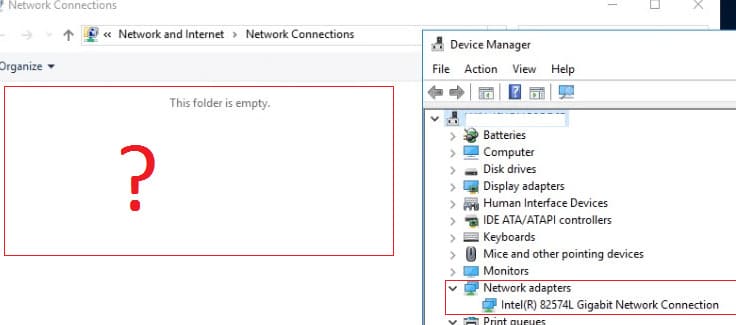
Common Reasons Network Adapters Are Not Displayed in Windows
– Network card drivers are not installed.
– Incorrect network adapter drivers are installed.
– Physical network adapters are missing, disconnected, or malfunctioning.
– A failure in the Windows network stack.
Checking Network Adapters in Device Manager
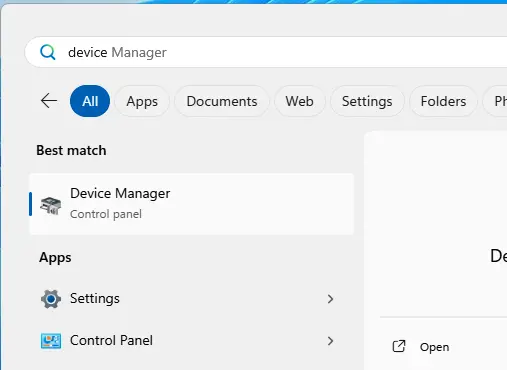
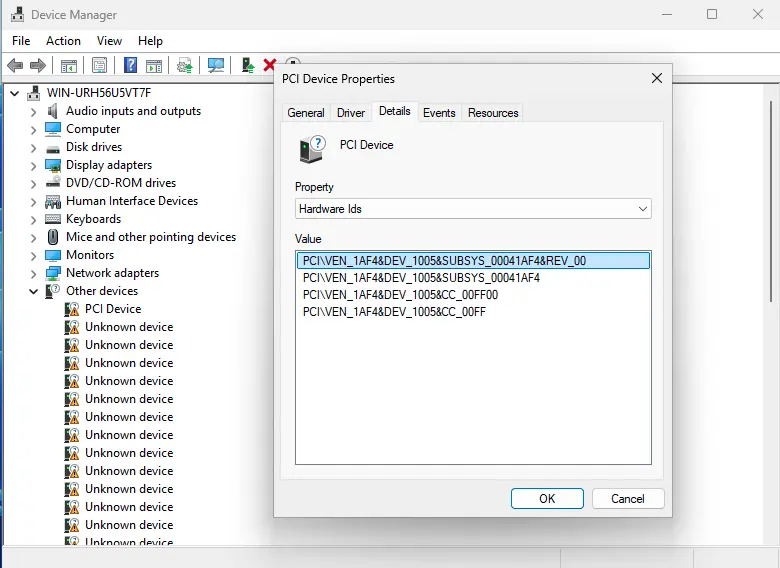
Open Device Manager (command: devmgmt.msc) and verify that physical devices (Wi-Fi or Ethernet) are listed under Network adapters. Check for devices with yellow exclamation marks in the Other devices section, as these could be network cards requiring drivers.
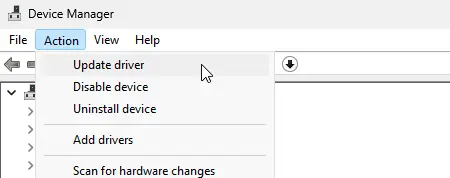
If no devices are listed, perform a Scan for hardware changes via the Action menu in Device Manager.
Network Adapter Drivers
1. Ensure drivers are correctly installed. Use Device Manager to automatically search for drivers.
2. If Windows does not recognize the device, find its identifier (VID and PID) in Device Manager under the device’s properties (Details tab, Hardware IDs property). Search for the driver online using the ID.
Removing and Reinstalling the Network Adapter
If the network adapter appears in Device Manager but not in Network Connections, try removing and reinstalling the device:
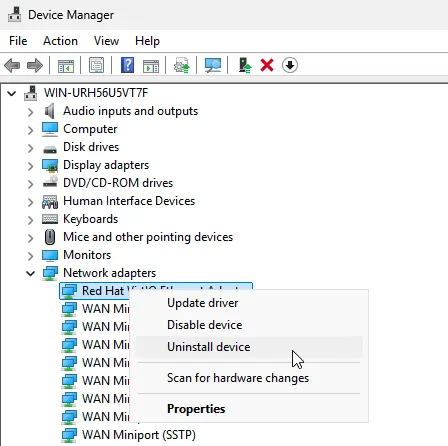
1. Right-click the network card and select Uninstall device.
2. Go to Action > Scan for hardware changes.
3. Windows will automatically reinstall the driver.
If this doesn’t work, download the driver from the manufacturer’s website and install it manually.
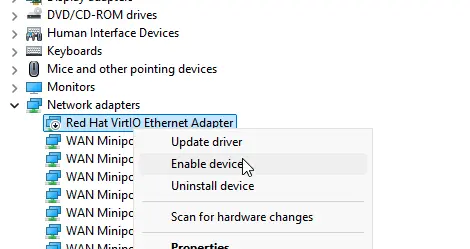
4. Ensure the network adapter is enabled in Device Manager. Disabled devices are marked with a small downward arrow icon. Enable the device if necessary.
Checking Services for Wi-Fi Adapters
If only Wi-Fi adapters are not displayed in Windows, check the status of the WLAN AutoConfig service. Run the following command in PowerShell:
Get-Service WlanSvc
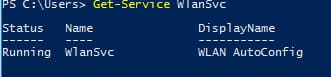
If the service is disabled, enable it:
Set-Service WlanSvc –startuptype automatic

Start-Service WlanSvc
For Windows Server, you also need to enable the Wireless-Networking feature, as it is disabled by default.
Resetting Network Settings
To reset network settings and the network stack, run the following commands in an elevated Command Prompt:
netsh winsock reset catalog

netsh winsock reset

netsh int ip reset
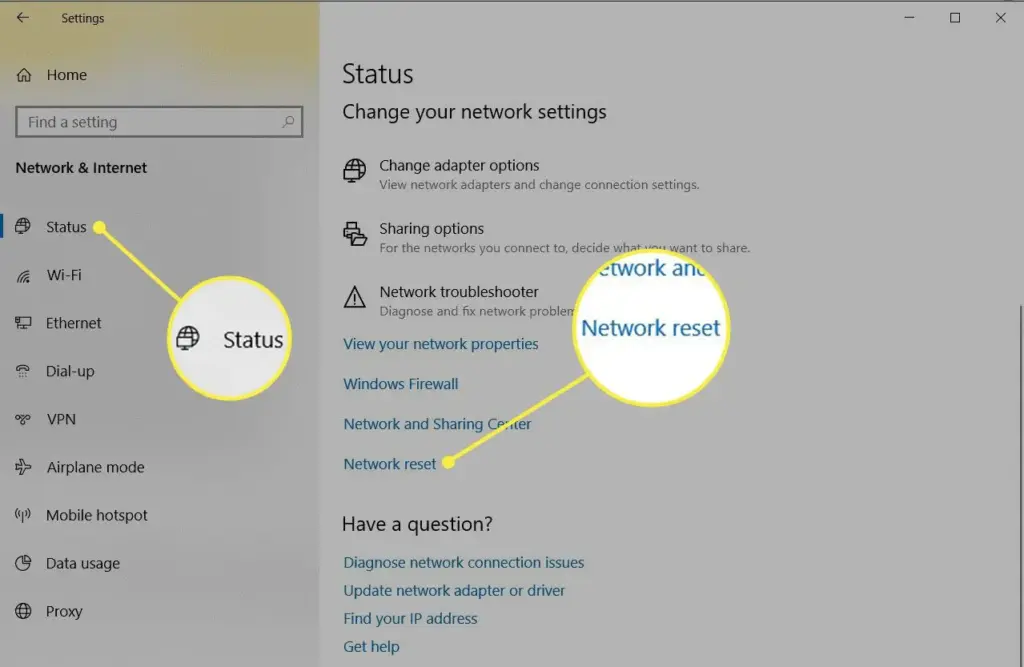
Alternatively, perform a Network Reset in Settings using the command:
ms-settings:network
Additional Steps
If the above steps don’t resolve the issue:
– Remove any third-party antivirus software that may be blocking network devices.
– Run the Network Troubleshooter with the command:
msdt.exe /id NetworkDiagnosticsNetworkAdapter
– Check the integrity of system files using:
sfc /scannow

DISM /Online /Cleanup-Image /CheckHealth
By following these steps, you can restore the functionality of network adapters in Windows.