In this article, we’ll explore in detail how to set up an internet gateway using Windows Server 2022, leveraging the capabilities of Remote Desktop Gateway and the gateway server role. This process enables the server to distribute internet access to a local network via two network interfaces: one for receiving internet traffic and another for distributing it. This solution is ideal for establishing gateways in corporate or virtual networks, providing centralized network access management.
You can purchase Windows Server 2022 from our store starting at $19.70.
Download original Windows Server 2022 installers from our catalog.
Requirements for Gateway Configuration
To create an internet gateway, you’ll need a server with two network interfaces:
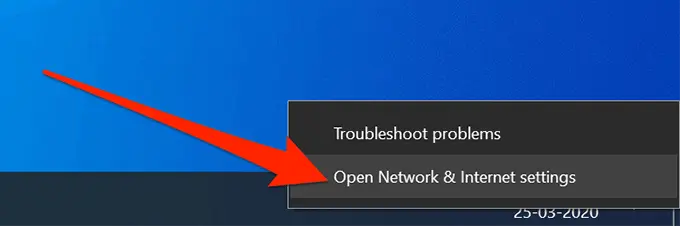
– Open “Network & Internet Settings” in the bottom-right corner.
– Navigate to Ethernet > Change adapter options.
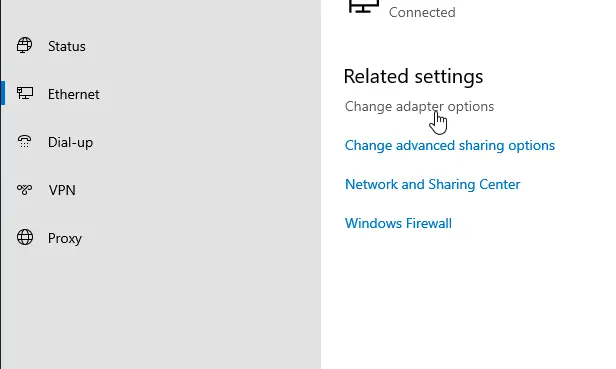
You should see two network interfaces:
– LAN interface for the local (internal) network.
– WAN interface for internet connectivity (external network).
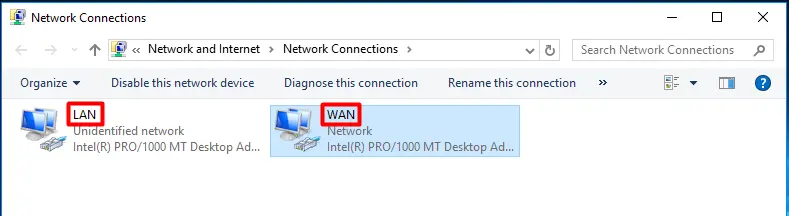
Additionally, we have two test virtual machines to verify internet connectivity.
Step 1: Verifying Network Interfaces
1. Ensure the server has two network adapters: one for the internal network (LAN interface) and one for the external network (WAN interface).
2. The WAN interface receives internet access, while the LAN interface distributes it.
Check the connection status on the test computers:
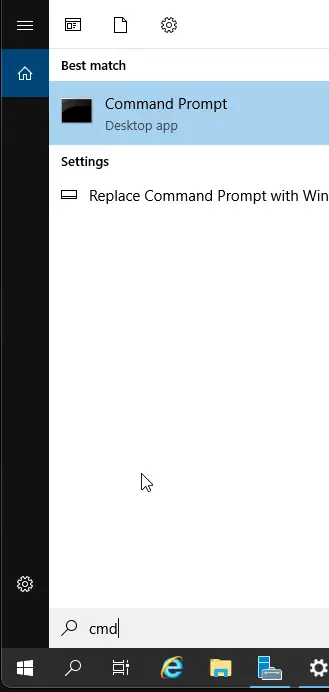
– Click “Start” and type “cmd” in the search bar.
– In the command prompt, enter ping 8.8.8.8 -t.
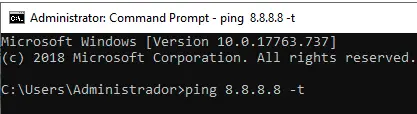
At this point, there’s no internet access on the test machines.
Step 2: Installing the “Remote Access” Role
1. Open Server Manager and select Add Roles and Features.
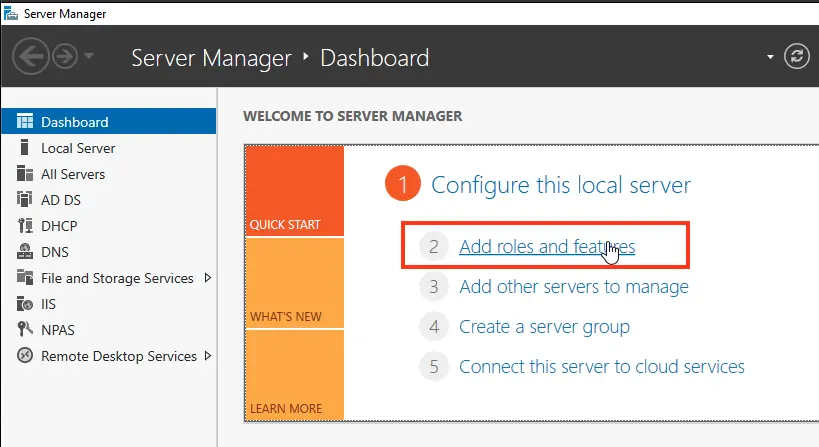
2. Click Next several times until you reach the list of roles.
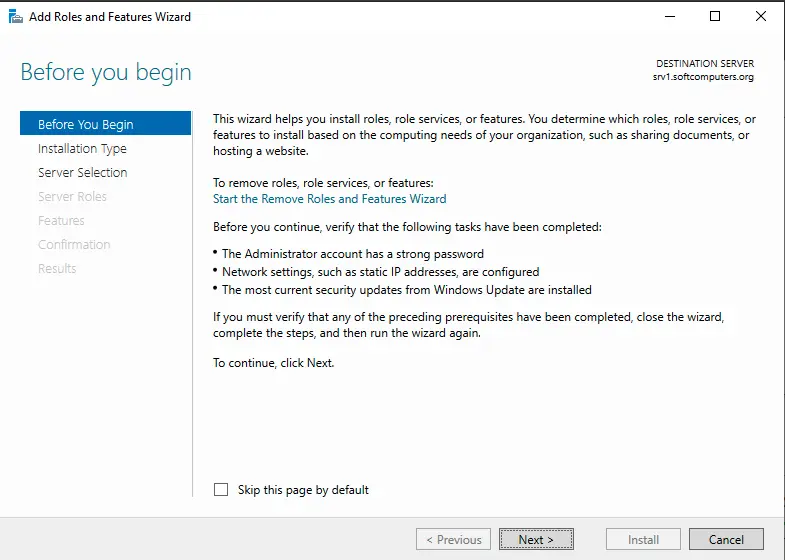
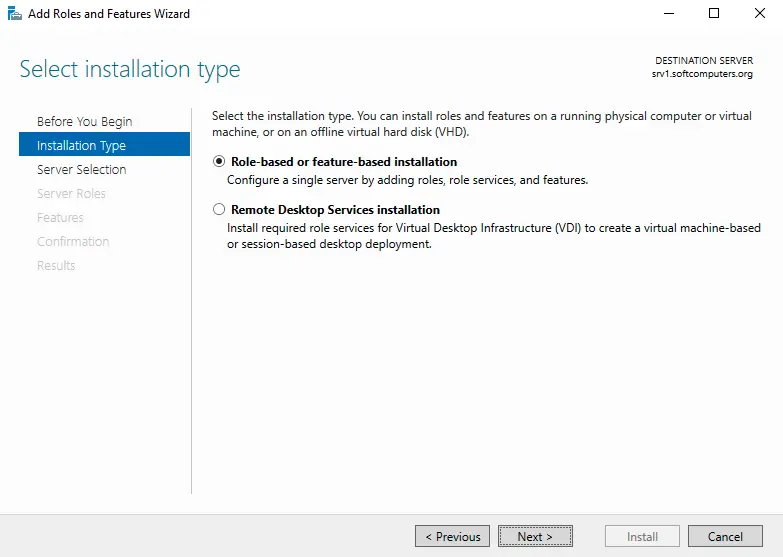
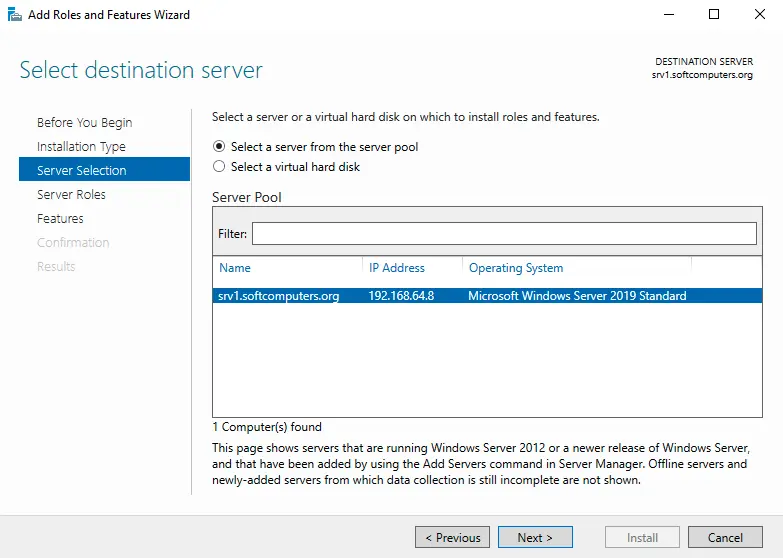
3. From the list, select Remote Access and click Next until you reach Role Services.
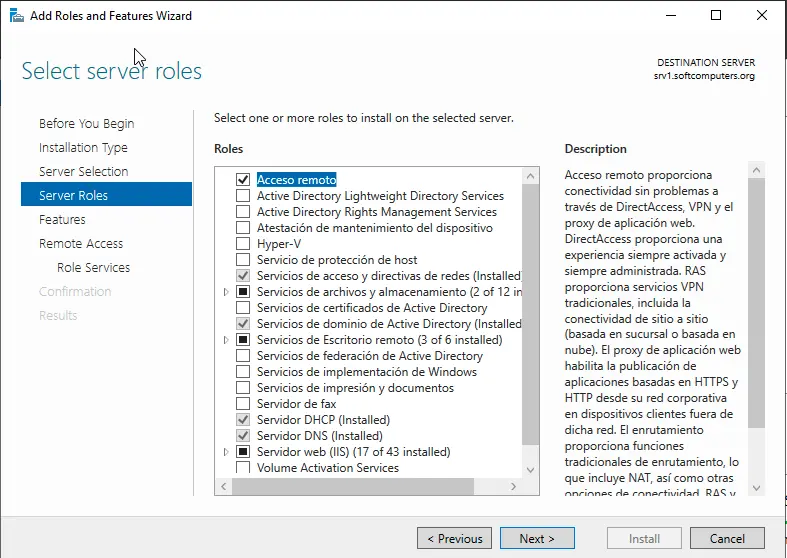
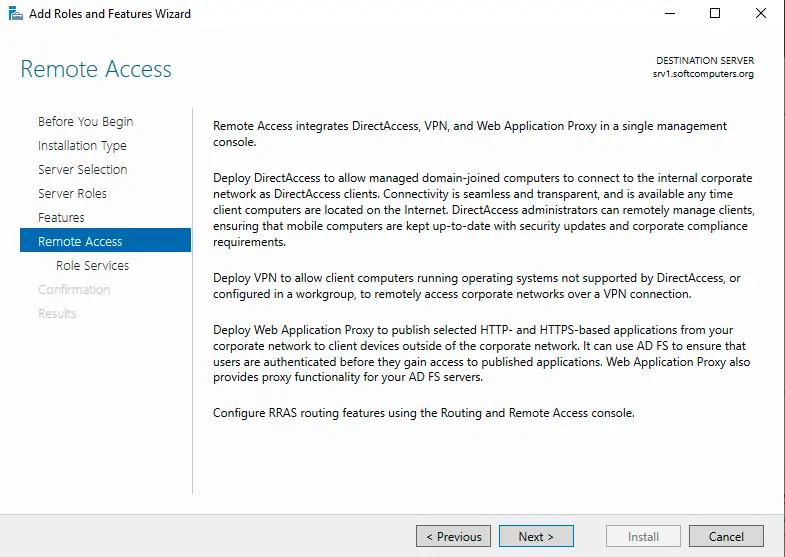
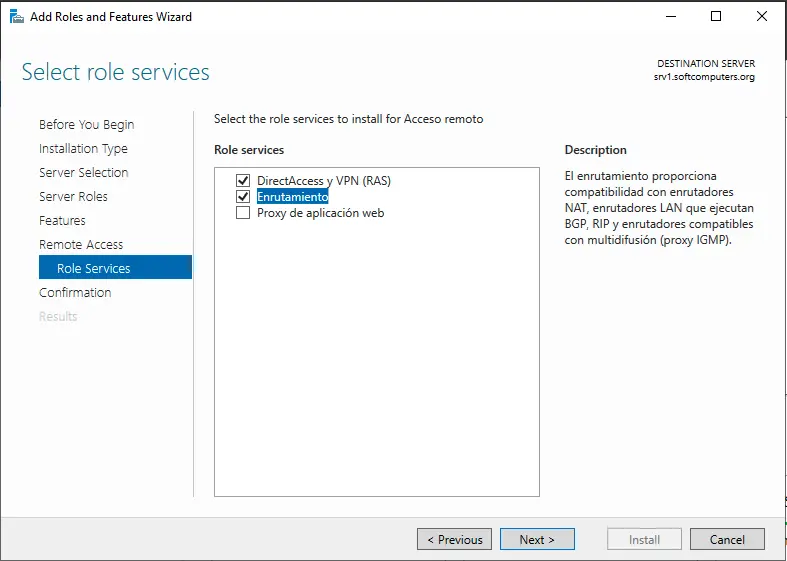
4. In the components window, select Routing and click Add Features.
5. Click Next until you reach Confirmation.
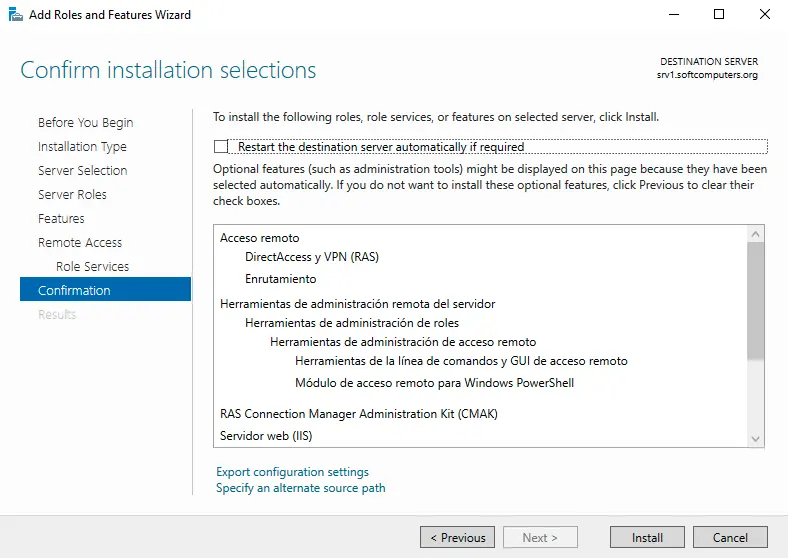
6. Install the components by clicking Install.
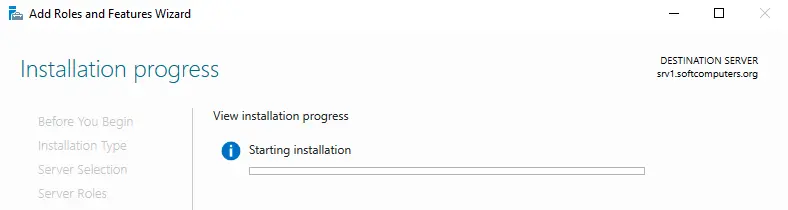
7. After installation completes, click Close.
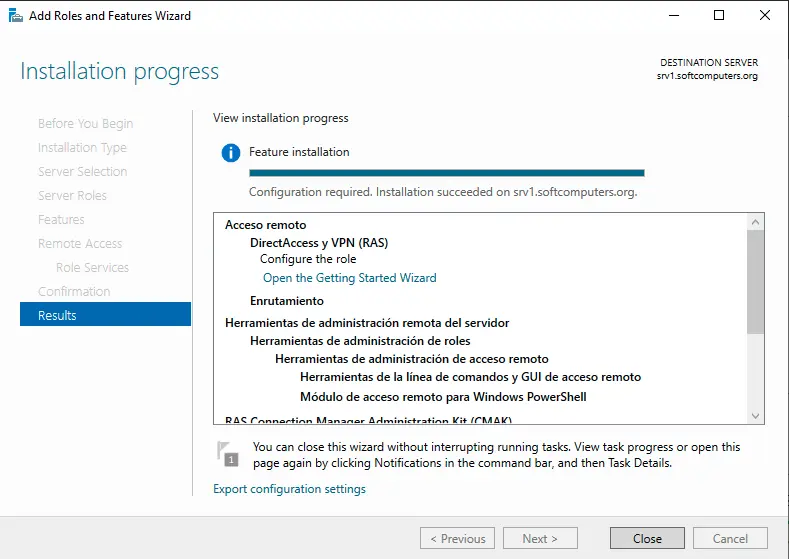
Step 3: Configuring Routing and Remote Access
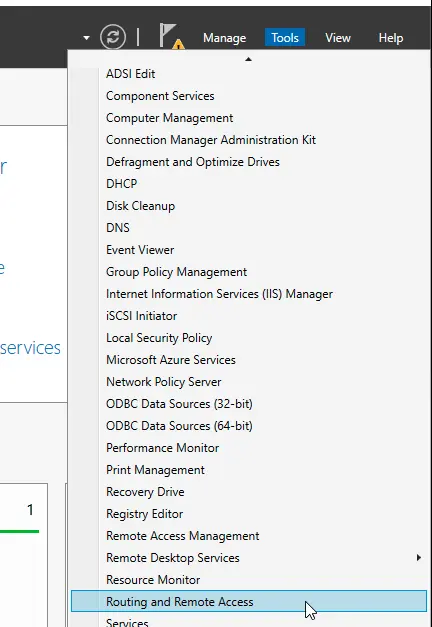
1. After installing the role, the Remote Access snap-in will appear in Server Manager.
2. Open the snap-in and go to the Tools section.
3. Select Routing and Remote Access from the list.
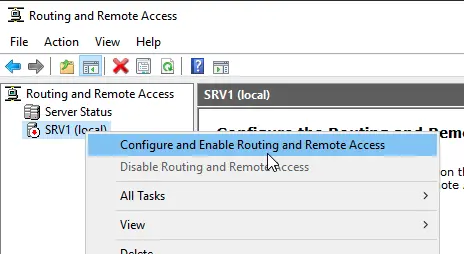
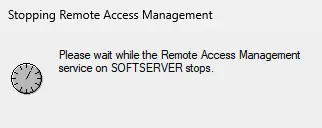
4. Right-click the server and choose Configure and Enable Routing and Remote Access.
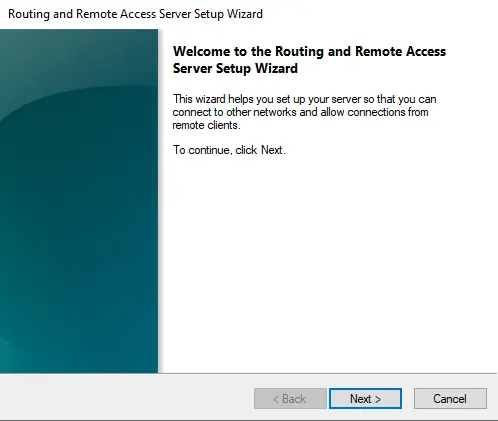
5. In the configuration wizard, click Next.
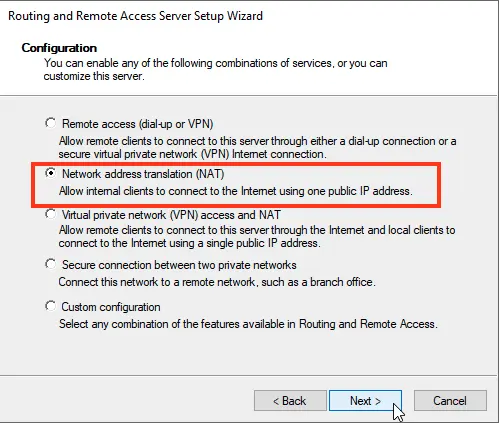
6. Select Network Address Translation (NAT) and click Next.
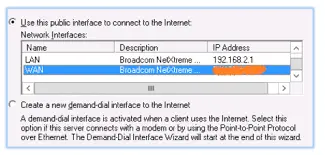
7. Choose the WAN interface as the interface for internet connectivity.
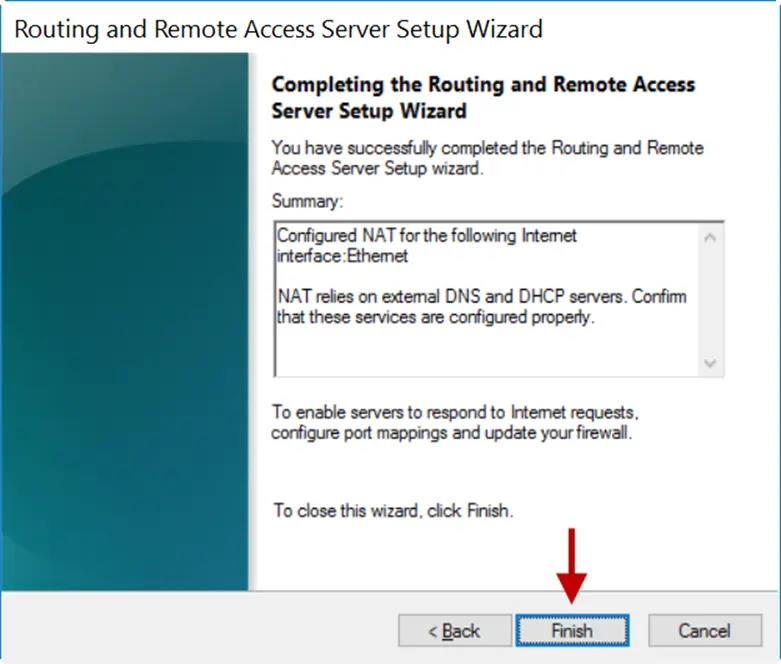
8. Click Finish to complete the setup.
Step 4: Verifying Internet Connectivity
1. After configuring routing, verify internet access on the test computers. Internet should now be available on both devices.
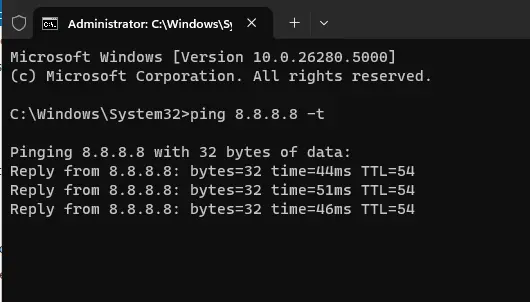
2. Run the command ping 8.8.8.8 -t on each computer to confirm the internet connection is established.
You have successfully configured an internet gateway on Windows Server 2022 using two network interfaces and the routing feature. The server can now distribute internet access to the internal network via the LAN interface. This configuration method is convenient for setting up gateways in corporate or virtual networks.