

In this article, we’ll explore how to relocate the Downloads folder in Windows 11 to another drive or location. Why might you need this? The Downloads folder is typically stored on the system drive, which can lead to space shortages, especially if you frequently download files. Moving this folder to another drive can optimize disk space usage and help you organize files more conveniently.
You can purchase genuine product keys for Windows 11 from our catalog starting at $11.70.
We’ll cover two methods to move the Downloads folder: through folder properties and via the Registry Editor. Both approaches will achieve the desired result, but each has unique considerations to keep in mind.
Method 1: Moving via Folder Properties
Step 1: Open Folder Properties
1. Locate the Downloads folder, which is by default at C:\Users\[Your Username]\Downloads.
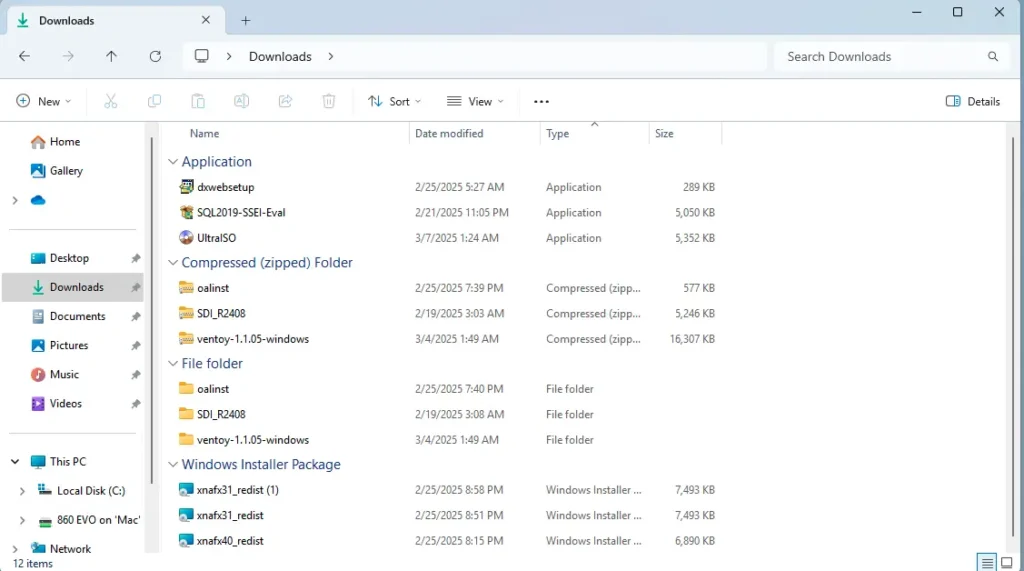
2. Right-click the folder and select “Properties.”
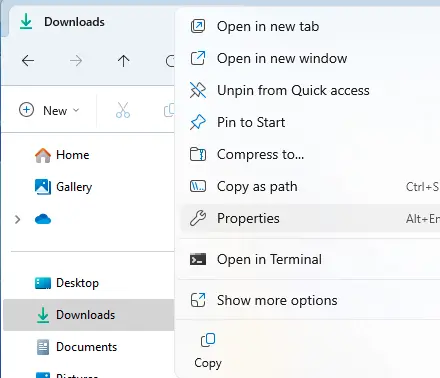
Step 2: Relocate the Folder
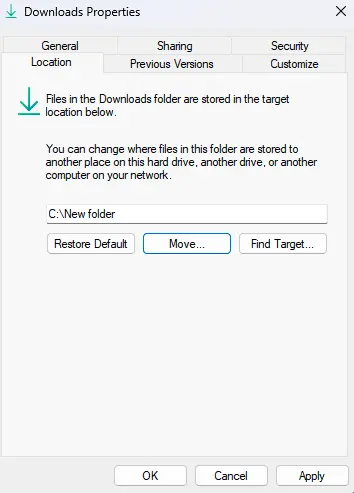
1. Go to the “Location” tab.
2. Click “Move” and choose a new folder on the desired drive, such as Drive D.
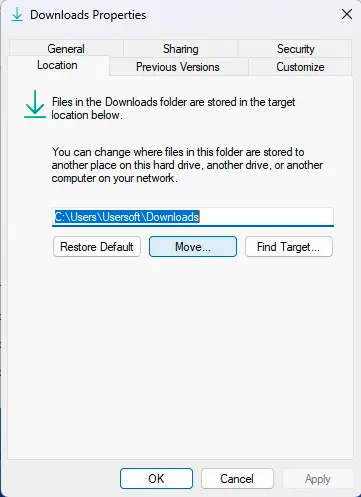
3. Create a new folder on Drive D, as moving directly to the root of a drive can cause issues. For example, name it `Downloads`.
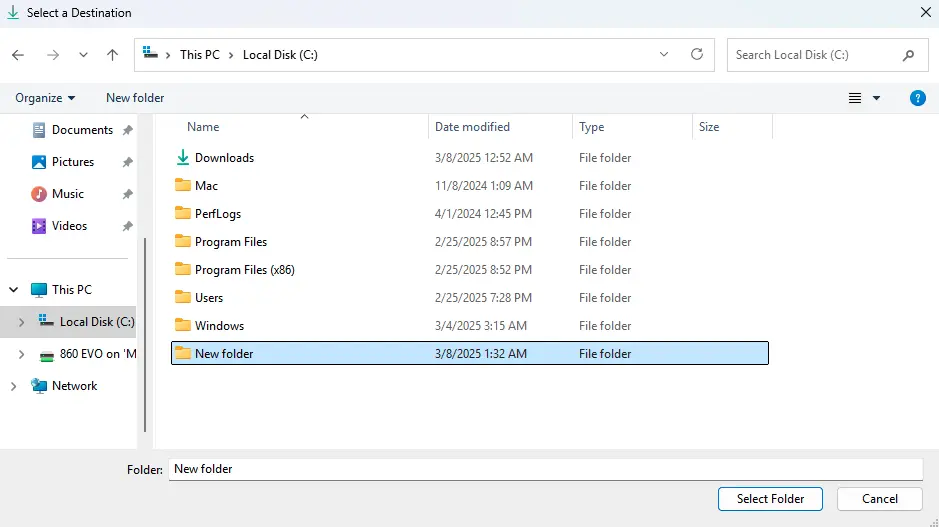
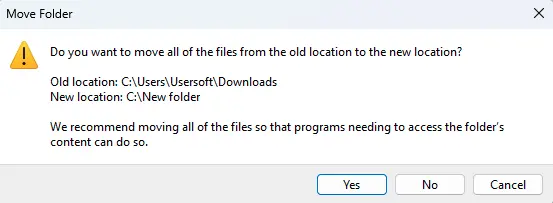
4. Select the new folder and click “OK.” The system will ask if you want to move existing files to the new location. Click “Yes” to transfer them or “No” to leave them in the original spot.
Method 2: Moving via Registry Editor
This method is more advanced but equally effective, especially for deeper system customization.
Step 1: Launch Registry Editor
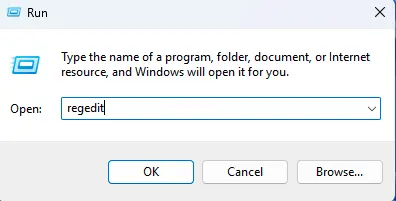
1. Open the “Start” menu and type “Run.”
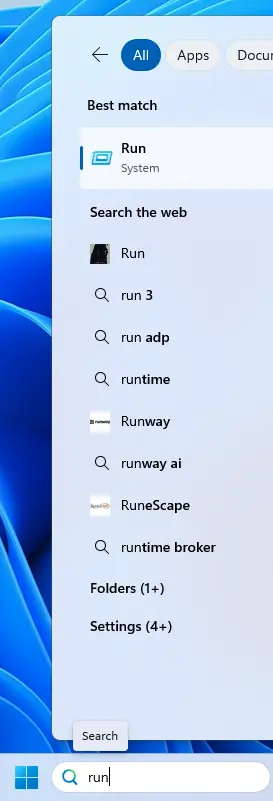
2. Enter `regedit` and click “OK” to open the Registry Editor.
Step 2: Modify Registry Settings
1. Navigate to the following path in the registry: HKEY_CURRENT_USER\Software\Microsoft\Windows\CurrentVersion\Explorer\User Shell Folders.
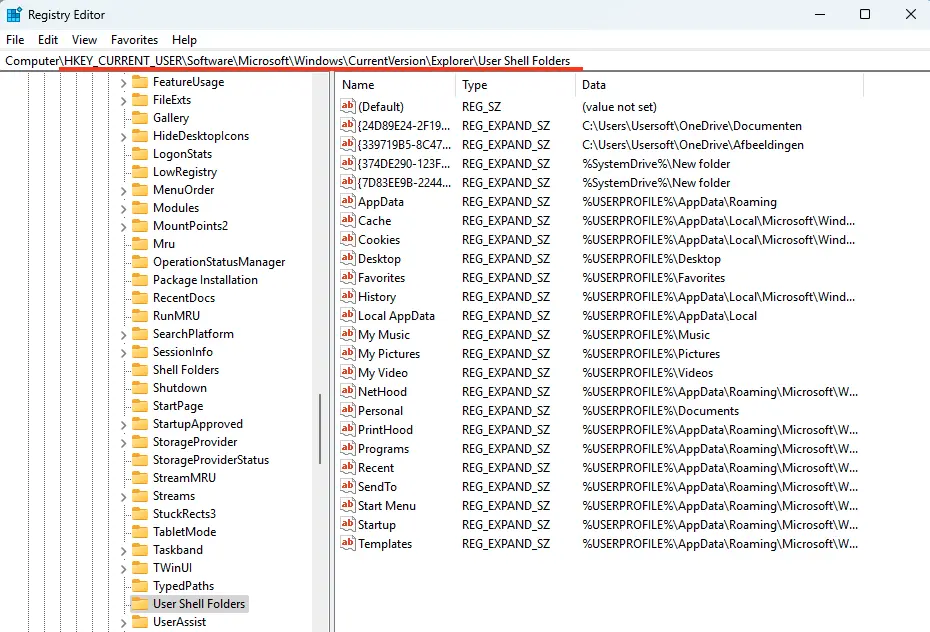
2. In Windows 11, you’ll need to modify two parameters (in Windows 10, only one). The parameter names vary by Windows version.
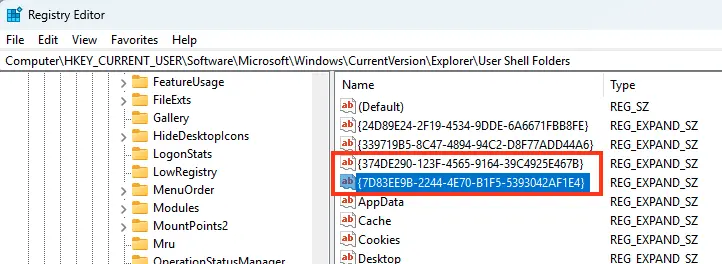
3. Double-click each parameter and enter the new path to your Downloads folder. Repeat this for both parameters.
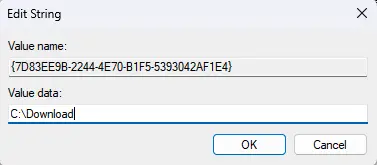
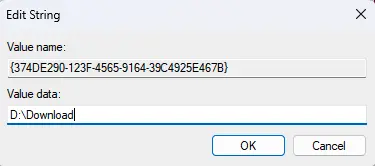
4. Click “OK” and restart your computer to apply the changes.
Note that this method doesn’t move existing files to the new location, but all newly downloaded files will save to the specified folder.
Additional Browser Settings
In browsers like Chrome, you can also adjust the Downloads folder location:
1. Open “Settings” in the browser.
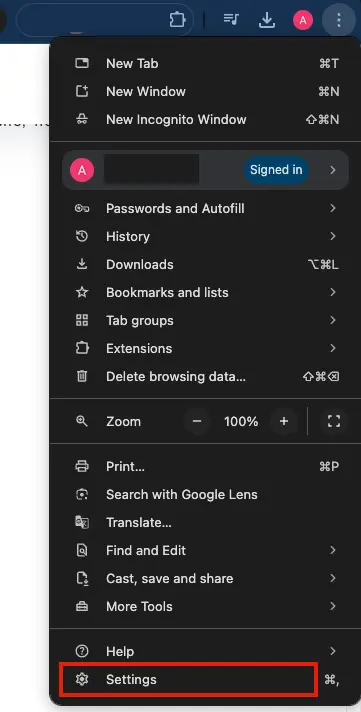
2. In settings go to “Downloads” section. Select a new location.
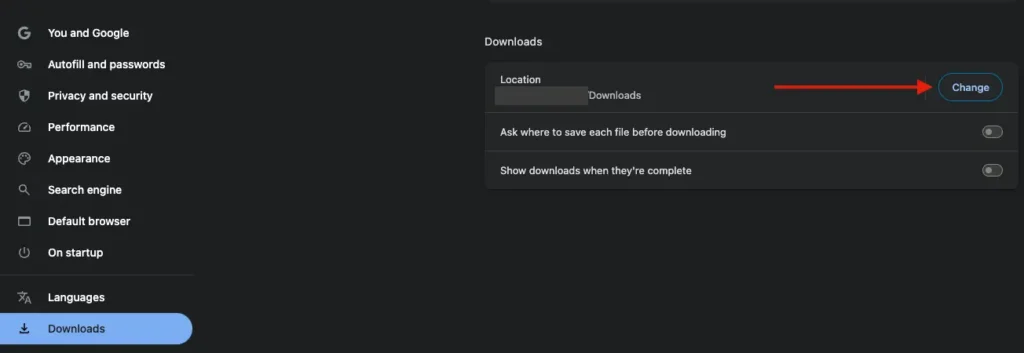
This approach offers flexible download management, which is especially handy if you want to save files to different locations, such as the desktop or another folder.
By relocating the Downloads folder, you can streamline file management and free up space on your system drive. Choose the method that best suits you and customize your system to meet your needs.