Sometimes, during standard online activation, various errors may occur. In such cases, Microsoft’s official technical support recommends activating MS Visio by phone, and the call is free. This guide is suitable for any version of Microsoft Visio. Here’s a step-by-step guide on how to do it:
1) Obtain the Product Key
First, you must have the product key. If you don’t have one yet, you can purchase it in our online store on the following page.
2) Install Visio on Your Computer
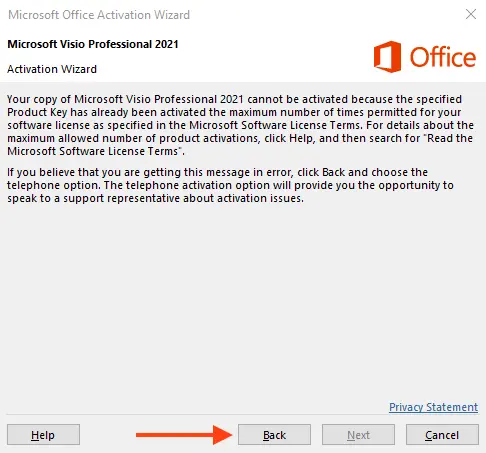
After installation and entering the key, you may encounter the following window. As suggested in the second paragraph of the screenshot, if this error occurs, you need to activate Microsoft Visio by phone.
3) Go Back and Select Phone Activation
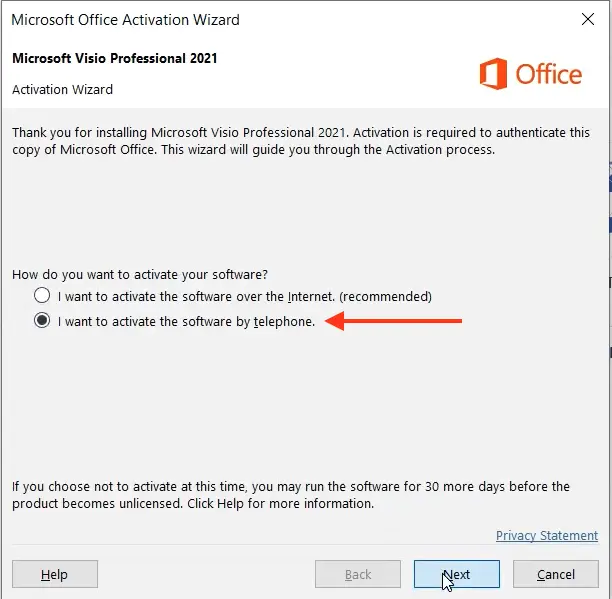
Return to the previous screen and select the phone activation option.
4) Select Your Country
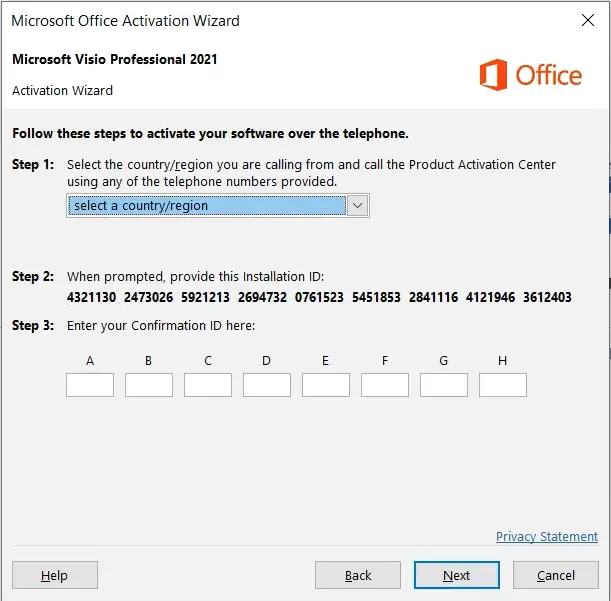
In the next window, in the drop-down menu, select your country of location in step 1, for example, we will have the United Kingdom. (You can have any other country). As a rule, most countries have a number with a free call at the expense of Microsoft.
– When calling, press 1, we agree with the recording of the conversation, then press 3 – Office activation, then press 1 and enter the numbers to robot (from step 2 in the screenshot below).
Attention! You need to enter your installation ID, which exactly you have in the activation window program by phone, in our screenshot below is an example.
After entering the numbers to the robot, the robot will ask you on how many computers the key has already been installed, you need to answer “zero”.
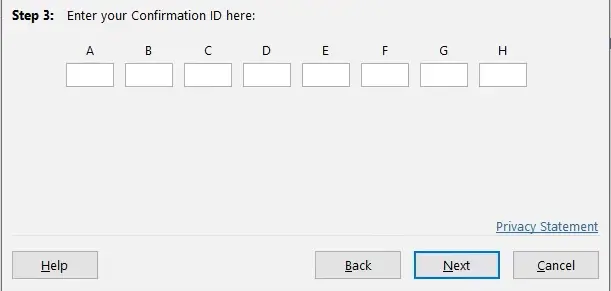
– Next, we are waiting for the response confirmation ID from the robot, which will need to be entered in the input fields from A to H and activate Microsoft Office.
If everything went well. then the activation wizard will inform you about the successful activation of the application in the next step, after clicking on the “Next” button.
In addition, you can activate yourself in text mode without a call using our online service GET CID – Microsoft Self-Service Support, on the next page.
5) Proceed with Phone Activation in Text Mode
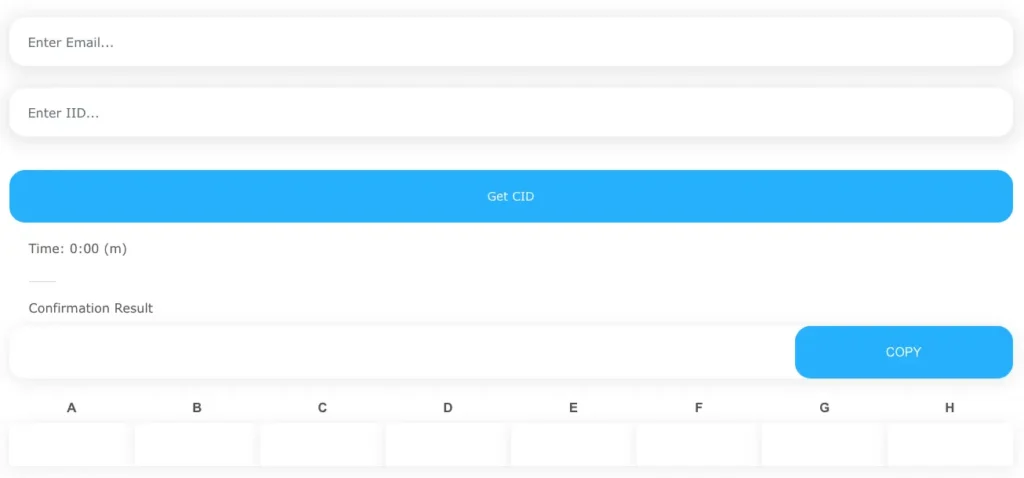
– Go to the following page for automatic phone activation in text mode.
1. Enter the email address you used when purchasing the product on our website.
2. Next, enter the installation code from your phone activation window. Then click the “Start” button.
3. After that, you will receive a confirmation code consisting of 8 blocks (A to H) with 6 digits each.
6) Enter the Confirmation Code
Enter these digits into your phone activation window.
After this, everything should proceed successfully! Once activated, it is recommended to restart the Visio application.