This article discusses what to do if the installation, removal, or update process of SQL Server hangs at a certain step and fails to complete. This issue can occur when installing or removing various versions of SQL Server (2019, 2017, 2014, 2012) or when working with SQL Server Management Studio. We will explain how to resolve this issue and proceed with the installation or removal of SQL Server.
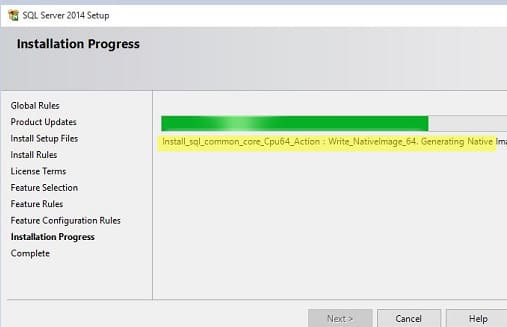
During the installation or update of SQL Server, you may encounter the process hanging at the following stages:
Install_SQLSupport_CPU64_Action
Install_sql_common_core_Cpu64_Action : Write_NativeImage_64. : Generating native images
This issue can occur with various versions of SQL Server starting from 2012. The problem arises when another process locks the Windows Installer service, preventing the SQL Server installer from completing its operation.
How to Resolve SQL Server Installation Hanging
1. Run the SQLSUPPORT.msi file:
Navigate to the SQL Server installer directory:
SQLServerMedia\<YOUR_SQL_ENU>\1033_ENU_LP\x64\Setup
Run the SQLSUPPORT.msi file to install the support components.
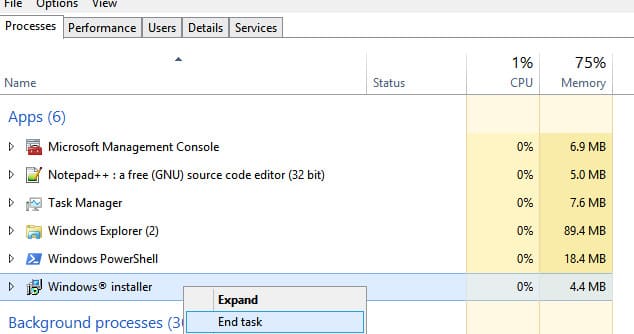
2. Terminate the Windows Installer service process:
Open a Command Prompt with administrator privileges and run:
taskkill /F /FI "SERVICES eq msiserver"
This command stops the Windows Installer (msiserver) process, which may be blocking the installation.
3. Continue the installation:
After performing these steps, the SQL Server installation or update should proceed without issues.
Additional Steps: Bypassing Windows Installer Check
If the issue persists, you can run the SQL Server installer with a parameter to skip the Windows Installer handler check:
1. Open a Command Prompt with administrator privileges.
2. Run the installer with the skip check parameter:
Setup.exe /SkipInstallerRunCheck
This parameter allows the SQL Server installer to bypass the check for locked Windows Installer handlers and complete the operation.
Hanging during SQL Server installation or removal is often caused by the Windows Installer service being blocked by another process. The solution involves forcibly terminating the process and running the installer with the /SkipInstallerRunCheck parameter. By following these steps, you can continue the SQL Server installation and avoid repeated failures.