




In some cases, Windows users may encounter an issue where the context menu in File Explorer lacks options to create new files or folders, even if the user account has local administrator privileges. Sometimes, only the option to create a new folder appears with a UAC shield icon, and creating files is not possible, even with administrator rights.
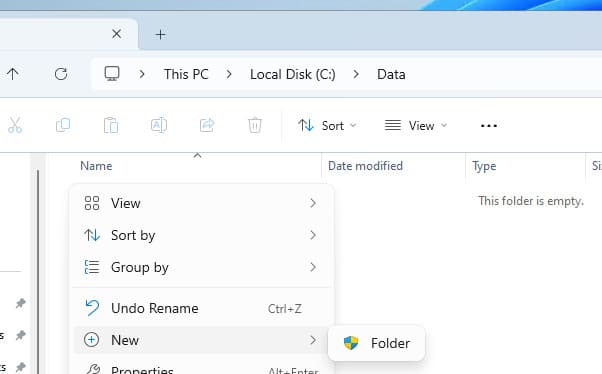
Step 1: Check NTFS Permissions
If the context menu in File Explorer lacks options to create new files or folders, first check the NTFS permissions for the directory. For a user to create files, their account or the group they belong to must have the following permissions:
– Create files / write data
– Write attributes
– Write extended attributes
– Create folders / append data
How to Check and Configure Access Permissions
1. Open the properties of the desired folder.
2. Navigate to the Security tab and grant Write permissions to the user account or group.
3. For more granular permissions, go to Advanced > Show advanced permissions and select the necessary permissions.


After applying these changes, all options for creating new files should appear in the “New” context menu in File Explorer.

If the “New” button is missing in File Explorer, check the registry settings.

Step 2: Check Registry Settings
If NTFS permissions are correctly configured but the options to create files and folders still do not appear, verify the Windows registry settings.
1. Open the Registry Editor (regedit) and navigate to the following path:
HKEY_CLASSES_ROOT\Directory\Background\shellex\ContextMenuHandlers
2. Ensure that the (Default) parameter has the following value:
{D969A300-E7FF-11d0-A93B-00A0C90F2719}
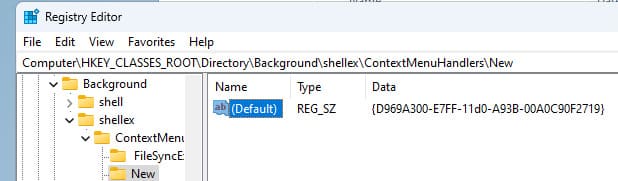
3. If the parameter is missing, create it manually.
Step 3: Restore the New Folder Creation Setting
If the option to create a new folder is missing from the File Explorer context menu, perform the following steps:
1. Open the Registry Editor and navigate to:
HKEY_CLASSES_ROOT\Folder
2. Ensure that this section contains a ShellNew subkey. If it is missing, restore this key by importing it from another computer.
If you cannot create new files or folders in File Explorer, the issue is typically related to incorrect NTFS permissions or registry settings. By following these steps, you can restore access to these functions and resolve the problem.