This article is applicable to all versions of Windows Server.
If you are experiencing a black screen problem when connecting to a remote desktop (RDP), in most cases the problem is related to a “stuck” session. That is, if a user does not log out of the remote desktop, but simply closes the RDP window, this is sometimes justified for a quick reconnect.
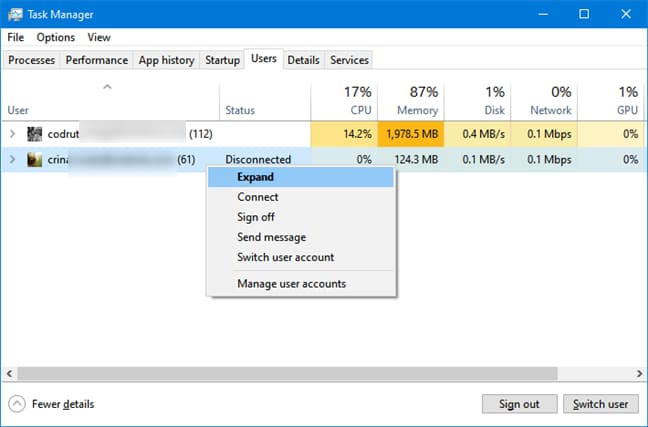
An administrator or any other user with appropriate privileges can access the Task Manager => Users => Find the required user => Click “Sign out.” After that, the user who experienced the black screen should reconnect via RDP, and the problem should be resolved.
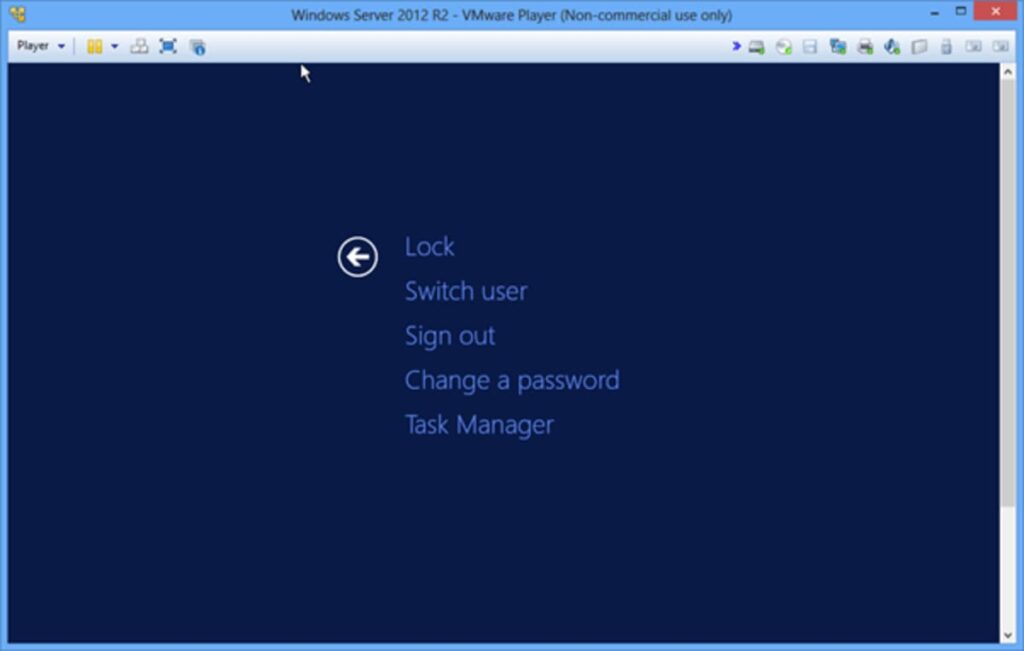
Another method that users can perform themselves without administrator intervention is to press the hotkeys Ctrl+Alt+End on the RDP session (on the black screen) and from the menu that appears, click “Sign out” or “Log off.”
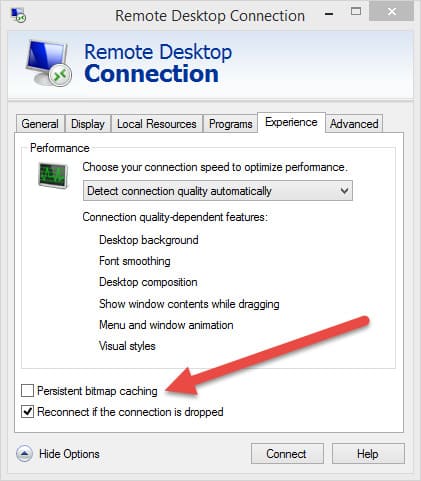
If the above methods did not help, try adjusting the connection settings for the user. In the “Experience” menu, uncheck “Persistent bitmap caching.”
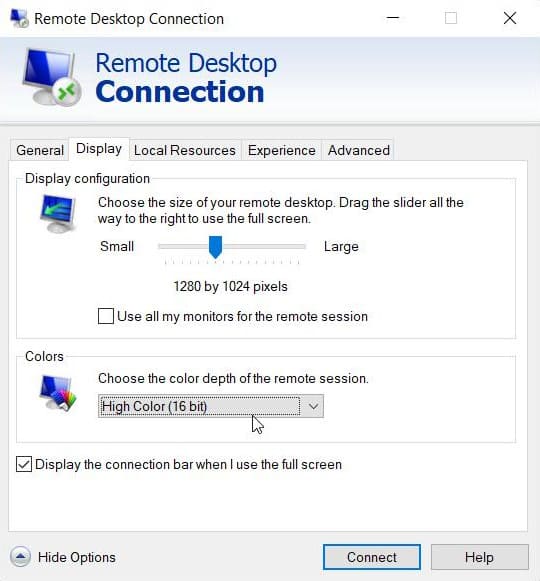
Additionally, you can try reducing the screen resolution for the RDP session.
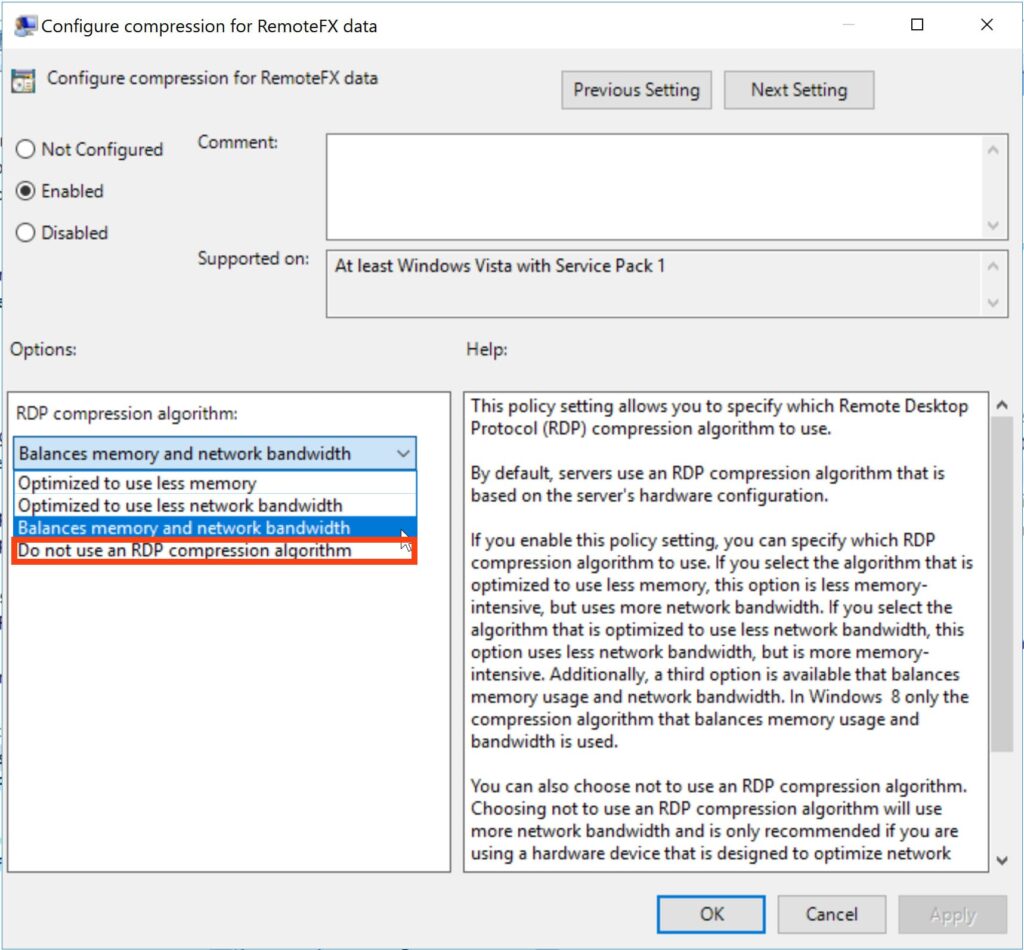
If the above methods also do not work, you can try disabling compression for RDP, as sometimes recommended by Microsoft support.
Win + R => gpedit.msc => Computer Configuration => Administrative Templates => Windows Components => Remote Desktop Services => Remote Desktop Session Host => Configure compression algorithm for RDP. Enable the feature and set it to “Do not use an RDP compression algorithm.”
According to various observations, disabling the task offload feature sometimes helps with black screens. Open the command prompt on the server with administrator privileges and enter: netsh int ip set global taskoffload=disabled
Afterward, reboot the server.
Besides, ensure that your server is properly licensed and apart from the black screen, clients are not encountering any errors. For instance, as shown in the screenshot below:
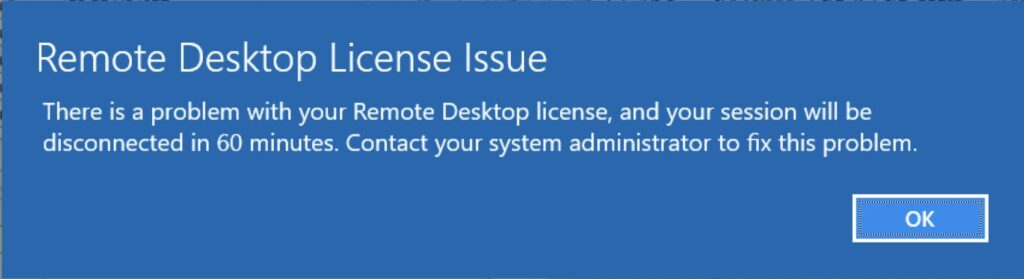
Such errors may indicate that the terminal server is not licensed. In this case, you will need a license, which you can purchase in our catalog, followed by its configuration and activation according to the instructions.