
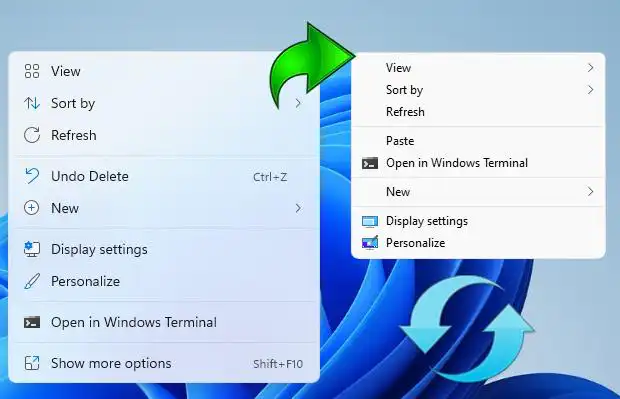
In this guide, you’ll learn how to enable the classic context menu in Windows 11 using system tools or a free third-party utility. You can also customize the new context menu with your own options.
Windows 11 Context Menu Changes
Windows 11 features a redesigned right-click menu for files and folders. The legacy menu is still accessible via “Show more options” or the Shift+F10 shortcut. However, you can force the classic menu to appear by default.
Method 1: Enable Classic Menu via Registry Editor
Follow these steps to disable the new menu and restore the classic version:
Step-by-Step Instructions
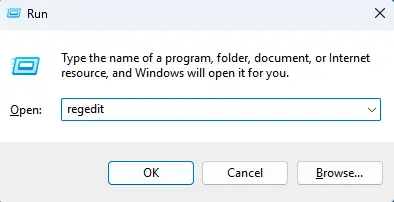
1. Press Win+R, type regedit, and press Enter.
2. Navigate to:
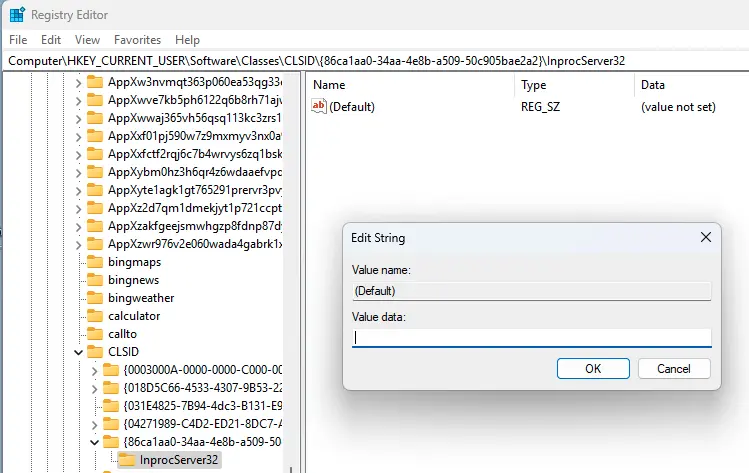
HKEY_CURRENT_USER\Software\Classes\CLSID
3. Check if this subkey exists:
{86ca1aa0-34aa-4e8b-a509-50c905bae2a2}
4. If not, right-click CLSID > New > Key and name it {86ca1aa0-34aa-4e8b-a509-50c905bae2a2}.
5. Inside this key, create another subkey named InprocServer32.
6. Double-click the (Default) value in InprocServer32, leave it empty, and click OK.
Apply Changes
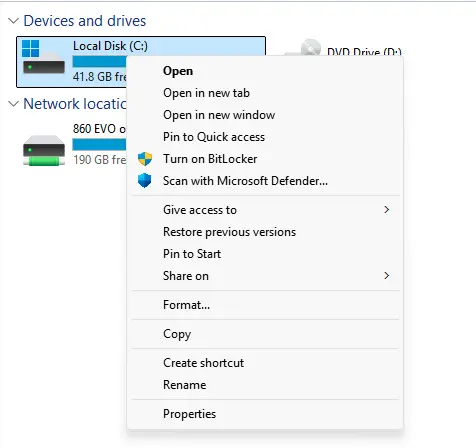
Restart File Explorer via Task Manager or reboot your PC. After that, when you right-click on the elements of the explorer and the Windows 11 desktop
Method 2: Create a REG File for Classic Menu
Automate the Process
Create a .reg file with this content:
[HKEY_CURRENT_USER\Software\Classes\CLSID\{86ca1aa0-34aa-4e8b-a509-50c905bae2a2}\InprocServer32] @=""
Windows Registry Editor Version 5.00
Or run this command in an Admin Command Prompt:
reg.exe add "HKCU\Software\Classes\CLSID\{86ca1aa0-34aa-4e8b-a509-50c905bae2a2}\InprocServer32" /f
Revert to Default
Delete the registry key:
HKEY_CURRENT_USER\Software\Classes\CLSID\{86ca1aa0-34aa-4e8b-a509-50c905bae2a2}
Warning: This may reset desktop icons/wallpapers. Reboot to fix.
Method 3: Use Windows 11 Classic Context Menu Tool
Free Third-Party Utility
1. Download Windows 11 Classic Context Menu (scroll down for the download button).
2. If blocked by SmartScreen, click More Info > Run Anyway.
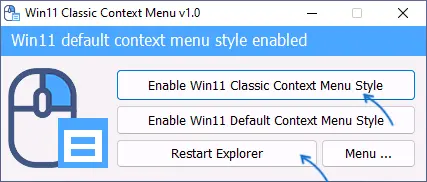
3. Click Enable Win11 Classic Context Menu Style.
Finalize Settings
After the window turns green, click Restart Explorer.
To revert, select Enable Win11 Default Context Menu Style.