






Port mapping or port redirection is the process of directing network traffic from one port to another, including one located on a different interface. This functionality is widely used in routers to access devices on a local network from an external network, which are behind the router. In Windows, port mapping can also be implemented using built-in firewall functions or third-party utilities.
Setting Up Port Forwarding Through Windows Firewall
Despite the absence of explicit port mapping settings in the Windows Firewall interface, this capability still exists—but it is only accessible through the command line and works exclusively with the TCP protocol.
The syntax of the command for port mapping is as follows:
netsh interface portproxy add v4tov4 listenaddress=[LISTENING_LOCAL_ADDRESS] listenport=[LISTENING_LOCAL_PORT] connectaddress=[DESTINATION_ADDRESS] connectport=[DESTINATION_PORT]
Explanation of command parameters:
– listenaddress — the local address from which traffic is redirected.
– listenport — the local port from which traffic is redirected.
– connectaddress — the destination address for the redirected connection.
– connectport — the destination port for the redirected connection.
Examples:
If you have a computer with the address 10.0.0.13, and a web server is located in the network with the address 10.0.0.23, to redirect requests from port 80 of your computer to this web server, use the command:
netsh interface portproxy add v4tov4 listenaddress=10.0.0.13 listenport=80 connectaddress=10.0.0.23 connectport=80

To redirect an RDP connection from your computer to another one in the network where the RDP server listens on a non-standard port 4200:
netsh interface portproxy add v4tov4 listenaddress=10.0.0.13 listenport=3389 connectaddress=10.0.0.23 connectport=4200

To view all configured port forwarding rules, use the command:
netsh interface portproxy show all
To delete all port mapping rules:
netsh interface portproxy reset
Port Forwarding Using 3proxy Utility
3proxy is a small utility developed for redirecting TCP and UDP traffic. It can also function as various proxy servers (HTTP, HTTPS, SOCKS, etc.). Port forwarding configuration is set in the 3proxy.cfg file, which should be located in the directory with the utility.
Example of the configuration file syntax:
[PROTOCOL TCP or UDP]pm -i[LISTENING_LOCAL_ADDRESS] [LISTENING_LOCAL_PORT] [DESTINATION_ADDRESS] [DESTINATION_PORT]
For example, to redirect TCP traffic from local address 10.0.0.13 and port 80 to a remote server with address 10.0.0.23 and port 8080, use the line:
tcppm -i10.0.0.13 80 10.0.0.23 8080
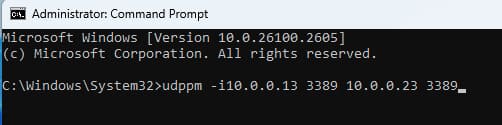
To redirect UDP port 3389:
udppm -i10.0.0.13 3389 10.0.0.23 3389
To have the utility start as a service, add the service parameter to the config and run 3proxy.exe with the –install parameter.
Port Forwarding Using nginx
nginx is a popular web server that can also be used for port forwarding and traffic redirection. There is a Windows version of nginx that allows you to redirect connections, but it cannot run as a service without additional software.
Example configuration file for forwarding port 3390 to a remote server with address 10.0.0.23 and port 3389:
worker_processes 1;events {
worker_connections 1024;
}stream {
upstream portforward {
server 10.0.0.23:3389;
}server {
listen 3390;
proxy_pass portforward;
}
}
To forward UDP traffic, specify udp in the listen directive:
server {

   listen 3390 udp;

   proxy_pass portforward;

   proxy_responses 0;

 }
Port forwarding in Windows can be implemented in various ways, using both built-in tools (through the command line and firewall) and third-party utilities such as 3proxy or nginx. The choice of method depends on your needs and the complexity level of the task. All the mentioned tools allow you to set up port mapping to provide access to local resources through an external interface.