In this article, we will go through the step-by-step process of installing and activating Microsoft Office 2016 Pro Plus. By following our recommendations, you can quickly and easily set up the entire office suite for efficient work.
1) Downloading the official Microsoft Office 2016 Pro Plus installer
– We will be installing the official installer from Microsoft. Download the Microsoft Office 2016 Pro Plus installer via the direct link from Microsoft’s server.
2) Preparing for activation
– You will need a product key to activate the installer. Without activation, the application will be available in trial mode for 30 days. After the trial period, Office applications will restrict editing documents, allowing only viewing.
– You can purchase a product key in our catalog from $15.00. The key will be delivered automatically to your email immediately after payment.
3) Installing Microsoft Office 2016 Pro Plus
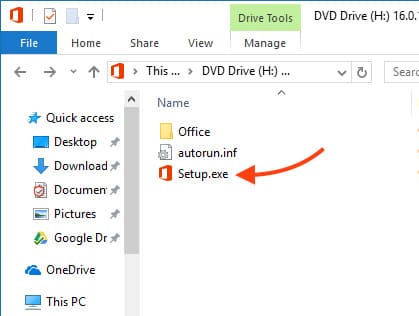
– Double-click the downloaded file. The installer contents will open.
– To start the installation, also double-click the Setup file.
4) Installation process
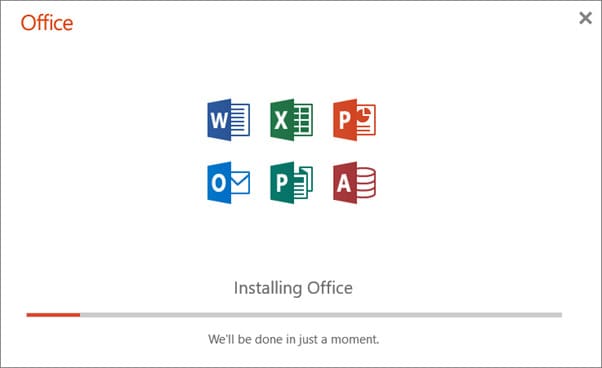
– The installation of Microsoft Office 2016 Pro Plus will begin. Wait for it to finish. The installation time depends on your internet speed and computer performance, but it usually takes no more than 10-15 minutes.
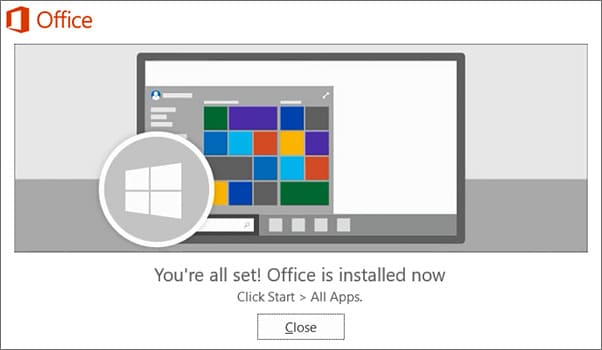
– Once the installation is complete, you will see a notification window confirming its completion.
5) Activating Microsoft Office 2016 Pro Plus
After the installation, you need to activate the application. To do this, open any Office application, for example, Word.
– Open the “Start” menu.
– Find any application from the Office 2016 suite, for example, Word, and launch it.

6) Entering the product key
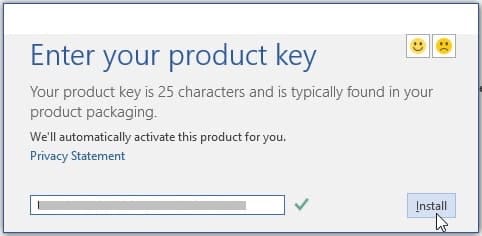
When you start the application for the first time, a window will appear for activation with a field to enter your product key.
– Enter your Microsoft Office 2016 Pro Plus product key into the appropriate field.
– After entering the product key, click the “Install” button to complete the activation process.
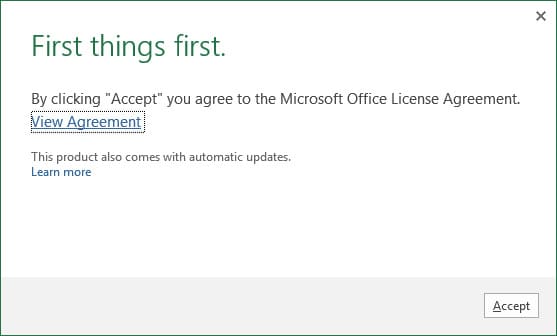
– Accept the license terms.
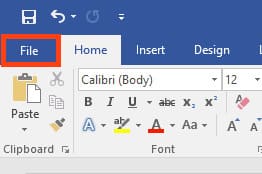
– Done! The application should now be activated. You can check the activation status in the “Account” menu. To access it, click “File” in the top left corner of the working document.
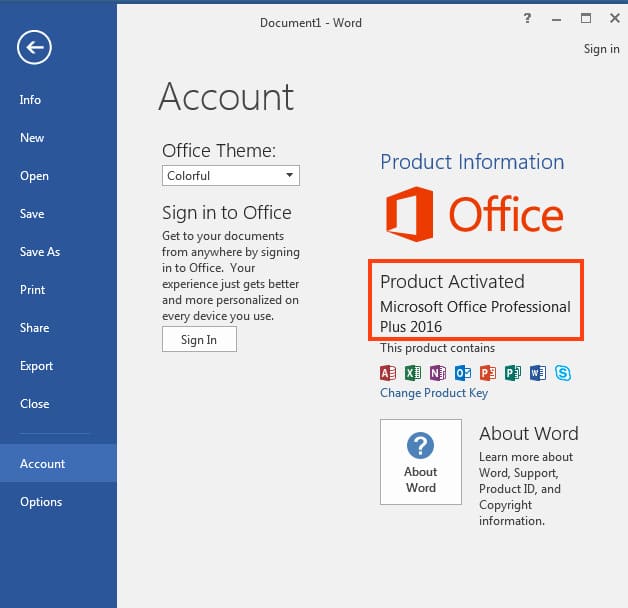
– Then go to “Account” and verify that your Office 2016 is successfully activated and ready to use.
Installing and activating Microsoft Office 2016 Pro Plus is a straightforward process that does not require any special knowledge. By following our step-by-step instructions, you can quickly set up the entire office suite you need for effective work.