Microsoft has updated the process for removing Office, replacing old methods with the use of a built-in Windows tool — “Windows Help”. This solution integrates Microsoft 365 troubleshooting with a broader set of capabilities. In this article, we will explore in detail how to remove Microsoft Office using this new approach.
What has changed?
Previously, removing Office required a separate utility called Support and Recovery Assistant. Now, everything has become simpler: troubleshooting tools are integrated into the “Get Help” app, available on every Windows computer.
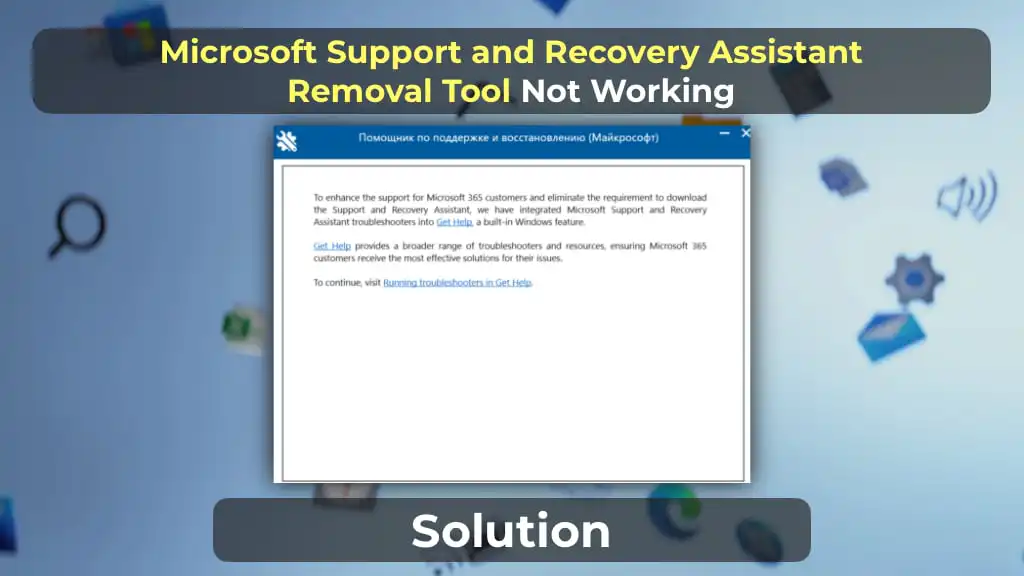
Some users also encounter an error when trying to remove Office via the Support and Recovery Assistant: “To enhance the support for Microsoft 365 customers and eliminate the requirement to download the Support and Recovery Assistant…”

How to Remove Microsoft Office Using “Windows Help”
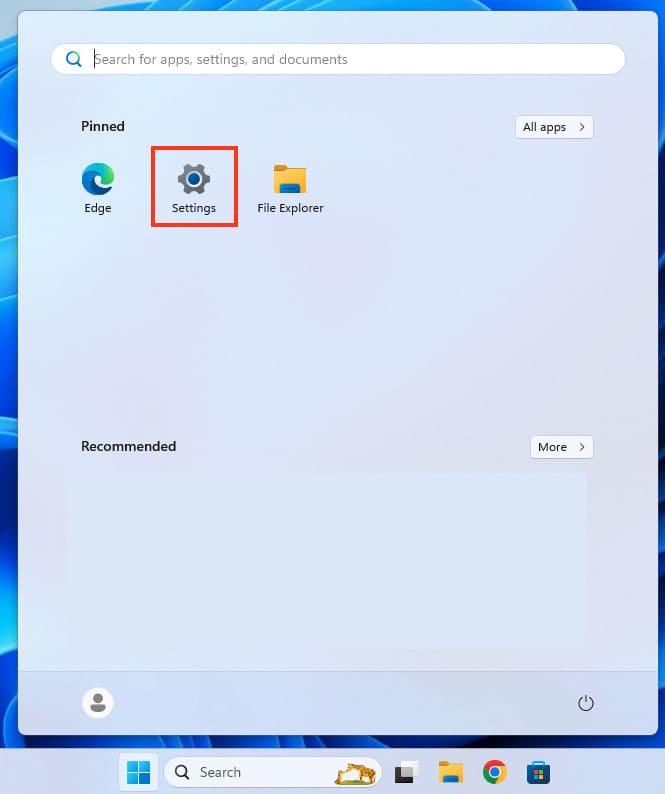
1) Opening Settings
– Click on “Start” and select “Settings”.
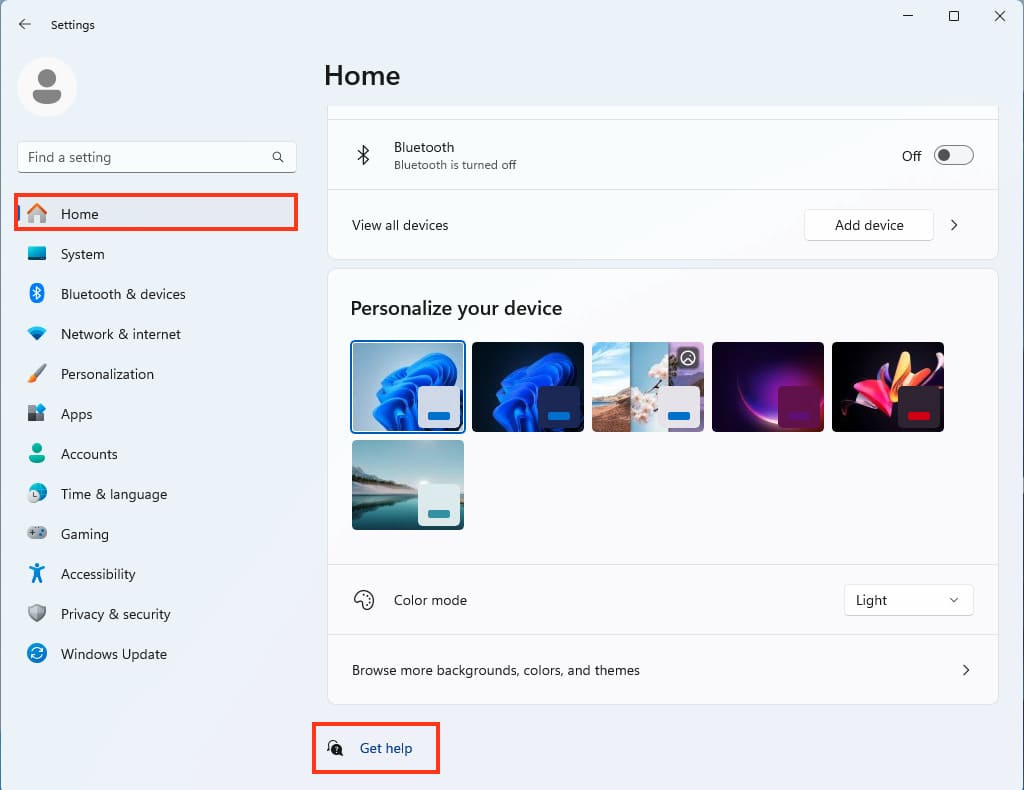
– Go to the “Home” section, then scroll down and select “Get Help”.
2) Searching for the Office Removal Function
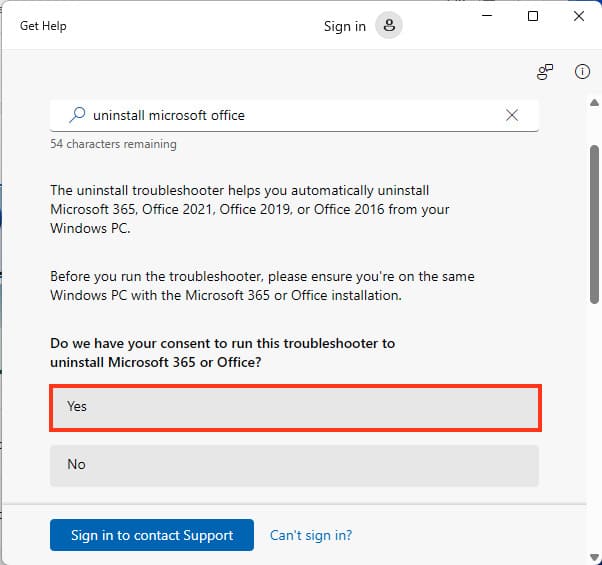
– In the window that opens, type “Uninstall Microsoft Office” in the search bar.
– Press Enter or click the button to confirm the request.
3) Starting the Removal Process
– The system will display a request to remove Office. Click “Yes” to confirm the action.
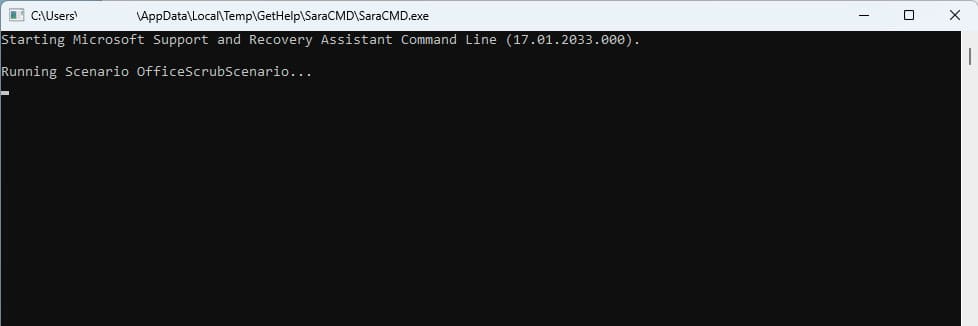
– The removal process will begin. This may take some time (5 to 15 minutes), depending on the system configuration, and a console window will open after a few seconds.
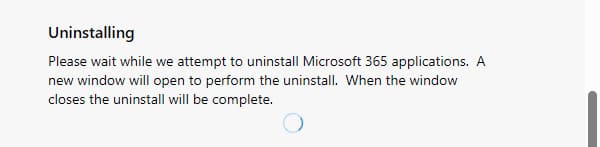
4) Completing the Process
– Once the removal is complete, the console window will close automatically.
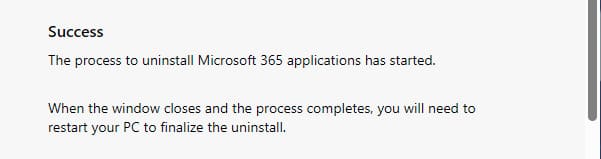
– You will then need to restart your PC and proceed with installing the new version of Office.

Recommendations for Activating Microsoft Office
To prevent errors in Microsoft Office applications, always use official activation methods. We strongly recommend purchasing genuine product keys to ensure stable and secure operation. Check out our catalog to purchase the latest licenses.
The new method of removing Microsoft Office via “Windows Help” has become more convenient and straightforward. Using built-in tools eliminates the need to download additional utilities, providing a reliable way to troubleshoot Office issues.