


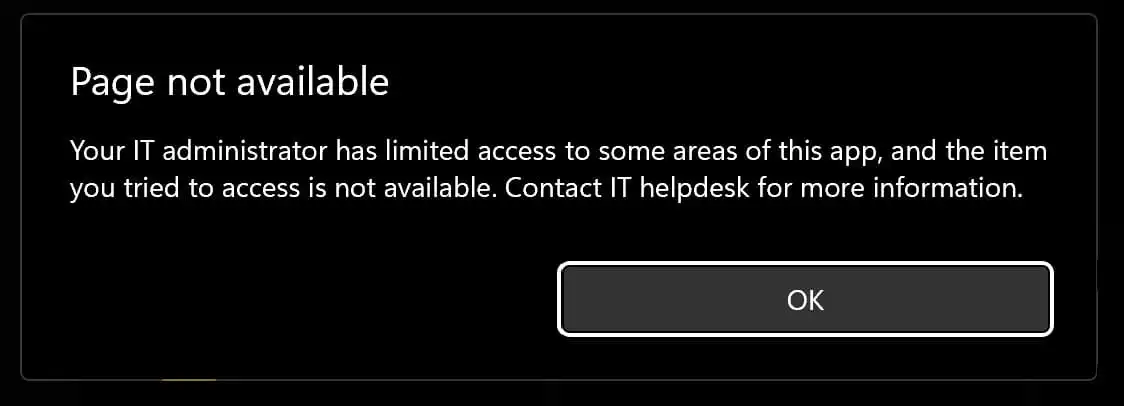
If you encounter the message “Your IT administrator has limited access to some areas of this app, and the item you tried to access is not available. Contact IT helpdesk for more information.”, it may be due to security policies set by your organization. In this article, we will explore solutions to help you restore access to necessary features and resources.
How to fix:
Solution 1. Try installing the KB5007651 update, then restart your PC and check for the error.
Solution 2. If the first option didn’t work, try unlocking the Windows Defender UI.
Open the “Start” menu, type PowerShell, and open it with administrative privileges.
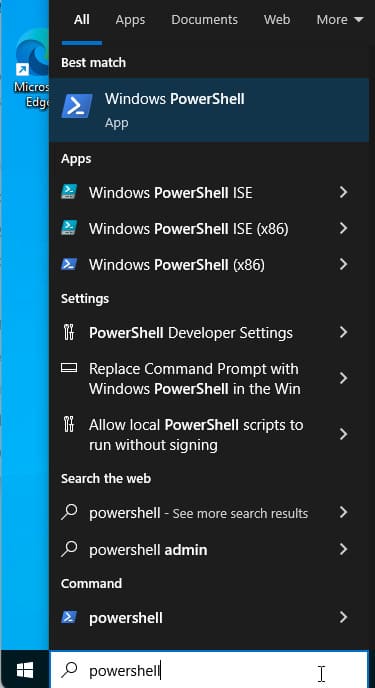
Then enter the following command in PowerShell:
Set-MpPreference -UILockdown $false

The command Set-MpPreference -UILockdown unlocks the Windows Defender graphical interface. After running this command, the “Virus and Threat” tab will appear in the Windows Security interface.
Solution 3. You can also lock or unlock the UI in Windows Defender through the registry. If the above command didn’t help, follow these steps:
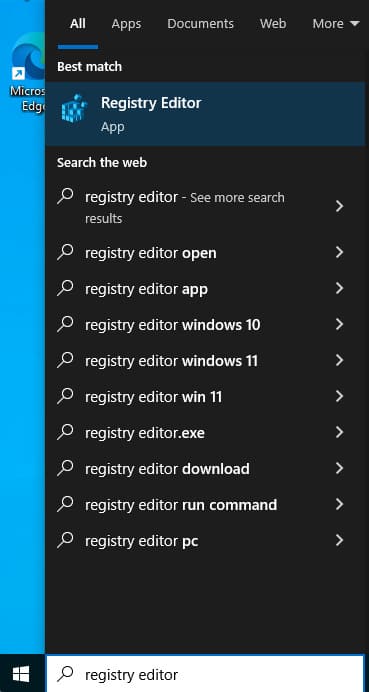
1. Type “Registry Editor” in the search bar and open it.
2. Navigate to HKLM\SOFTWARE\Policies\Microsoft\Windows Defender.
3. Make sure the UILockdown registry entry with the value 1 is not present in the nested branches. If this parameter exists, delete it.
4. Similarly, check the branch HKLM\SOFTWARE\Policies\Microsoft\Windows Defender Security Center\Virus and threat protection and remove the UILockdown parameter if present.
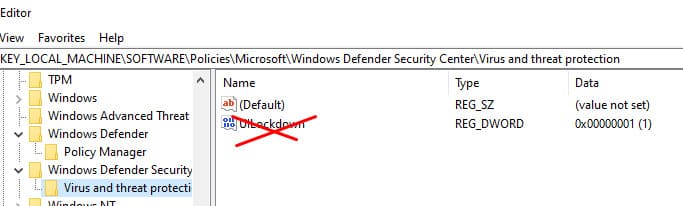
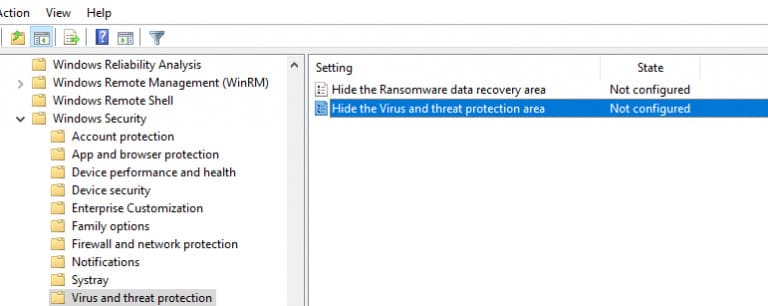
Solution 4. This registry parameter may be enabled by the policy Hide the Virus and Threat Protection area in Windows Security in the Group Policy Editor.
Type in the Windows search: gpedit.msc
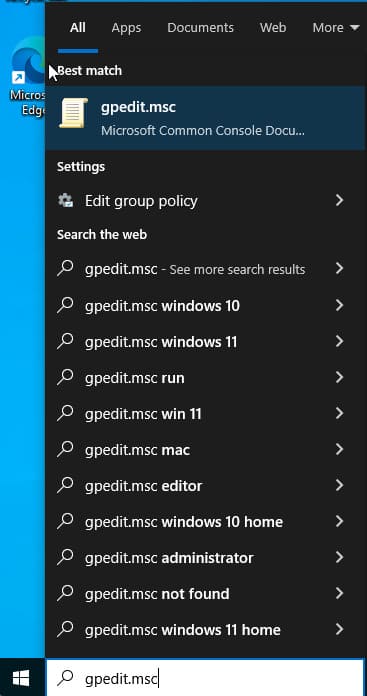
Then go to:
Computer Configuration -> Administrative Templates -> Windows Components -> Windows Security -> Virus and Threat Protection.
Make sure this GPO setting is either not configured or disabled.
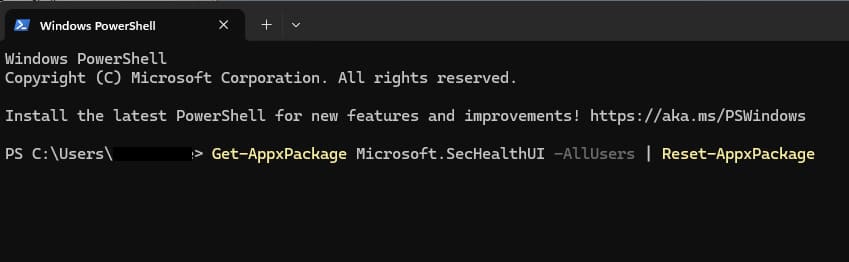
Solution 5. If the Windows Security window does not open and the error “You need a new app to open this link WindowsDefender” appears, try reinstalling the Microsoft.SecHealthUI application via PowerShell:
Get-AppxPackage Microsoft.SecHealthUI -AllUsers | Reset-AppxPackage
Solution 6. If none of the methods worked, try resetting Windows Defender settings via the command line:
reg delete "HKLM\SOFTWARE\Policies\Microsoft\Windows Defender" /v
reg delete "HKLM\SOFTWARE\Policies\Microsoft\Windows Defender Security Center" /v
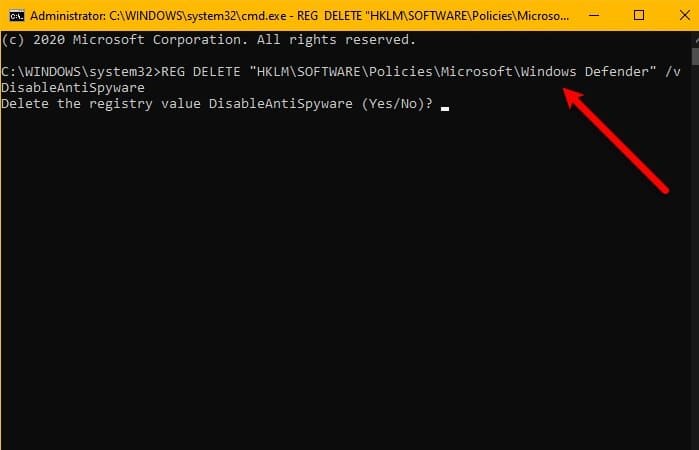
Then reset the local GPO settings:
RMDIR /S /Q "%WinDir%\System32\GroupPolicyUsers"
RMDIR /S /Q "%WinDir%\System32\GroupPolicy"
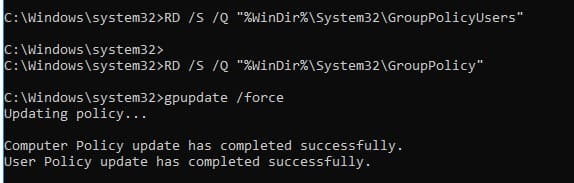
After that, restart your computer.
These steps should help restore access to the necessary Windows Defender features and resources.