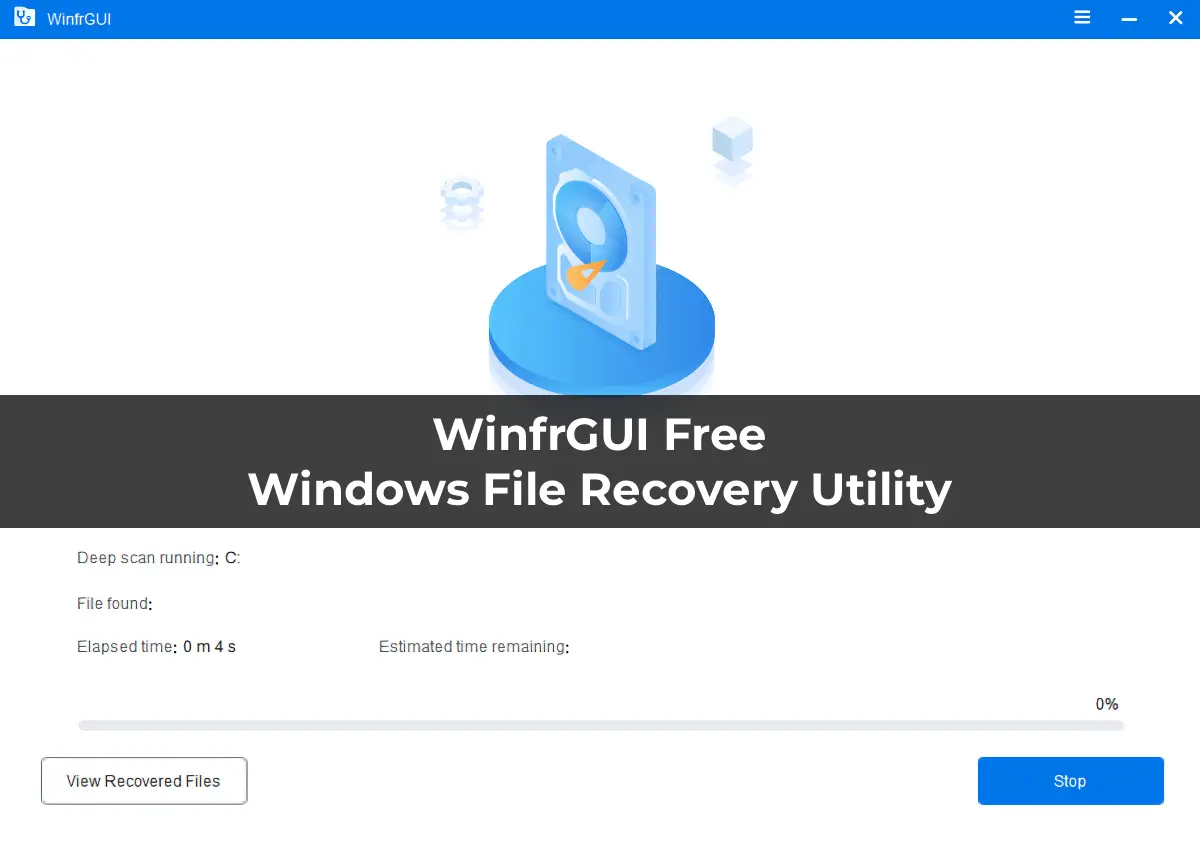
Microsoft offers a free data recovery tool called Windows File Recovery, which is highly effective and performs comparably to many alternatives but has one drawback—it operates solely through a command-line interface. WinfrGUI leverages Windows File Recovery but adds a graphical user interface, making it especially convenient for novice users.
This guide provides a step-by-step walkthrough of the data recovery process using WinfrGUI, available settings, and additional information.
Using WinfrGUI to Recover Data After Deletion or Formatting
WinfrGUI can be downloaded from the Microsoft Store or the official website—despite its simple appearance, this is indeed the official application site. The Russian language interface is available and should be selected automatically upon launch. If not, use the menu in the top-right corner of the application window to select the language.
You can also download the application directly from our server.
The application supports data recovery from local HDD and SSD drives (note that recovery from SSDs is less likely to succeed due to the TRIM function), USB flash drives, memory cards, and other storage devices with NTFS, FAT32, exFAT, and ReFS file systems.
The recovery process consists of the following simple steps:
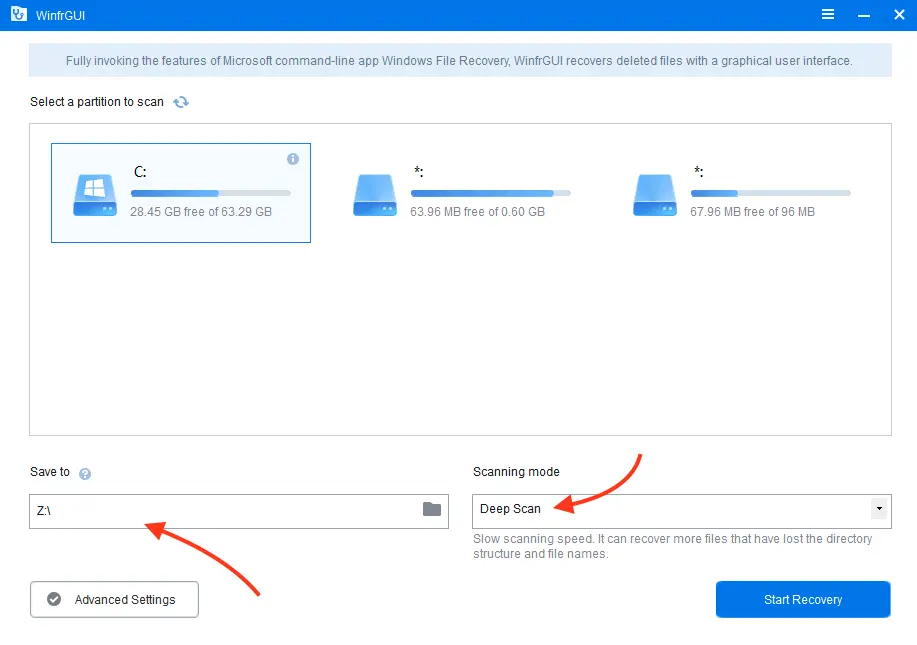
1. Select the storage device from which you need to recover data, choose a location to save the recovered files (do not use the same drive as the source), and select the scanning mode. For some file systems and after formatting, only Deep Scan will be available. For recently deleted files, Quick Scan is usually sufficient.
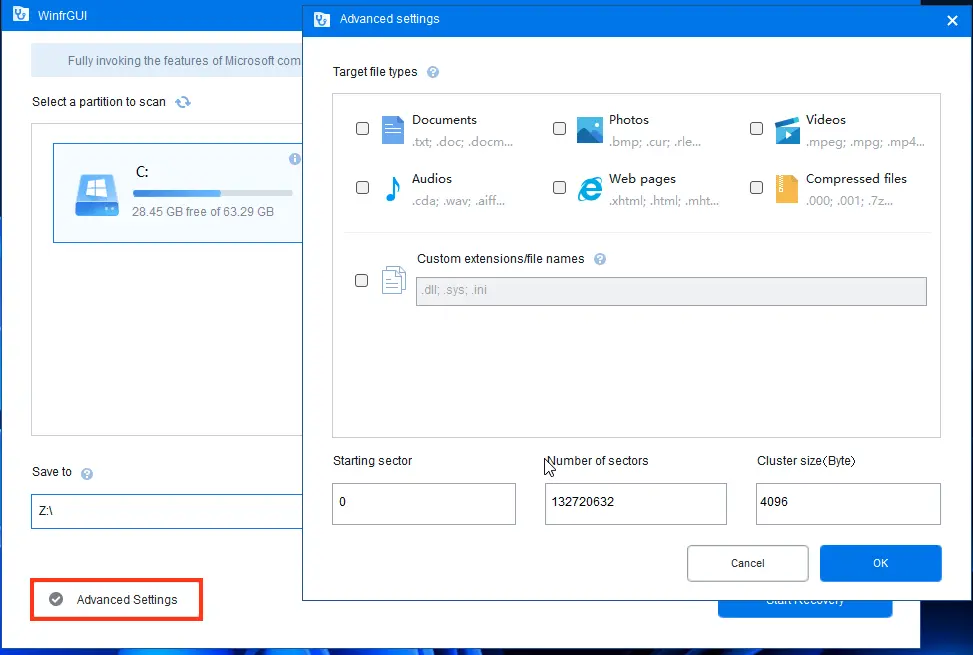
2. If needed, click Advanced Settings. The advanced settings window may vary depending on the file system and disk condition. For NTFS drives with data, you can specify file types, extensions, and folders to search for.
3. For formatted drives or those with different file systems, advanced settings allow you to specify the boot sector address, the number of sectors to scan, and the cluster size.
4. Click the Start Recovery button and wait for the process to complete. The process window displays a View Recovered Files button, but in our tests, the recovery folder remained empty until the process was fully completed.
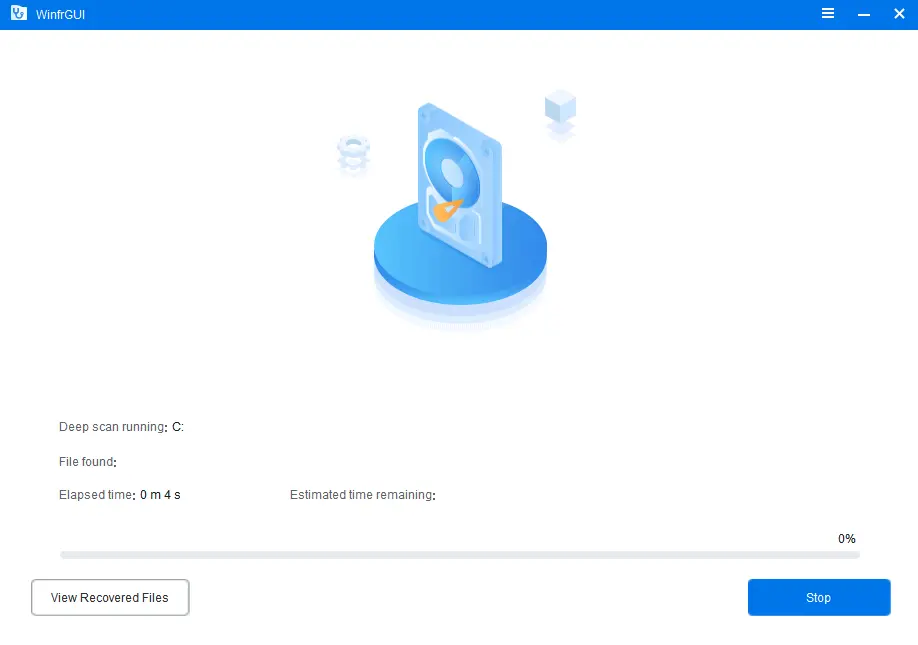
5. Upon completion, you will see information about the number of files found and their save location, accessible via the View Recovered Files button.
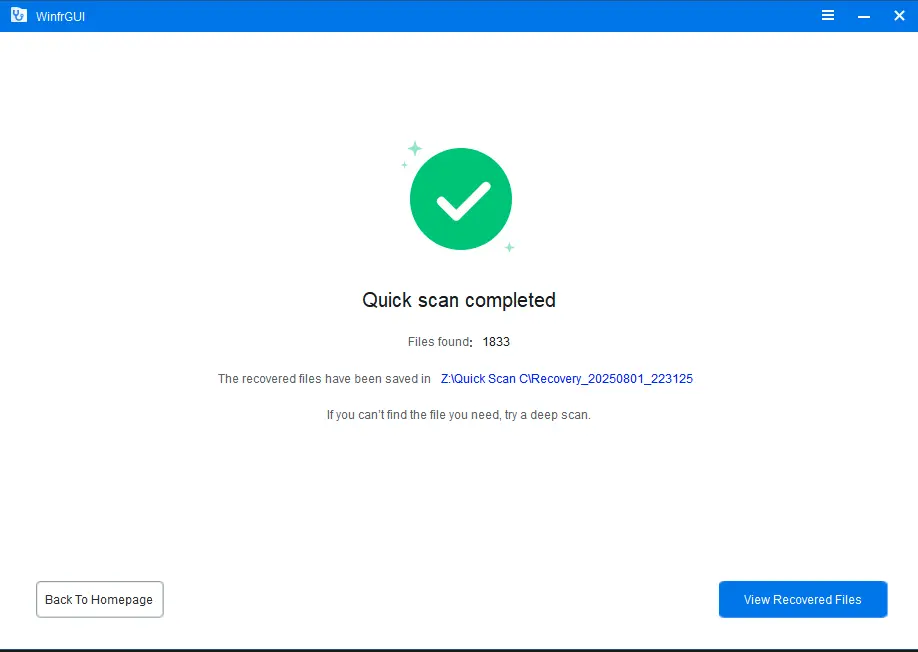
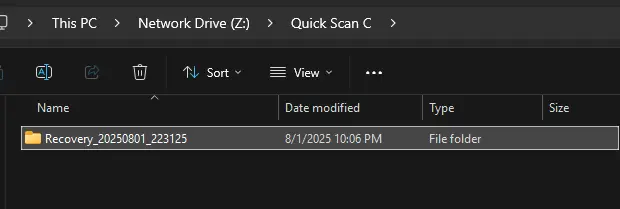
6. In the recovery folder, files will be organized by type, allowing you to review which files were recovered and their condition.
In our test on a USB flash drive formatted from NTFS to FAT32, without using advanced settings, files were successfully recovered, including some that were not present on the drive before formatting.
Note
During testing on a USB flash drive formatted from NTFS to FAT32, files were successfully recovered, including some that were not present on the drive before formatting.
It was also observed that recovery from FAT32 drives yielded better results. For example:
– A FAT32 drive formatted to NTFS: Data could not be recovered.
– An NTFS drive formatted to NTFS: Data could not be recovered.
– However, if the drive from the above scenarios was subsequently formatted to FAT32, recovery was successful.
Since WinfrGUI uses Windows File Recovery as its backend, you can expect results similar to those of the command-line version of Windows File Recovery in tests.