Sometimes, when attempting to shut down a computer via the Shut down button in the Start menu in Windows 10/11, the device may not fully power off. The display may remain on, fans may continue running, and indicators may stay lit. This article explains what to do if a Windows-based computer does not shut down properly.
Tip 1. Disable Fast Startup in Windows
The Fast Startup feature, introduced in Windows 8.1, may cause this issue. It is enabled by default in Windows 10 and Windows 11 if the device supports this mode. Fast Startup is a hybrid between hibernation and a full shutdown.
To disable Fast Startup in Windows:
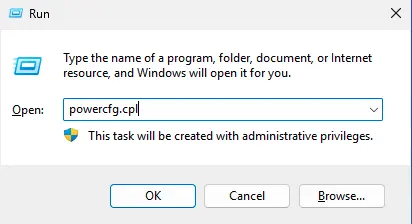
1. Open Control Panel > Power Options (or run powercfg.cpl).
2. Select Choose what the power buttons do.
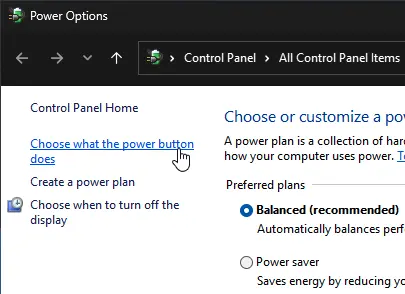
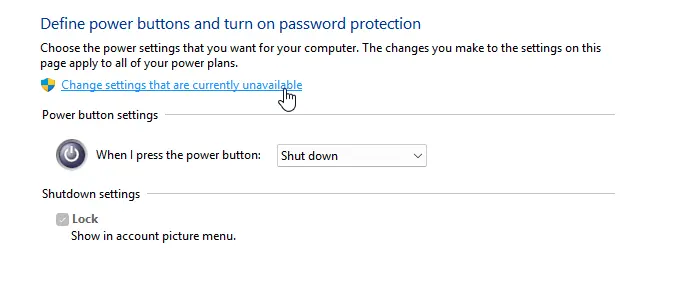
3. Click Change settings that are currently unavailable.
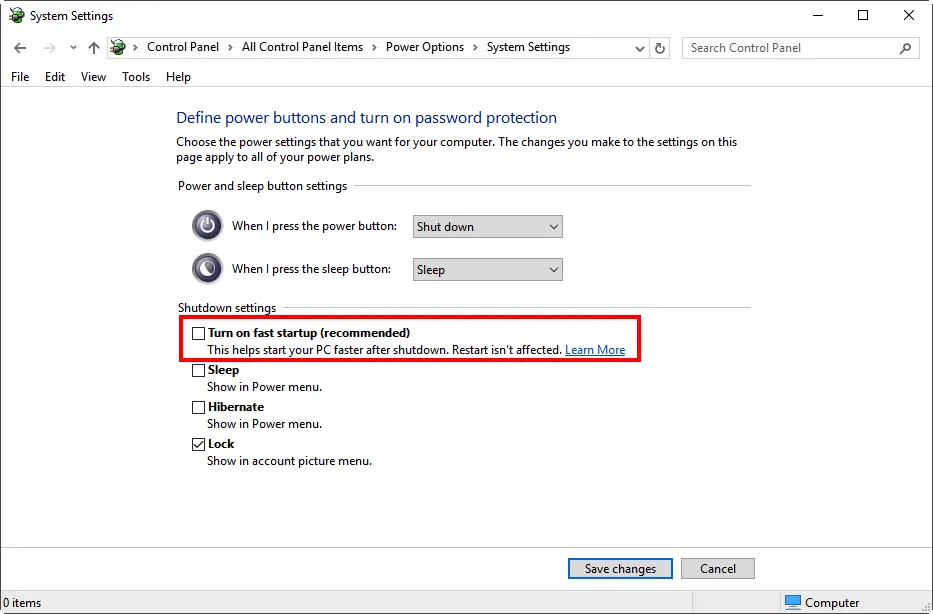
4. Uncheck the Turn on fast startup (recommended) option and save changes.
Tip 2. Shut Down Windows via Command Prompt
If the issue is related to Fast Startup, try shutting down the computer via Command Prompt:
1. Open Command Prompt as an administrator.
2. Run the command:
shutdown /s /f /t 0
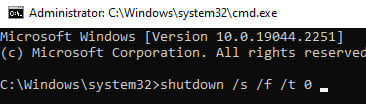
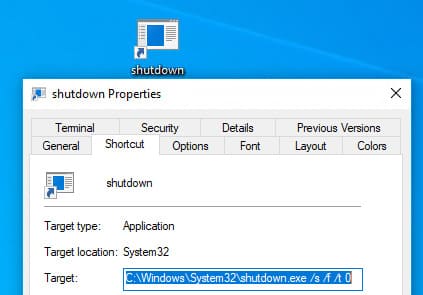
If the computer shuts down normally, you can create a desktop shortcut for this command.
Tip 3. Disable Tasks and Drivers Preventing Shutdown
Certain tasks or drivers may interfere with Windows shutdown. Run the command:
powercfg /requests
This will display a list of processes and tasks that may prevent shutdown (ideally, all categories should show None).
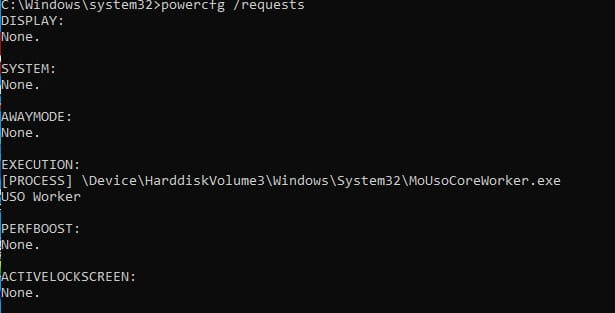
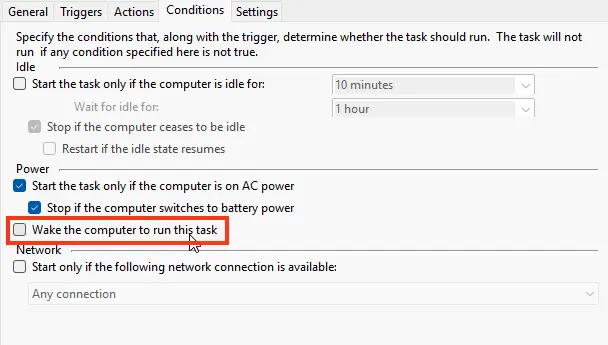
End unnecessary processes and disable the Wake the computer to run this task option in Task Scheduler.
1. Open Task Scheduler.
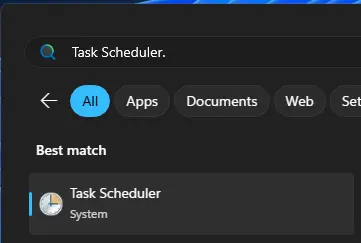
2. If you have a task like npcapwatchdog in the Task Scheduler Library, go to its properties, and on the Conditions tab, uncheck Wake the computer to run this task.
Tip 4. Check Device Power Management Settings
Ensure devices are not allowed to wake the computer from sleep:
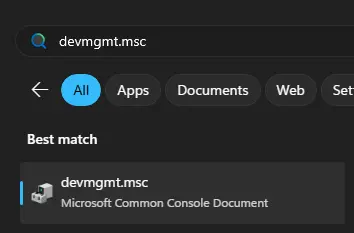
1. Open Device Manager (devmgmt.msc).
2. Expand the Network adapters section and open the properties of your Ethernet or Wi-Fi adapter.
3. On the Power Management tab, uncheck Allow this device to wake the computer.
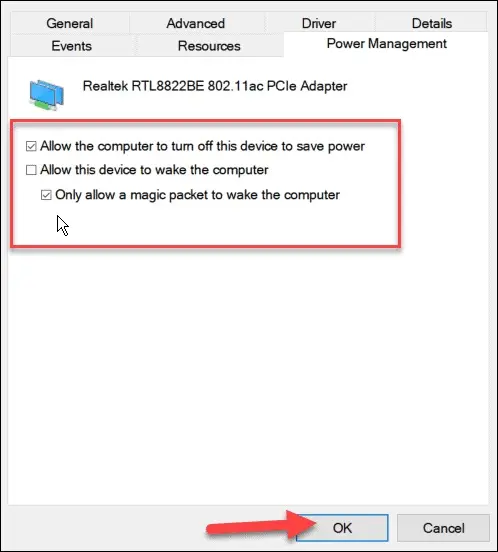
4. Similarly, check the settings for USB Root Hubs and Bluetooth adapters.
Additional Tips
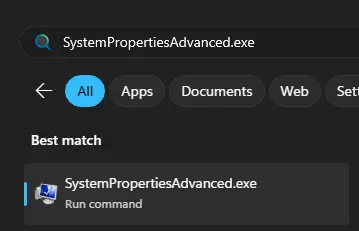
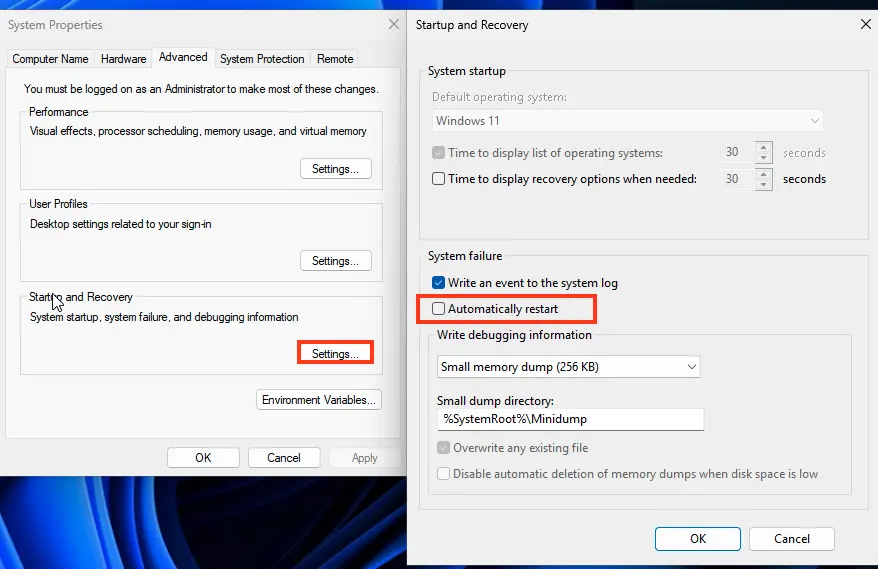
1. Disable automatic restart on system failure: Search for SystemPropertiesAdvanced.exe, go to Startup and Recovery > Settings, and uncheck Automatically restart.
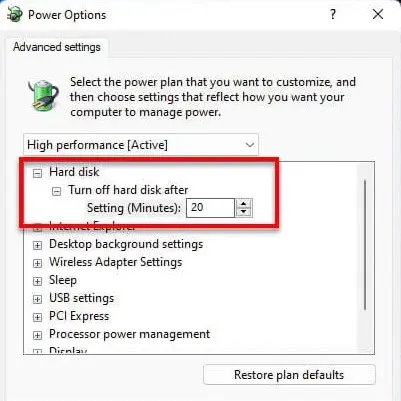
2. In Power Options, ensure the Hard disk section is set to turn off after 20 minutes, and in the Sleep section, Wake timers are disabled.
3. Check process and service termination timeouts in the registry (default values for Windows 10 are shown below):
HKEY_LOCAL_MACHINE\SYSTEM\CurrentControlSet\Control
WaitToKillServiceTimeout = 5000
4. Also, verify user settings (if set, adjust to the specified values):
HKEY_CURRENT_USER\Control Panel\Desktop
AutoEndTasks = 1
HungAppTimeout = 5000
WaitToKillAppTimeout = 5000
5. Update hardware drivers.
6. Disable the Delivery Optimization Service.
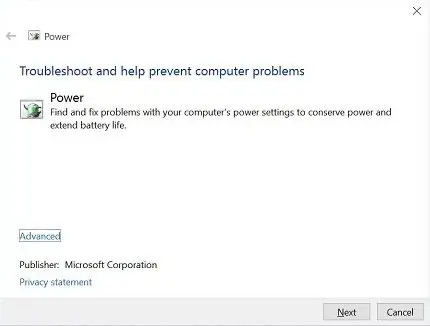
7. Run the Power Troubleshooter:
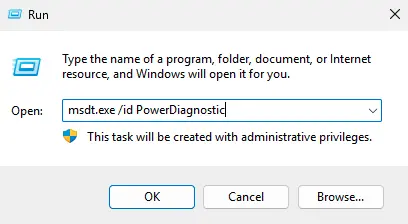
msdt.exe /id PowerDiagnostic