
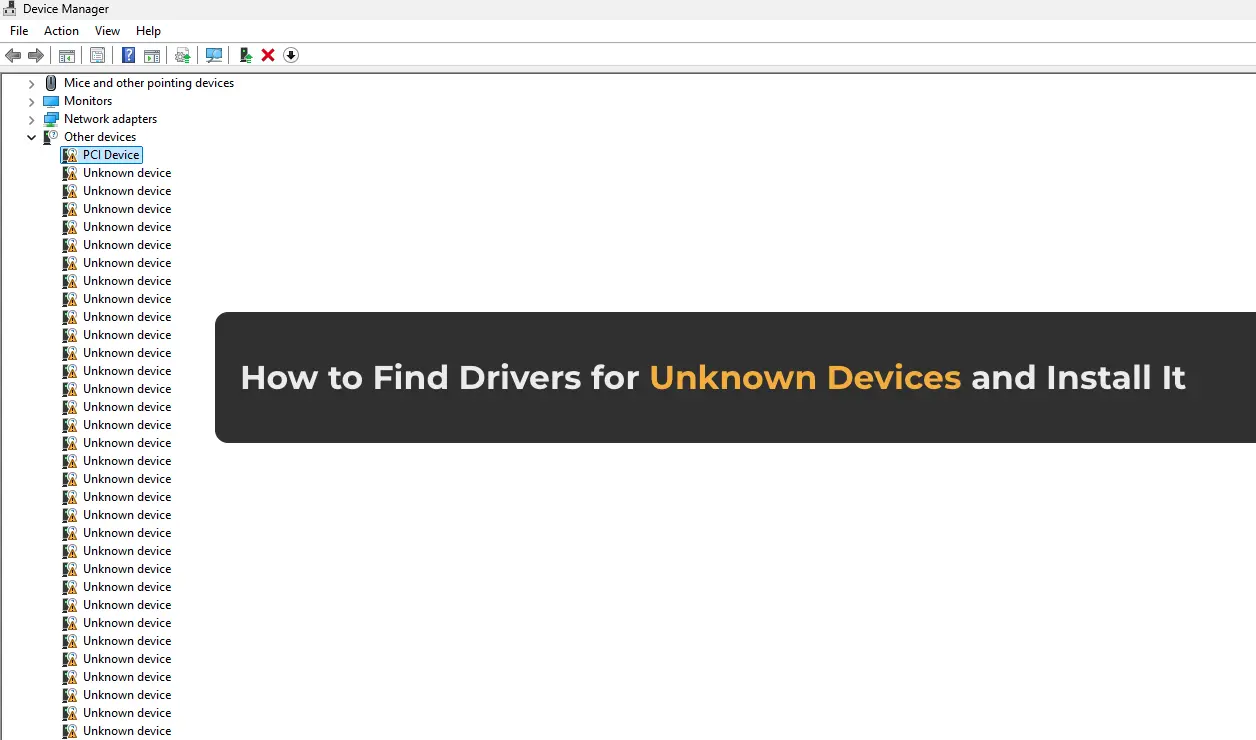
This article explains how to find and install drivers for unknown devices in Windows using the hardware ID through Device Manager. This step-by-step guide will help you resolve issues with missing drivers.
Step 1: Opening Device Manager
Start by opening Device Manager. You can do this through Computer Properties:
1. Right-click the My Computer or This PC icon.
2. Select Properties.
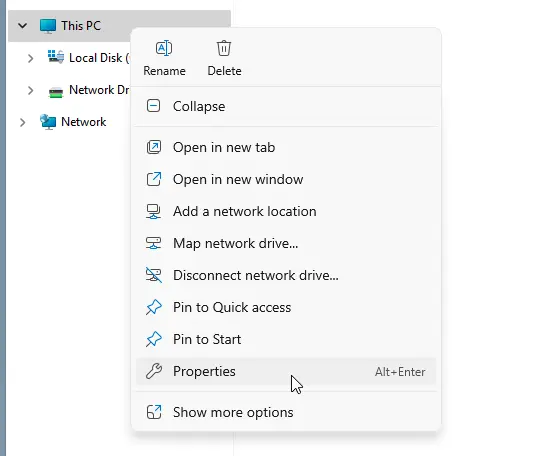
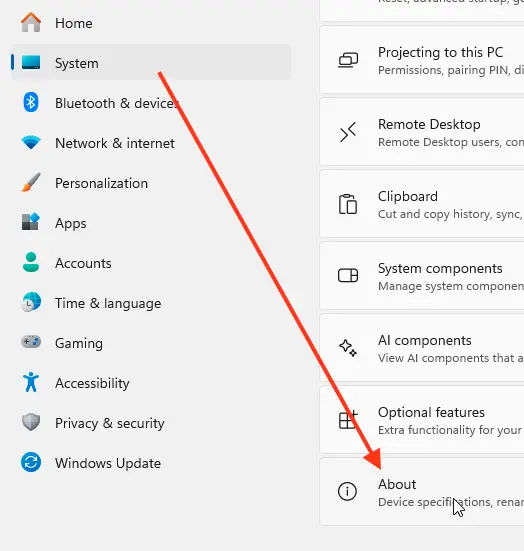
3. In the left menu, click Device Manager.
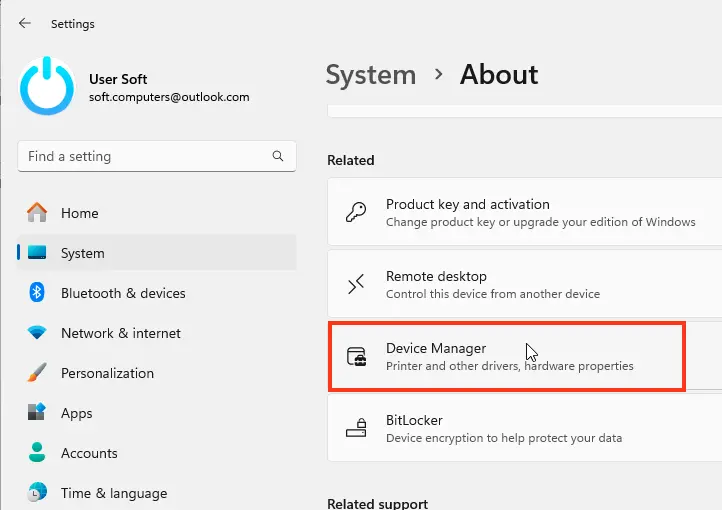
Step 2: Identifying the Unknown Device
In Device Manager, you will see a list of all connected devices. Devices without installed drivers will be marked with a yellow exclamation mark icon. Locate such a device.
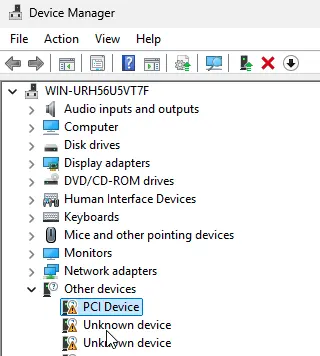
Step 3: Copying the Hardware ID
1. Double-click the device without a driver.
2. Go to the Details tab.
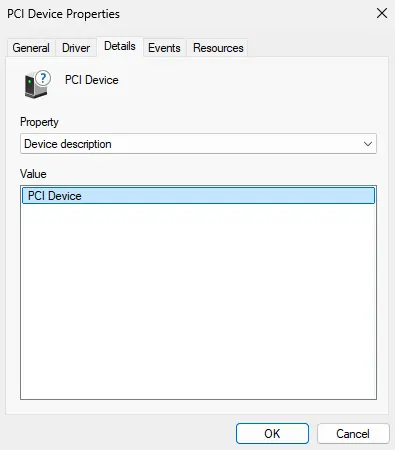
3. In the Property dropdown menu, select Hardware IDs.
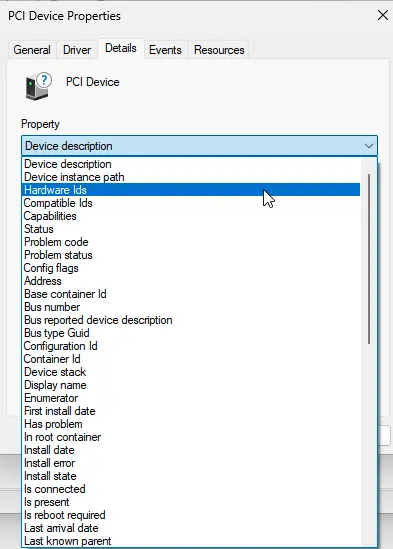
4. Copy the topmost line—this is the unique device identifier.
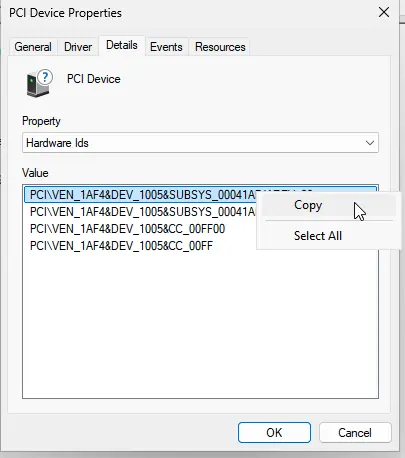
Step 4: Finding the Driver Using DriverPack Solution
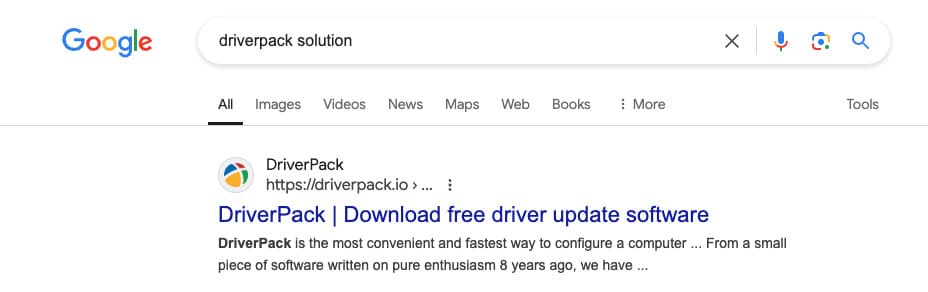
1. Open a browser, such as Google Chrome.
2. Search for DriverPack Solution and navigate to the first link for driverpack.io.
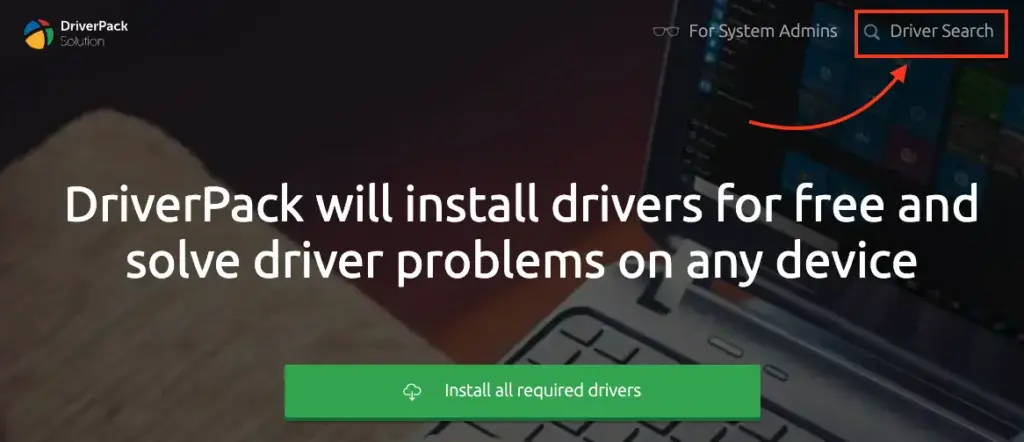
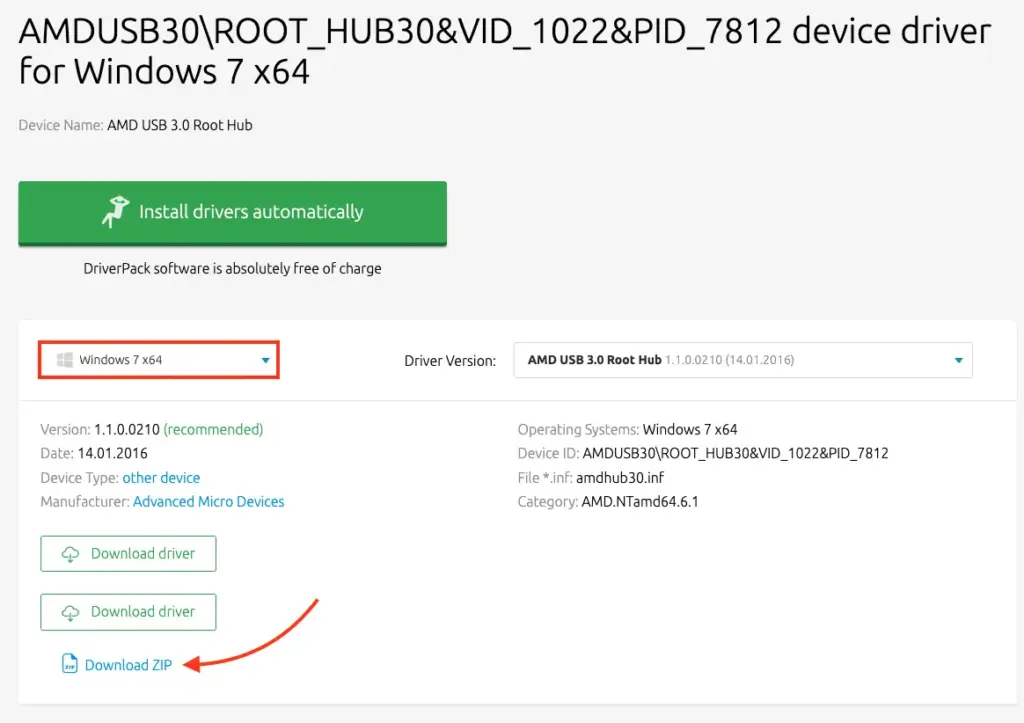
3. On the website, select Driver Search.
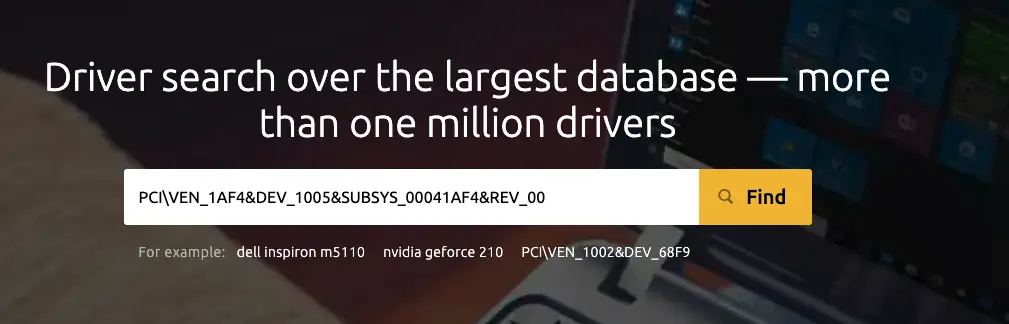
4. Paste the copied hardware ID into the search bar on the site.
5. Select your Windows version and download the provided ZIP archive with the driver.
Step 5: Installing the Driver
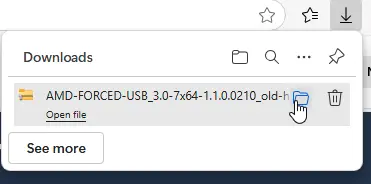
1. Navigate to the Downloads folder.
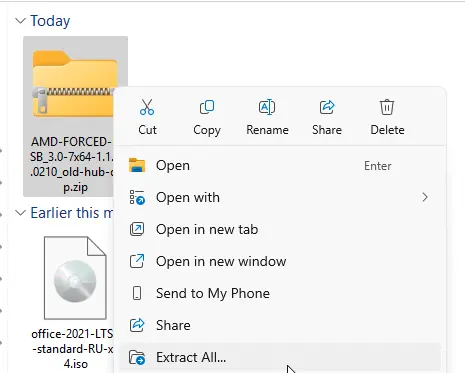
2. Extract the downloaded ZIP archive.
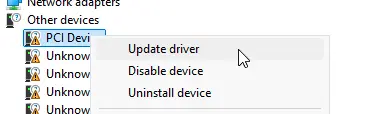
3. Return to Device Manager.
4. Right-click the unknown device and select Update driver.
5. Choose Browse my computer for drivers.
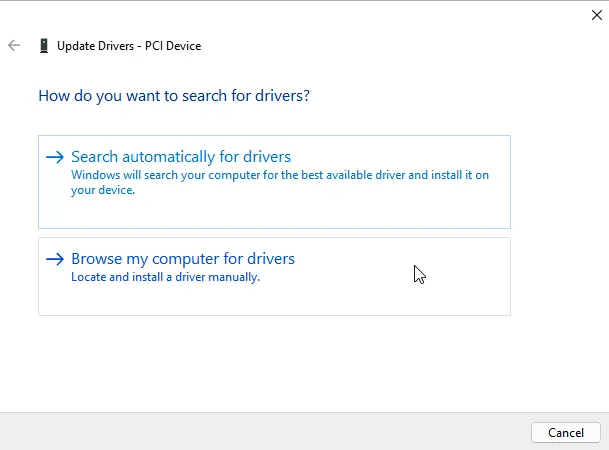
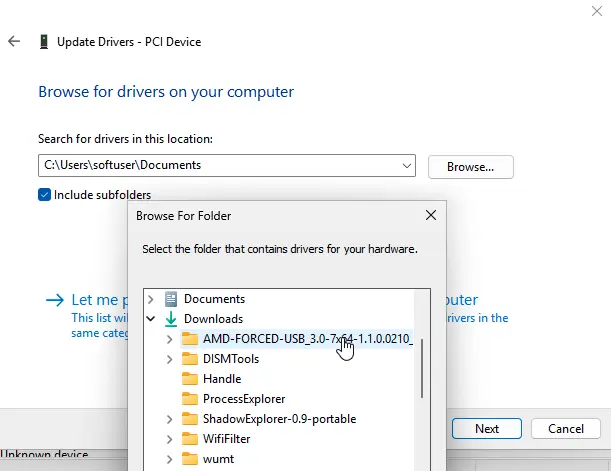
6. Specify the folder where you extracted the driver and confirm the installation.
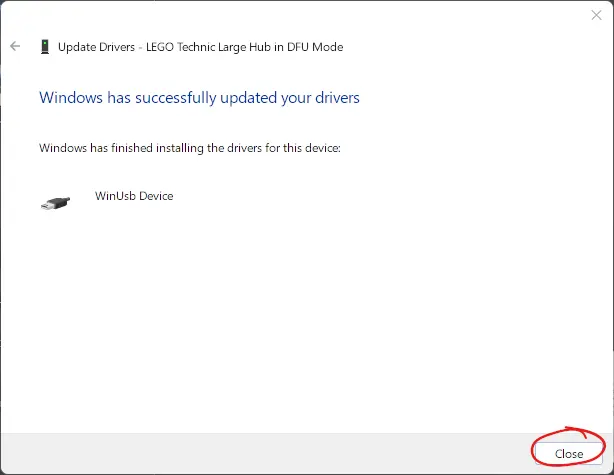
7. Wait for the driver installation to complete.
Step 6: Repeating the Process for Other Devices
If you have other devices without drivers, repeat the same steps:
1. Copy the hardware ID.
2. Find the driver using DriverPack Solution.
3. Download and install the driver via Device Manager.
For greater reliability, it is recommended to download drivers from the official websites of manufacturers, as they are tested for compatibility with your hardware. However, if access to official websites is unavailable, DriverPack Solution can be a quick solution.