Previously, starting with Windows 7/Windows Server 2008 R2, passing a discrete GPU from the host to a Hyper-V virtual machine was achieved using the RemoteFX vGPU technology. However, starting with Windows 10 version 1809 and Windows Server 2019, RemoteFX support was discontinued, and a new technology called Discrete Device Assignment (DDA) was introduced.
Passing a GPU to a Virtual Machine on Windows Server with Hyper-V
The Discrete Device Assignment (DDA) technology allows you to pass PCI/PCIe devices (including GPUs and NVMe) from the host to a virtual machine. In VMware, the equivalent feature is VMware PCI Passthrough (VMDirectPath). To successfully use DDA, the following conditions must be met:
– DDA is only available for second-generation virtual machines (Gen 2).
– The VM must not use dynamic memory or checkpoints.
– The physical GPU must support GPU Partitioning.
– SR-IOV is not mandatory, but without its support, GPU passthrough may not function correctly.
Step 1: Configuring the Virtual Machine and System
1. Disable automatic checkpoint creation:
Set-VM -Name VMName -AutomaticStopAction TurnOff
2. Configure memory cache and limits for 32-bit MMIO address space:
Set-VM -Name VMName -GuestControlledCacheTypes $True -LowMemoryMappedIoSpace 3Gb -HighMemoryMappedIoSpace 33280Mb
Step 2: Obtaining the PCI Path to the GPU
To pass the GPU to the VM, you need to obtain the physical PCIe device path of the GPU on the Hyper-V host. This can be done via Device Manager or PowerShell:
– Open Device Manager, go to the Details tab, select Location Path, and copy the value starting with PCIROOT.
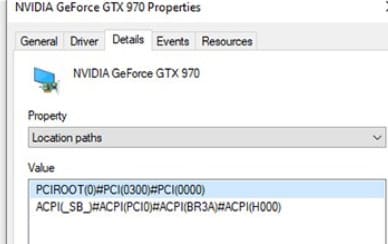
– Alternatively, use PowerShell:
Get-PnpDevice | Where-Object {$_.Present -eq $true} | Where-Object {$_.Class -eq "Display"} | select Name, InstanceId
Step 3: Disabling the GPU on the Hyper-V Host
Disable the GPU on the Hyper-V server using Device Manager or PowerShell:
Dismount-VmHostAssignableDevice -LocationPath "PCIROOT(0)#PCI(0300)#PCI(0000)" –force
Step 4: Passing the GPU to the Virtual Machine
Pass the GPU to the VM using the command:
Add-VMAssignableDevice -VMName VMName -LocationPath "PCIROOT(0)#PCI(0300)#PCI(0000)"
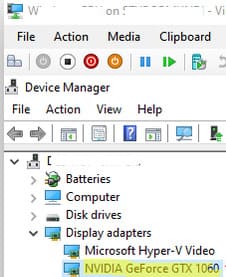
Start the VM and verify that the GPU appears in Device Manager within the VM under Display adapters.
Step 5: Detaching the GPU from the VM
To detach the GPU from the VM and return it to the host, run the following commands:
Remove-VMAssignableDevice -VMName VMName -LocationPath $locationPath

Mount-VMHostAssignableDevice -LocationPath $locationPath
Using a GPU in Hyper-V Virtual Machines on Windows 10/11
For desktop versions of Windows 10/11, the GPU Partitioning (GPU-P) technology is used. This method allows sharing the GPU among virtual machines.
1. Check if your GPU supports GPU Partitioning mode:
Get-VMPartitionableGpu– (for Windows 10)
Get-VMHostPartitionableGpu– (for Windows 11)
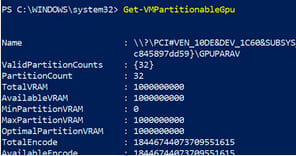
2. To pass the GPU to the VM, use the cmdlet:
Add-VMGpuPartitionAdapter -VMName VMName
3. To copy GPU drivers from the host to the VM, use the Easy-GPU-PV script.
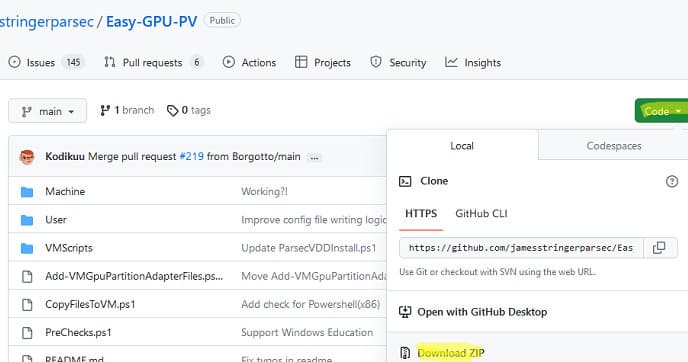
Download it from GitHub, extract it, and run in PowerShell:
Set-ExecutionPolicy -Scope Process -ExecutionPolicy Bypass –Force

.\Update-VMGpuPartitionDriver.ps1 -VMName VMName -GPUName "AUTO"
This script copies the GPU drivers from the host to the VM.

Step 4: Configuring the VM for GPU Passthrough
Configure the VM for GPU Partitioning:
Set-VM -VMName VMName -GuestControlledCacheTypes $true -LowMemoryMappedIoSpace 1Gb -HighMemoryMappedIoSpace 32Gb

Add-VMGpuPartitionAdapter -VMName VMName
If you update the GPU drivers on the Hyper-V host, you must also update them in the VM:
.\Update-VMGpuPartitionDriver.ps1 -VMName VMName -GPUName "AUTO"
Using Discrete Device Assignment (DDA) on Windows Server versions and GPU Partitioning on desktop versions enables GPU passthrough to Hyper-V virtual machines for tasks such as graphics-intensive computations and virtualization.