In some situations, users encounter issues when trying to install a driver without a digital signature in Windows 11. This article explains how to disable mandatory driver signature enforcement using several methods.
You can purchase original Windows 11 product keys from our store from $11.70
You can download installers of various Windows 11 versions from our catalog.
Method 1: Disabling Signature Enforcement via Recovery Options
This method is the simplest and does not require modifying system settings. Follow the steps below:
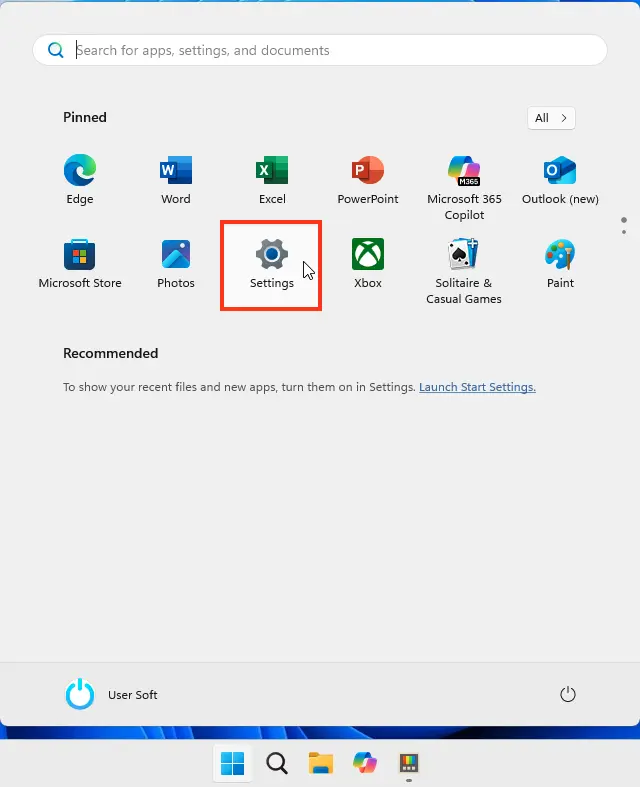
1. Open Settings in Windows.
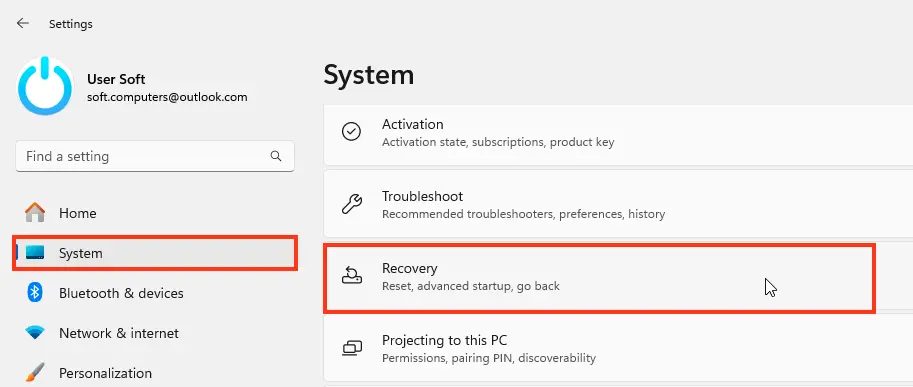
2. In the System section, select Recovery.
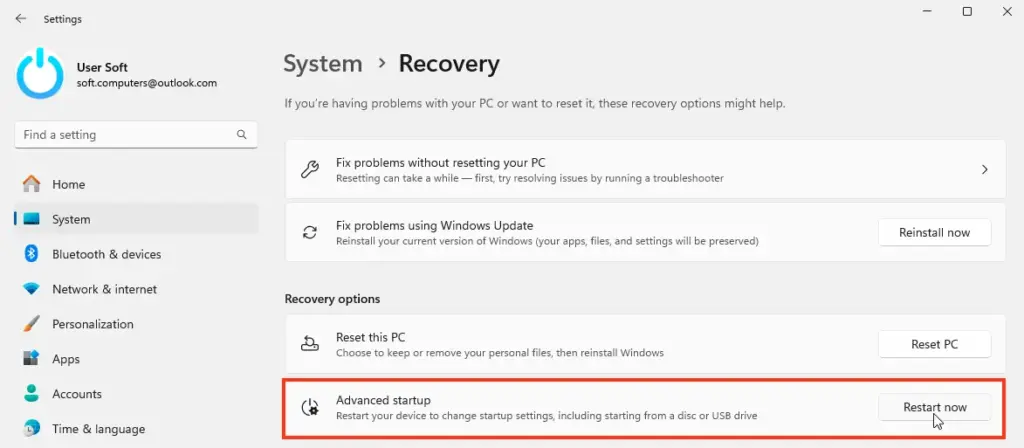
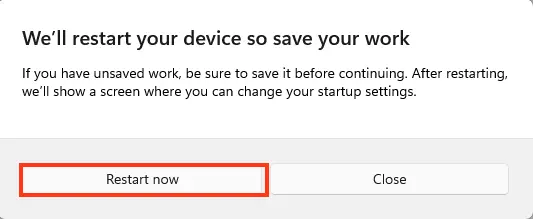
3. In the Recovery section, find Advanced startup and click Restart now.
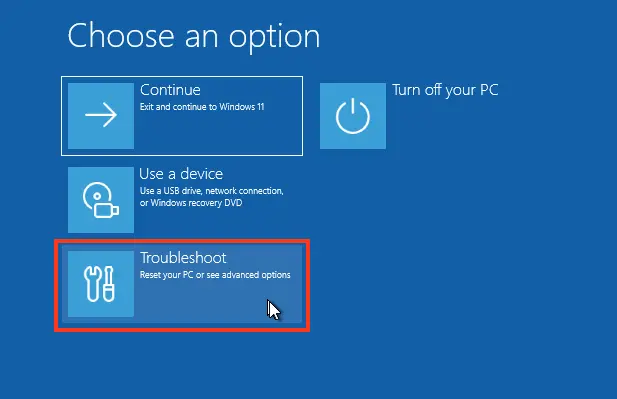
4. After rebooting, the system will load into the recovery environment. Navigate to Troubleshoot.
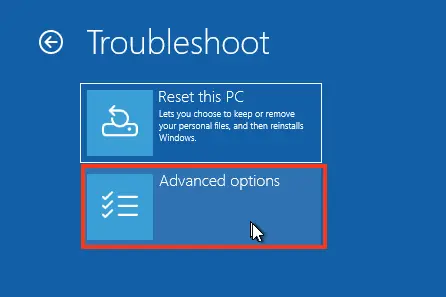
5. Select Advanced options.
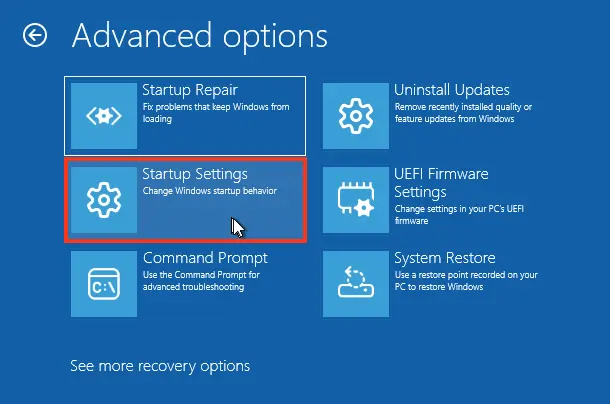
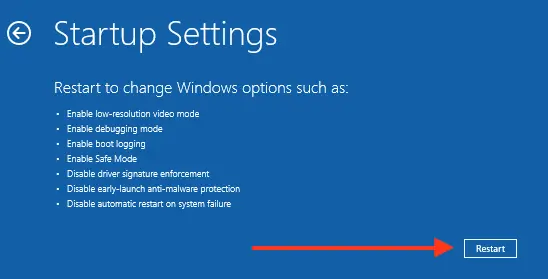
6. Open Startup Settings and click Restart.
7. In the menu that appears, note item number 7 — Disable driver signature enforcement. Press the 7 or F7 key (on some devices, you may need to press Fn+F7).
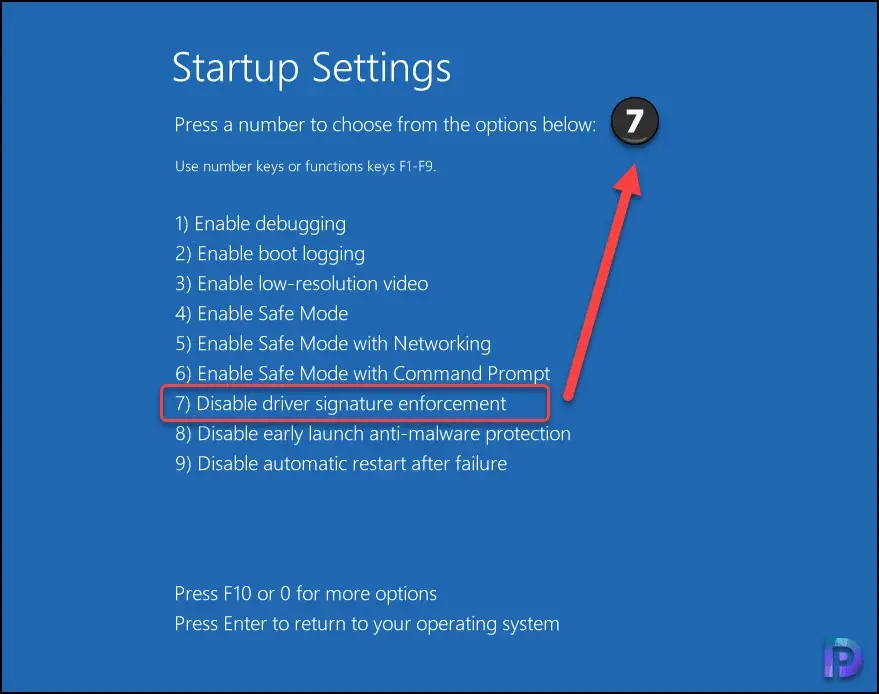
8. Windows 11 will boot with driver signature enforcement disabled, allowing you to install an unsigned driver.
After installing the driver, the next system reboot will re-enable driver signature enforcement.

Method 2: Disabling Signature Enforcement via Command Prompt
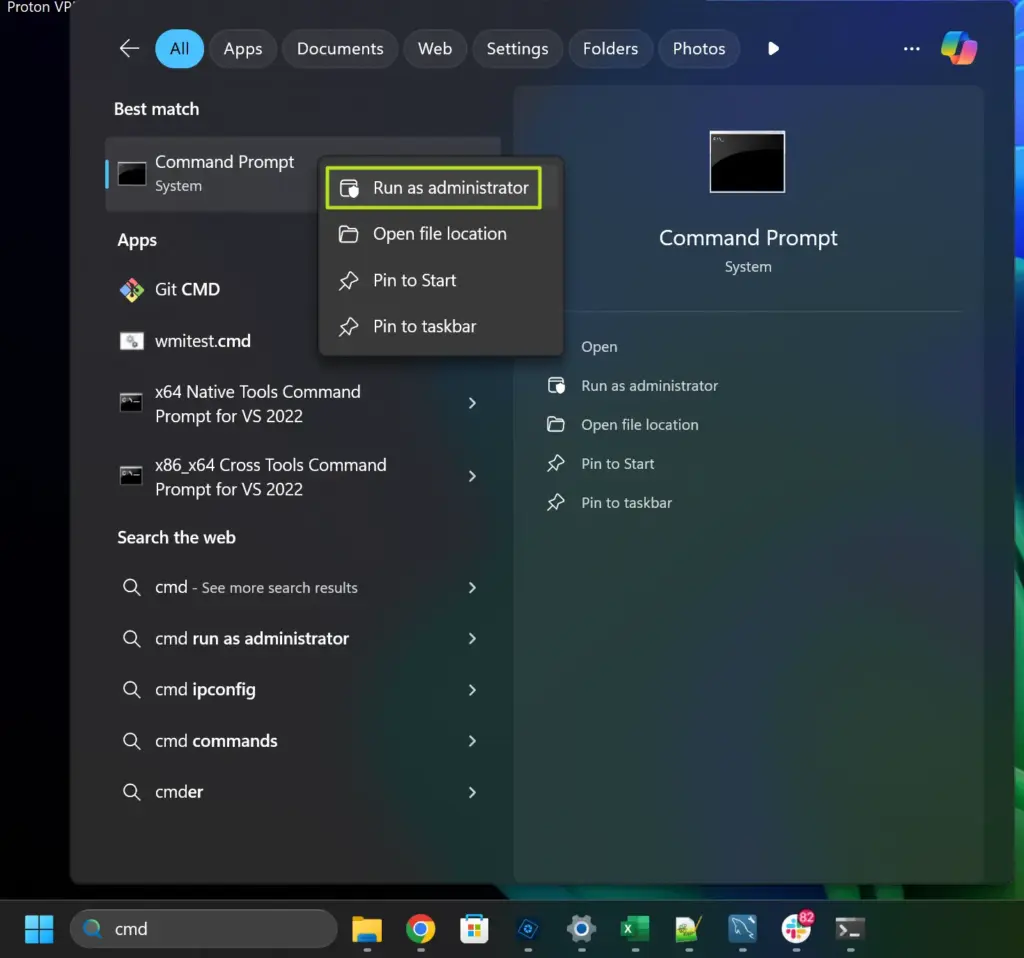
1. Launch Command Prompt as Administrator. Right-click the Start button and select Windows Terminal (Admin).
2. Enter the following commands one by one, pressing Enter after each:
bcdedit /set loadoptions DDISABLE_INTEGRITY_CHECKS
bcdedit.exe -set TESTSIGNING ON
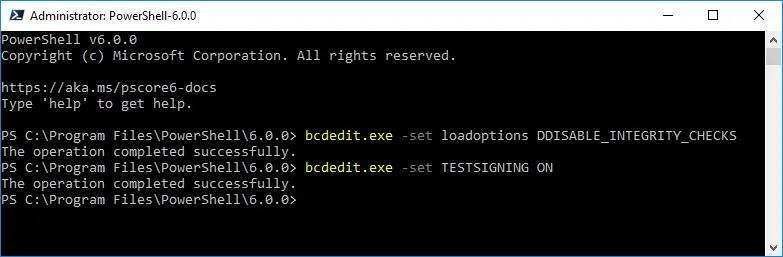
bcdedit.exe -set NOINTEGRITYCHECKS ON
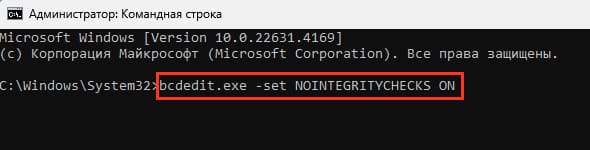
3. Reboot the computer. You will now be able to install an unsigned driver.
4. After installing the driver, to restore the default settings, enter the following commands:
bcdedit.exe -set loadoptions ENABLE_INTEGRITY_CHECKS
bcdedit.exe -set TESTSIGNING OFF
bcdedit.exe -set NOINTEGRITYCHECKS OFF
Reboot the system.
Method 3: Using Local Group Policy Editor
This method is only applicable to Windows 11 Pro and Enterprise editions, as the Local Group Policy Editor is not available in Windows 11 Home.
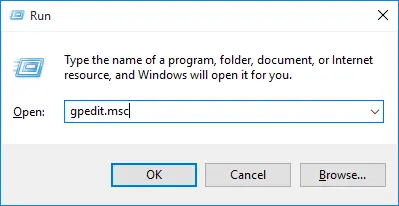
1. Press Win + R or right-click the Start button and select Run.
2. Enter the command gpedit.msc and click OK.
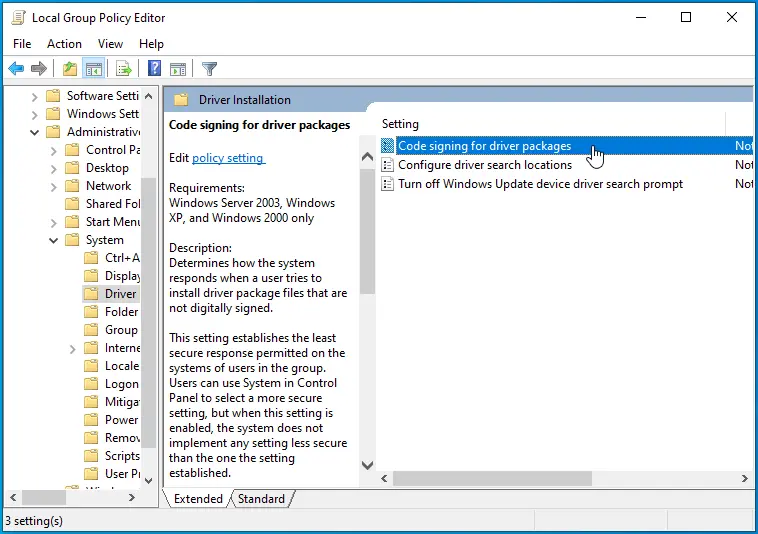
3. In the Local Group Policy Editor, navigate to:
User Configuration > Administrative Templates > System > Driver Installation.
4. Locate Code signing for driver packages and double-click it.
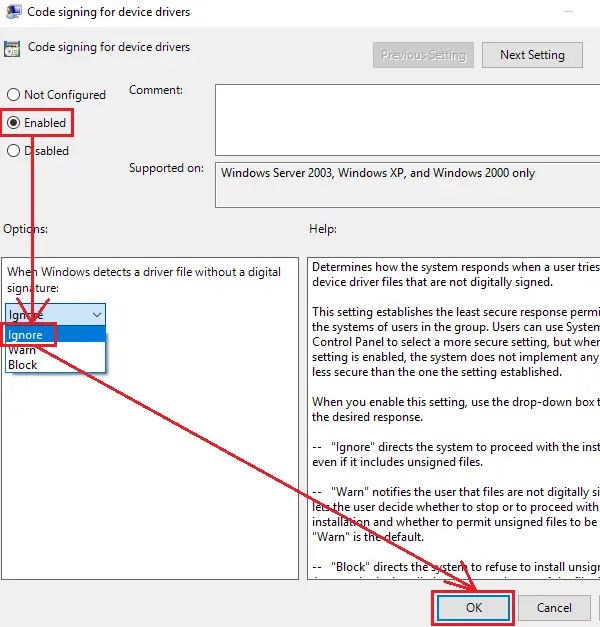
5. Select the Disabled option and apply the settings.
6. Alternatively, select Enabled with the Ignore option, then apply the settings and reboot the computer.
These methods will allow you to disable driver signature enforcement in Windows 11, enabling the installation of unsigned drivers on your device.