This article explains how to resolve an installation error for Microsoft Office 2013 Standard that commonly occurs on Windows 10. The issue can appear on both new and older systems and may occur when attempting to reinstall the Office suite after removing a trial version or another installed variant.
You can also download the original installer from our website.
What Causes the Error?
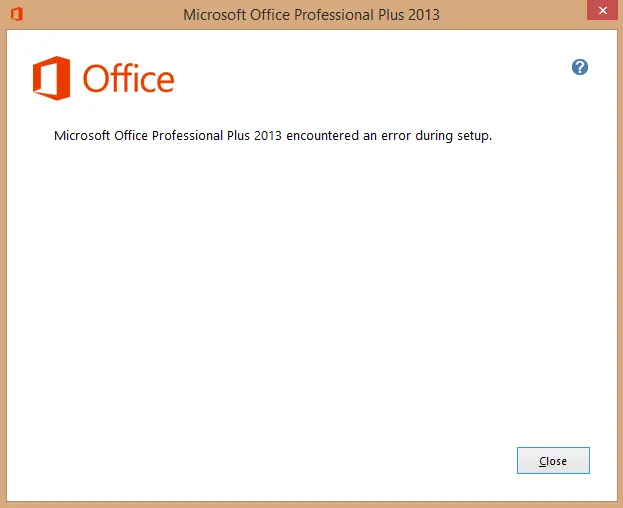
When installing Microsoft Office 2013 on Windows, the installation may fail with an error message: “Microsoft Office Standard 2013 encountered an error during setup”. This error can appear at various stages of the installation process, such as 10%, 40%, or 50%. The timing of the error does not affect its occurrence, as it can happen at any point.
Step 1: Checking the Error
First, try installing Microsoft Office 2013 as usual. The error typically occurs shortly after starting the installation, when it reaches a certain percentage.
Example error text: “Microsoft Office Standard 2013 encountered an error during setup”.
Step 2: Deleting the Empty Office Folder in Task Scheduler
One common cause of this error is an empty Office folder in the Windows Task Scheduler. To resolve this issue, follow these steps:
1. Open Task Scheduler:
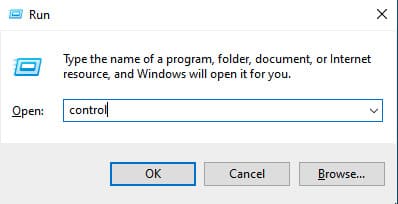
– Press Win+R and type control, then press Enter to open the Control Panel.
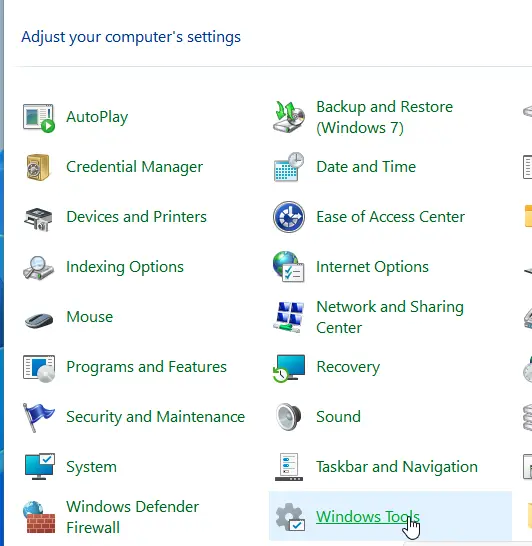
– In the search bar, type Schedule tasks and open it.
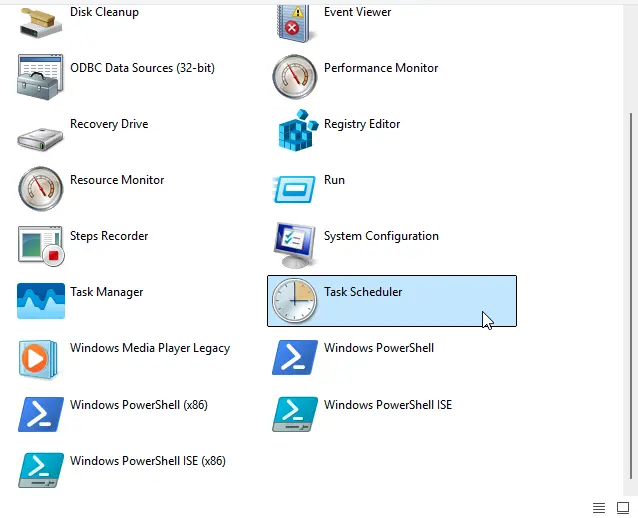
– The Task Scheduler will open.
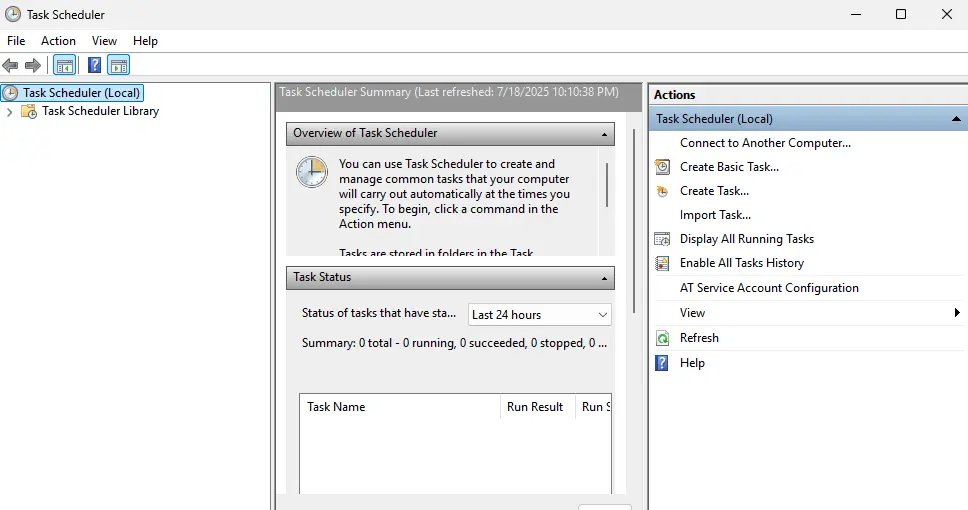
2. Delete the Office folder:
– In the left menu, navigate to the Microsoft folder.
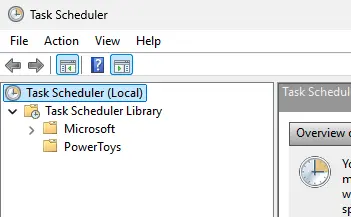
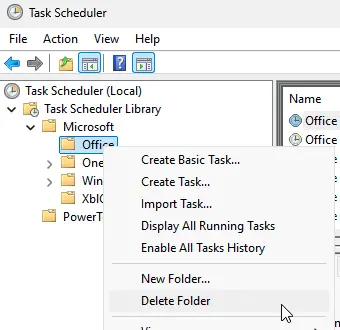
– Locate the Office folder and delete it if it is empty.
– To delete the folder, right-click it and select Delete.
3. Close Task Scheduler and the Control Panel.
Step 3: Reinstalling Office
After deleting the empty Office folder from Task Scheduler, retry the Microsoft Office 2013 installation:
1. Run the Microsoft Office 2013 installation file.
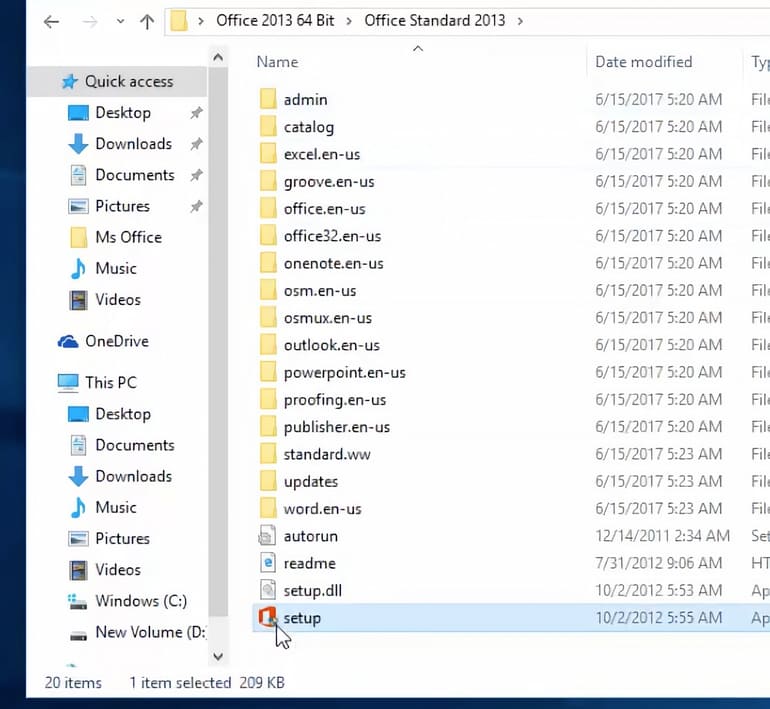
2. Accept the license agreement and proceed with the installation.
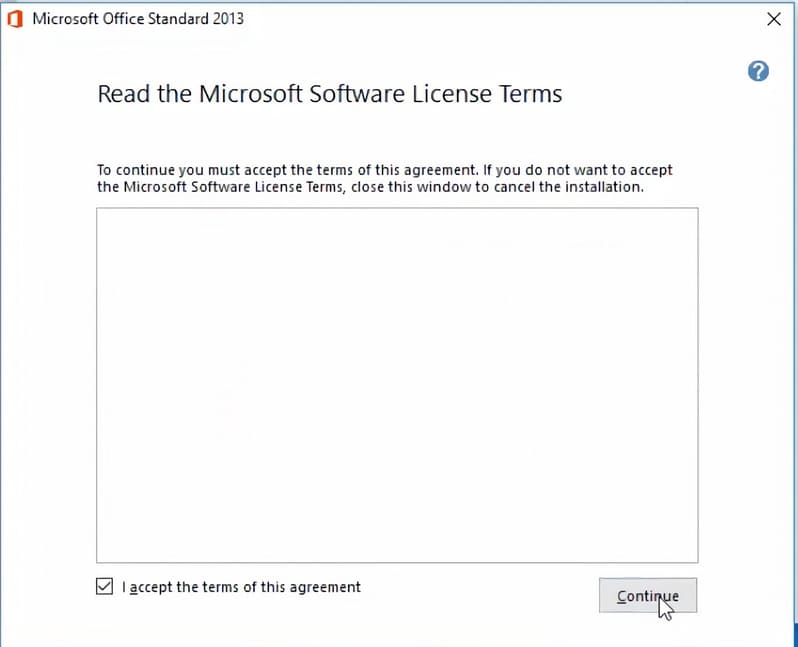
3. The installation process should complete without errors.
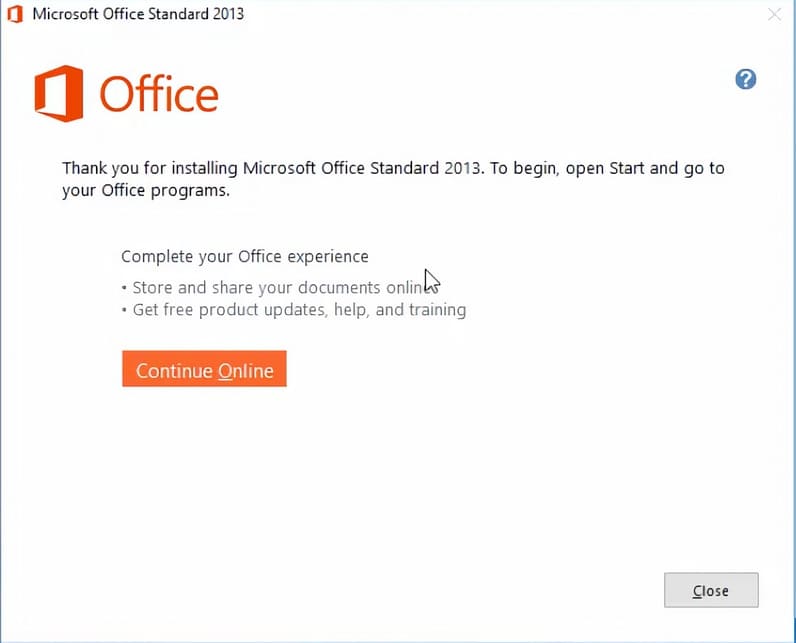
Additional Error: Issue with Font Cache Service
Sometimes, after resolving the main error, an issue related to the Font Cache Service may arise. In this case, follow these steps:
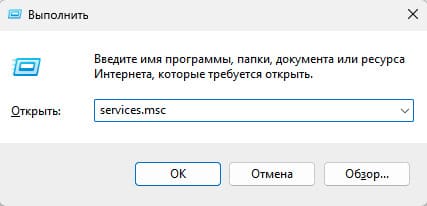
1. Open Services by pressing Win+R and typing services.msc.
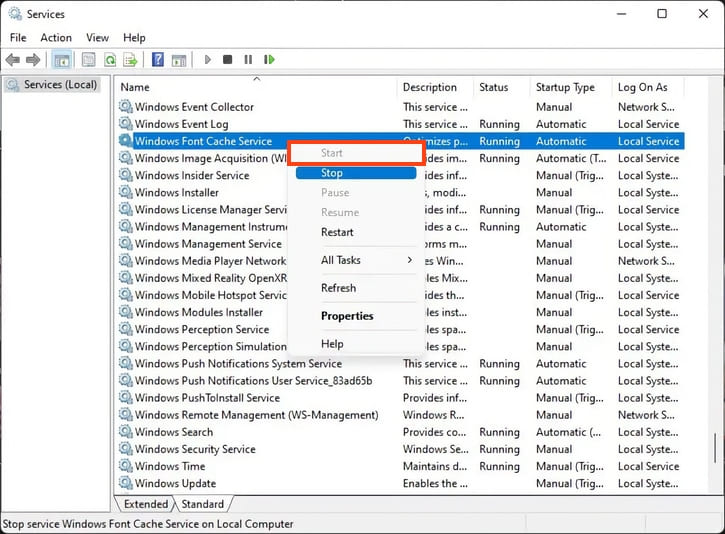
2. Locate the Windows Font Cache Service.
3. If the service is stopped, start it.
After completing these steps, the issue should be resolved, and Microsoft Office 2013 will install without errors.
To fix the installation error for Microsoft Office 2013 Standard, simply delete the empty Office folder from Task Scheduler and retry the installation. If additional errors occur, such as issues with the Font Cache Service, resolve them through Services. Now you know how to easily address this problem, ensuring your Office installation completes successfully.