In this article, we will discuss basic settings for Windows Server 2019, including AD, DNS, DHCP, and terminal server licensing. These settings are applicable to most servers and are essential.
For information on how to install Windows Server and perform initial activation settings, please refer to our previous article at this link.
You can purchase product keys for Windows Server 2019 in our catalog!
Windows Server 2019 – for $25.00
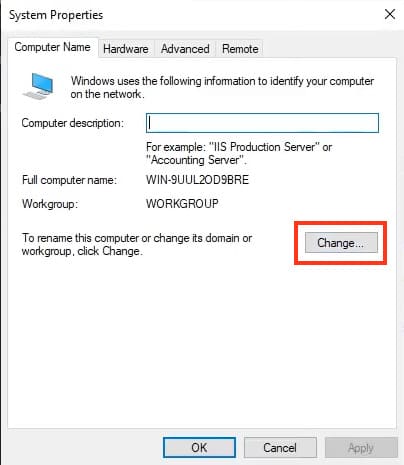
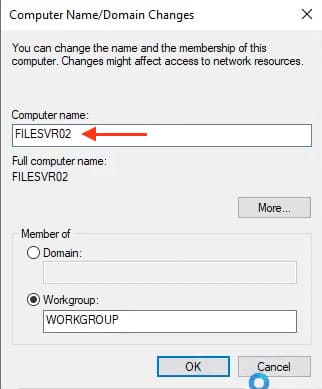
1) Change the server name and description (if necessary). Go to System Properties => Change Settings => Change. Set the “Computer Name” and optionally the workgroup name. After changing the settings, restart is required.
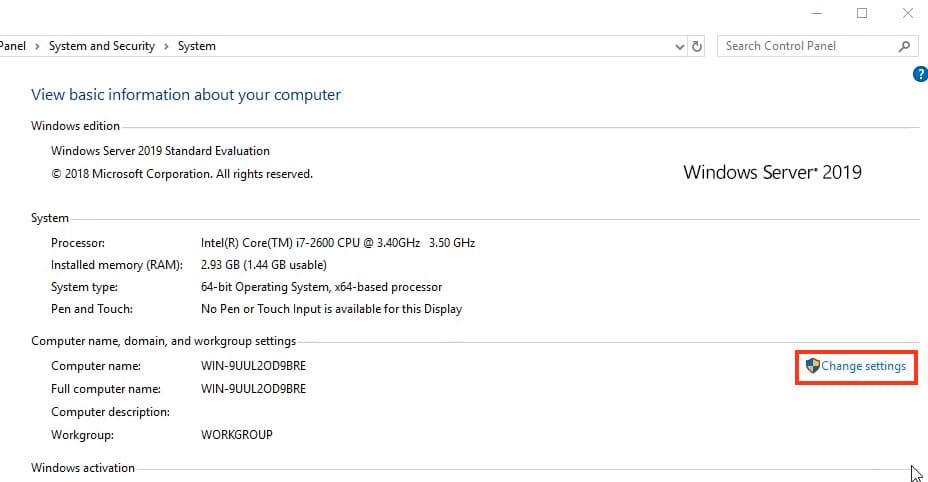
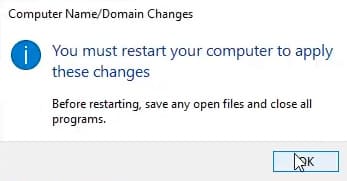
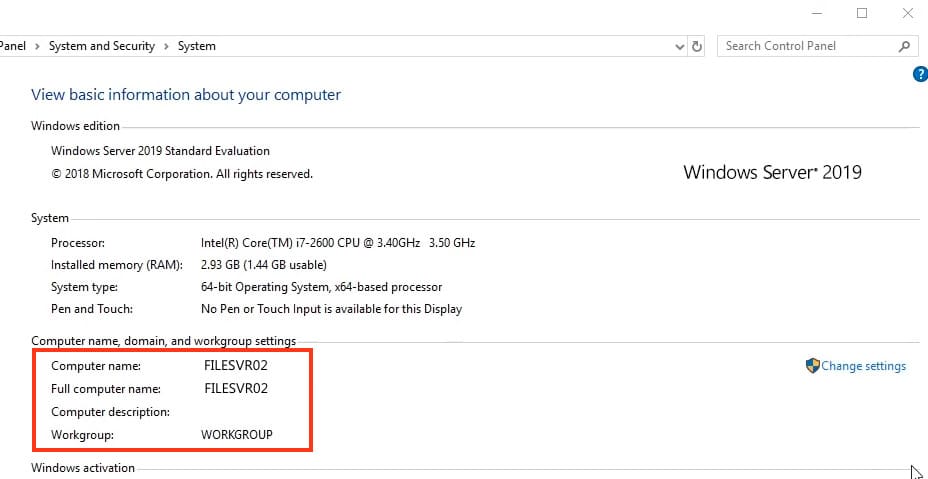
After reboot, you can check if the name change was successful.
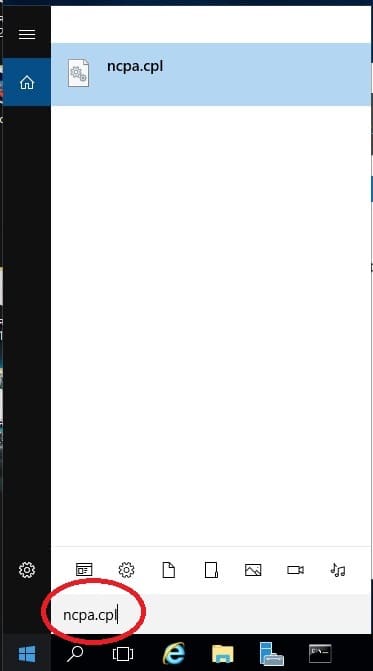
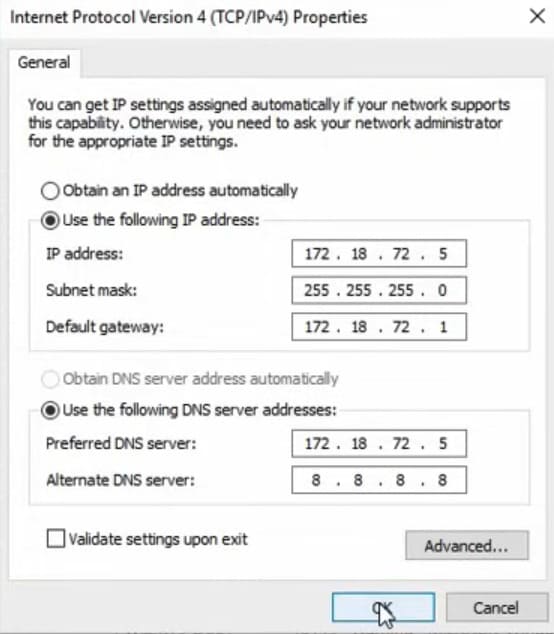
2) Next, change the network settings. Set IP address, subnet mask, and gateway as static, according to your network configuration.
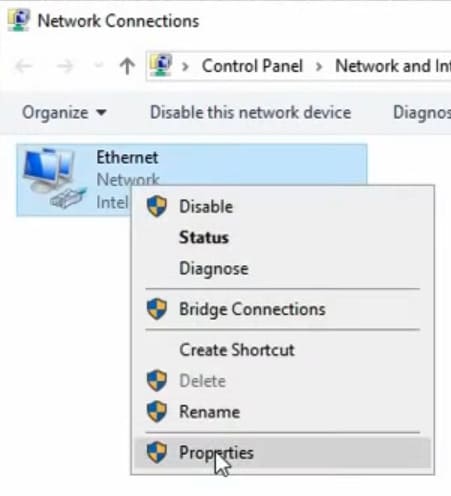
Go to the properties of the network card.
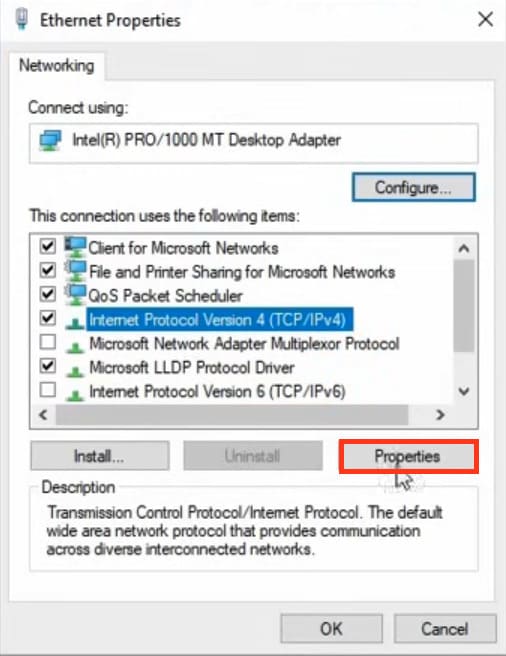
Then to the properties of IPv4.
3) The next step is configuring Active Directory. Add roles and features. Go to “Start” menu => Server Manager.
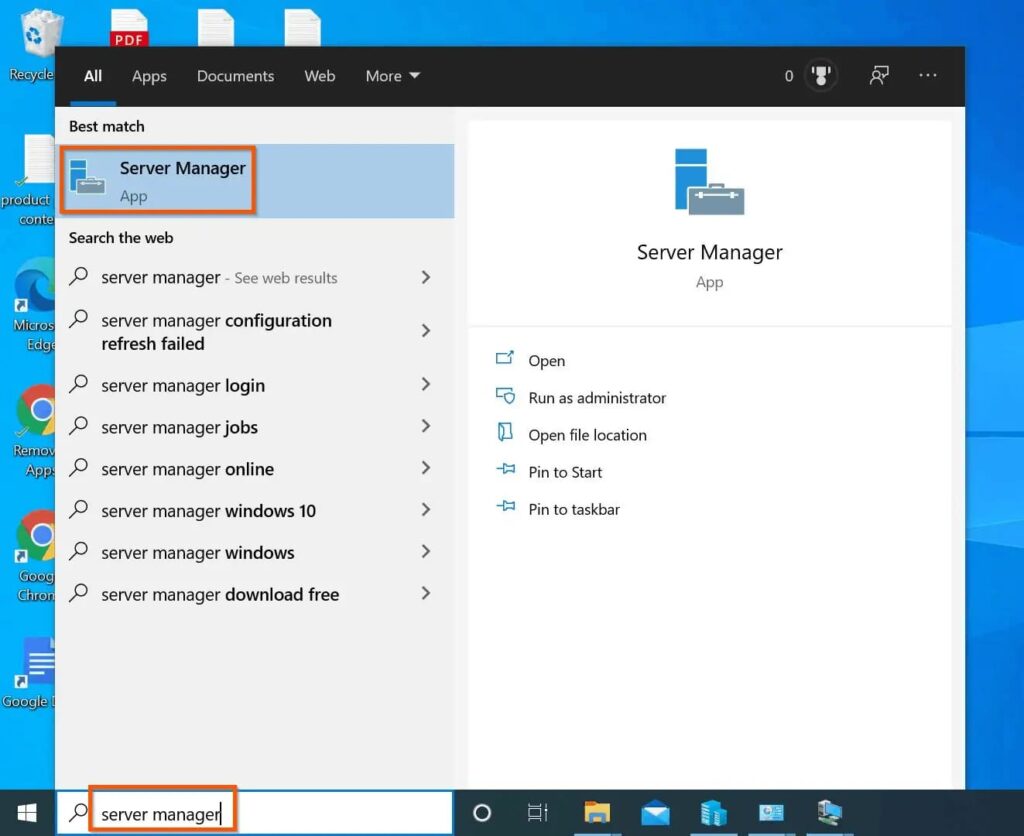
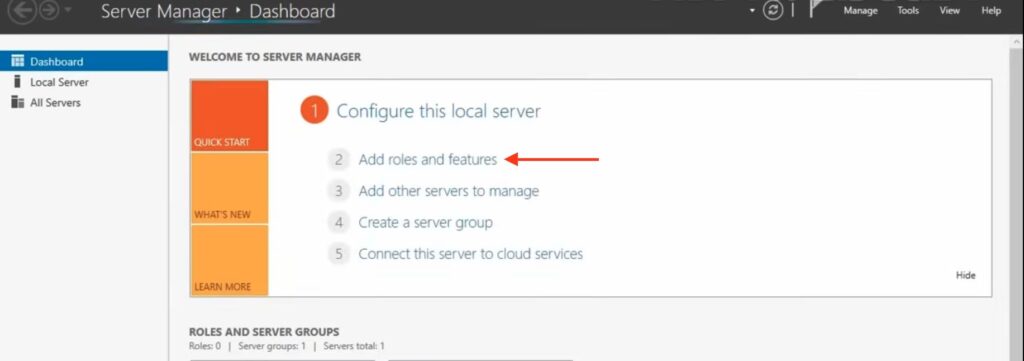
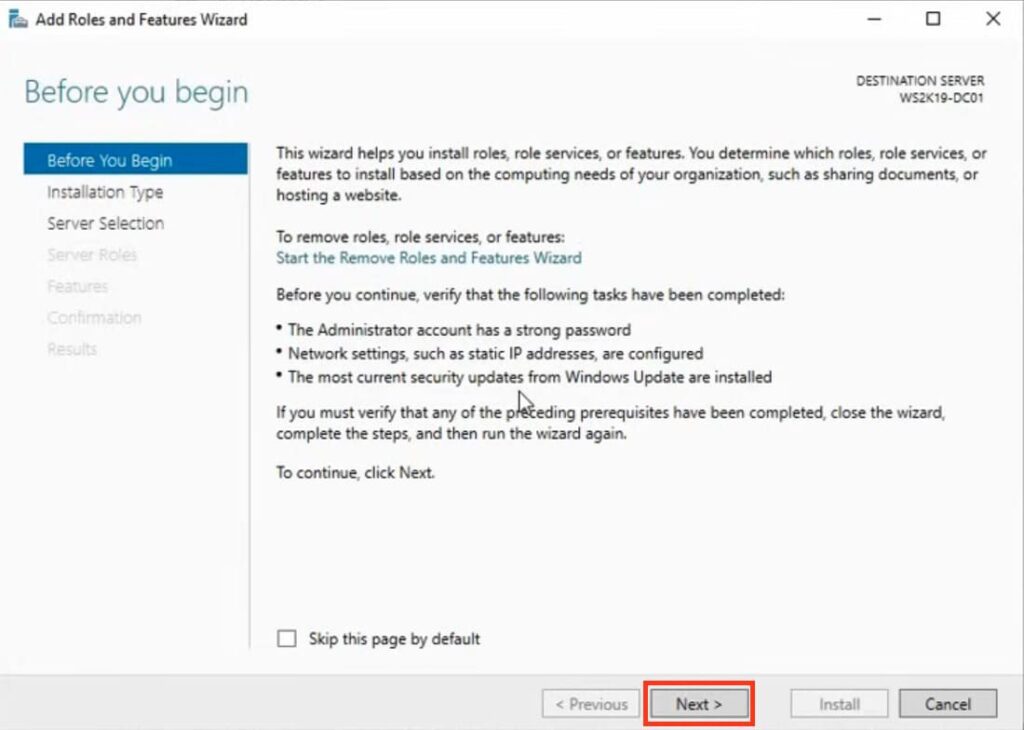
Install “Roles and Features.”
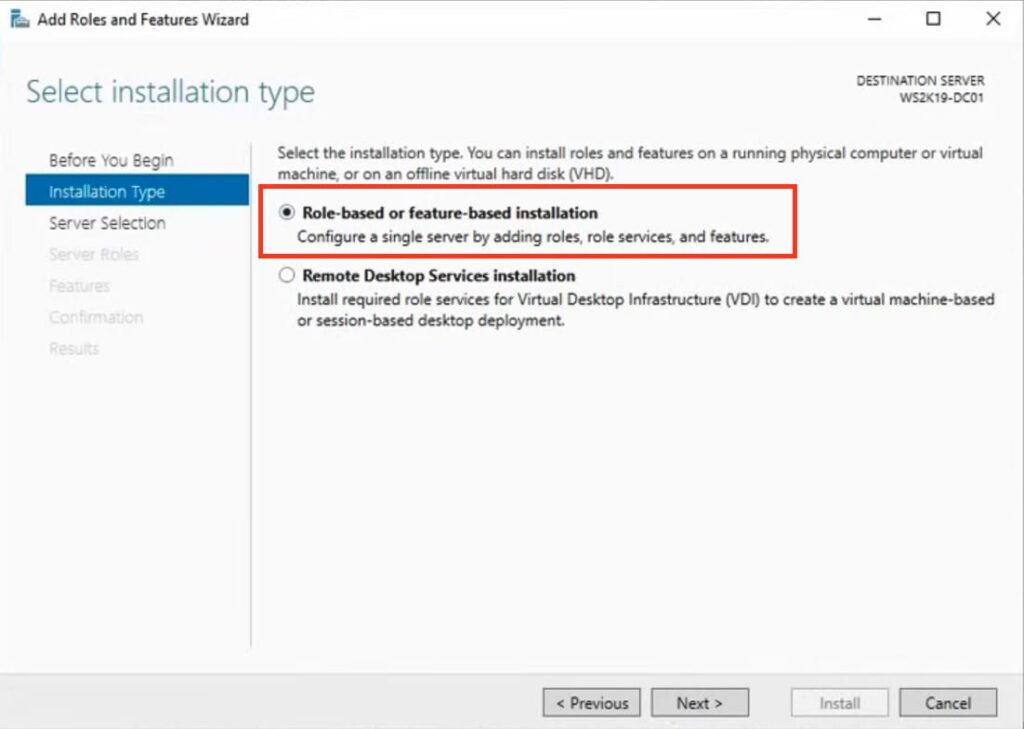
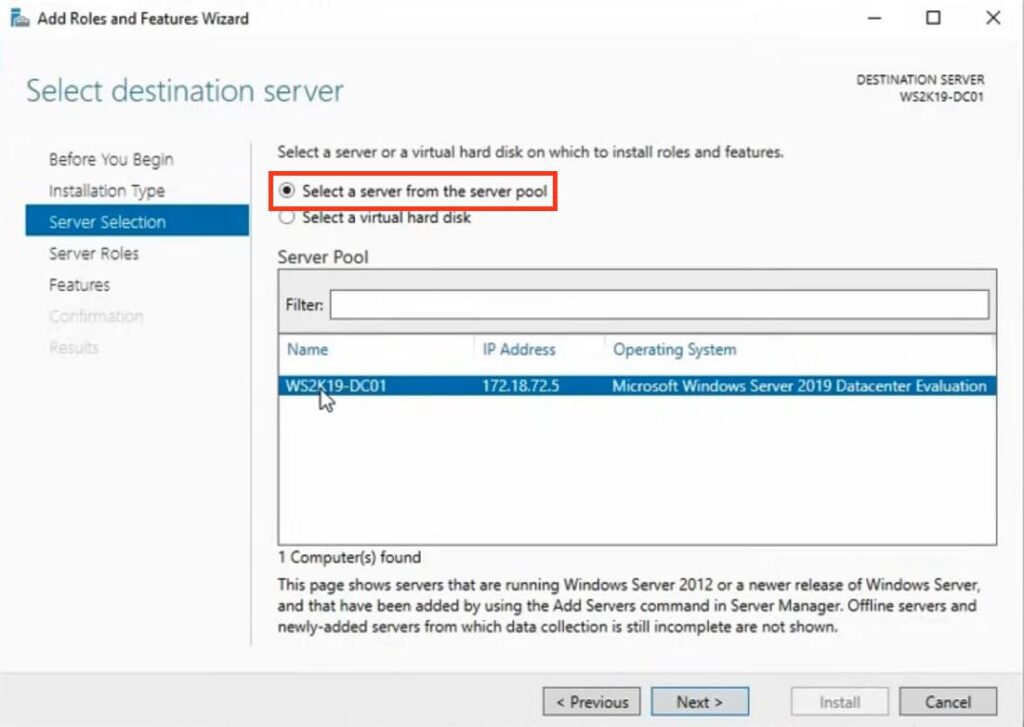
Select the appropriate server pool.
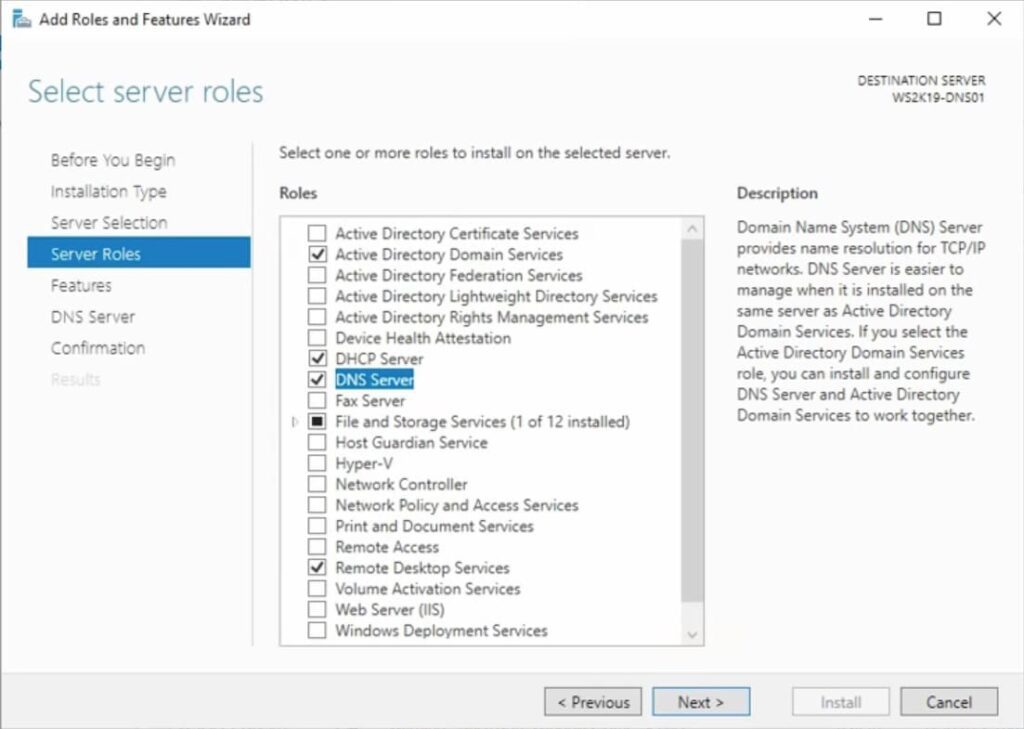
In “Server Roles” for all our settings, select “DHCP Server,” “DNS Server,” “Active Directory Domain Services,” and “Remote Desktop Services.”
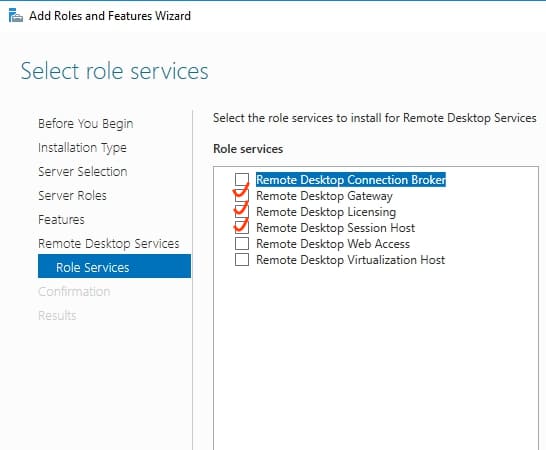
Proceed to “Role Services” and select items as shown in the screenshot below.
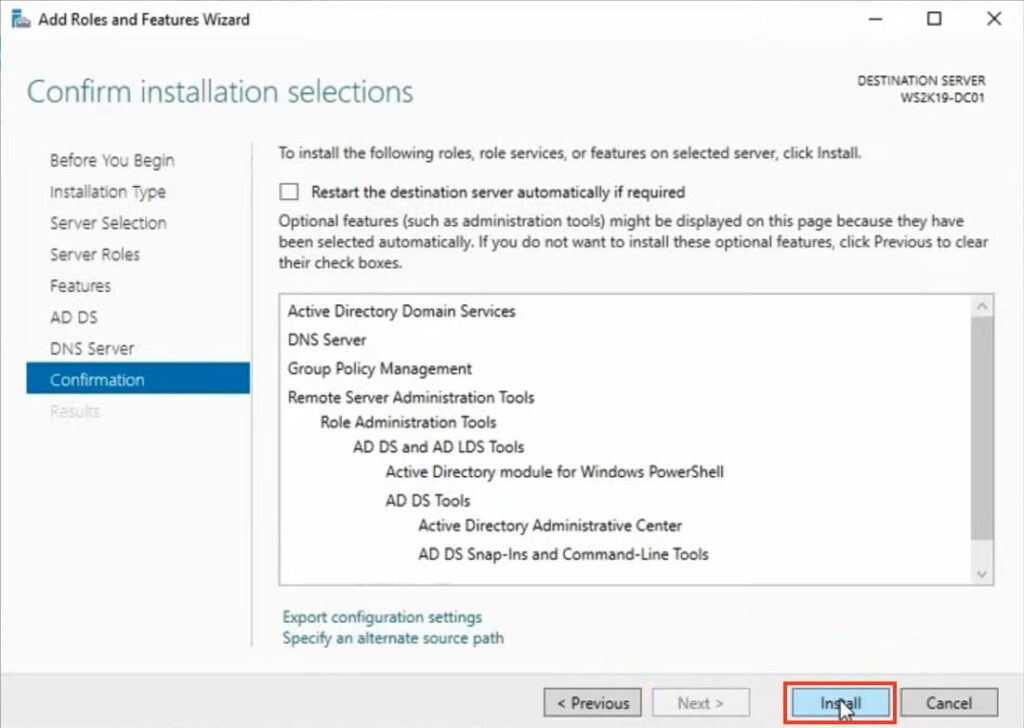
Afterward, go “Next” until “Confirmation” and install all selected items.
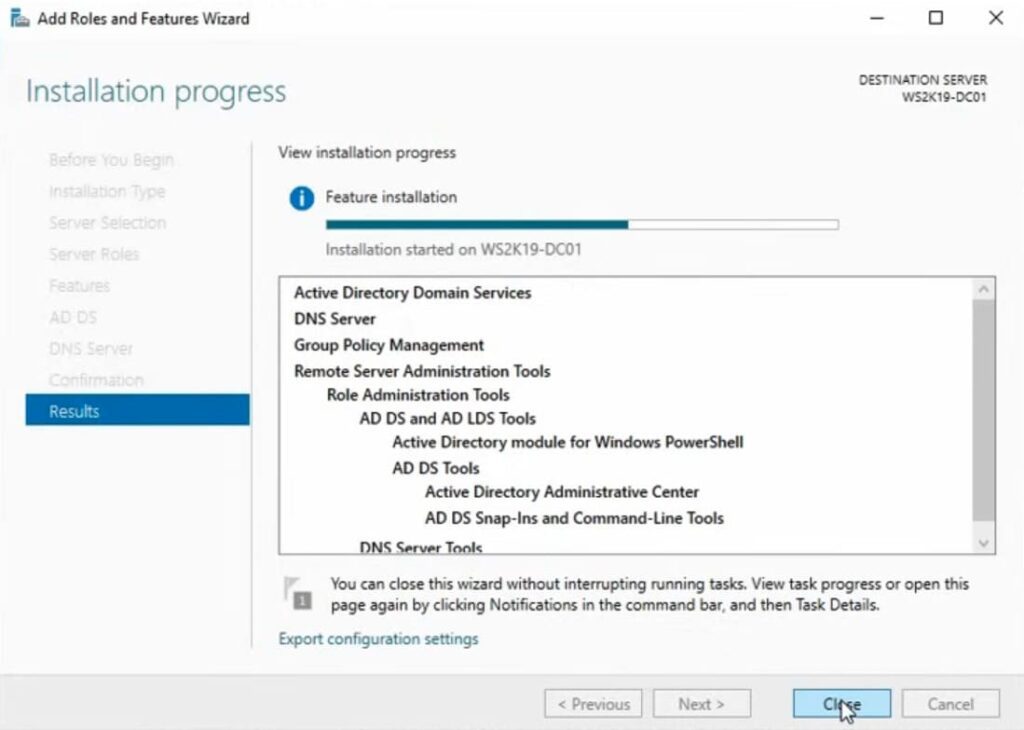
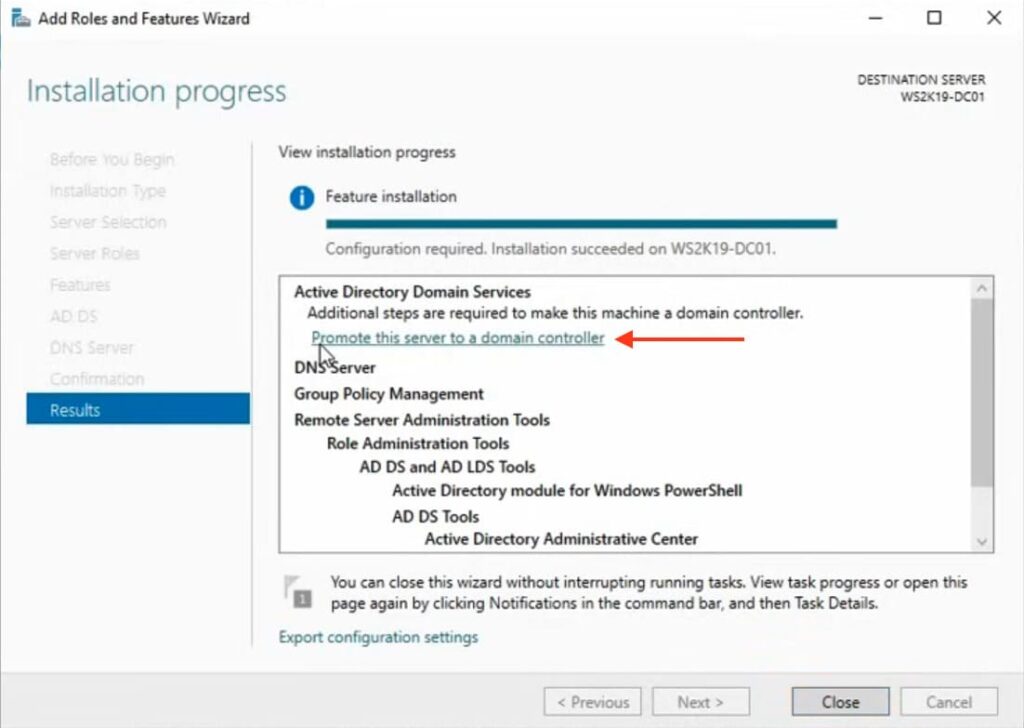
After installation, in “Results,” select “Promote this server to a domain controller.”
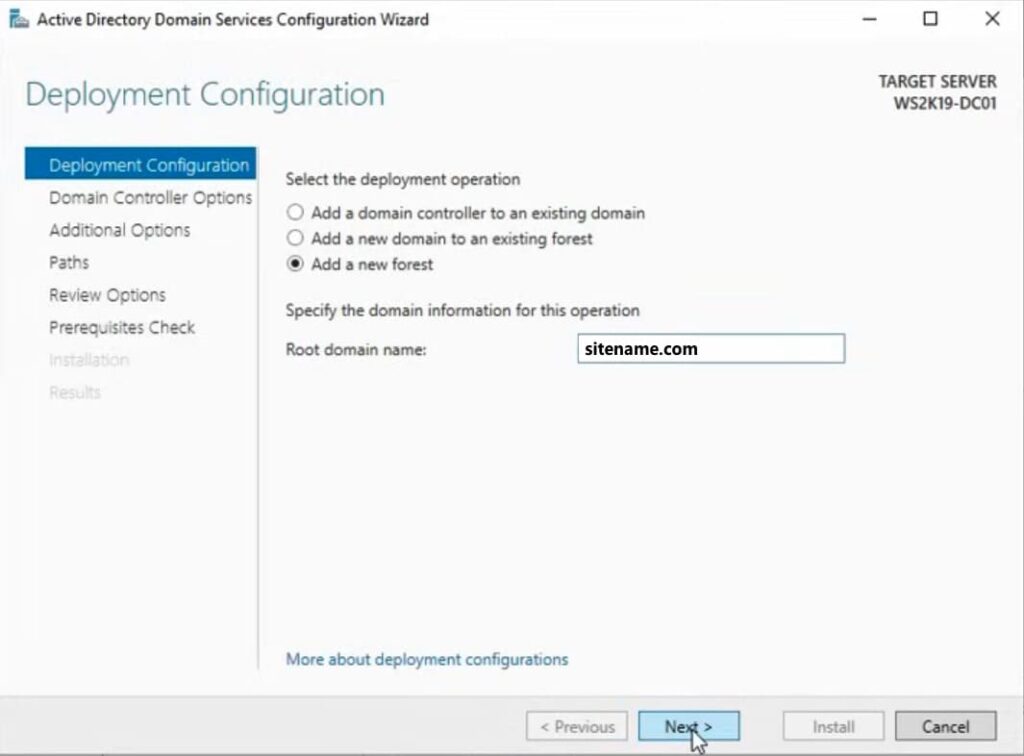
In the domain services setup wizard, select “Add a new forest” and enter the root domain name, which can be any name, for example, your website domain.
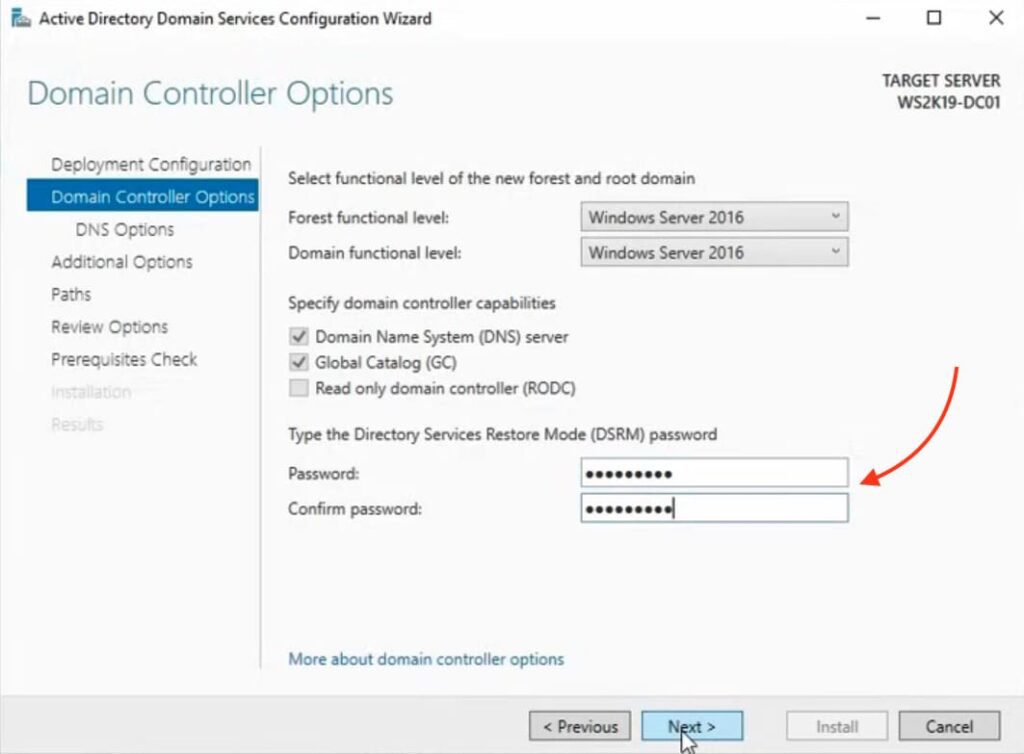
For the controller settings, create a password.
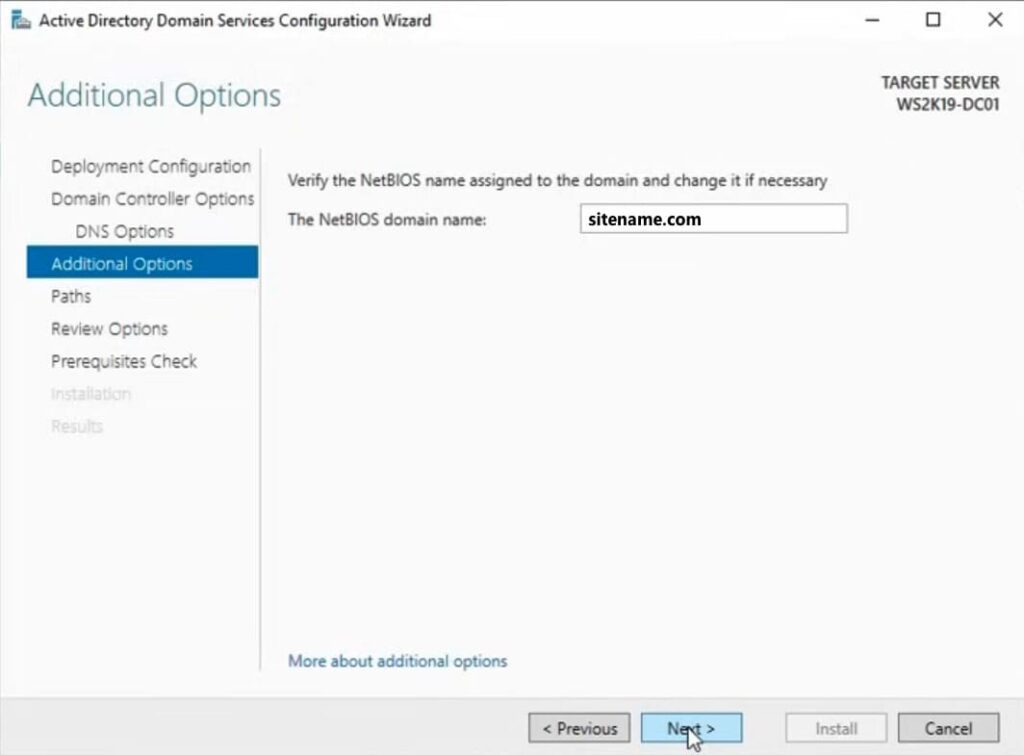
In the setup catalog, proceed to additional parameters where you need to specify the NetBIOS domain name. If it’s already set, you can leave it as is or change it as desired.
Next, proceed to “Check Prerequisites.” If the check is successful, apply the settings.
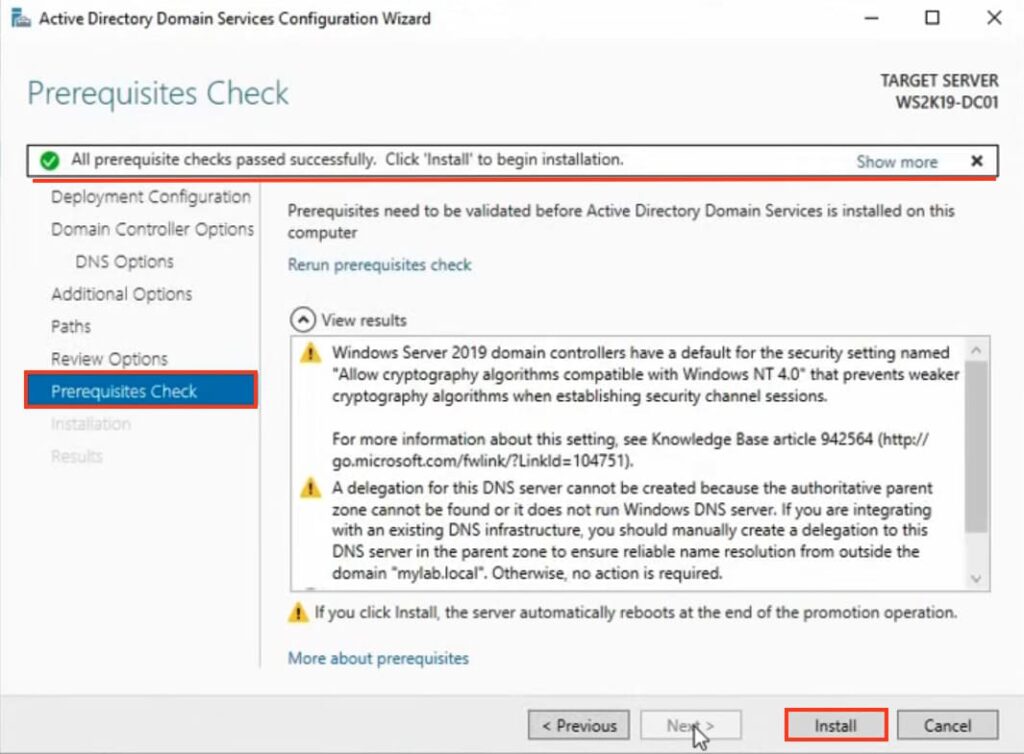
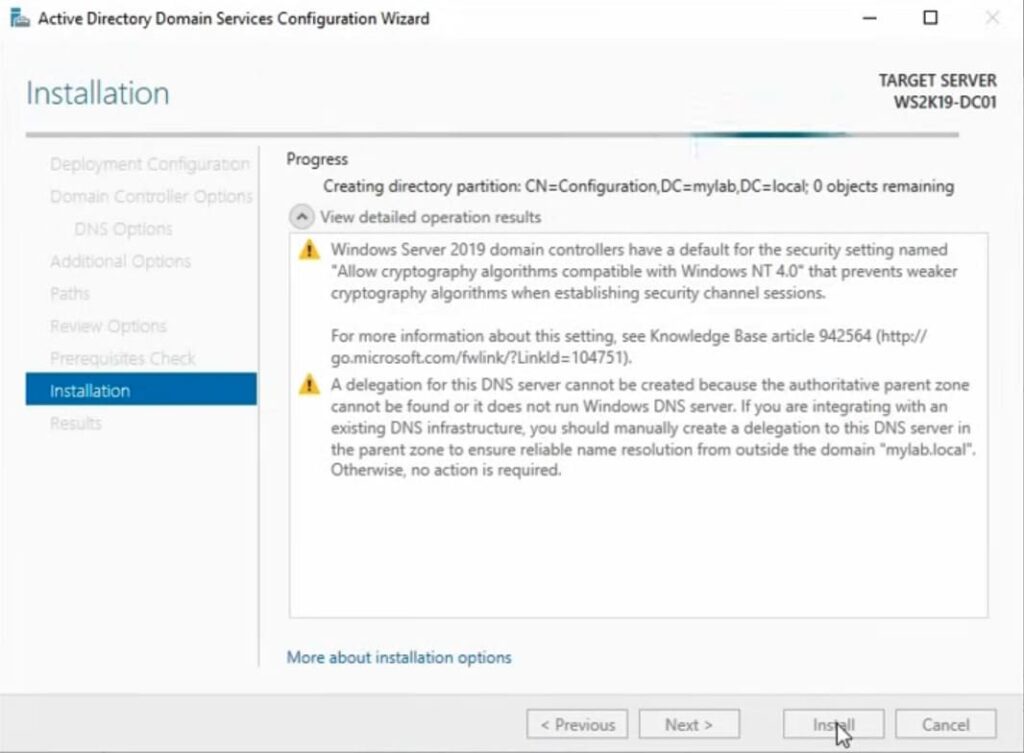
After complete installation, restart is required.

4) Configure “Reverse Lookup Zone.”
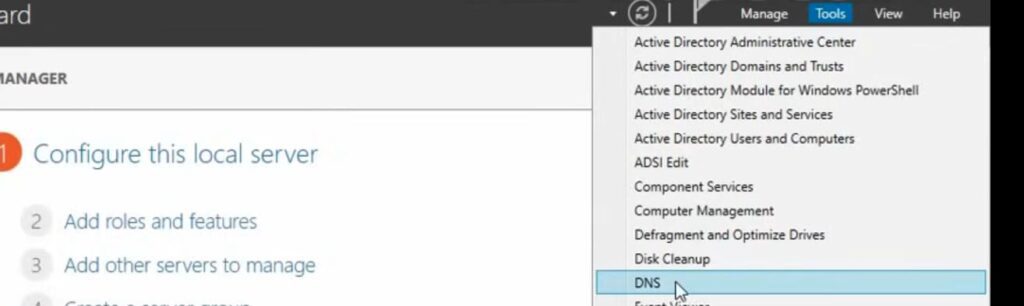
Under “Reverse Lookup Zone” => Create a new zone.
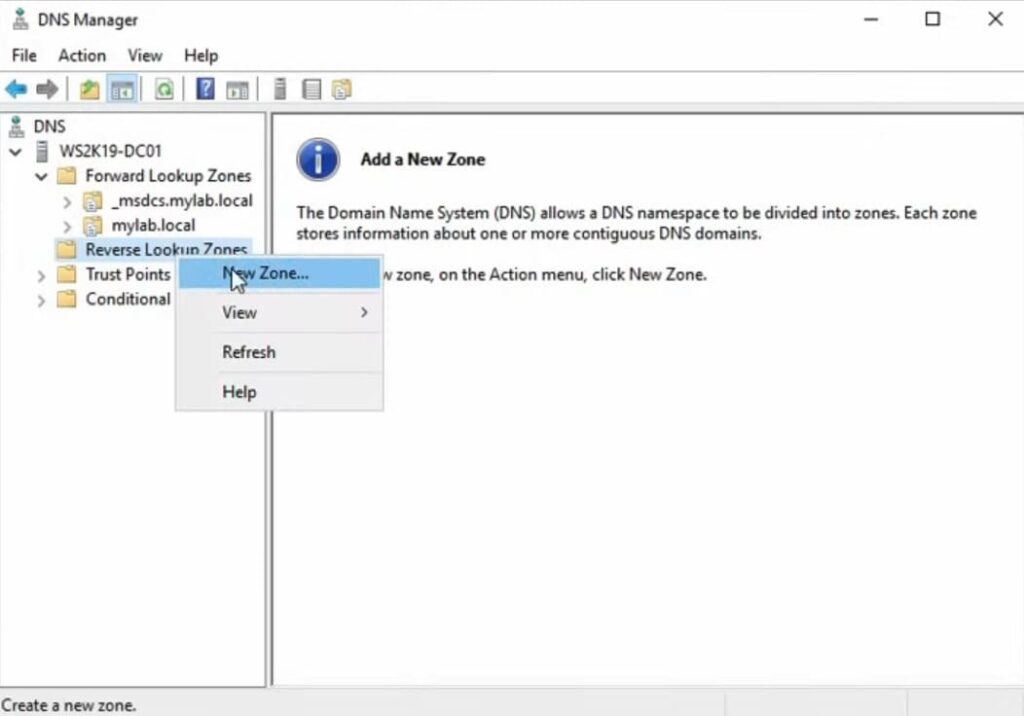
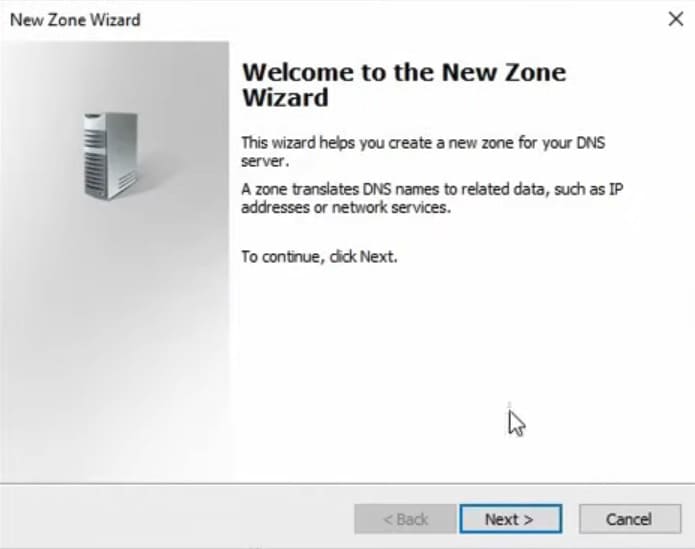
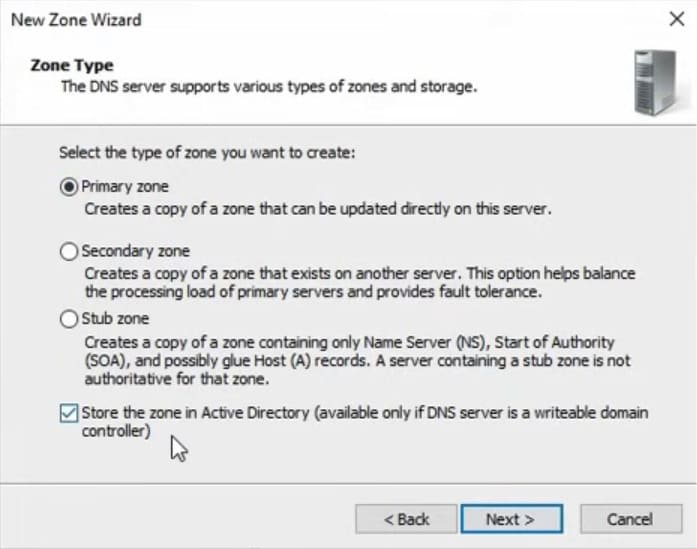
Select “Primary Zone.”
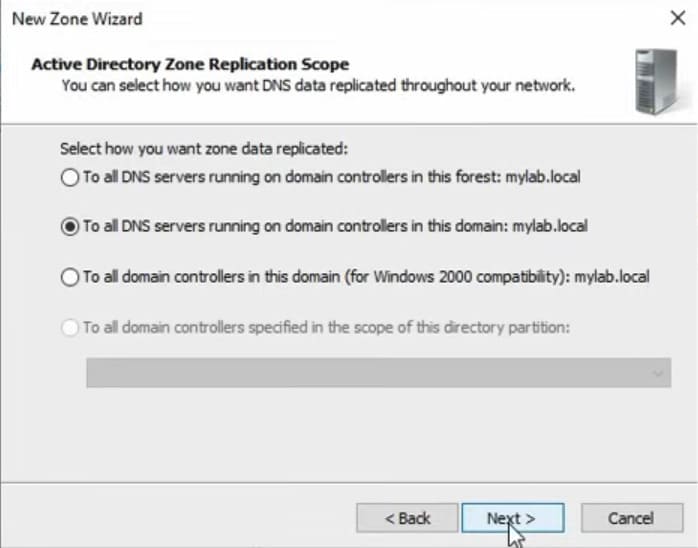
To all DNS servers running on domain controllers in this domain:
IPv4 Reverse Lookup Zone.
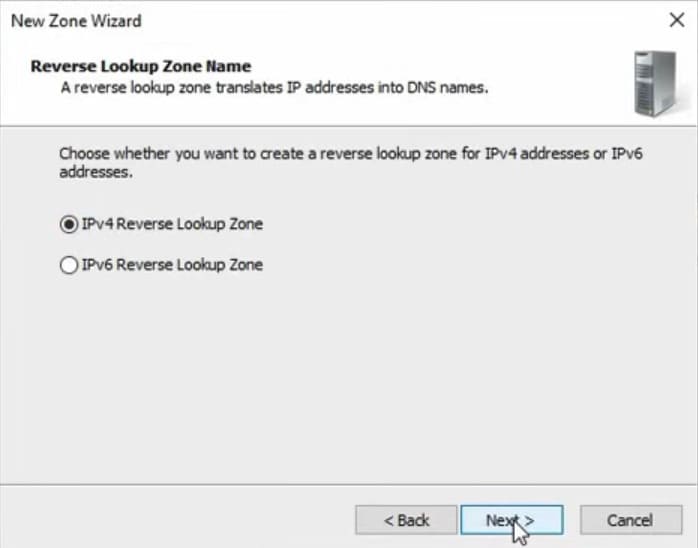
Then display the network identifier.
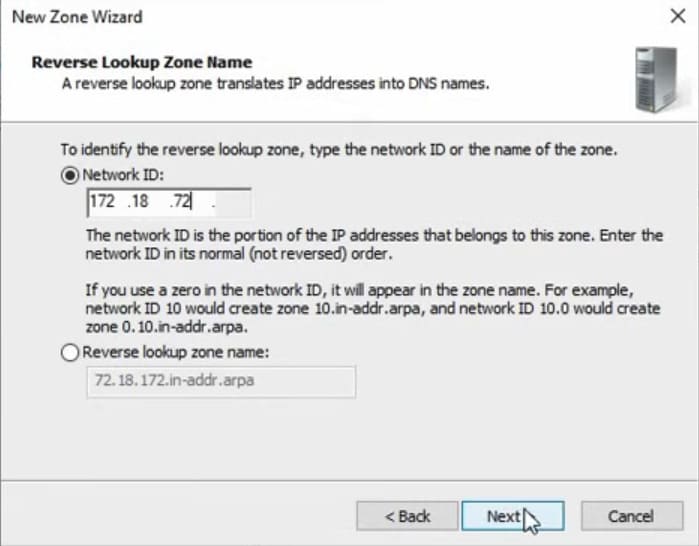
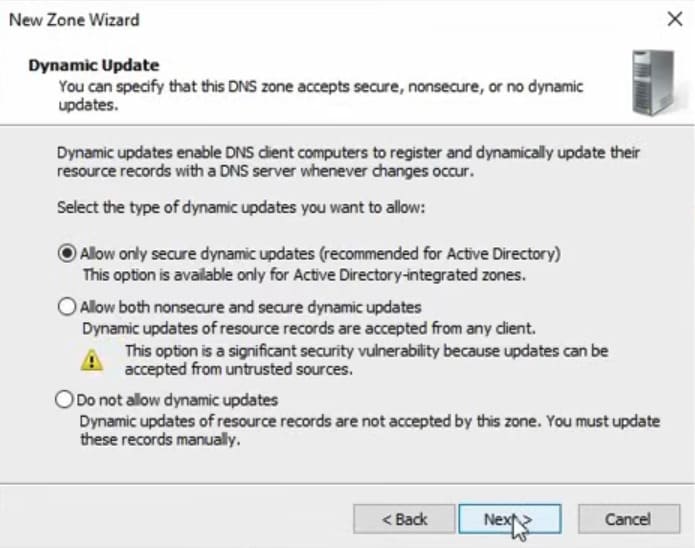
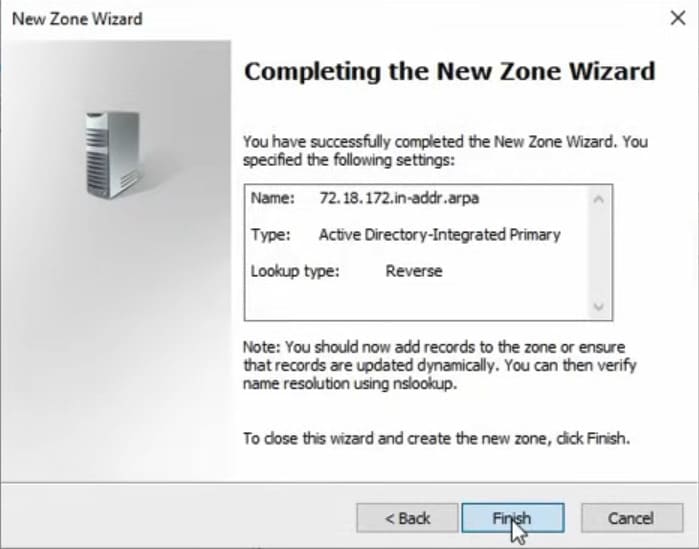
Verify that everything has been set up.
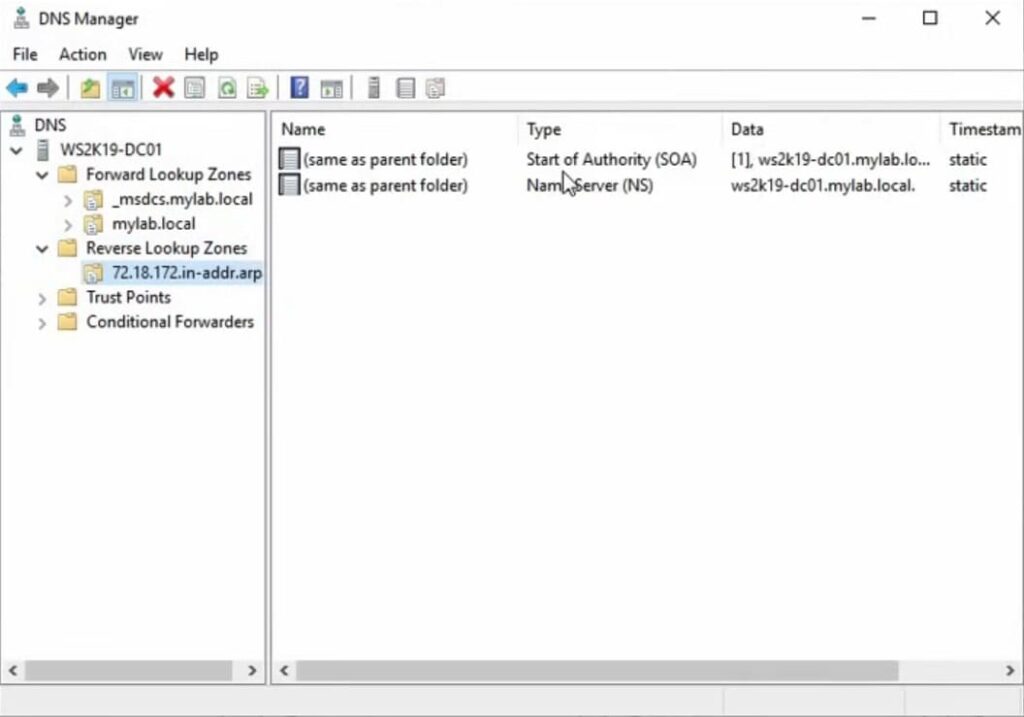
5) Move on to DHCP setup. Proceed to the installation wizard.
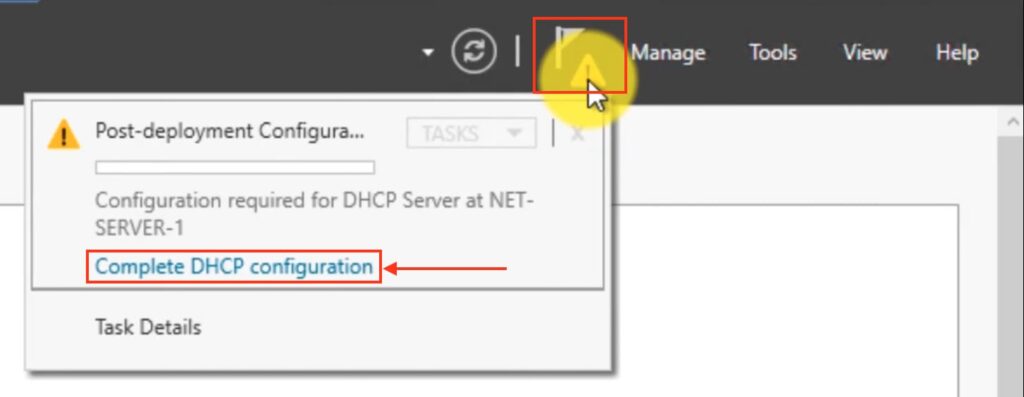
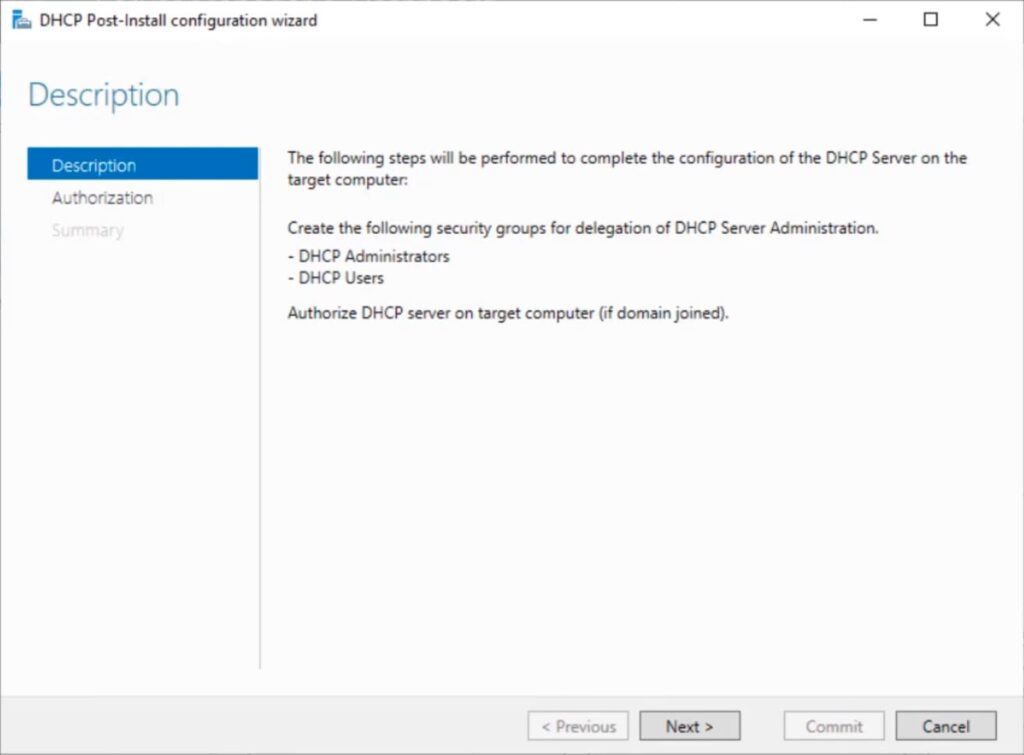
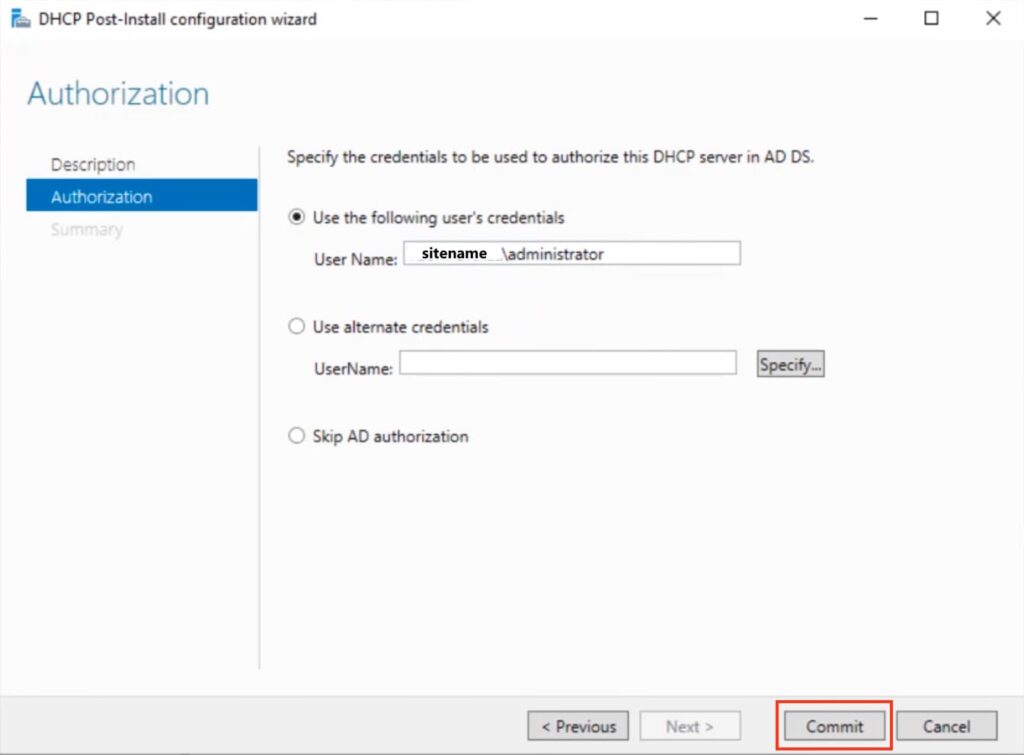
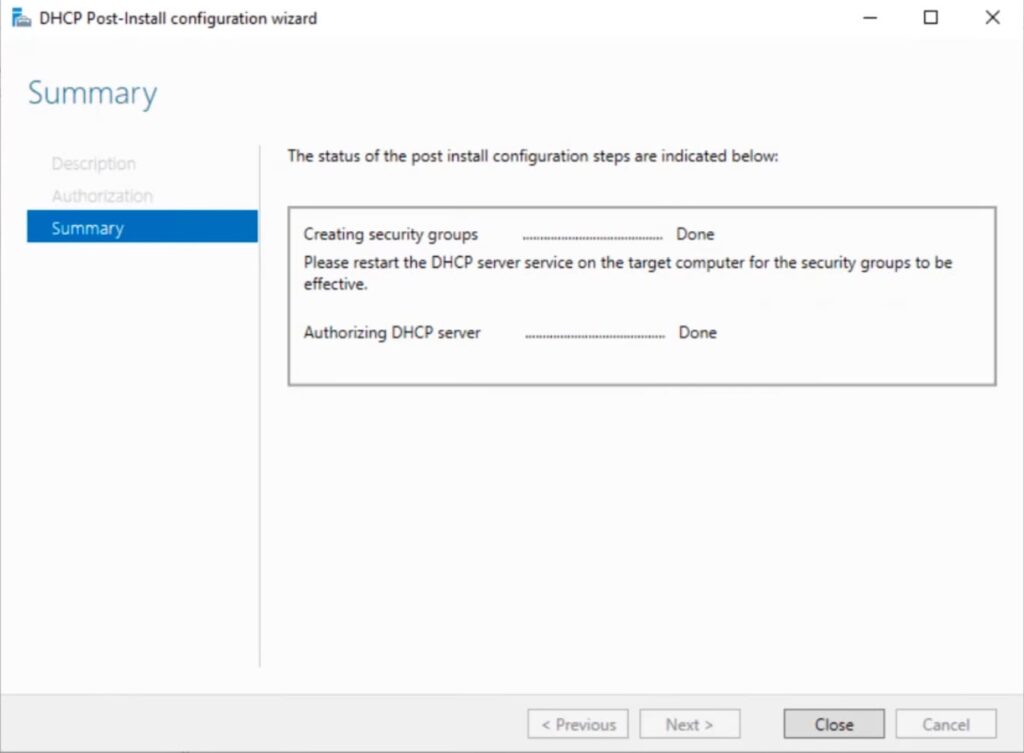
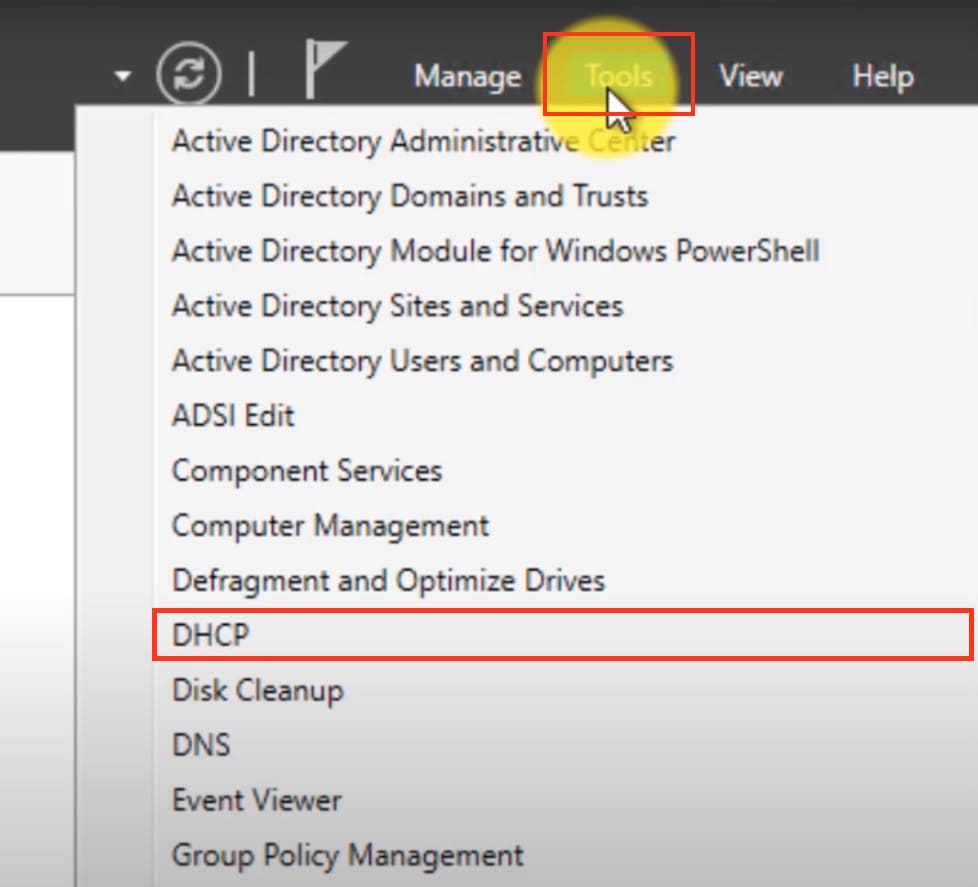
After completion of the installation => Manager => Tools => DHCP
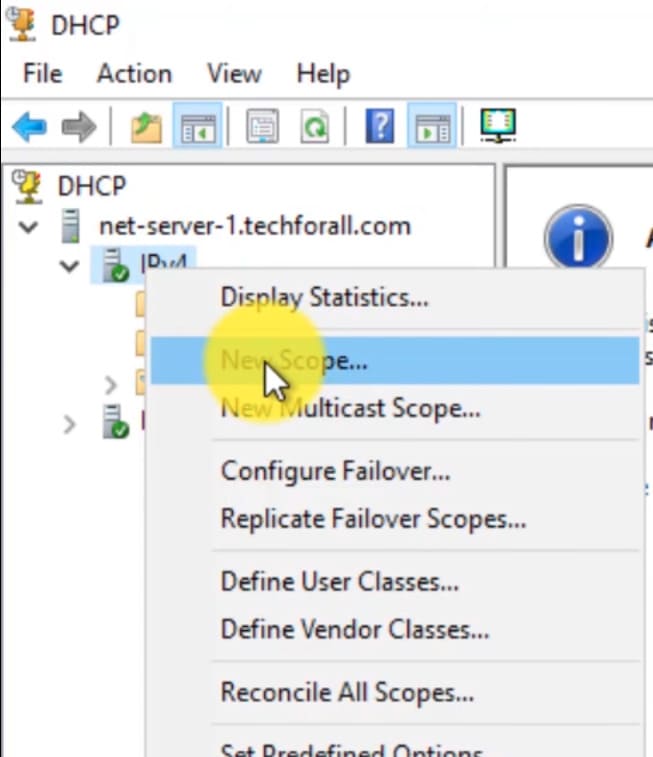
Under DHCP => Your server name => IPv4 – right-click => Create Scope.
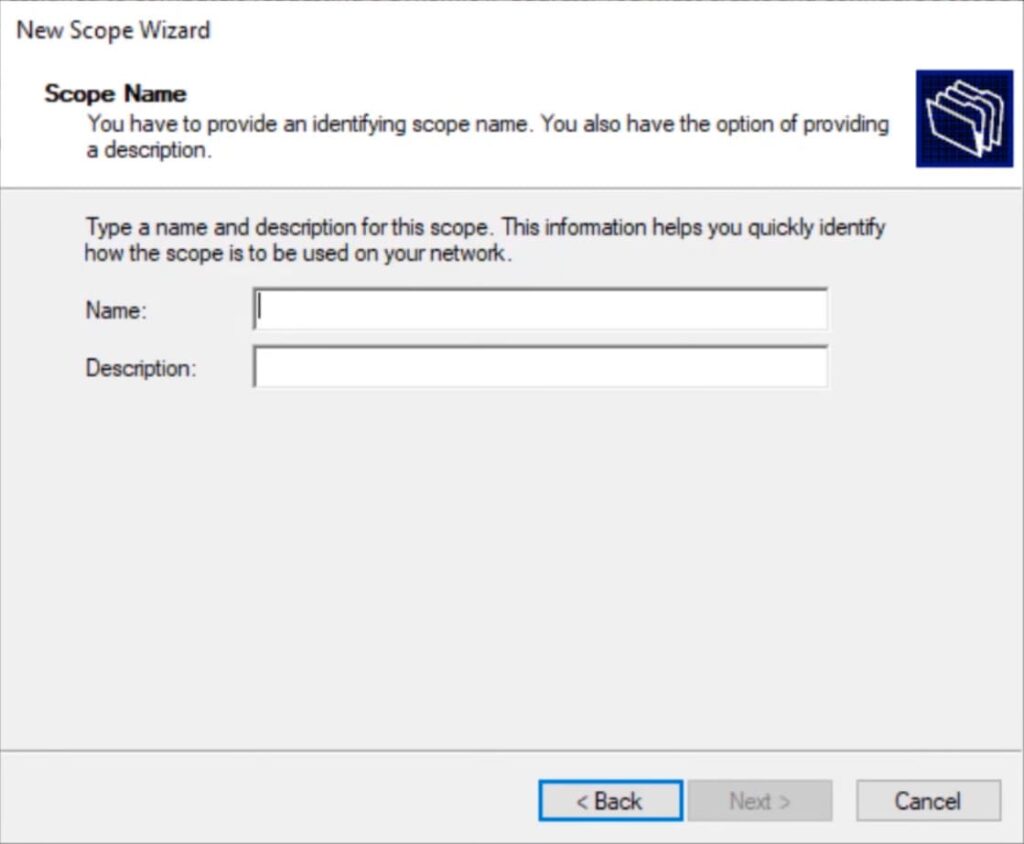
Specify any DHCP scope name.
In the address range, specify the starting and ending range of IP addresses that the server will distribute.
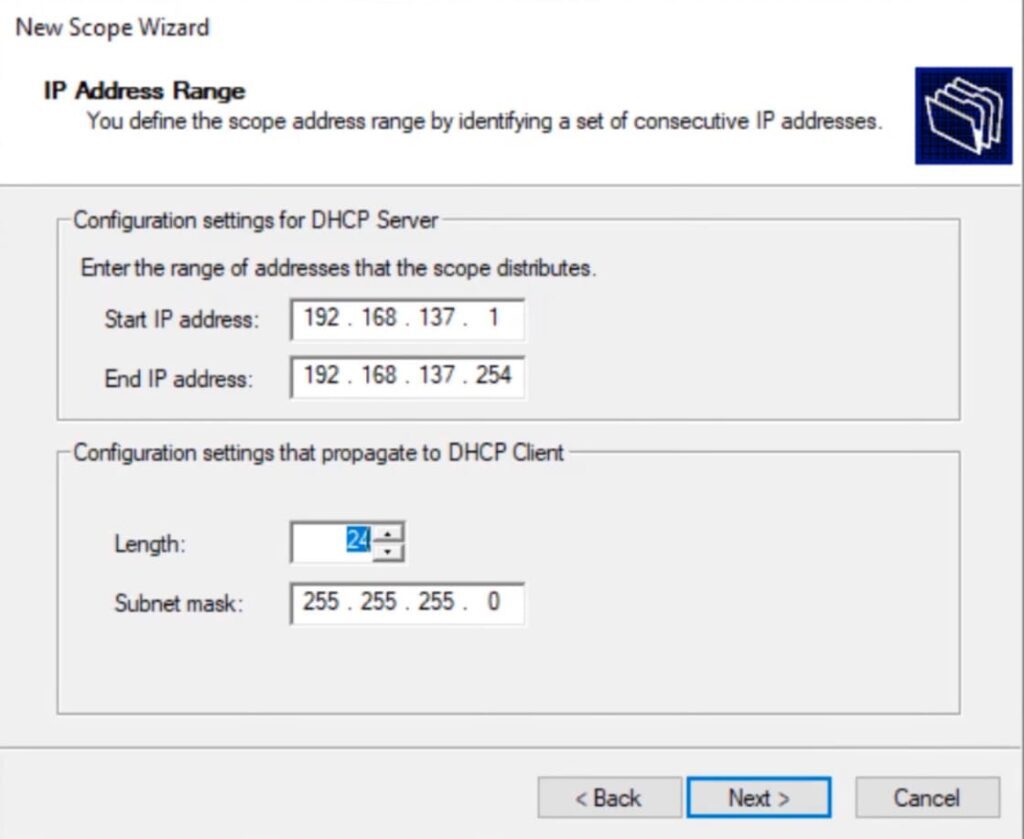
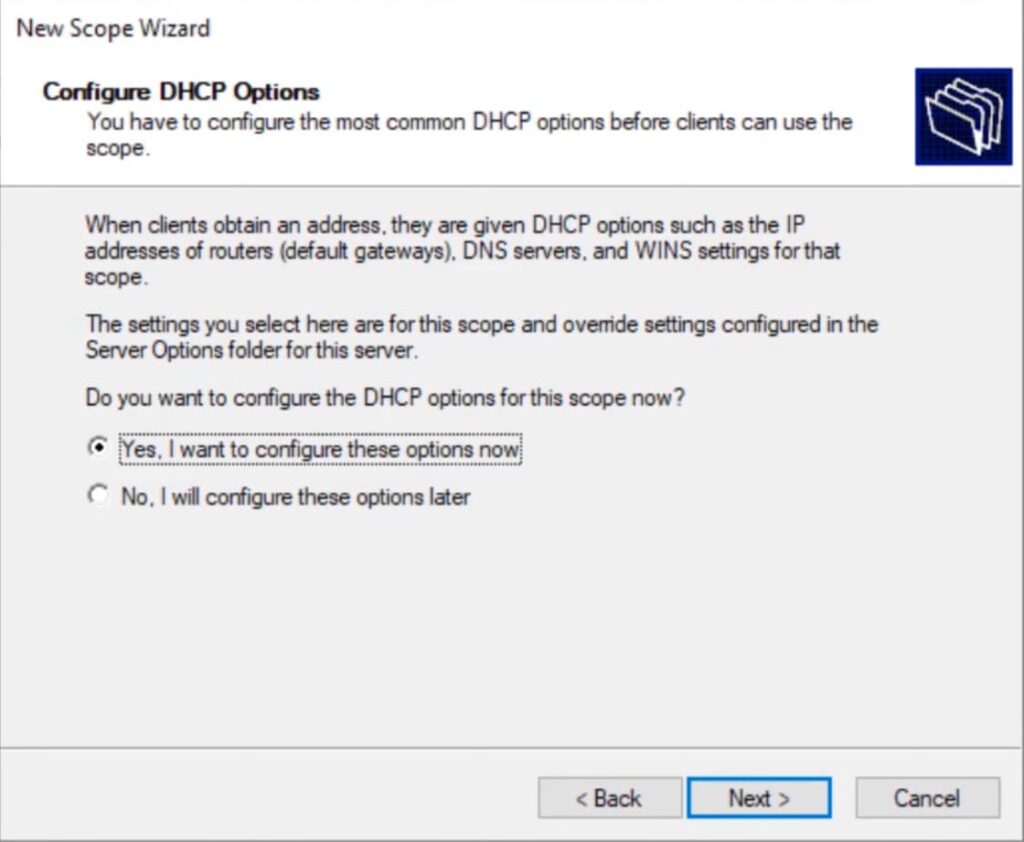
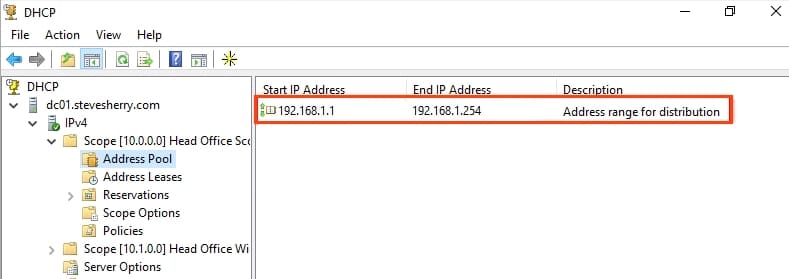
Next, in the DHCP directory tree => Server name => Scope => Address Pool. The list should include the starting and ending range you specified in the settings.
6) Now for the Remote Desktop Services (terminal server) licensing settings. Step-by-step instructions on how to license the terminal server can be found in our earlier article on the next page.