In this article, we will discuss how to install Windows on a Mac using the Parallels Desktop virtual machine application. Following the example of the article, we will be installing Windows 10, but you can also install any other version of Windows, the settings are not different.
1) The first thing you need to do is to download Parallels Desktop. You can download the program itself from the following link and install the application on your Mac computer.
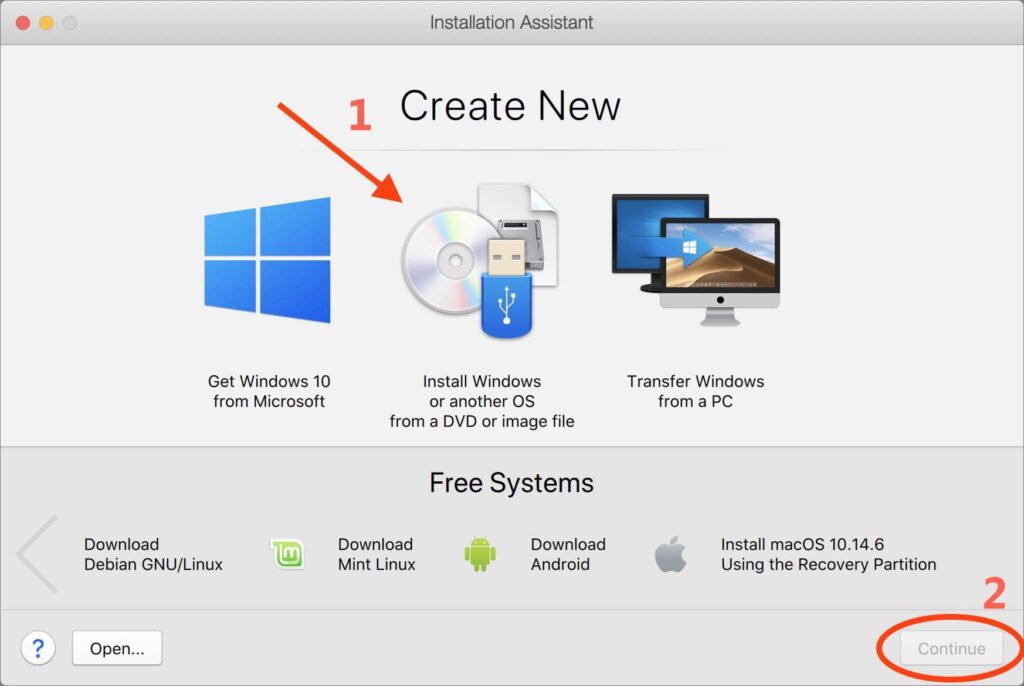
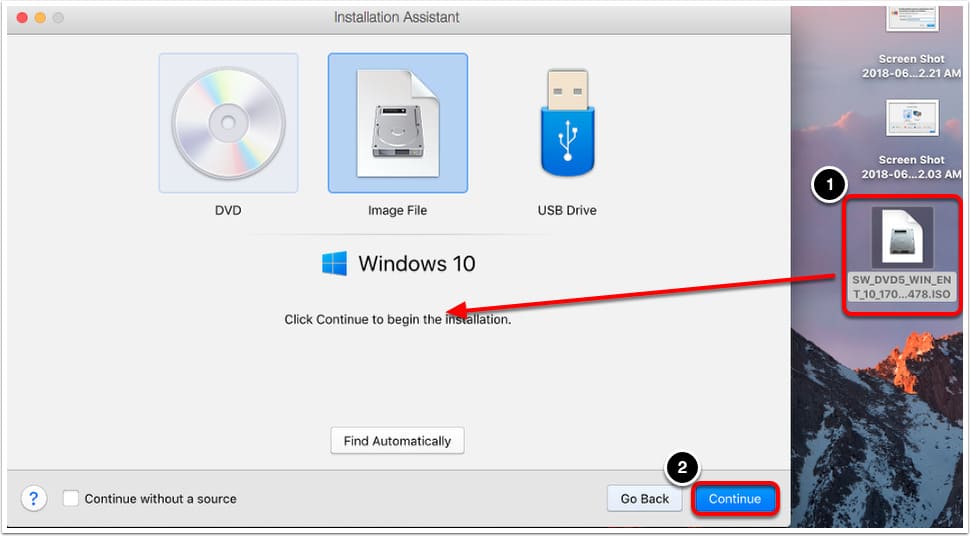
2) Launch the application. And select “Install from image file.” You should have the Windows 10 installer on your computer or laptop, if you don’t have it, you can download it from our website in the following directory.
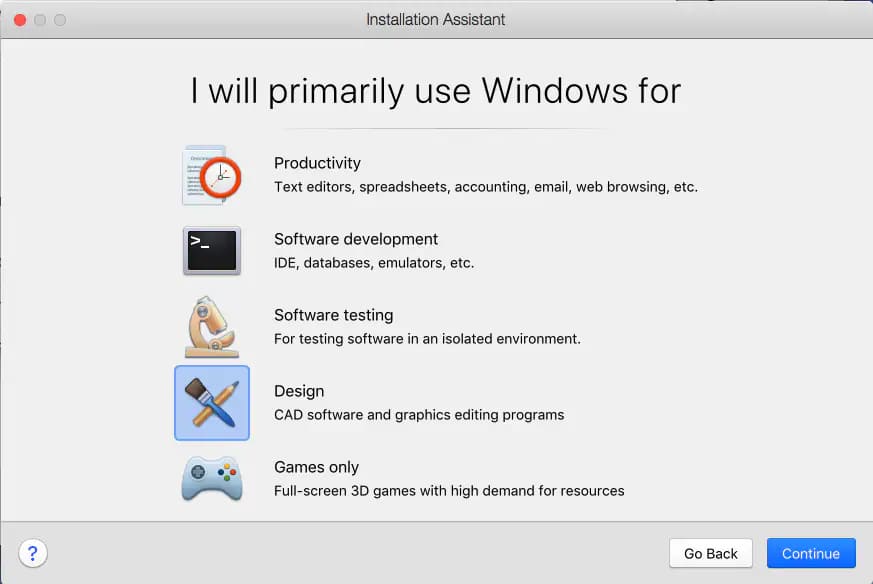
3) Next, the Parallels Desktop application will ask you for what purpose you are installing the system on a virtual machine. This is necessary to calculate the power allocated for installation and further operation of the OS. For normal operation without games, we recommend that you select “Productivity” or “Software testing.”
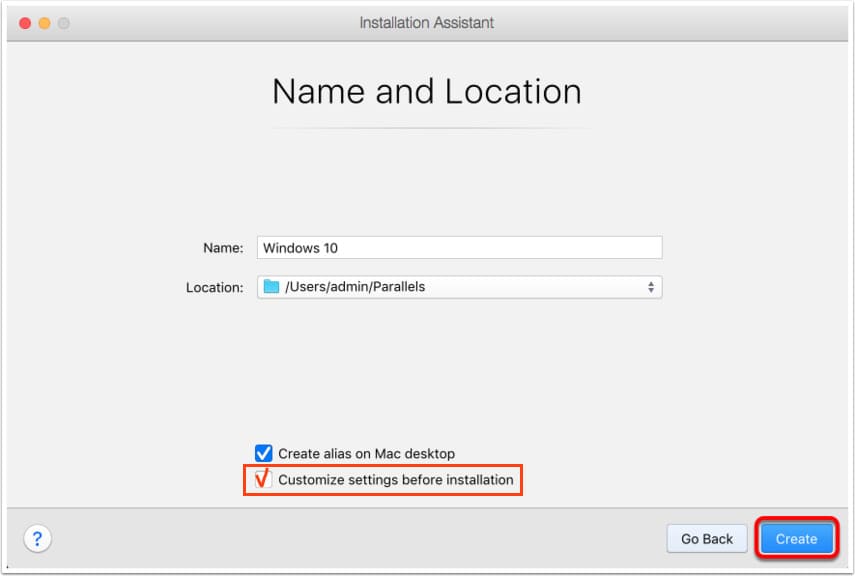
4) On the next step, you can change the name of the virtual OS and its location, or leave everything by default. Also, be sure to check the box for “Customize settings before installation” – this is necessary for Windows to automatically install all necessary drivers.
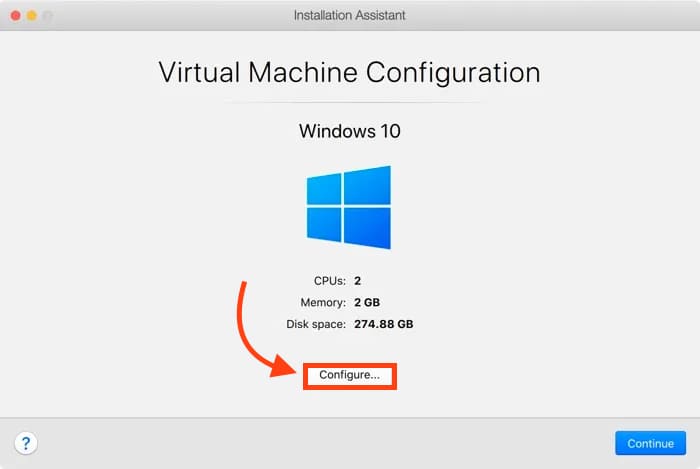
5) Next, you can configure the configuration for the future virtual machine. That is, choose how many cores will work for Windows and how much RAM will be allocated. Regarding RAM, it is recommended not to exceed what is shown on the green slider (see screenshot below).
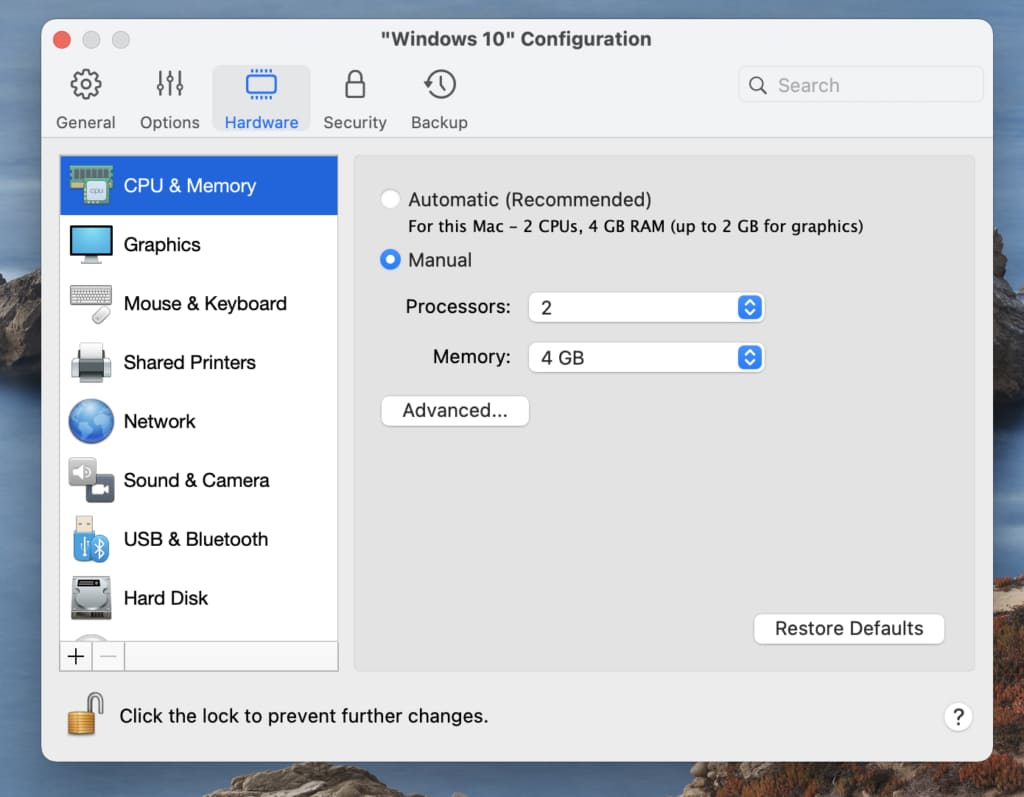
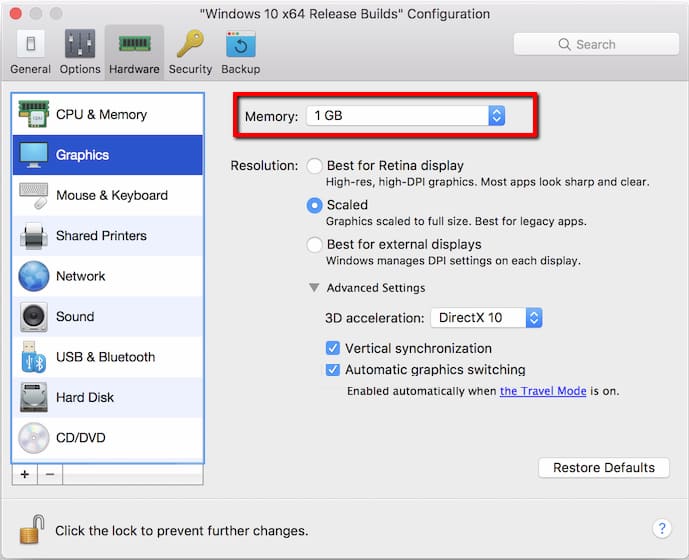
In the “Graphics” menu, you can add the allocated memory of the graphics adapter for Windows if you need to work with any graphics programs that consume a lot of graphics memory.
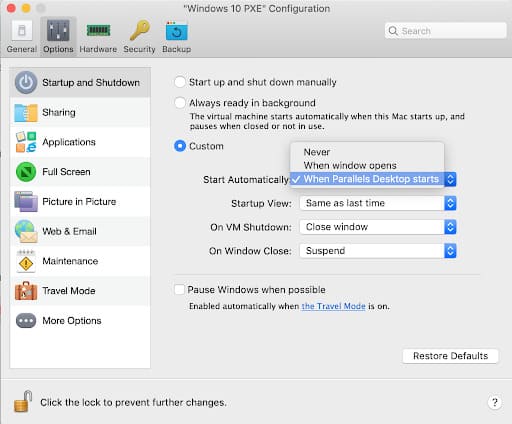
In the “Options” => “Startup and Shutdown” menu, you can edit the startup parameters if necessary, select the required parameter.
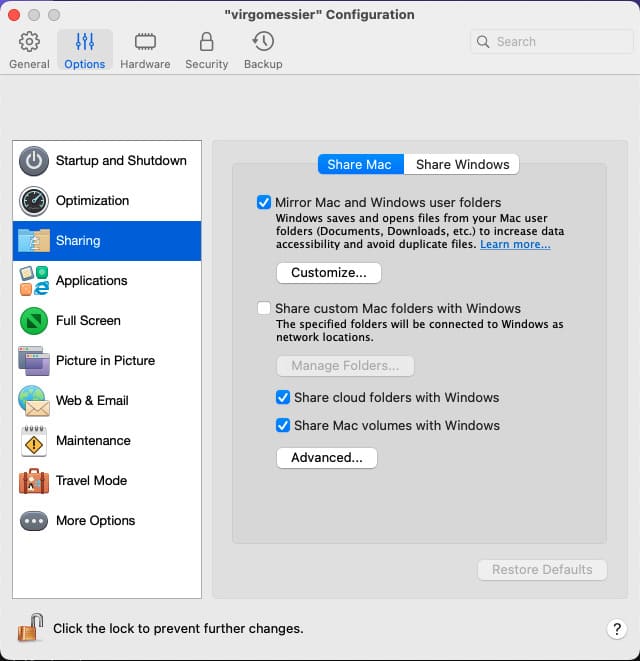
In the “Sharing” menu you can select “Mirror Mac and Windows user folders”. So that you can see all folders in the MacOS system from under Windows.
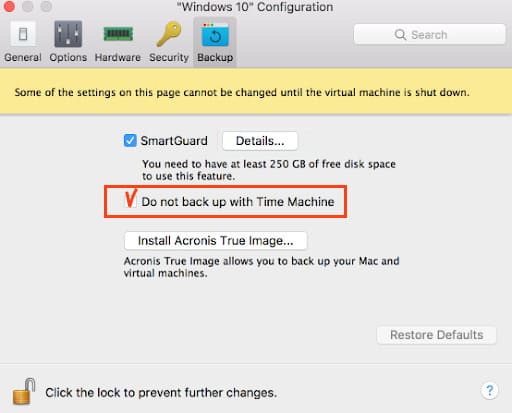
In the “Backup” menu, recommend checking the “Do not back up using Time Machine” option. Since this heavily consumes your computer’s resources, if you need to make backups, it’s better to do it using Windows tools or auxiliary third-party programs from the Windows system.
6) Complete the setup by clicking the red cross and continue.
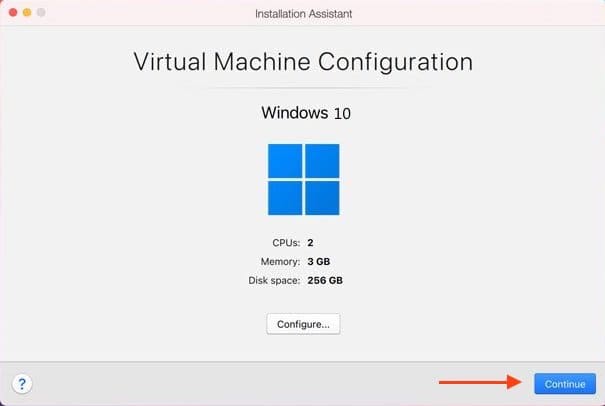
The installation takes some time, depending on the allocated configuration. Usually, no more than 10 minutes. It is no different from a regular Windows installation. During installation, you need to select the edition of Windows that you want and start the installation itself.
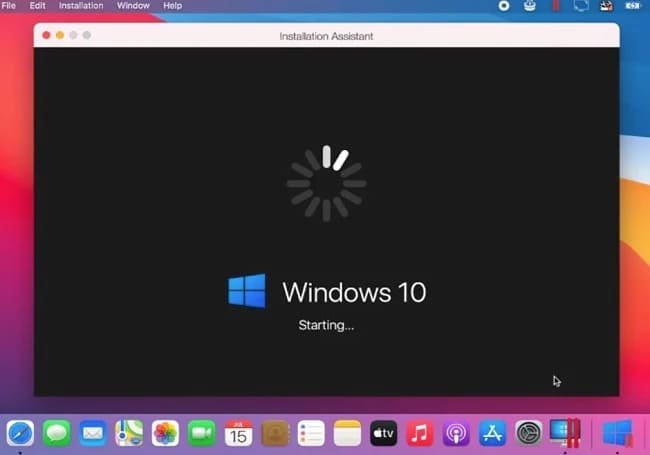
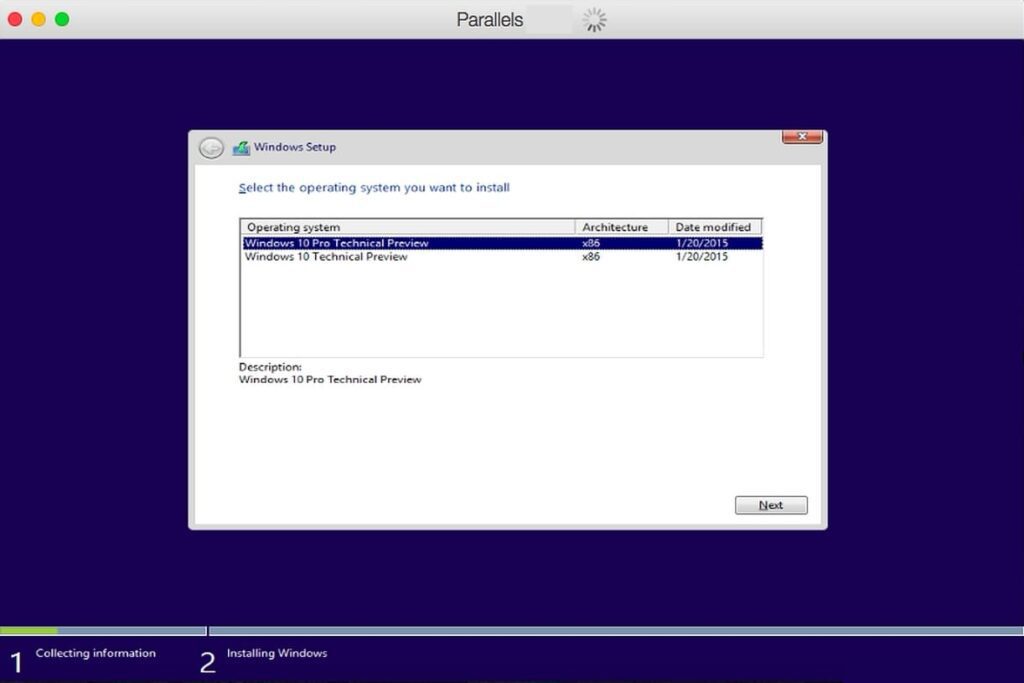
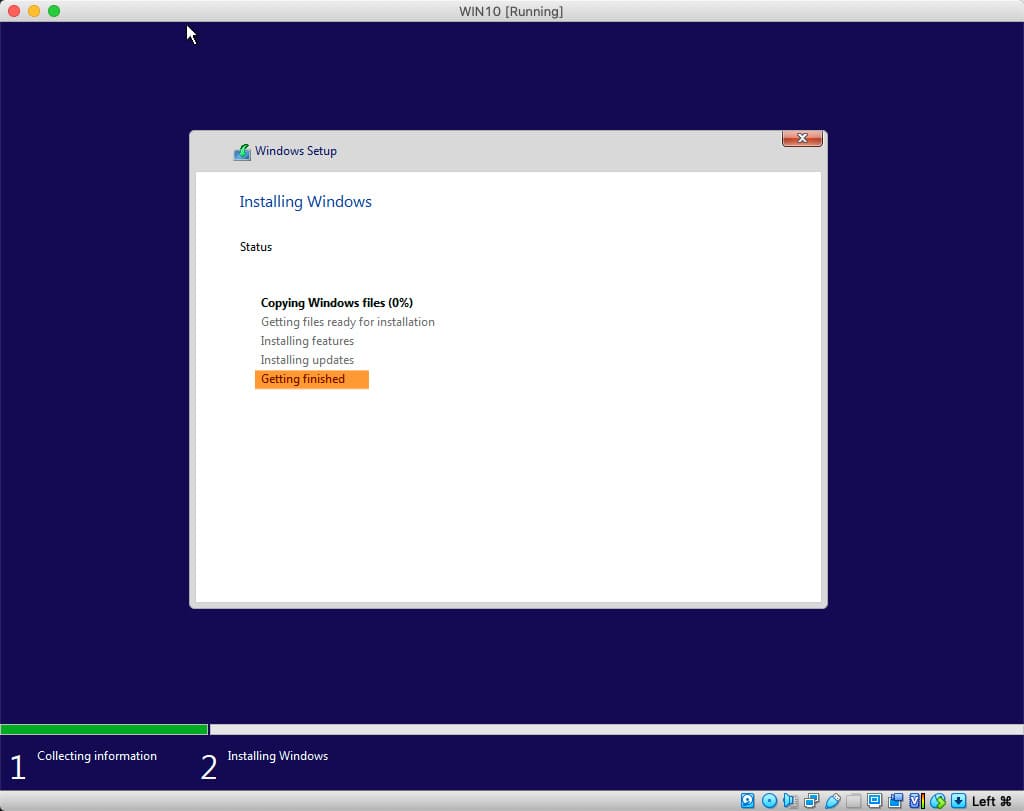
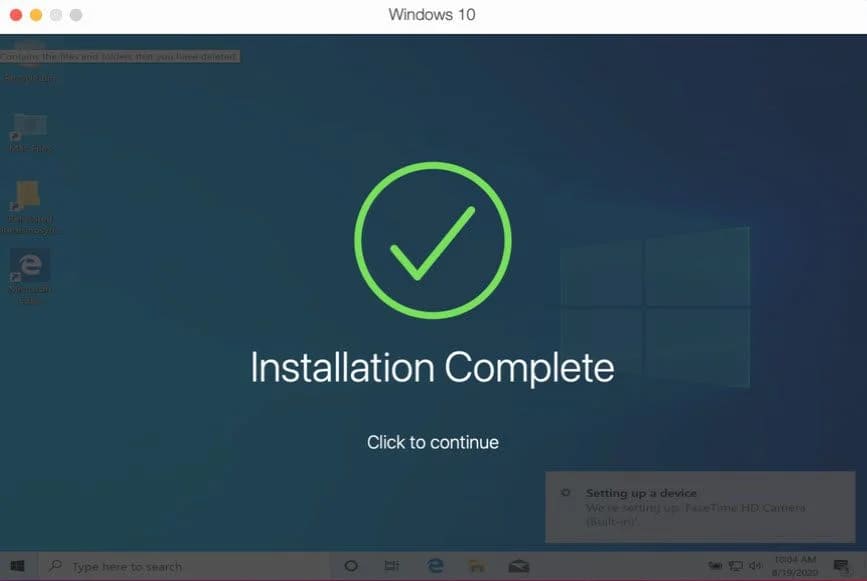
Installation is complete. To add to the article, by default, Parallels Desktop works in windowed mode. You can make it full screen by clicking on the application icon in the Mac desktop tray => View => Enter full-screen mode.
Also, to ensure that your Windows will work correctly in the future, you need to activate it just like a regular system installed outside the virtual machine. To do this, you will need a product key, because the trial version of Windows 10 works for 30 days. You can buy a product key in our online store at the lowest price, different editions (Pro, Home, Enterprise, etc.). Instant product key delivery, automatically sent to your email after payment. Wide range of payment methods. Guarantee and free 24/7 technical support.
You can purchase a Windows 10 product key from our catalog on the following page.