





Account lockouts in a domain are one of the most common reasons users contact technical support. Typically, lockouts occur due to a forgotten password or an application attempting to authenticate with an old (cached) password after the user has changed it.
Account Lockout Policy in Active Directory
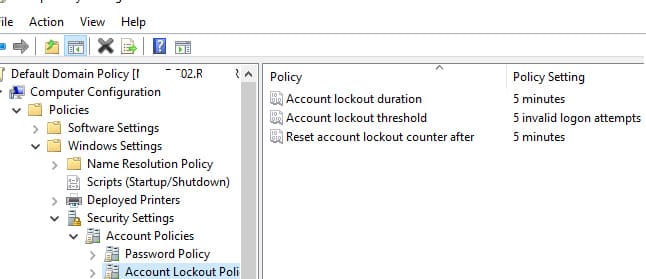
The account lockout feature is enabled by default in Active Directory’s domain security policy settings. Typically, account lockout parameters are configured in the Default Domain Policy GPO under:
Computer Configuration > Windows Settings > Security Settings > Account Policy > Account Lockout Policy
This section includes three main parameters:
– Account lockout threshold — the number of failed password attempts before a user is locked out.
– Account lockout duration — the duration (in minutes) of the lockout, after which the account is automatically unlocked.
– Reset account lockout counter after — the time (in minutes) after which the failed attempt counter is reset.
These parameters apply to all domain users, except for groups with specific policies configured via Fine Grained Password Policy.
Unlocking a User Account Using ADUC
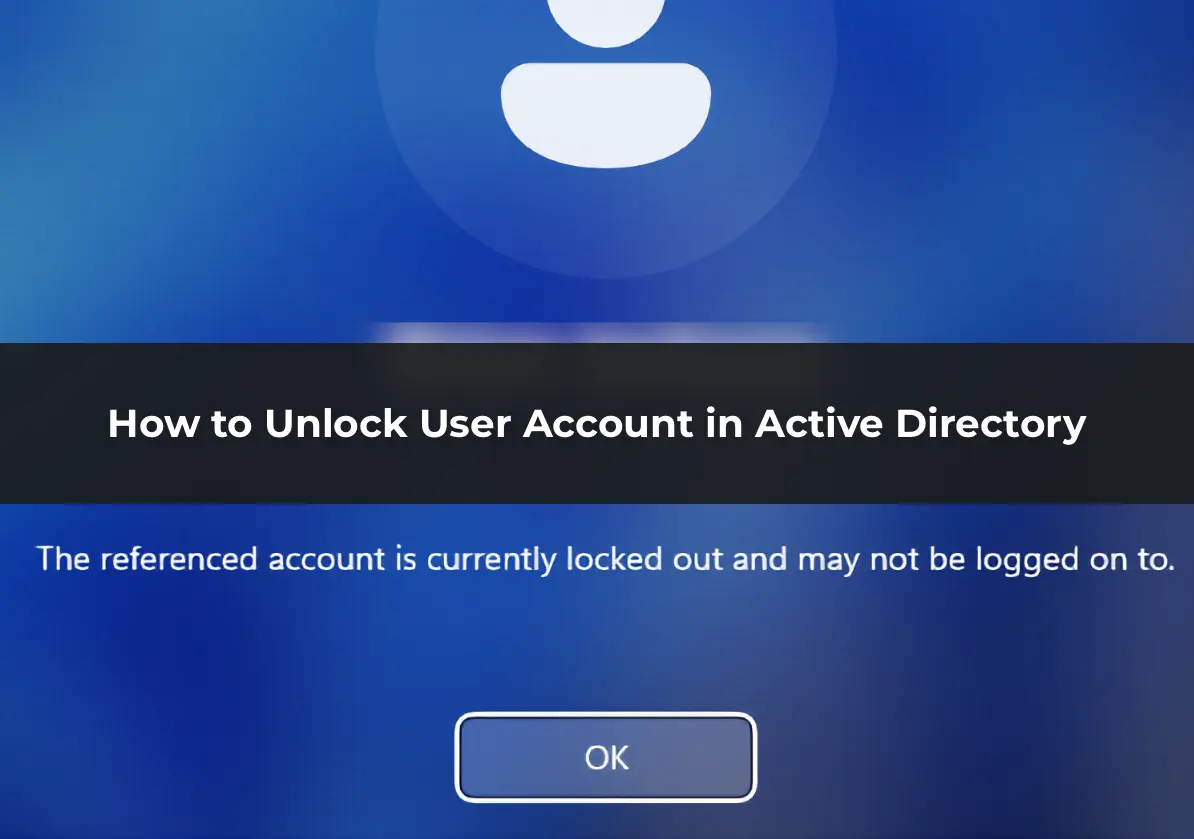
If a user’s account is locked, attempting to log in will display the following message:
The referenced account is currently locked out and may not be logged on to.

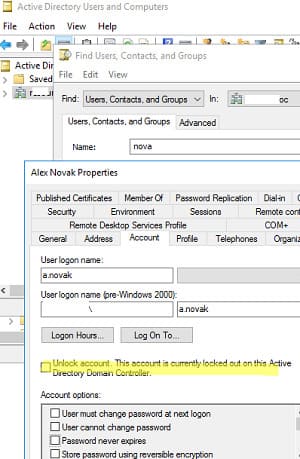
To unlock a user account via the Active Directory Users and Computers (ADUC) graphical console, follow these steps:
1. Launch the console (dsa.msc) and locate the desired AD user.
2. Go to the Account tab. If the user is locked out, you will see the Unlock account option.
3. Enable the unlock option and click OK.
The user can now log into the domain.
To delegate unlock permissions to users (e.g., helpdesk staff), follow these steps:
1. Right-click the Organizational Unit (OU) containing the users and select Delegate Control.
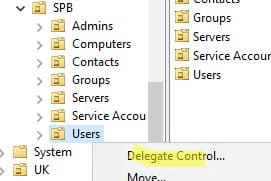
2. Specify the group to grant permissions to (e.g., spbHelpDesk).
3. Select Create a custom task > Only the following objects in the folder > User objects.
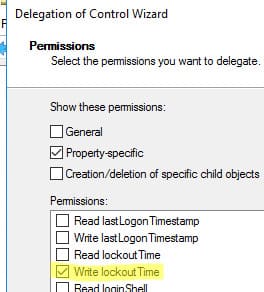
4. In the permissions list, select Write lockout Time.
Now, users in the spbHelpDesk group can unlock accounts.
You can enable an audit policy to track who unlocks user accounts:
Enable the Audit User Account Management policy in the Default Domain Controller GPO (Computer Configuration > Policies > Windows Settings > Security Settings > Advanced Audit Policy Configuration > Audit Policies > Account Management).
After enabling, you can monitor user unlock events with Event ID 4767 in the Security log on the domain controller (A user account was unlocked). The event details who unlocked the account and which account was affected.
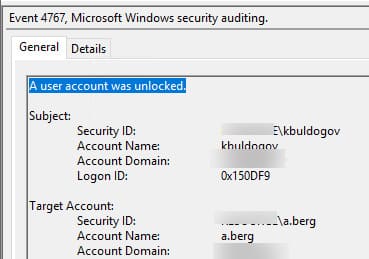
You can also retrieve events by Event ID using PowerShell:
Get-WinEvent -FilterHashtable @{logname='Security';id=4767}|ft TimeCreated,Id,Message
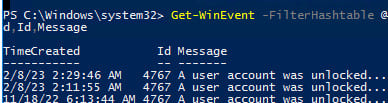
Unlocking a User Account Using PowerShell
Use the Unlock-ADAccount cmdlet to unlock user accounts. This cmdlet is part of the Active Directory module for PowerShell, which can be installed on Windows Server and Windows 10/11 (Pro and Enterprise editions).
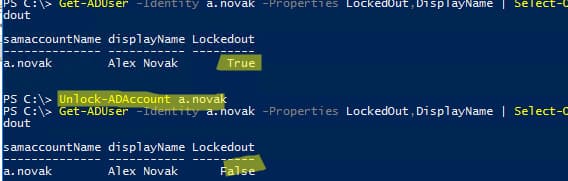
1. Verify that the user is locked out:
Get-ADUser -Identity a.novak -Properties LockedOut,DisplayName | Select-Object samaccountName, displayName,Lockedout
2. Unlock the account:
Unlock-ADAccount a.novak
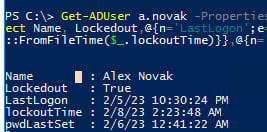
You can also retrieve the lockout time and other user details:
Get-ADUser a.novak -Properties Name,Lockedout, lastLogonTimestamp,lockoutTime,pwdLastSet | Select-Object Name, Lockedout,@{n='LastLogon'; e={[DateTime]::FromFileTime($_.lastLogonTimestamp)}}, @{n='lockoutTime';e={[DateTime]::FromFileTime($_.lockoutTime)}}, @{n='pwdLastSet';e={[DateTime]::FromFileTime($_.pwdLastSet)}}
To find all locked-out users:
Search-ADAccount -UsersOnly -lockedout
To unlock all locked-out users:
Search-ADAccount -UsersOnly -lockedout | Unlock-ADAccount
By following these steps, you can quickly unlock users in Active Directory and prevent repeated support requests.